
Introduction
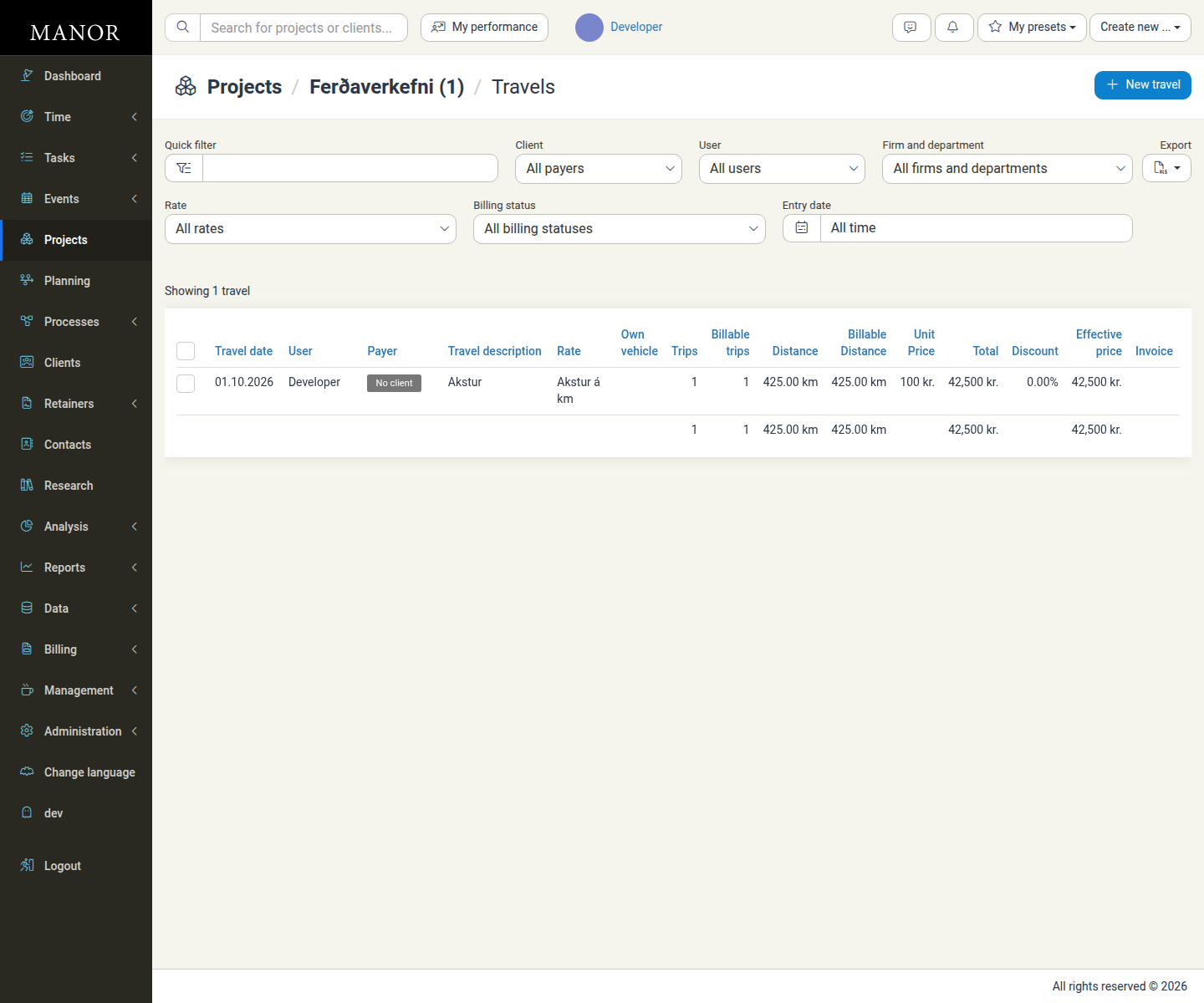
The Travels page in the Data section provides a centralized view of all travel entries logged in Manor. Travel entries record time spent traveling and associated transportation costs for billable work on projects. This section helps you browse, search, filter, and manage all your travel records in one place.
Unlike the Time section which focuses on time entry creation and tracking, the Data section shows you a complete inventory of every travel entry across all projects and users, making it ideal for auditing, analysis, and bulk operations.
Key Fields
When viewing travel entries, you'll see these important fields:
- Travel date — The date the travel occurred
- User — The employee or contractor who logged the travel
- Unit — The department or organizational unit the user belongs to
- Location — The location where the travel originated or occurred
- Payer — The client being billed for this travel
- Project — The project associated with this travel entry
- Travel description — Notes about the travel (e.g., "Flight to London for client meeting")
- Rate — The billing rate applied to this travel entry
- Own vehicle — Whether the travel used a personal vehicle
- Trips — Number of trips logged in this entry
- Billable trips — Number of trips marked as billable
- Distance — Total distance traveled (e.g., 176 km)
- Billable distance — Distance marked as billable to the client
- Unit price — Billing price per unit (per kilometer or per trip, depending on configuration)
- Total — Total cost before discounts (trips or distance × unit price)
- Discount — Any discount applied (as a percentage or fixed amount)
- Effective price — Final billed price after discounts
- Invoice — Whether this travel has been invoiced to the client
Searching and Filtering Travel Entries
Quick Filter
Use the Quick filter field at the top to search travel entries by keyword. This searches across travel descriptions and other text fields, helping you quickly find specific travels.
Advanced Filters
Below the quick filter, you can narrow results using these filters:
Client
Filter by the client (payer) being billed for the travel. Select from a list of all payers or search by name.
Project
Filter by the project the travel is associated with. Useful for reviewing all travels on a specific engagement.
Project billing settings
Filter by how the project is configured for billing (e.g., hourly rate, retainer, fixed price).
Owner
Filter by the person who created or owns the travel entry record.
User
Filter by the employee or contractor who logged the travel.
Firm and department
Filter by organizational unit to see travels logged by specific departments or firms.
Rate
Filter by the billing rate applied to the travel entry.
Billing status
Filter by whether the travel is billed, unbilled, or pending invoice. Useful for identifying travels ready to invoice.
Entry date
Filter by the date the travel occurred. Select a date range or use quick options (this month, this year, etc.).
Clearing Filters
Click Clear filters to reset all filters and see all travel entries without restrictions.
Viewing and Exporting Results
Table Columns
The table displays all fields listed above. You can:
- Sort — Click any column header to sort by that field (ascending or descending)
- Select — Check the checkbox next to entries to select them for bulk operations. A selection bar then appears above the table naming the selection and listing the available actions. Directly beneath the action buttons a Calculated totals row summarises the selection inline, summing Trips, Billable trips, Distance, Billable distance, Total and Effective price; columns without a value show an em dash (
—).
Export
Click the Export button to download the currently visible travel entries as a spreadsheet (CSV or Excel format). This is useful for:
- Reporting to clients
- Analysis in external tools
- Auditing travel expenses
- Creating custom reports
Common Uses
Review unbilled travels
Filter by "Billing status: Unbilled" to find travels waiting to be invoiced. You can then create an invoice from these entries or adjust them before billing.
Audit travel expenses
Use the Date and User filters to review all travels logged by a specific employee during a time period, ensuring accuracy and compliance.
Analyze travel costs
Filter by Client or Project to see total travel costs and distances, helping you understand project profitability.
Find travel on a specific project
Filter by Project name to see all travels associated with a particular engagement, useful when preparing project invoices.
Check travel by rate
Filter by Rate to see which travels are using which billing rates, ensuring consistency in how you charge for travel.
Best Practices
Review travels regularly
Check the Travels page weekly to ensure all travels are logged correctly and ready for invoicing.
Update descriptions
Provide clear, detailed travel descriptions so you and your team can easily identify each entry later.
Verify billing status
Before creating invoices, filter by "Unbilled" to ensure you capture all outstanding travels.
Monitor travel distances
Use the Distance fields to track mileage and ensure accurate reimbursement of travel costs.
Batch invoicing
Group similar travels by project or date range when preparing invoices to ensure consistency.
Related Sections
- Travel Entries (Creation) — Log new travel entries in the Time section or project detail pages
- Data Overview — See all data types available in Manor
- Billing — Create invoices from unbilled travel entries
- Projects — View travel entries from specific project pages
- Reports — Analyze travel data and costs in reporting section