
The Imports feature allows you to bulk import data from Excel files into Manor, saving time when adding multiple clients, time entries, expenses, products, and tasks.
Imports cover the records that are logged against your work — clients and billable items. Projects (matters) themselves are not imported: they are a prerequisite that must already exist before you import the entries that refer to them. See Importing Projects below.
Accessing Imports
To access the Imports feature:
- Navigate to Management from the main menu.
- Click Imports.
The Imports page lists all previously imported batches and provides an option to create a new import.
Creating a New Import
To import data from an Excel file:
-
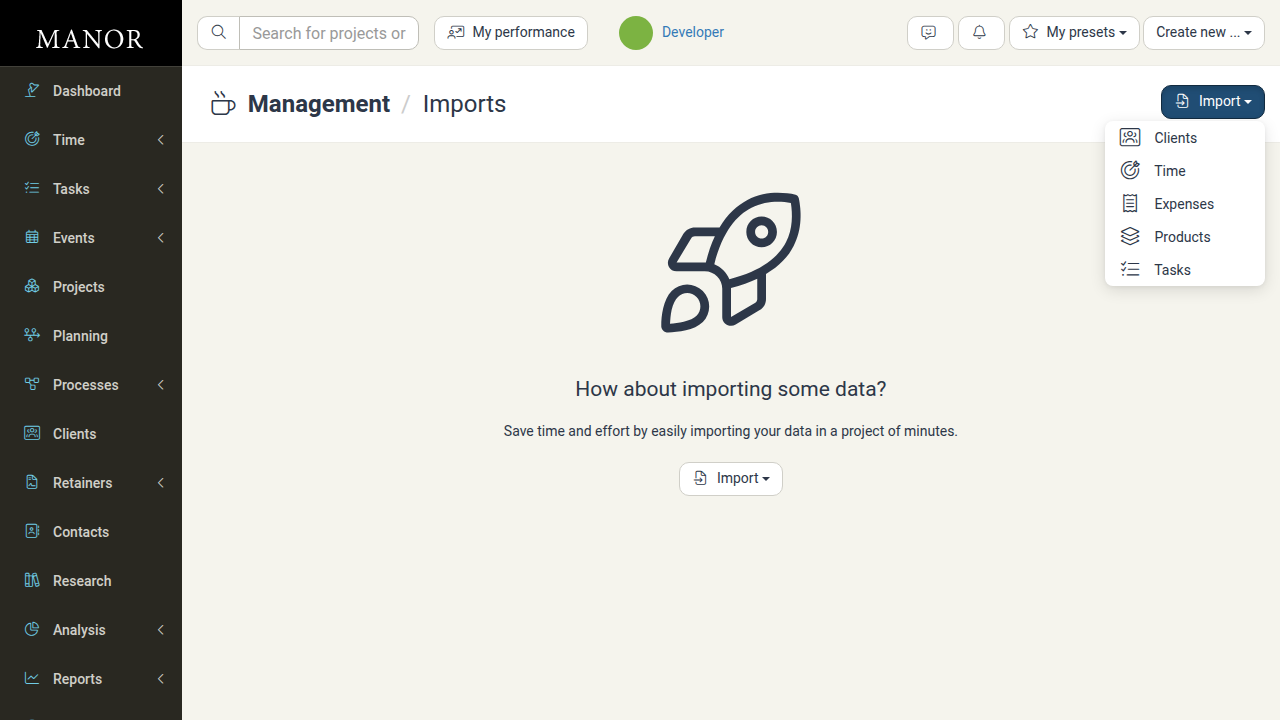
On the Imports page, click the Import button.
-
Select the type of data you want to import:
- Clients — Import new client records in bulk
- Time — Import time entries for one or more users
- Expenses — Import expense records
- Products — Import product records for billing
- Tasks — Import tasks into existing projects
-
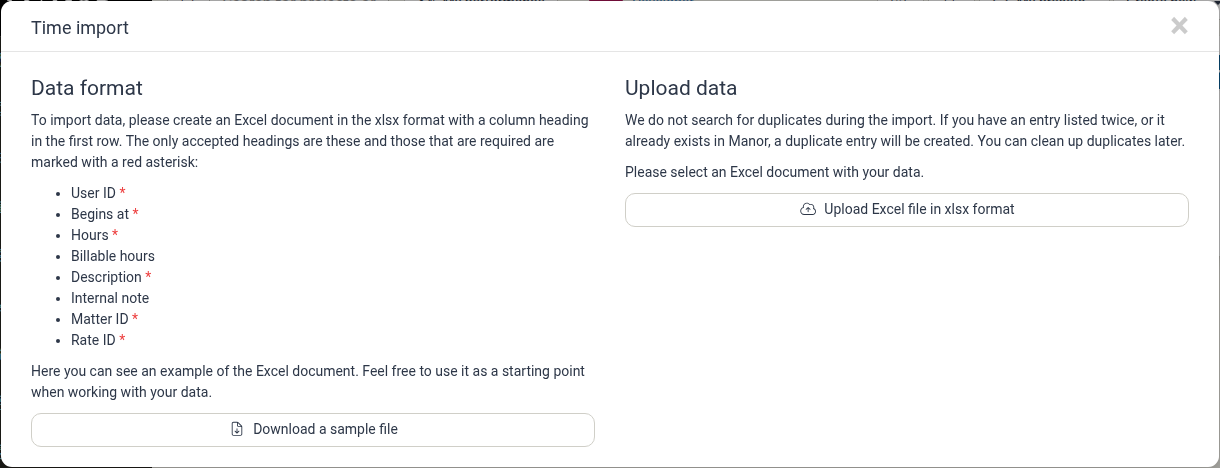
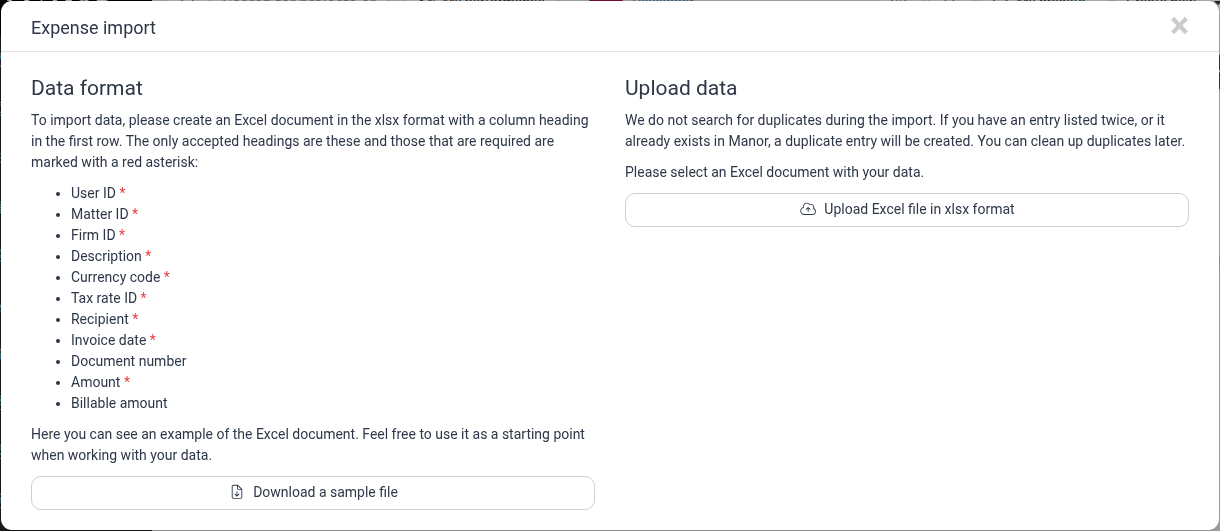
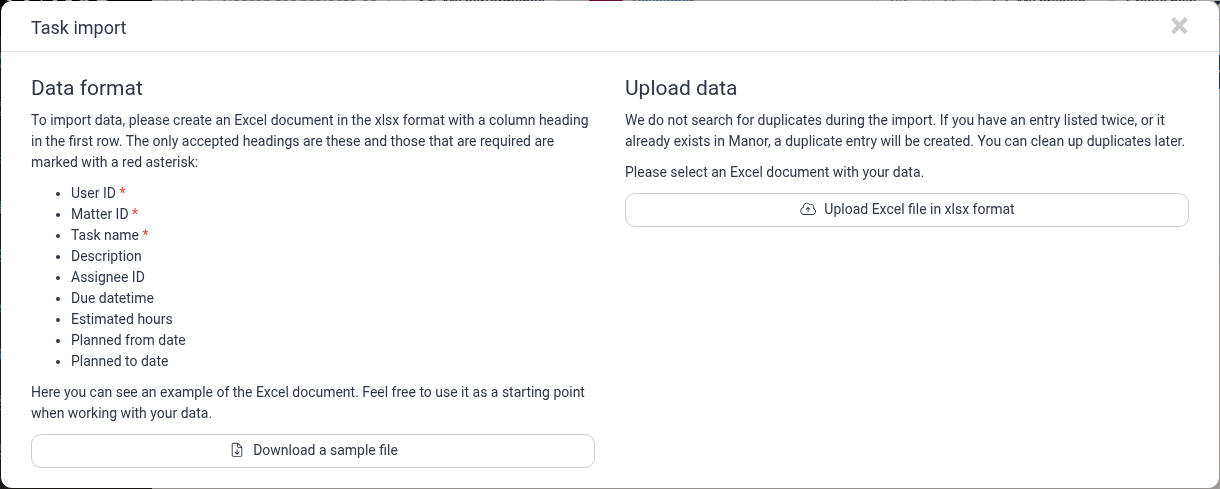
The import dialog opens and shows two things:
- Data format — the exact column headings the file must use, with required ones marked with a red asterisk (*), plus a Download a sample file button.
- Upload data — the Upload Excel file in xlsx format button and a reminder that Manor does not look for duplicates.
-
Download the sample file and use it as a template for your own data.
-
Prepare your Excel file (.xlsx format) with the required columns in the first row.
-
Upload your Excel file.
-
When processing finishes, a confirmation dialog reports how many entries were imported and lets you browse the imported data or undo the import later.
Data Format Requirements
Each import type has specific required and optional columns:
- Required columns are marked with a red asterisk (*) in the import dialog.
- The first row must contain column headings.
- Column names must match the headings listed below exactly.
- Files must be in .xlsx format.
| Import type | Required columns | Optional columns |
|---|---|---|
| Clients | National ID, Name, Currency code, Country code | Email, Phone, Address line 1, Address line 2, Postal code, Neighborhood / Suburb, City, Administrative area, Note |
| Time | User ID, Begins at, Hours, Description, Matter ID (and Rate ID — see below) | Billable hours, Internal note |
| Expenses | User ID, Matter ID, Firm ID, Description, Currency code, Tax rate ID, Recipient, Invoice date, Amount | Document number, Billable amount |
| Products | User ID, Matter ID, Description, Quantity, Rate ID, Date | Billable quantity, Custom price |
| Tasks | User ID, Matter ID, Task name | Description, Assignee ID, Due datetime, Estimated hours, Planned from date, Planned to date |
Identifying records
Most columns that reference something in Manor expect the internal ID number of that record, not its name:
- User ID, Firm ID, Rate ID, Tax rate ID — the ID of an existing user, firm, rate or VAT rate.
- Matter ID — the ID (number) of an existing project. You can also use
project ID-activity ID(for example1234-56) to post an entry to a specific activity within the project. - Currency code and Country code — three-letter currency codes (for example EUR) and two-letter country codes (for example US).
The sample file you download contains supporting sheets — Matters, Users, Firms, Rates, Currencies and Countries — that list the valid IDs for your organization, and the ID columns in the sample have dropdown lists so you can pick a valid value. Project entries in the sample file include both projects and their activities.
Dates and numbers
- Begins at, Date, Invoice date and Due datetime must be real Excel date/time cells, formatted through Excel's Cell format function — not text. Due datetime must include a time as well as a date.
- Hours, Billable hours, Quantity, Billable quantity, Amount, Billable amount and Custom price are numbers.
Time and Rate ID
The Rate ID column in the Time import is required when personal rates are not in use: each time entry then needs the ID of an existing rate of type time. If your organization uses personal time rates, the Rate ID column is not part of the import at all, because the rate is taken from the user's personal rate.
Task planning columns
In the Task import, Estimated hours, Planned from date and Planned to date work as a group: if you fill in any one of them, you must fill in all three. When both dates are given, Planned from date must be before Planned to date.
Importing Projects
Projects (matters) cannot be imported from an Excel file. The Import menu offers Clients, Time, Expenses, Products and Tasks only — there is no Projects option, and no Excel column format for creating projects.
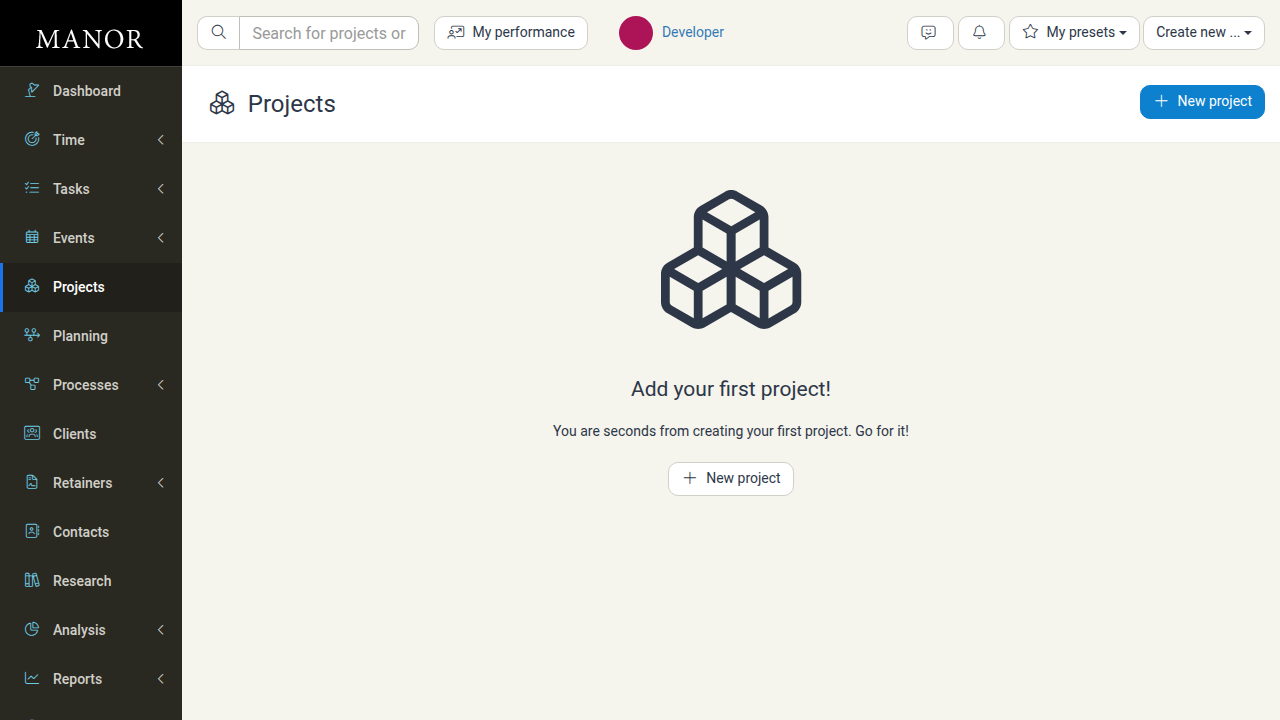
This matters because projects are a prerequisite for most other imports:
- Time, Expenses, Products and Tasks are all matched to a project through the Matter ID column. Every row must reference a project that already exists, is open, and is visible to you. A project you cannot access (for example another firm's confidential project) is treated as if it did not exist.
- Importing a client does not create projects for that client. Client and project setup stay separate steps.
- No import creates, renames or closes projects. Imports only add records to existing projects.
How to get projects into Manor
- Create projects one at a time — see Project Creation. Only the Project name is required, and you can select the client and any other properties at the same time.
- Use templates to speed up repetitive setup — see Templates. A template pre-fills custom fields, process and initial state for new projects of the same kind, so each new project takes fewer steps.
- Work with many projects afterwards — the Data > Projects page lets you filter, export and apply bulk actions (close, open, lock, add or remove participants, change owner, add or remove labels) to projects that already exist. It does not create them.
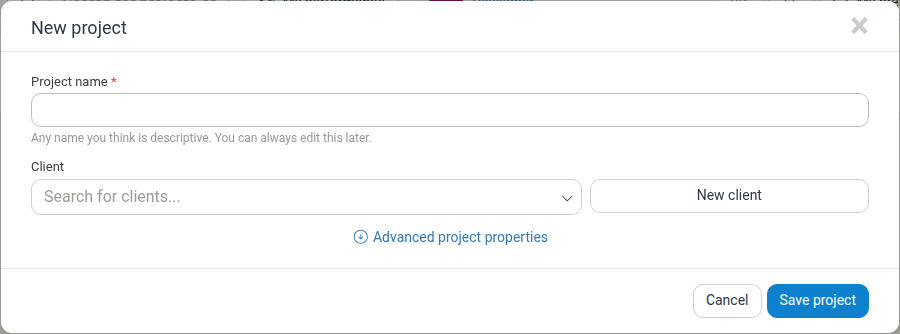
If you need to create a large number of projects programmatically, contact Manor support to discuss the integration options available for your setup.
Planning the order of your imports
Because projects are referenced but never created by imports, a typical bulk load follows this order:
- Clients — import the clients first, so projects can be assigned to them.
- Projects — set the projects up in Manor, with their client, participants and settings.
- Time, Expenses, Products and Tasks — import the entries, using the project IDs (Matter IDs) from step 2.
Validation and Error Handling
The system validates your data before anything is imported:
- Nothing is imported if any row is invalid. Manor checks the whole file in one pass and lists the problems it finds; if there is at least one error, the entire file is rejected and no records are created. Fix the file and upload it again.
- Errors are reported per column and row, for example an empty required field, a value that is not a valid email address or currency code, an unknown user or rate ID, or a date that is not formatted as an Excel date. The list is capped, so a file with a very large number of problems shows the first errors plus a note that more exist.
- Empty rows are skipped. Completely blank rows are ignored rather than reported as errors.
- Required columns must be present. If a required heading is missing from the first row, the import stops with a message naming the missing column.
Duplicate Handling
- No duplicate detection — The system does not search for duplicates during the import. If an entry is listed twice in your file, or already exists in Manor, a duplicate entry will be created. You can clean up duplicates later.
- The same file is remembered — if you upload a file that has been processed before, Manor warns you that the file has already been imported and that uploading it again may create duplicate entries, and asks whether you want to continue.
- Client national IDs are the exception — a national ID that has been freed up (for example because the previous client was deleted) can be reused, so re-importing a client list does not fail on an old national ID.
- The import confirmation reminds you — after an import finishes, Manor notes that if any of the entries existed before the import, there are now two entries with the same details.
Managing Imports
The Imports page lists every batch you have imported, with its number, created at date, the user who created it, its type, the number of lines imported and the comment. Use the quick filter to search by number, date, user or comment.
Clicking a batch opens its details, where you can:
- See the type, number of lines, when it was created, who created it and its comment.
- Edit the batch to change the comment (and its created date).
- Browse the imported data, with the same filters and bulk actions you have for those records elsewhere in Manor.
- Revert the import to remove the entries that came from it.
An import cannot be reverted once its entries have moved on in the workflow — for example entries that are already billed, belong to a closed retainer period or closed pay period, have been processed in payroll, or (for clients) already have projects or billable entries. When that happens, the details window explains which entries block the revert.
Limitations
- Projects cannot be imported. Neither projects nor their activities can be created from an Excel file. See Importing Projects.
- No name-based matching. References must be internal IDs. A project or client name in an ID column is not looked up.
- Closed projects are refused. Billable and task entries can only be added to open projects.
- No updates, only additions. Imports create new records; they do not update or merge existing ones.
- Fields outside the listed columns are not imported. Anything not represented by an accepted heading (for example project settings, activities, notes on projects, or invoices) has to be handled in the application.
- Very large files keep working in the background. Large imports continue processing after you upload them, and their progress is shown on the import's details while they run.
Important Notes
- Validation — The system validates your data according to each column's requirements. Review any error messages to correct your file.
- Sample files — Download sample files from each import dialog to see the correct format for your data, including the supporting sheets with valid IDs.
- Reverting cleans up — If an import does not come out as expected, revert it rather than deleting records one by one, as long as its entries have not been billed or otherwise processed.
Best Practices
- Use sample files — Always download and review the sample file before preparing your data.
- Set up projects first — Make sure the clients and projects your entries refer to exist and are open before importing anything that references them.
- Write down your IDs — Collect the project numbers (and activity numbers, if relevant) you plan to use before you build the file.
- Validate data — Check your Excel file for errors before uploading, especially dates, which must be real Excel date cells.
- Test imports — If importing large datasets, test with a small sample first.
- Keep records — Save copies of imported files for audit and reconciliation purposes, and use the comment on the import batch to note what it contained.
Related Topics
- Management Overview — The other configuration areas in Management
- Project Creation — Creating projects, including clients, participants and billing settings
- Templates — Standardising project setup with pre-configured fields
- Projects (Data) — Filtering, exporting and bulk-managing existing projects
- Exporting Tables to Excel — Downloading Manor tables as .xlsx files