
Introduction
Calendars in Manor provide a centralized view of your schedule, appointments, time commitments, and logged work. Manor combines personal scheduling with project workflows, time logging, and external integrations so you can manage court appearances, meetings, deadlines, and working hours in one cohesive platform.
Using calendars in Manor allows you to:
- Schedule and visualize appointments and deadlines with Events.
- Track and inspect time entries across dedicated Day, Week, and Month views.
- Automatically sync calendar activities from external accounts like Microsoft Office 365, Google Calendar, and Court events.
- Turn calendar events into billable work through automated revenue beats.
- Display regional non-working days using Holiday calendars.
Calendar Types in Manor
Manor includes two main calendar areas, each serving distinct aspects of your workflow:
| Calendar Area | Navigation Path | Purpose |
|---|---|---|
| Events Calendar | Events > Calendar (/event/calendar) |
Displays scheduled appointments, meetings, hearings, and deadlines with alerts and project links. |
| Time Tracking Calendars | Time (/time, /time/day, /time/month) |
Displays logged time entries across Day, Week, and Month views to track daily progress and billable hours. |
The Events Calendar
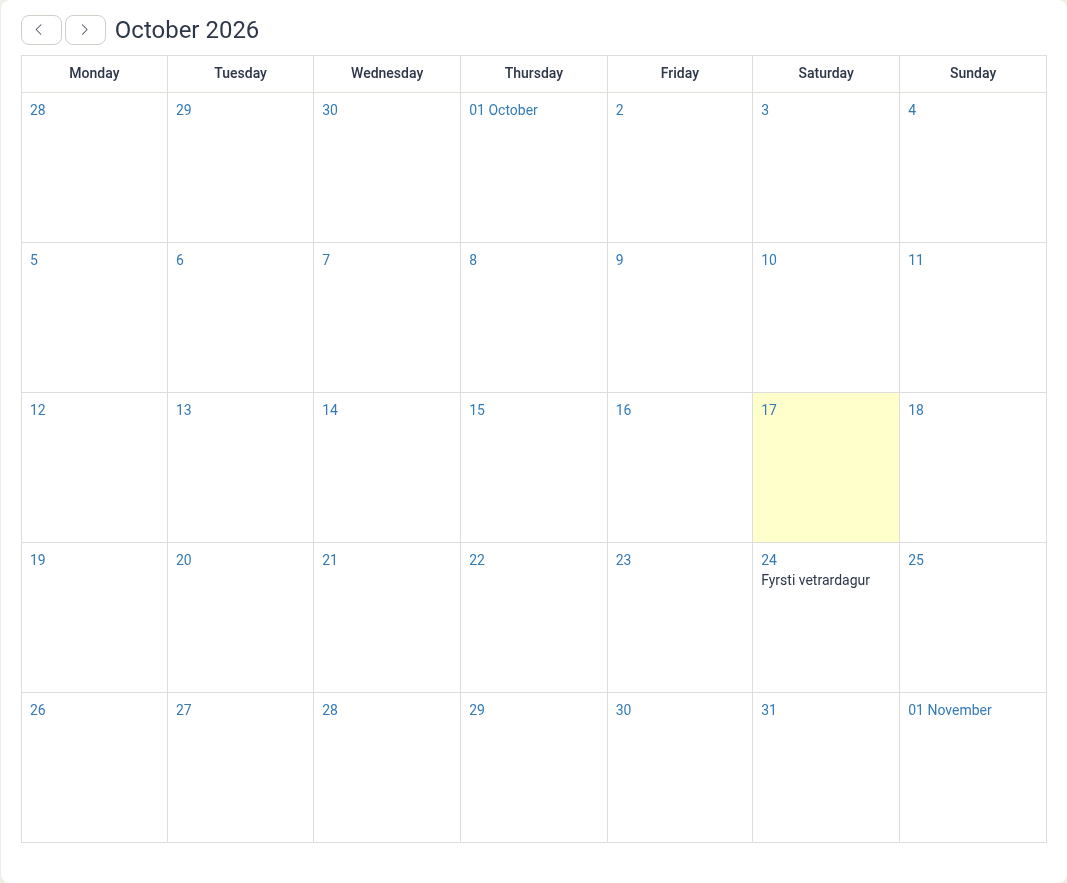
The Events calendar provides a visual monthly grid of all your commitments and deadlines.
Key Features of the Events Calendar
- Month Navigation: Move smoothly between months using the arrow buttons or return instantly to today using Current month.
- Day Click: Click a day to open that date in the Time day view. Double-click a day (or use New event) to create an event for that date.
- Table View: Switch between the calendar grid and the Table view (
Events > Table) to search, sort, and batch-filter events across creators, assignees, and dates. - Event Alerts: Configure primary and secondary advance reminder alerts (e.g., 15 minutes before, 1 day before) so you never miss an appointment.
- Project Association: Link events to specific projects to organize all meetings and court dates with their respective client matters.
Time Tracking Calendars (Day, Week, Month)
The Time section provides dedicated calendar views tailored for logging and verifying billable hours:
Day View (/time/day)
Focuses on an hourly timeline for a single day:
- Timeline Grid: Breaks your working day into configurable increments (e.g., 15-minute or 30-minute intervals).
- Your Beats: Displays automated time entry suggestions generated by connected external calendars and activity patterns.
- Dismissed Beats: Keeps a record of ignored suggestions, which can be restored or referenced later.
- Beat Sources Settings: Quickly toggle beat generation for Court events, Outlook, or Google.
Week View (/time)
The default time view displaying 7-day columns for the current week:
- Shows daily logged totals and weekly summaries.
- Allows you to log time directly against specific days.
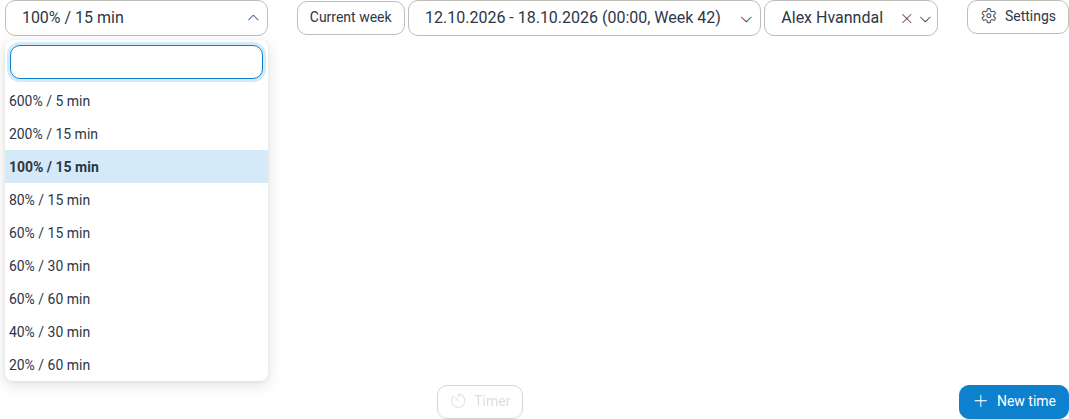
- Use the zoom and increment selector in the toolbar to change how much of the week is shown and how finely the grid is divided (for example
100% / 15 min). - Access the Holiday calendar settings dialog via the Settings button to configure default and extra regional holidays.
Month View (/time/month)
A comprehensive bird's-eye view of your working month:
- Displays total hours logged on each calendar day, and on working days the total compared with the expected daily hours (for example
7.5 / 8 hrs). - Shows the individual time entries in each day cell, and marks the current day and holidays.
- Click any day number to drill directly into that day's detailed log.
Working Hours on Calendars
Which hours of the day appear on the Day and Week grids is controlled by the firm's Calendar working time (Start of day / End of day), and the working day itself is described by the firm's Office hours. The expected number of hours for each working day is set by the firm's daily working hours (with an optional Friday override), and the Day, Week and Month views compare your logged hours with that value. The Daily target (set per user, defaulted company-wide) is the separate metric shown on the Dashboard. For how all of these settings fit together, see Workday Length.
Calendar Sync and External Integrations
Rather than manually duplicating meetings and schedule items across platforms, Manor connects directly to external calendar services through your user profile:
- Click your profile name in the top right corner.
- Select Integrations (or navigate to
/profile/integrations).
Supported Calendar Services
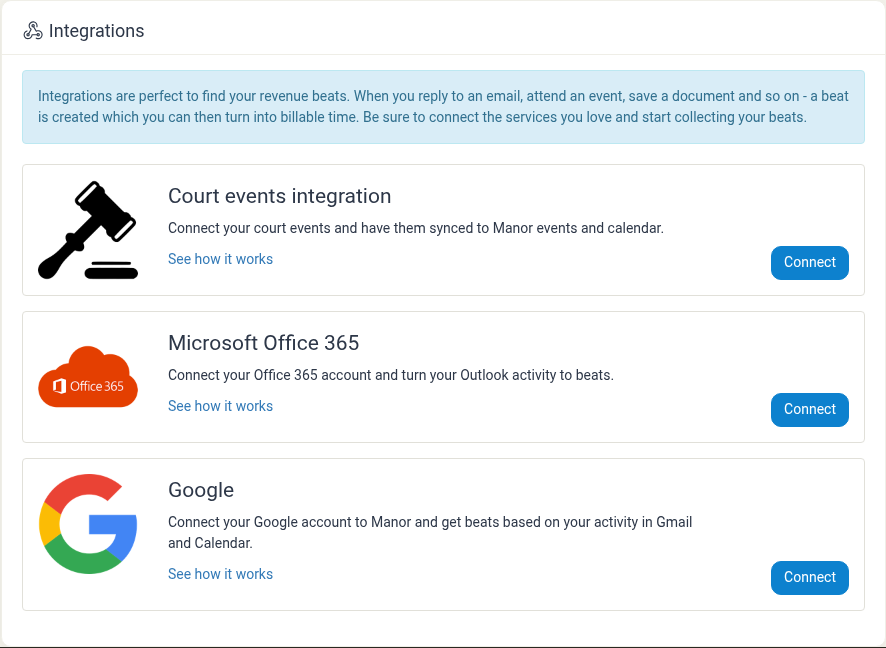
- Court events integration: Connects directly to external court scheduling platforms to sync hearing dates, courtroom sessions, and statutory deadlines into your Manor calendar.
- Microsoft Office 365: Connects to your Microsoft Exchange/Outlook calendar and email. Meetings and appointments sync securely to Manor and generate revenue beats.
- Google: Connects to your Google Workspace or Gmail account to capture scheduled meetings and calendar commitments.
How External Calendars Generate Revenue Beats
When external calendar services are connected:
- Synchronous Fetching: Manor securely reads scheduled events from your connected calendar accounts.
- Beat Suggestions: Each calendar appointment generates a suggested revenue beat in your Time Day view (
/time/day). - One-Click Conversion: Click on the beat suggestion to review the suggested duration, link it to the relevant client matter, and convert it into a confirmed billable time entry.
- Custom Beat Sources: Open Settings in the Day view to toggle which connected calendars produce beats (Court events, Outlook, or Google).
For a complete breakdown of revenue beats, see Beats.
Holiday Calendars
Holiday calendars display public holidays and non-working days within your calendar views:
- Default Holiday Calendar: Configured at the firm level (e.g., "Iceland", "United States", "United Kingdom") by system administrators and automatically applied to all users.
- Extra Holiday Calendars: Personal multi-regional calendars you can add under
Time > Settings(Holiday calendar settings). If you work with cross-border clients or across multiple offices, adding extra holiday calendars ensures non-working days in all locations are clearly highlighted.
For detailed configuration steps, see Holiday Calendars.
Best Practices
- Connect Calendar Integrations Early: Connecting Outlook or Google Calendar immediately eliminates double-entry and surfaces billable meetings you might otherwise forget to log.
- Check Your Day View Beats Daily: Review suggested calendar beats at the end of every workday while meetings and project discussions are fresh in mind.
- Link Events to Projects: Always assign a project when creating calendar events so all related activities, files, and billables stay unified under the matter.
- Set Advance Reminders: Use the primary and secondary alert options on important hearings and client meetings to stay ahead of schedule.
- Leverage Both Month and Day Views: Use the monthly Events calendar for high-level planning and deadlines, and the Day/Week Time views for daily execution and hour logging.
Related Articles
- Events — Creating, editing, and managing calendar events and reminders.
- Calendar Sync — External synchronization setup and requirements.
- Beats — Converting calendar activity into billable time entries.
- Time Tracking — Comprehensive guide to logging hours across calendar views.
- Workday Length — Setting daily working hours and how they affect calendars.
- Holiday Calendars — Managing national and regional holiday schedules.
- Profile Integrations — Managing personal connected accounts.