
A project can be covered by one of its client's retainers, so that the billable work logged on the project is drawn from the retainer's pre-paid balance instead of being invoiced on its own. This article explains how to add a project to a retainer, where coverage is shown, and how to change or remove it.
What is project retainer coverage?
Project retainer coverage is the link between a project and a client's retainer. While a project is covered by a retainer, the billable work logged on it counts against the retainer and draws down its balance. The retainer's own settings — its periods, amount, billable types and how overflow and unused balance are handled — determine the details; see Retainers.
Each project can belong to only one retainer at a given time, and the retainer must belong to the same client as the project.
Adding a project to a retainer
From the project page
The Add project to a retainer action appears on the project page only when the project's client already has at least one open retainer.
-
Open the project (Projects, then the project).
-
In the project action bar, click Add project to a retainer.

-
The Add project to a retainer dialog opens.
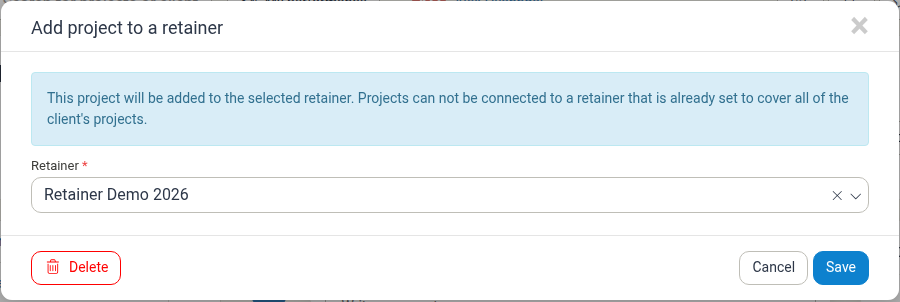
The dialog shows the message: This project will be added to the selected retainer. Projects can not be connected to a retainer that is already set to cover all of the client's projects.
-
Choose the retainer in the required Retainer field. Only retainers that can cover this project's client are listed.
-
Click Save.
The dialog's buttons are Cancel (closes the dialog without saving) and Save (applies the selection). It also has a Delete button, which asks you to confirm before continuing.
From the retainer
- Open Retainers in the main navigation and open the retainer.
- Click Edit retainer.
- In Projects covered, choose All projects, Selected projects or No projects. If you choose Selected projects, add the projects in the Selected projects field.
- Click Save.
Note: Internal and confidential projects cannot be covered by retainers. A retainer that is already set to cover all of the client's projects cannot be chosen for an individual project.
Understanding retainer coverage
Once a project is covered by a retainer:
- The billable work logged on the project counts against the retainer and draws down its balance.
- The retainer's Charge billables that exceed retainer and What to do with unused retainer settings decide what happens above and below the retainer amount.
- The project's own billing settings (for example its billing email address, buyer reference and invoice layout) still apply to the project.
What counts against the retainer
Only the billable types selected in the retainer's Billable types field are drawn from the retainer: Time, Travels, Products, Expenses and Per diems. Work of a type the retainer does not cover — and work on projects the retainer does not cover — does not draw on the retainer balance.
Retainer coverage and invoice splits
A project covered by a retainer cannot use invoice splits. When a project is covered, its Invoice split card says No invoice splits defined in this project. together with Invoice splits are not available for projects covered by a retainer., so no split can be added.
The restriction also applies when configuring the retainer: a retainer cannot be set to cover All projects for a client if one of the client's projects already has invoice splits configured, because such a project cannot be covered. See Invoice Splits.
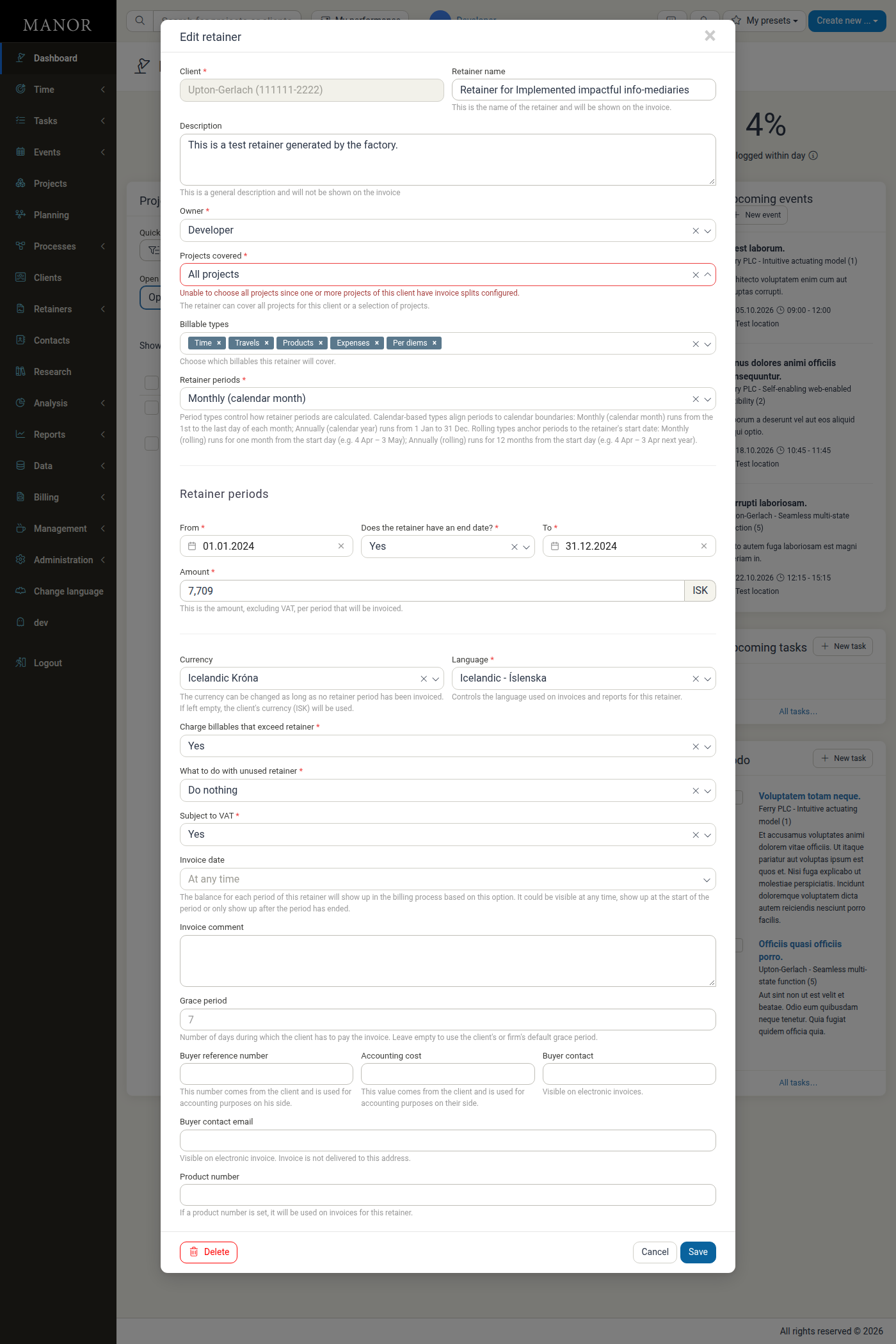
To cover a project that has invoice splits, remove its invoice splits first.
Managing retainer coverage
Where coverage is shown
On the project page, the Retainers card lists each retainer that covers the project, with its start date, period type, amount and status (for example Active); clicking a row opens the retainer. When no retainer covers the project, the card says No retainers are covering this project., and a New retainer action creates a retainer for the project's client. The Unbilled card also notes This project is covered by a retainer so it is not billed individually. and links to the retainer.
On the Projects list, the Covered by retainer column shows whether a project is covered, and the Retainer filter limits the list to Covered by any retainer, Covered by active retainer, Covered by inactive retainer or Not covered by any retainer.
On the retainer, the detail view shows the retainer's Status and Projects covered, and the Retainer flow and Accumulated unbilled sections with the amount, used, unused and exceeding amounts per period. See Retainers.
Removing a project from a retainer
- Open Retainers and open the retainer.
- Click Edit retainer.
- In Projects covered, remove the project from the selection.
- Click Save.
Future work on the project no longer counts against the retainer.
Moving a project to another retainer
- Remove the project from its current retainer (see above).
- Add it to the other retainer (see Adding a project to a retainer).
A retainer that already covers all of the client's projects does not appear as a choice for an individual project.
Best practices
- Add projects at the start of the engagement so that the work is tracked against the retainer from the first entry.
- Use the right client's retainer — the retainer must belong to the same client as the project.
- Check the billable types — if work is not being drawn from a retainer, confirm that the project is covered and that the billable type is selected on the retainer.
- Review coverage before invoicing — filter the Projects list by Not covered by any retainer to catch projects that should be covered.
Troubleshooting
I don't see Add project to a retainer on the project page
- The project's client has no open retainer. Create a retainer for the client first; see Retainers.
- You may not have permission to edit the project.
The retainer I need is not listed in the dialog
- The retainer must belong to the same client as the project.
- A retainer that already covers all of the client's projects cannot be chosen for an individual project.
Related documentation
- Retainers — creating retainers, periods, amounts, billable types and the retainer detail view
- Invoice Splits — dividing a project's billing across clients (not available for retainer-covered projects)
- Multiple Payers on a Project — invoice splits, payer preferences and per-entry payers
- Project Billing Settings — project billing and invoice fields
- Projects — the Projects list, its columns and filters
- Retainers (Data) — the retainers data table