
Introduction
Billables in Manor's Data section provides a unified, firm-wide view of all billable work items logged across all categories—including time entries, travel entries, expenses, products, and per diems. Instead of checking separate tables for each entry type, Billables lets you inspect, audit, and export every billable transaction in one place.
This view is essential when you need to:
- Audit billable work before invoicing — Review all items logged across team members and expense types to verify accuracy and completeness.
- Track billing status — Filter quickly between billed, unbilled, and written-off items.
- Search across item types — Find entries across projects, clients, and types with a single query.
- Verify pricing and discounts — Audit rates, quantities, discounts, and effective billing prices firm-wide.
- Export comprehensive datasets — Generate spreadsheets containing all billable activities for auditing or external accounting systems.
Accessing Billables
To access the Billables view:
- Click Data in the main navigation menu.
- In the Data menu or overview page, click Billables (URL:
/data/billable).
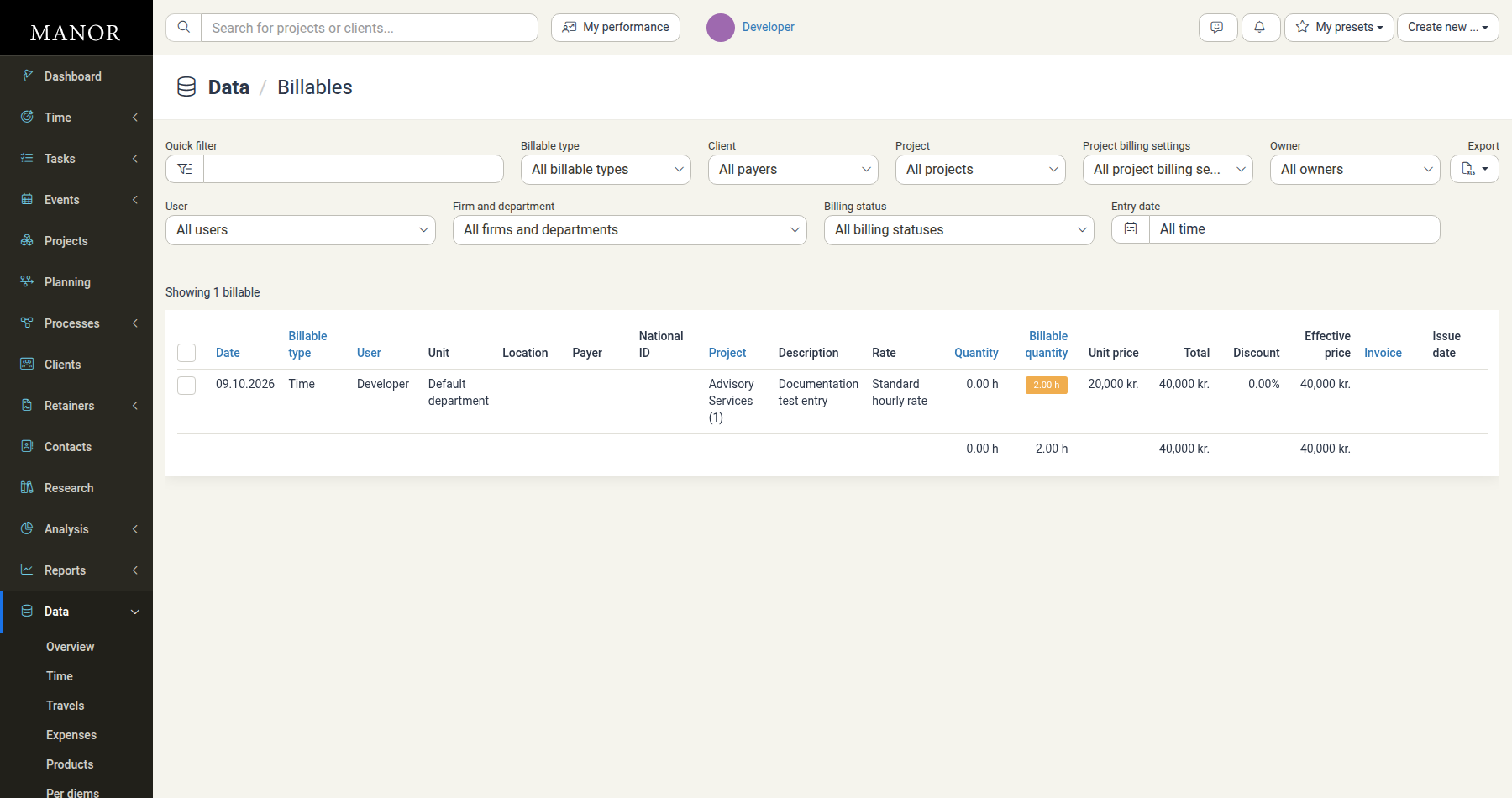
Columns and Information Displayed
The Billables table displays the following columns:
- Checkbox — Select individual or all visible rows for bulk operations. Selecting rows reveals a selection bar above the table that names the selection (for example "1 billable selected" / "2 billables selected") and lists the available bulk actions. Directly beneath the action buttons a Calculated totals row summarises the selection inline, aligned to the columns; columns without a value show an em dash (
—). - Date — The date the work was performed or expense incurred (sortable).
- Billable type — Indicates the category of the item: Time, Travel, Expense, Product, or Per diem (sortable).
- User — The employee who recorded or is assigned to the billable item (sortable).
- Unit — The organizational department or unit associated with the user.
- Location — Work location associated with the entry (if applicable).
- Payer — The client or entity responsible for payment.
- National ID — National identification / registration number of the payer.
- Project — Project/matter title and ID number (sortable). Clicking the row or edit link opens the item's edit modal.
- Description — Summary description of the work performed, expense item, or product sold.
- Rate — Rate category or rate name applied.
- Quantity — Total units or duration logged (e.g.,
6.01 h, kilometers, units; sortable). - Billable quantity — Quantity approved to be billed to the client (may differ from actual logged quantity; sortable).
- Unit price — Price per unit in the project's currency.
- Total — Total before discounts (
Billable quantity × Unit price). - Discount — Percentage discount applied (e.g.,
0.00%). - Effective price — Final payable amount after discounts.
- Invoice — Invoice reference or billing status (sortable).
- Issue date — Date the invoice was issued (blank if unbilled).
Filtering Billables
Use the filter bar at the top of the table to isolate specific records:
- Quick filter — Real-time keyword search across project names, client names, descriptions, and users.
- Billable type — Filter by specific types: All billable types, Time, Travels, Expenses, Products, or Per diems.
- Client — Filter by specific client/payer.
- Project — Filter by project.
- Project billing settings — Filter by project billing configuration (e.g., standard billing, retainers).
- Owner — Filter by project owner.
- User — Filter by team member who logged the item.
- Firm and department — Filter by organizational department.
- Billing status — Filter by billing state: All billing statuses, Billed, Unbilled, Written off, etc.
- Entry date — Filter by date range (e.g., All time, Current month, Last month, specific year, or custom dates).
- Clear filters — Reset all active filters back to default.
Searching and Sorting
- Search: Enter keywords in the Quick filter box to instantly narrow results as you type.
- Sort: Click any column header with sorting enabled (Date, Billable type, User, Project, Quantity, Billable quantity, Invoice) to toggle ascending or descending order.
Exporting Billables
To download billable data:
- Apply your desired filters (e.g., date range, client, or unbilled status).
- Click the Export button in the filter toolbar.
- Manor downloads an Excel spreadsheet containing all matching records and visible fields.
Common Workflows
Pre-Billing Audit
- Set Billing status to Unbilled.
- Set Entry date to your current billing cycle.
- Review entries to verify that descriptions are clear, rates are correct, and non-billable quantities are properly set to
0.00or written off.
Auditing Write-Offs
- Set Billing status to Written off or look for items with
Billable quantity = 0.00. - Inspect the discrepancy between Quantity and Billable quantity to analyze write-downs.
Client-Specific Review
- Select a client under Client.
- Review all billable types (time, travel, expenses, products) in one timeline before sending quotes, retainers, or invoices.
Related Sections
- Time Entries (Data) — Dedicated table for time records.
- Travels (Data) — Dedicated table for travel entries.
- Expenses (Data) — Dedicated table for business expense records.
- Products (Data) — Dedicated table for goods and services sold.
- Per Diems (Data) — Daily allowance records.
- Data Overview — Overview of all data categories in Manor.