
Invoice delivery tracking helps you ensure that invoices successfully reach your clients. Manor tracks every invoice delivery attempt, its status, and any failures, allowing you to quickly identify and resolve delivery issues.
Note: The delivered document (PDF or e-mail) is rendered in the project's language, regardless of the language the individual user has selected for their own Manor interface. The project language is set in the project's Language field (open the project and click Edit project); when a project is created it defaults to your firm's language. To change the language of a delivered invoice, change the Language on the project before issuing it.
Scope / Prerequisites
The delivery features described in this article (sending invoices by email or PDF through an e-delivery provider, and the delivery status tracking on this page) apply only when both of the following are true:
- Manor issues the invoice itself (native Manor invoicing). Invoices that are issued by an external accounting system (for example Regla, DK, DK XML export, Payday, or Business Central) are created and delivered by that system. Manor does not send them and they do not appear under Billing → Delivery.
- A delivery method / e-delivery provider is set up. Delivery is controlled by the Invoice delivery setting in the firm's Manor invoicing configuration. Electronic delivery through an e-delivery provider (Unimaze) requires that the provider has been connected with valid credentials. If the delivery method is set to Manual, no invoice is sent automatically — you download the PDF and deliver it to the client yourself.
If either condition is not met, the automated sending and the delivery status information described below do not apply to your invoices.
Note: Both requirements are configured in your firm settings (see the "Invoice Setup" article). The invoicing integration must be Manor invoicing, and the Invoice delivery method must be selected.
Why Invoice Delivery Matters
When Manor sends a native Manor invoice, it logs the delivery attempt and its result. Some invoices may fail to deliver due to:
- Invalid or missing email addresses
- Email service issues
- Server problems
- Client email server rejections
The Invoice delivery page lets you monitor these attempts, identify problems, and take corrective action before clients miss payment deadlines.
Delivery Statuses
For each invoice that Manor issues and attempts to deliver, the delivery attempt has one of these statuses:
- Delivered — Invoice successfully sent to the client's email address
- Pending delivery — Invoice queued for sending but not yet delivered
- Failed — Delivery attempt failed and the invoice was not sent to the client
These statuses only exist for invoices issued through native Manor invoicing. Invoices issued by an external accounting system are not tracked here.
Finding Delivery Records
- Click Billing in the main navigation
- Click Delivery in the submenu
The Invoice delivery page displays all invoice delivery attempts for invoices that Manor issued itself, with filters and search tools. Invoices issued by external accounting systems are not listed.
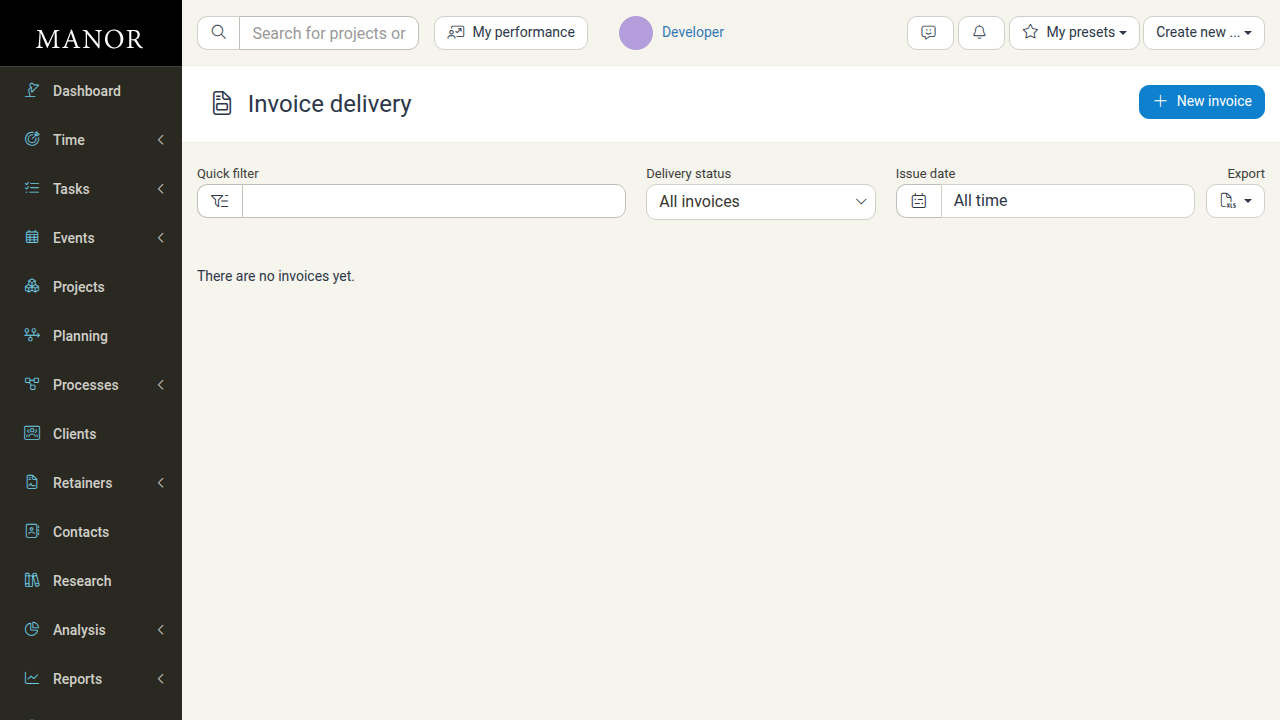
Quick Filter
Use the Quick filter box to search by invoice details:
- Invoice number
- Client name
- Project name
- Email address
Type your search term and the list updates to show matching records.

Delivery Status Filter
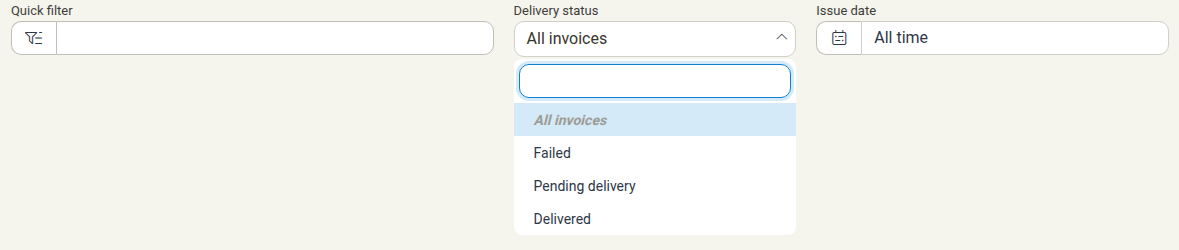
Filter records by their delivery outcome:
- Click the Delivery status dropdown
- Select one or more statuses:
- All invoices — Show all delivery records
- Failed — Show only failed delivery attempts
- Pending delivery — Show invoices waiting to be sent
- Delivered — Show successfully delivered invoices
Issue Date Filter
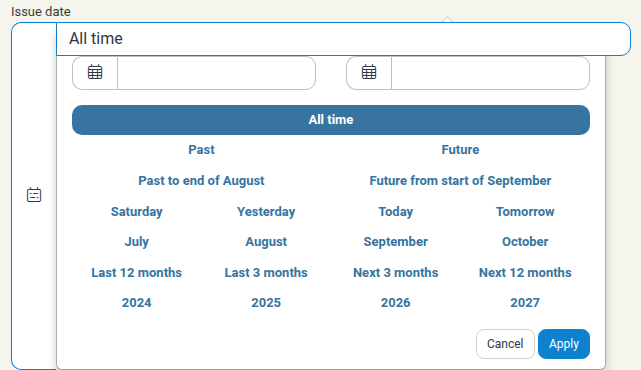
Filter records by the date the invoice was issued:
- Click the Issue date dropdown
- Select a date range:
- All time — Show all records regardless of date
- Or choose a specific range using the date picker with quick selection options (Past, Future, specific months, years, etc.)
Managing Failed Deliveries
When a Manor-issued invoice fails to deliver, you must resolve the issue so the client receives it. (Invoices issued by an external accounting system are handled in that system, not here.)
Common reasons for failure:
- Client's invoice delivery email address is incorrect or missing
- Email address is no longer active
- Email service temporarily unavailable
- The e-delivery provider is not connected or rejects the invoice
To fix a failed delivery:
- Note the invoice number and client from the failed delivery record
- Go to the Clients section
- Open the client record
- Verify the Invoice delivery email address is correct
- Update it if needed
- Return to the invoice and resend it
Tip: Check that email addresses are spelled correctly and do not have extra spaces. Some clients use shared email addresses for invoicing.
Tip: If deliveries keep failing for all clients, confirm that the Invoice delivery method and the e-delivery provider connection (for example, Unimaze credentials) are correctly configured in your firm settings.
Exporting Delivery Reports
Export invoice delivery data for reporting or analysis:
- On the Invoice delivery page, set your filters (status, date range, search)
- Click the Export button
- Select Download as Excel spreadsheet from the menu
- The file downloads automatically
- Open and review the data in Excel or your preferred spreadsheet application

Exporting is useful for:
- Auditing invoice delivery history
- Analyzing delivery patterns over time
- Reporting on delivery issues to management
- Integrating delivery data with other business systems
The export contains only the delivery records shown on this page — that is, invoices issued through native Manor invoicing.
Best Practices
- Confirm your setup first — Make sure your firm uses Manor invoicing and has a delivery method / e-delivery provider configured before relying on automated delivery
- Check regularly — Review the Invoice delivery page weekly to catch and fix delivery failures
- Fix addresses proactively — When you add a new client, verify their invoice delivery email is correct and working
- Test manually — For important clients, consider sending a test email first to confirm their email address works
- Document changes — If you update a client's email address, note why (e.g., "Changed from john@company.com to invoices@company.com")
- Export and archive — Keep periodic exports of delivery reports for compliance and audit purposes