
What is Resource Planning?
Resource Planning is a tool that helps you visualize how your team's capacity is allocated across projects and time periods. It provides a grid view showing resource allocation with filtering and grouping options to help you identify capacity constraints, optimize team utilization, and plan future work assignments.
Why Resource Planning Matters
Using Resource Planning effectively helps you:
- Visualize team capacity — See at a glance how many hours each team member is allocated to work
- Identify bottlenecks — Spot when people or teams are overallocated or underutilized
- Plan ahead — Make informed decisions about taking on new work based on available capacity
- See workload in your unit — Focus the grid on a specific firm and department
- Organize by department — View capacity by firm and department structure
- Export for external planning — Share resource data with external tools via Excel export
Accessing Resource Planning
To access Resource Planning:
-
Select Planning in the main navigation menu.
Note: Access is controlled by user permissions. If you do not see this option, contact your administrator.
-
You will see a grid view with time periods (columns) and users or tasks (rows), depending on your grouping selection.
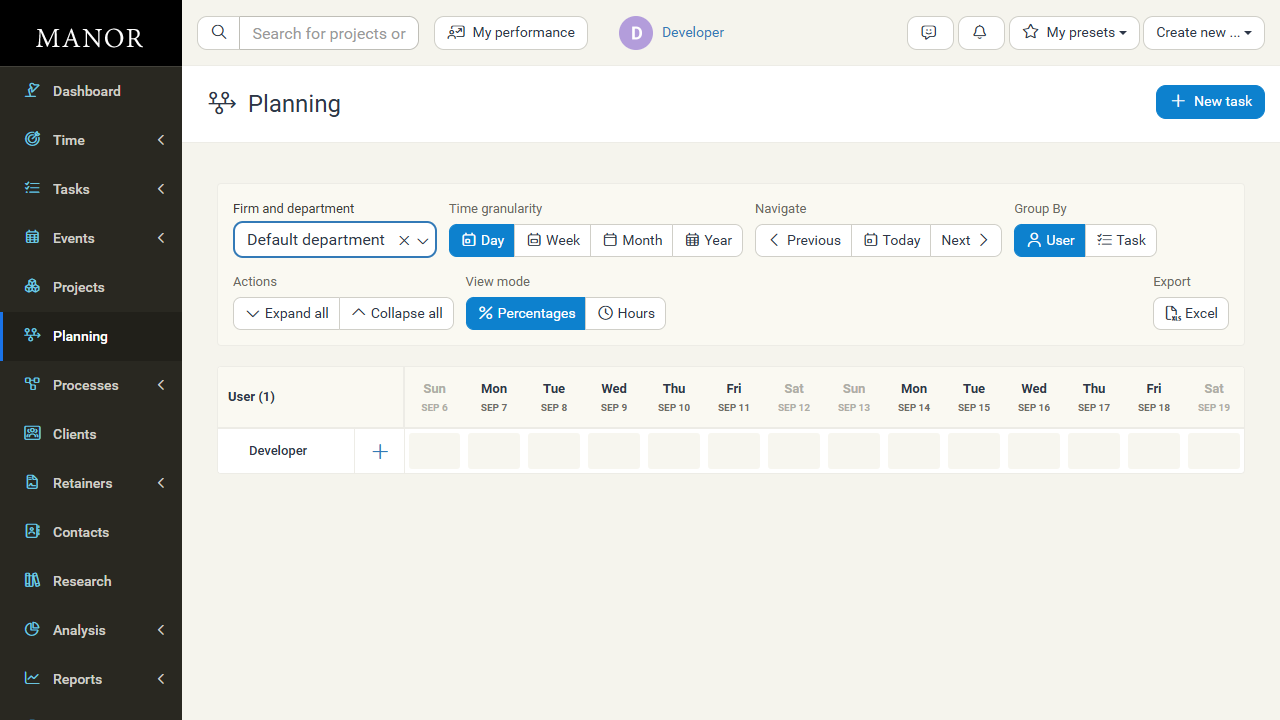
Resource Planning Grid
Understanding the Grid Layout
The Resource Planning grid displays:
- Rows — Team members or tasks (depending on grouping)
- Columns — Time periods (day, week, or month depending on selected granularity)
- Cells — The allocated value for that user or task in that time period, shown as percentages or hours according to the View mode
- Colors — May indicate capacity status or allocation level
Key Grid Elements
- User/Task — The first column shows either user names (when grouping by User) or task names (when grouping by Task), based on your grouping
- Time Periods — Column headers show dates corresponding to your selected granularity
- Allocation Values — Numbers in cells show the allocated percentage or hours for that user or task in that period, depending on the selected View mode
- Row Totals — (if available) Show totals for each user or task
Filtering and Grouping Options
Available Filters and Controls
The control panel above the grid contains several groups:
- Firm and department — Narrow the grid to a specific firm and department. The selector shows the currently selected department (for example, Default department).
- Time granularity — Choose how much time each column represents: Day, Week, Month, or Year.
- Navigate — Move through time with Previous, Today, and Next.
- Group By — Choose whether the rows represent a User or a Task.
- Actions — When grouping by user, use Expand all and Collapse all to open or close the rows.
- View mode — Show values as Percentages or Hours.
- Export — Download the grid as an Excel file (see Exporting Resource Data).
Grouping Options
Choose how to organize your grid:
- User — Display each team member as a row, showing their allocation across projects and tasks.
- Task — Display each project task as a row, showing which users are allocated to it and for how many hours.
Time Granularity Options
Adjust the time resolution to match your planning needs:
- Day — View hour-by-hour allocation for detailed short-term planning
- Week — See weekly allocation patterns for standard planning cycles
- Month — Overview monthly capacity for longer-term strategic planning
- Year — Overview annual capacity for long-term strategic planning
Managing Resource Allocation
While in the Resource Planning view, you can:
- Review Current Allocation — Check current and upcoming capacity for each team member or task
- Identify Gaps — Look for underallocated time or periods with no work assigned
- Spot Overallocation — Find team members assigned more hours than they have available
- Plan New Assignments — Use the data to make decisions about assigning additional work
To actually create new allocations or modify existing ones, use the Projects or Time pages to assign work to team members.
Exporting Resource Data
To export resource planning data:
-
In the control panel above the grid, locate the Export group.
-
Select the Excel button to download the current view as an Excel file.

-
Use the exported file for:
- Sharing capacity information with stakeholders
- External planning tools
- Presentations or reports
- Archiving planning decisions
Best Practices
Planning Effectively
- Review regularly — Check Resource Planning weekly to monitor team capacity
- Plan ahead — Use monthly or weekly views to identify upcoming constraints
- Balance workload — Redistribute work to avoid overallocating team members
- Consider structure — Use the Firm and department filter to focus on the relevant part of the organization
Using the Tool
- Start with overview — Begin with monthly view to see overall capacity, then drill down to weeks or days
- Filter strategically — Use the Firm and department filter when planning within specific teams
- Export for sharing — Generate exports when presenting capacity to stakeholders or clients
- Combine with other tools — Cross-reference with the Projects and Time pages for detailed work information
Troubleshooting
No data appears in the grid
- Ensure you have access permissions to Resource Planning (check with your administrator)
- Check that filters aren't set too restrictively
- Verify that team members have work assignments in the system
Allocations look incorrect
- Verify that all time entries and project assignments are current
- Ensure that Firm and department assignments are correct
Export to Excel is unavailable
- Access and export use the same permissions. If you cannot export, you may not have access to Planning — contact your administrator.