
Introduction
Payroll in Manor manages everything needed to prepare employee wages from the time that has been logged: defining pay periods, tracking expected working hours, collecting and verifying employee hour confirmations, sending reminder alerts, and — with advanced payroll batches — processing and exporting payroll runs. By reviewing and confirming time before it is exported or handed to payroll, Manor helps ensure that worked hours, overtime, flextime and leave match the time actually logged.
Payroll is an optional feature. Once it is enabled, a Payroll link appears in the main navigation — but only for users who have a payroll management permission, Can manage payroll or Can manage payroll within own firm. Users who have only the payroll analysis permission see a single payroll analysis link instead, and every employee can review their own pay periods under Profile > Payroll.
Key Concepts
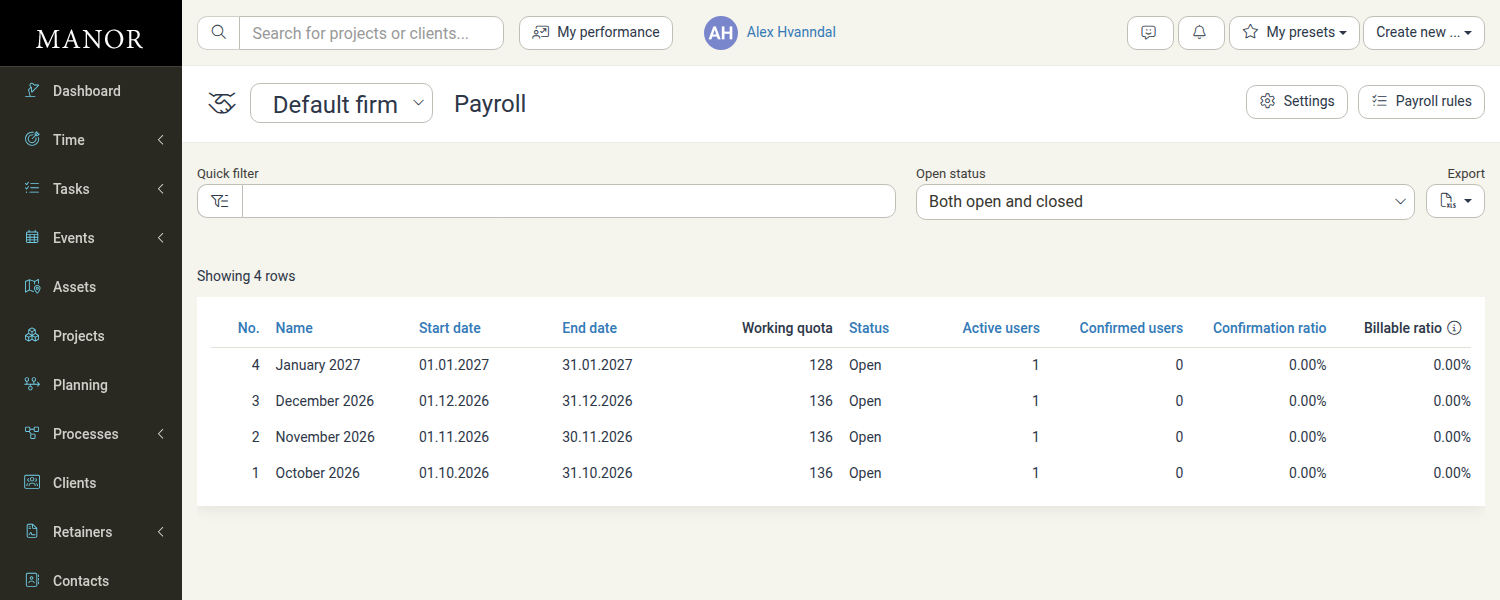
- Pay period — A defined window (usually a month) for which expected hours, logged time and confirmations are gathered. See Pay Periods.
- Working quota — The expected working hours for a full-time employee in a period, based on the firm's daily working hours, excluding weekends and holidays.
- Confirmation — The step where an employee (and optionally a manager) confirms logged hours for a period before payroll is processed. See Confirmations.
- Alerts — Blue, orange and red reminders sent to employees before, on and after a period's deadline to prompt confirmation. See Payroll Alerts.
- Employments — Employment records that define an employee's type, employment ratio and effective dates, which drive their expected hours. See Employments.
- Payroll batch — A processed set of payroll lines for the firm, exported as an Excel document. Available only with advanced payroll batches. See Payroll Batches.
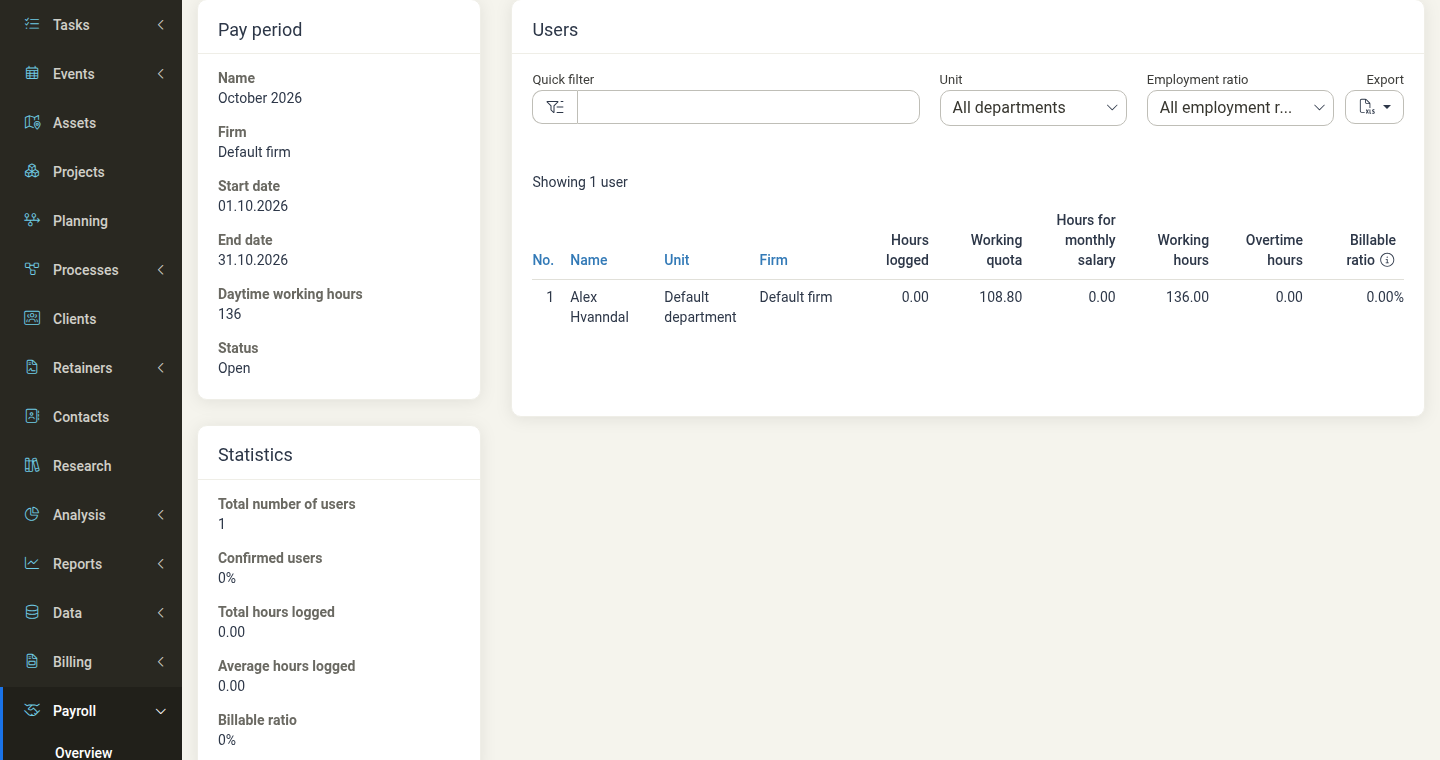
Note: A user's Working quota in a pay period's Users table is the period's Daytime working hours figure scaled by that user's employment ratio. If a period's Daytime working hours reads 170, a full-time (100%) employee shows 170.00, a 50% employee 85.00 and an 80% employee 136.00. Because the ratio scales that headline figure rather than the itemised per-day Work quotas total, a user's Working quota can differ from the per-day total for the same period. On the Payroll Overview list, by contrast, the Working quota column is the period's full-time figure for the whole period, not a per-user value. See Pay Periods and Employments.
Note: Employees can see the payroll lines for a past pay period in the Payroll batches section of their own pay period breakdown (Profile > Payroll), even when the firm uses plain Enabled rather than advanced payroll batches. That section appears whenever the period has at least one payroll line. See Confirming your hours (self-service).
Note: Manager-based hour confirmation — where a firm or department manager confirms hours for users in their department — is turned on at deploy time by your Manor hosting partner or administrator. There is no switch for it in Management > Settings, in the firm's payroll settings, or anywhere else in the user interface. While it is off, the Confirmed by manager column and the related actions are absent from the Confirmations pages. See Confirmations.
Enabling Payroll
Payroll is switched on in the global settings:
- Navigate to Management > Settings.
- Locate the Features card and click Edit.
- Set Enable payroll to one of:
- Not enabled — Payroll is off and the section is hidden.
- Enabled — Enables pay periods, confirmations, alerts and employments.
- Enabled with advanced payroll batches — Everything in Enabled, plus the Analysis, Flextime report and Payroll batches pages in the Payroll menu.
- Click Save.
The Payroll link then appears in the main navigation.
Note: Enabling the feature is not enough on its own — the firm's payroll settings must also be configured and saved, because pay periods are generated from them. At a minimum, set the firm's First day of period, Last day of period, Daily working hours and Future periods count. See Firm Payroll Settings.
The Payroll Menu
The Payroll section contains the following pages. Which ones appear depends on the feature option chosen above:
| Page | Description | Availability |
|---|---|---|
| Overview | The list of pay periods and their status, with links into each period. | Always |
| Analysis | Payroll analysis over time. | Advanced batches only |
| Flextime report | A report of flextime balances and movements. | Advanced batches only |
| Alerts | Configure the blue, orange and red confirmation reminders. | Always |
| Confirmations | Review and manage employee hour confirmations per period. | Always |
| Employments | Maintain employee employment records. | Always |
| Payroll batches | Preview, create and export payroll runs. | Advanced batches only |
The Overview page — and the Analysis, Alerts, Confirmations, Employments and Payroll batches pages — show Settings and Payroll rules links at the top, opening the firm's payroll configuration. The Flextime report page does not show these links (it has its own date range and filters instead).
Within the option chosen, what a user sees also depends on their permissions. Analysis and Flextime report additionally require the payroll analysis permission, so a payroll manager without it sees the other pages but not those two.
The Payroll Workflow
A typical payroll cycle follows these stages:
- Generate periods — Manor creates pay periods automatically from the firm's payroll settings and keeps a buffer of future periods.
- Log time — Employees log their daily time against projects, activities and leave codes.
- Remind — Configured alerts notify employees as the period deadline approaches.
- Confirm hours — Employees review their totals and confirm their logged hours; managers verify entries from the Confirmations page.
- Review and close — Payroll administrators inspect period summaries, resolve discrepancies and close the period to lock its time records.
- Process (advanced batches) — Create a payroll batch to process and export the payroll data as an Excel document.
The employee-facing half of the flow — reviewing your own pay periods and confirming your hours — is documented separately in Confirming your hours (self-service).
Related Documentation
- Pay Periods — Period generation, work quotas, closing and deleting periods
- Confirmations — Reviewing and confirming employee hours
- Payroll Alerts — Reminder alerts before a period closes
- Employments — Employee employment records
- Payroll Batches — Processing and exporting payroll runs
- Analysis — Logged time over time per employee
- Flextime report — Flextime balances and movements
- Firm Payroll Settings — Configuring period dates, working hours, flextime and payroll rules
- Global Settings — Enabling optional features including payroll