
What are Activities?
Activities are a way to break down large projects into smaller, manageable pieces of work. Think of them as the individual steps or phases needed to complete a project. By tracking activities, you can see exactly where your time and money are going, spot problems before they become expensive, and make sure projects stay on schedule.
Why Activities Matter
Using activities helps you:
- Track project progress - See which parts of a project are complete and which need attention
- Monitor budgets - Keep an eye on spending for each piece of work, catching overruns early
- Assign work clearly - Know who's responsible for each activity
- Plan dependencies - Identify which activities must be finished before others can start
- Generate accurate invoices - Link billable time and expenses to specific activities for transparent client billing
Where Activities Appear on a Project
The Activities panel is only shown once a project has at least one activity.
If the project has no activities yet, the panel is hidden. Instead, a New activity button appears in the action toolbar at the top of the project page, next to the other project actions.

Once the project has at least one activity, the Activities panel appears on the project page with the list of activities and three buttons: Edit budgets, New activity billing group, and New activity.
Creating a New Activity
To create a new activity:
-
Open the project you want to add an activity to.
-
Click the New activity button. If the project has no activities yet, use the New activity button in the action toolbar at the top of the page. If it already has activities, use the New activity button in the Activities panel.
-
A form opens. Fill in the activity details:
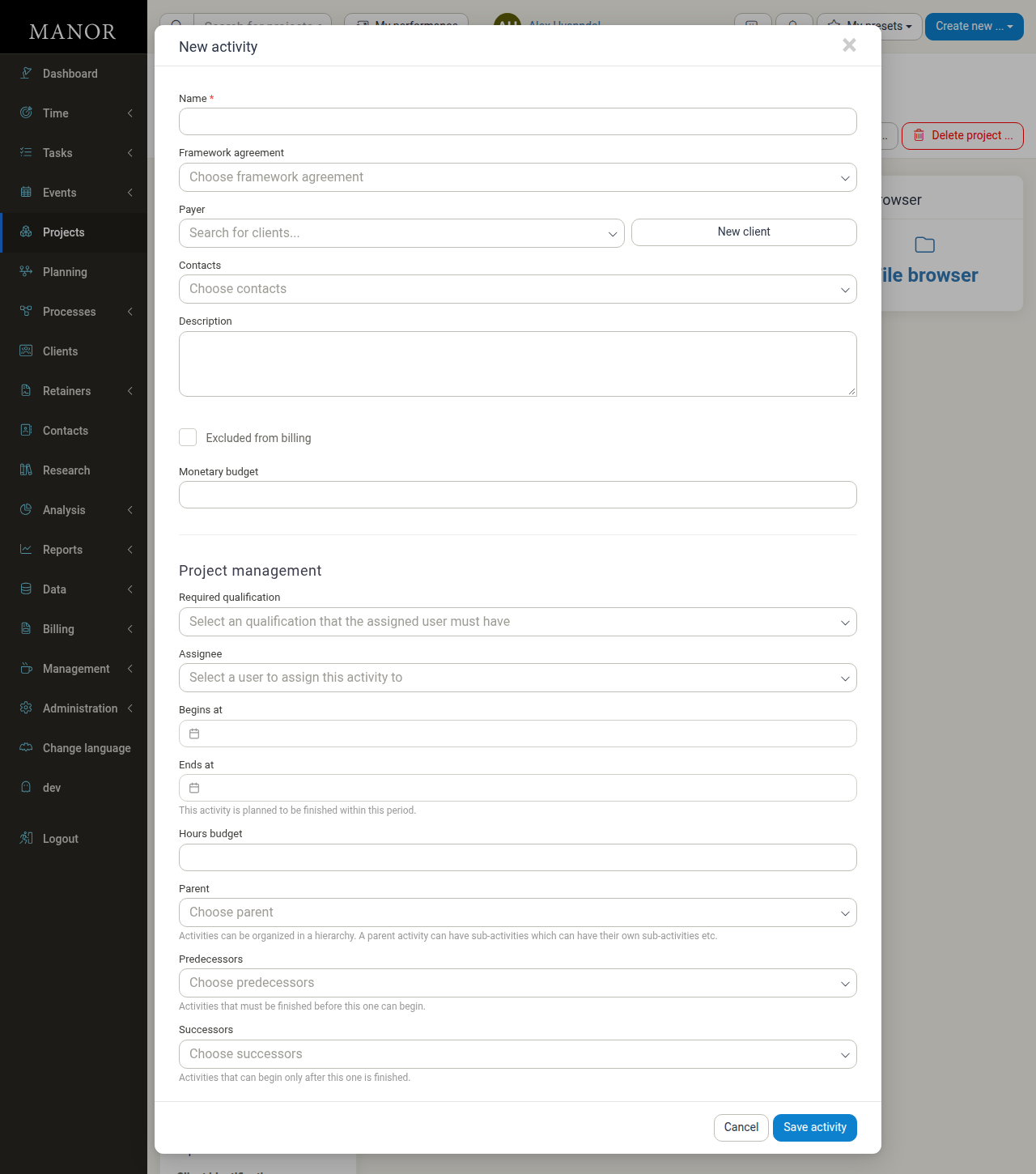
Required Fields:
- Name: Enter a clear, descriptive name like "Initial Planning Phase" or "Client Review Meeting"
Optional but Recommended Fields:
- Description: Explain what this activity involves so your team knows exactly what needs to be done
- Framework agreement: Connect the activity to a framework agreement so the correct rates are applied
- Payer: The client who will be billed for this activity, with a New client button next to it
- Contacts: People associated with this activity
- Excluded from billing: Check this box for internal work that should not be billed to clients
- Monetary budget: Set a budget amount in your project's currency to track spending
Project Management Fields:
- Required qualification: Skills or certifications the assigned person must have
- Assignee: Choose who's responsible for completing this activity
- Begins at / Ends at: Set start and end dates to schedule the work
- Hours budget: Estimate how many hours this activity should take
- Parent: If this activity is part of a larger activity, select the parent activity
- Predecessors: Choose activities that must be finished before this one can start
- Successors: Choose activities that can only start after this one is complete
-
Click Save activity to create it.
What You Can Do with Activities
Track Time and Costs When you log time or add expenses, you can link them to specific activities. This helps you see exactly how much each part of your project costs.
Mark Activities as Non-Billable Some work is internal and shouldn't be billed to clients. Check the "Excluded from billing" box for activities like internal meetings or administrative tasks.
Organize in a Hierarchy You can create parent activities with sub-activities underneath. For example, "Website Redesign" might have sub-activities like "Design Phase" and "Development Phase".
Important: You can't set budgets on both a parent activity and its sub-activities at the same time. Choose one or the other.
Set Up Dependencies Link activities as predecessors and successors to show which activities must be completed before others can begin. This prevents work from starting out of order.
Delete with Protection There are restrictions on deleting activities to protect your project data.
Important Activity Fields
When creating or editing an activity, here are the key fields you'll see:
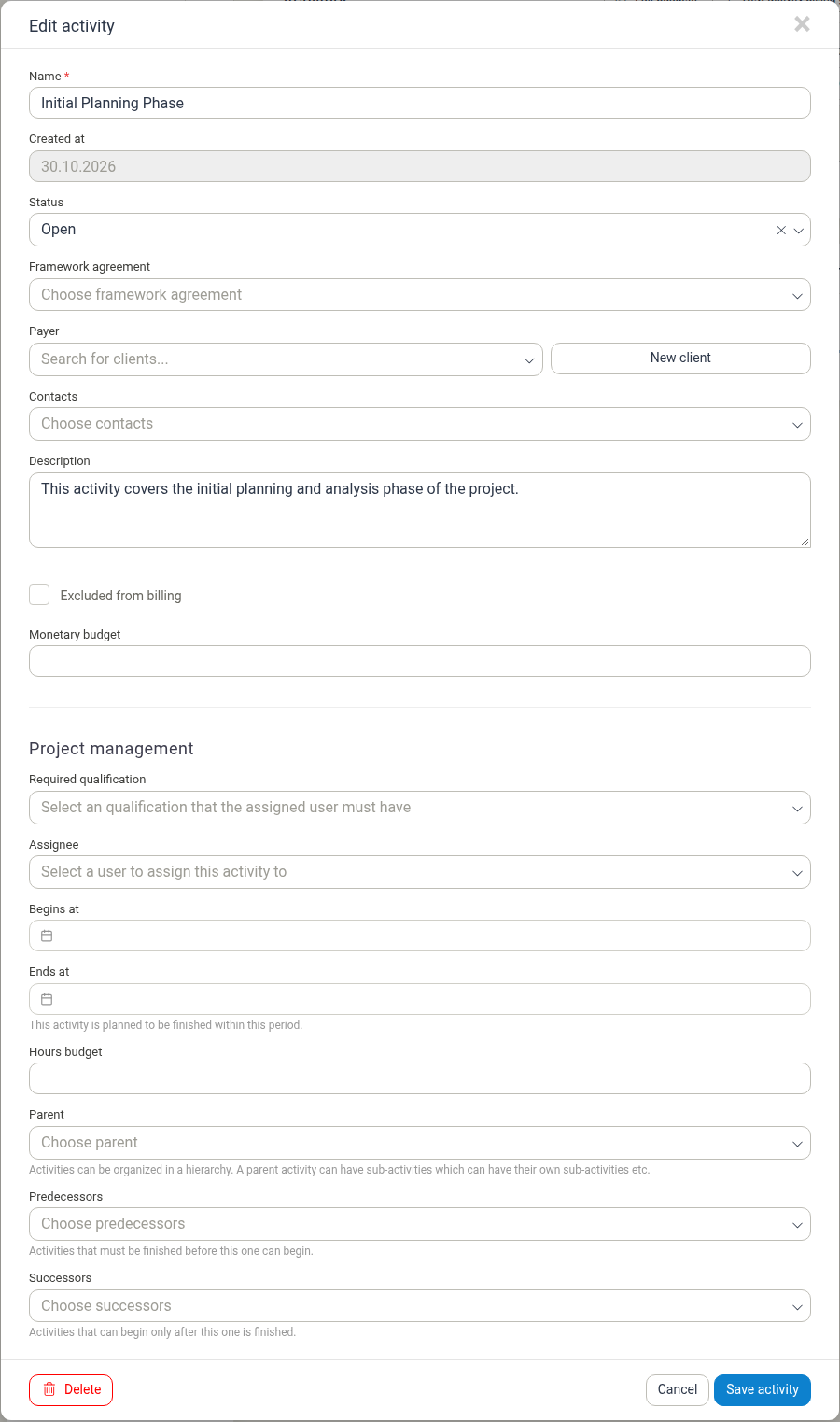
Name (required) The name that identifies this activity throughout the system. Use clear, descriptive names like "Requirements Gathering" or "Final Report Writing" so everyone knows what the activity is at a glance.
Created at The date the activity was created. This field is set automatically and is read-only.
Status Whether the activity is Open, Closed, or Locked. You can change the status in the edit form.
Description A text area where you can explain what the activity involves, what deliverables are expected, or any special instructions.
Excluded from billing A checkbox that marks this activity as internal work that shouldn't be billed to clients. Use this for things like internal meetings, training, or administrative tasks.
Monetary budget The amount of money allocated to this activity in your project's currency. The system tracks spending against this budget and shows you when you're approaching or exceeding it.
Hours budget The estimated number of hours this activity should take. As your team logs time, you can see how much of the budget has been used and how much remains.
Framework agreement If your work is covered by a framework agreement with set rates, select it here. This ensures the correct rates are applied when billing. Warning: Changing the framework agreement updates rates for unbilled time entries, but already-billed entries remain unchanged.
Payer The client who will be billed for this activity. This helps you track which client each piece of work is for.
Contacts People associated with this activity. Add contacts to show who's involved or should be informed about progress.
Required qualification If this activity requires specific skills or certifications, select them here. This helps ensure the right person is assigned to the work.
Assignee The person responsible for managing or completing this activity. Assigning work clearly helps everyone know their responsibilities.
Begins at / Ends at Start and end dates for the activity. These dates help with scheduling and tracking whether work is on schedule.
Parent If this activity is part of a larger activity, select the parent here. This creates a hierarchy that helps organize complex projects. Tip: Activities can be organized in multiple levels - a parent can have sub-activities, which can have their own sub-activities, and so on.
Predecessors Activities that must be completed before this one can start. Setting predecessors helps ensure work happens in the right order.
Successors Activities that can only begin after this one is finished. Identifying successors helps with planning the next steps.
Finding and Managing Activities
Viewing Activities on a Project
All activities for a project appear in the Activities panel on the project page.
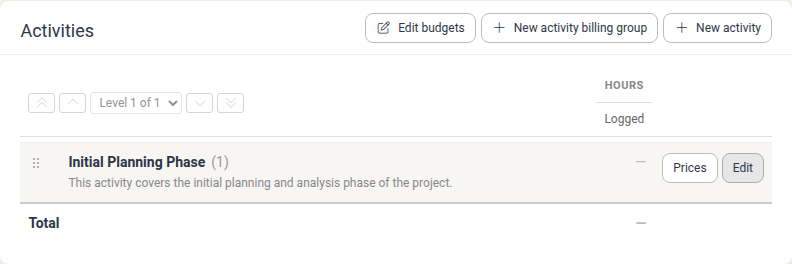
Each row in the list shows:
- The activity name and number (the number in parentheses is the activity's ID)
- The description underneath the name
- The hours Logged so far, shown under the Hours column (a dash means no time has been logged yet)
- Prices and Edit buttons
The panel header also offers Edit budgets, New activity billing group, and New activity.
The level controls above the list let you expand or collapse sub-activities: the arrows move up and down through the hierarchy, and the Level selector shows where you are (for example, "Level 1 of 1"). A Total row at the bottom sums the logged hours (and budgets, when shown).
The Hours budget and Monetary budget columns only appear when at least one activity in the project has that budget set. If no activity has a monetary budget, for example, that column is not shown.
Editing an Activity
-
Find the activity in the Activities panel of your project
-
Click the Edit button next to the activity
-
The edit form opens with all the current information
-
Make your changes
-
Click Save activity to update it
Tip: Some fields may be disabled in the edit form if the activity is a sub-activity, as these fields are inherited from the parent.
Managing Activity Prices
-
Click the Prices button next to the activity to set up billing rates for this specific activity.
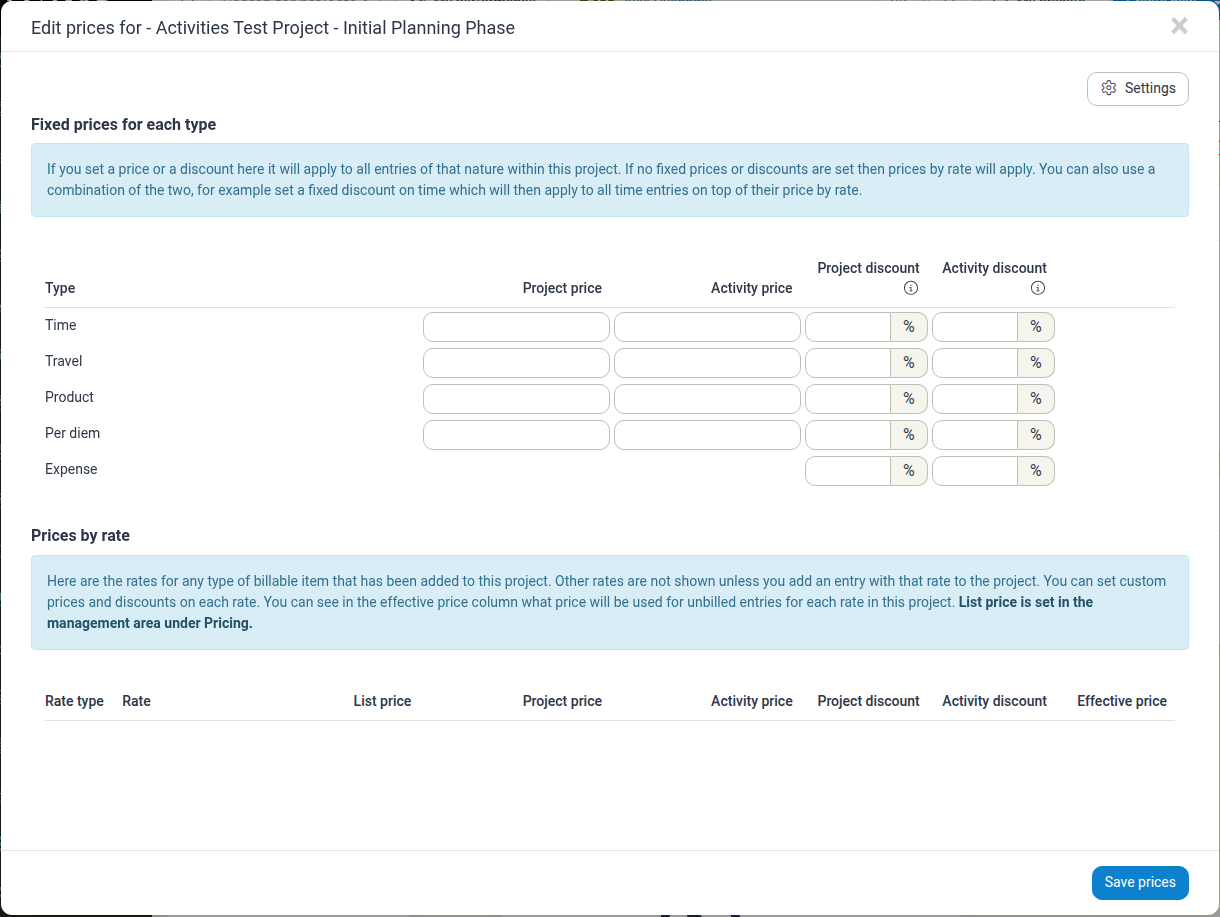
The Edit prices dialog lets you set Fixed prices for each type (Time, Travel, Product, Per diem, and Expense) at both project and activity level, and shows the Prices by rate table for rates used in the project. Click Save prices to apply your changes.
-
Click Assigned Rates if you need to connect the activity to framework agreement rates.
Managing Activity Budgets
Click Edit budgets in the Activities panel header to set the project total budget and the budget of each activity. The dialog notes that a parent activity and any of its sub-activities cannot have budgets set at the same time.
Grouping Activities for Billing
Click New activity billing group in the Activities panel header to bill a set of activities together, separately from the rest of the project.
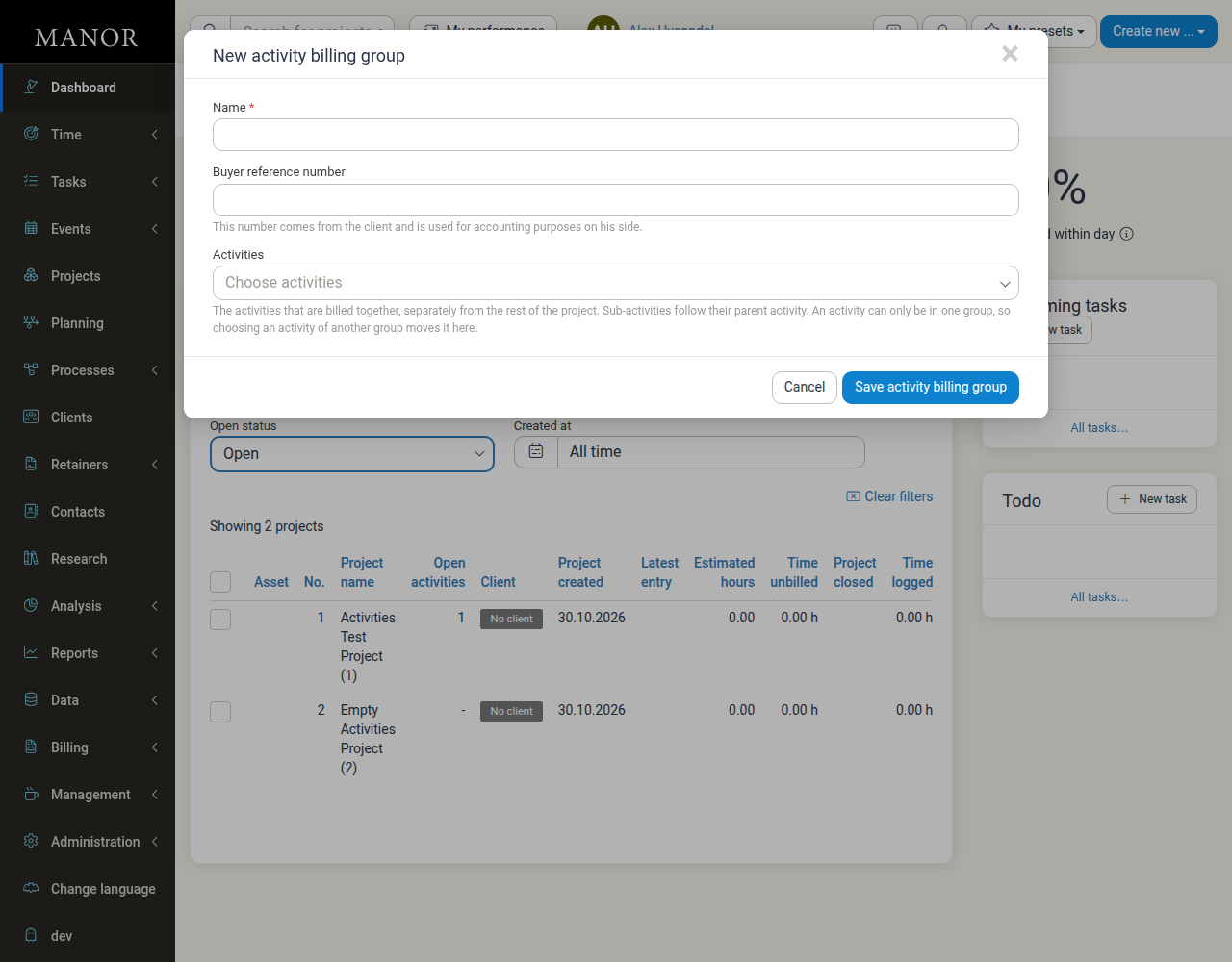
The dialog asks for:
- Name (required): A name for the billing group
- Client: The client the activities of the group are billed to, instead of the client of the project. Leave it empty to bill them to the client of the project. The group has its own balance and its own invoice splits, and like for an alternative payer, the prices and currency of this client are used.
- Buyer reference number: The number that comes from the client and is used for accounting on their side
- Activities: The activities that are billed together. Sub-activities follow their parent activity. An activity can only be in one group, so selecting an activity already in another group moves it into this group.
Click Save activity billing group to create it.
Tracking Activity Budgets
Once you've logged time or added expenses to an activity, budget information is shown in the activity list:
- Logged: Total hours recorded against this activity (under the Hours column)
- Hours budget: Your hours allocation (only shown when a budget is set)
- Monetary budget: Spending compared to your budget (only shown when a budget is set)
Tip: Click on the hours logged value to see all the billable items (time entries, expenses, and so on) for this activity.
Deleting an Activity
-
Click the Edit button on the activity
-
In the edit form, click Delete at the bottom
-
Confirm the deletion when prompted
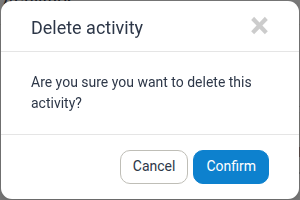
Warning: Some activities cannot be deleted if they contain related data. The system protects your project data from accidental loss.
Using Activity Data for Project Success
Tracking Progress and Budgets
Activities help you answer important questions about your projects:
- Which activities are on budget? See at a glance which parts of your project are proceeding as planned
- Where are we overspending? Red budget indicators show you immediately where costs are higher than expected
- How much work is left? Compare hours logged to hours budgeted to estimate remaining work
- Are we on schedule? Check activity start and end dates against the current date
Linking Work to Activities
When your team logs time or adds expenses, they can select which activity the work relates to. This connection lets you:
- See all billable items for a specific activity by clicking the hours logged value
- Generate invoices that show costs broken down by activity
- Identify which parts of a project are most time-consuming or expensive
Tasks can also be linked to an activity: in the task form, use the task's Activity field to connect it to an activity on the selected project (see Data - Tasks).
Generating Reports
Activity data flows into various reports in Manor:
- Work Reports: Show time and expenses organized by activity
- Profit Analysis: Compare budgeted vs. actual costs for each activity
- Progress Analysis: Track completion status of activities against your schedule
To access these reports, go to the project page and click on Profit analysis, Progress analysis, or Work report.
Framework Agreement Rates
If you've connected an activity to a framework agreement, the system automatically applies the agreed-upon rates when calculating billing amounts for unbilled time entries. This ensures consistent pricing and helps you stay compliant with your client agreements.
Best Practices
Use Clear Names Name your activities so anyone on the team immediately understands what they're for. "Website Homepage Design" is better than "Design Work".
Set Realistic Budgets Take time to estimate hours and costs carefully. Accurate budgets help you spot problems early and keep projects profitable.
Keep Descriptions Updated If an activity's scope changes, update the description so everyone has the current information.
Review Budget Status Regularly Check your activities' budget status at least weekly. Catching overruns early gives you time to make adjustments.
Use Dependencies Wisely Link activities as predecessors and successors when the order truly matters. This prevents work from starting before it should.
Group Related Work Use parent and sub-activities to organize complex projects. This makes it easier to see the big picture and drill down into details when needed.