
What are Tasks?
Tasks are to-do items that help you track work that needs to be done. Unlike activities (which track work for billing purposes), tasks are for internal tracking of deadlines, follow-ups, and action items. Tasks can be linked to projects and assigned to team members.
The Tasks area has two views, shown as sub-items in the sidebar:
- Timeline — planned work shown on a time axis.
- Table — a filterable list of all tasks.
Why Tasks Matter
Using tasks helps you:
- Never miss deadlines — See upcoming due dates at a glance
- Prioritize work — Know what needs attention first
- Delegate effectively — Assign tasks to team members
- Track progress — Mark items as complete as you finish them
- Stay organized — Keep all action items in one place
Creating a New Task
To create a new task:
-
Open the Tasks area from the sidebar and select the Table view. You can also create a task from the Dashboard, or from Create new … in the top bar.
-
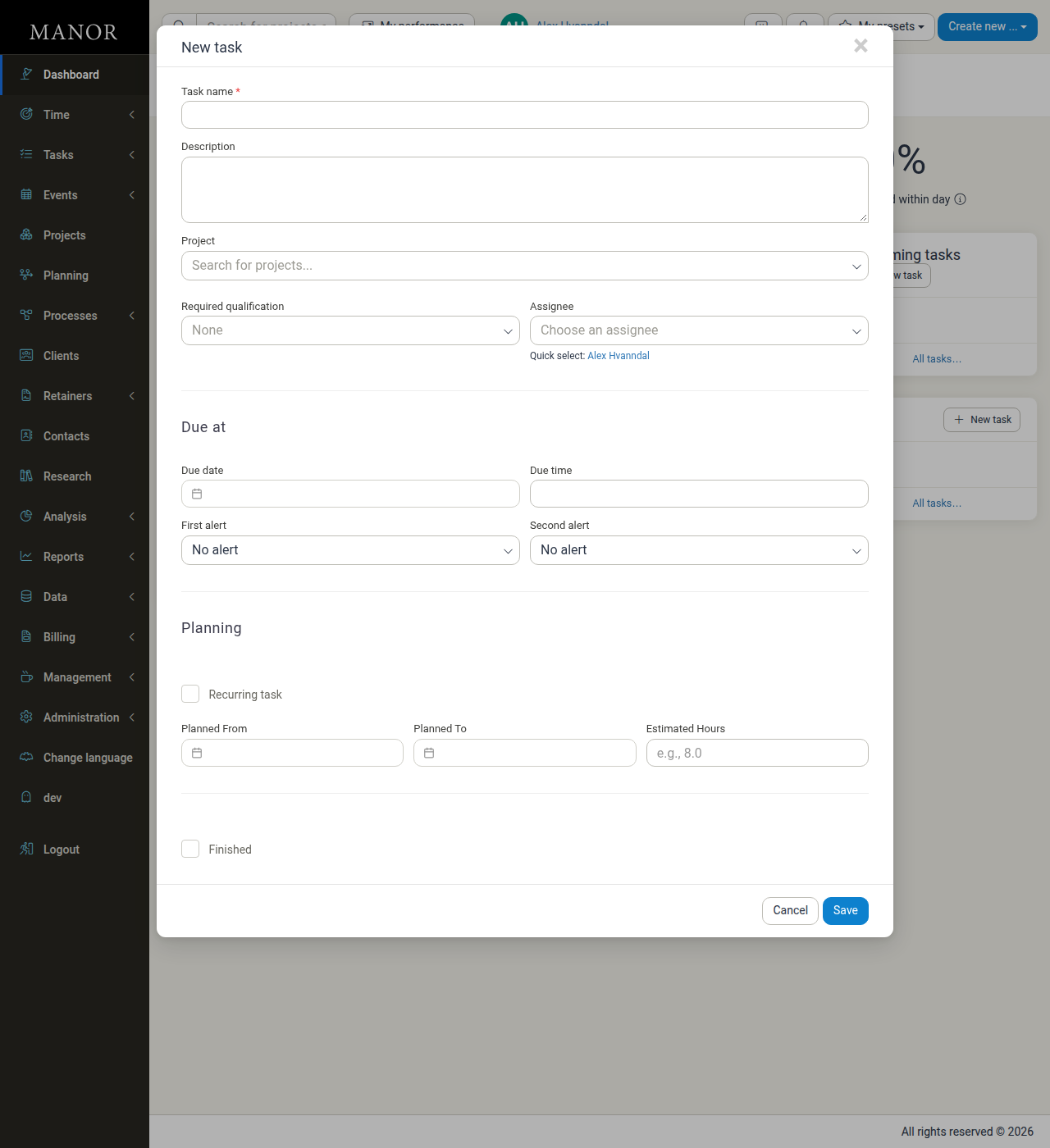
Click the New task button.
-
Enter a Task name (required).
-
Optionally fill in:
- Description — Additional details about the task
- Project — Link the task to a project
- Activity — Link the task to an activity
- Required qualification — Specify a qualification the assignee should have
- Assignee — Assign the task to a team member
- Due date and Due time — Set a deadline (date and optional time)
- First alert — Get a reminder before the task is due
- Second alert — Get a second reminder before the task is due
- Recurring task — Make the task repeat instead of setting a single due date
- Planned From, Planned To, and Estimated Hours — Set planned dates and estimate the workload
- Finished — Mark the task as already completed
-
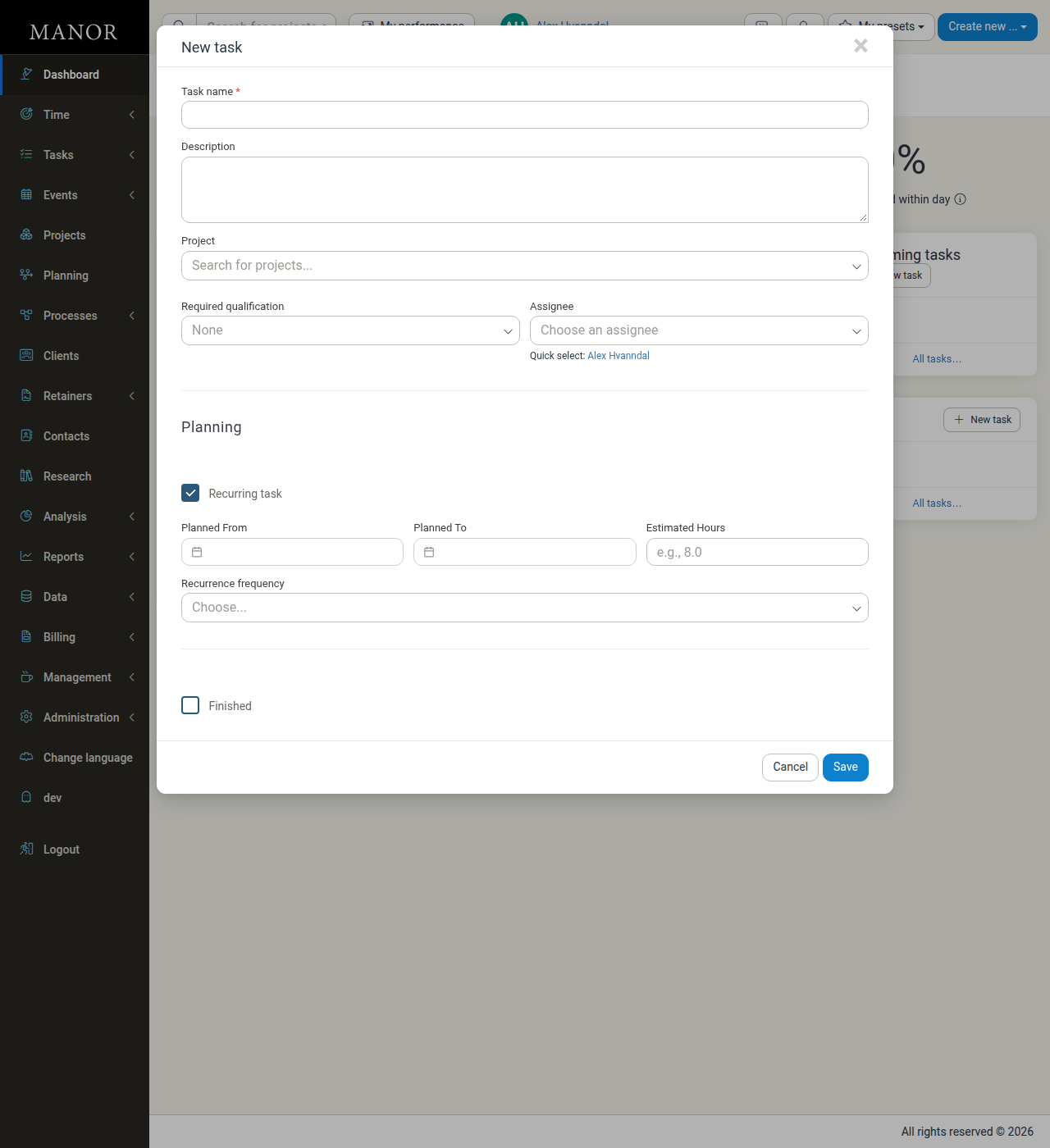
Optionally select Recurring task to make the task repeat. See Recurring tasks below.
-
Click Save to create the task.
Recurring tasks
When you select Recurring task, the Due at section (due date, due time, and alerts) is hidden and a Recurrence frequency field appears instead. Choose one of:
- Daily
- Weekly (specific day)
- Monthly (specific day)
- Annually (specific day)
Alerts and the due date
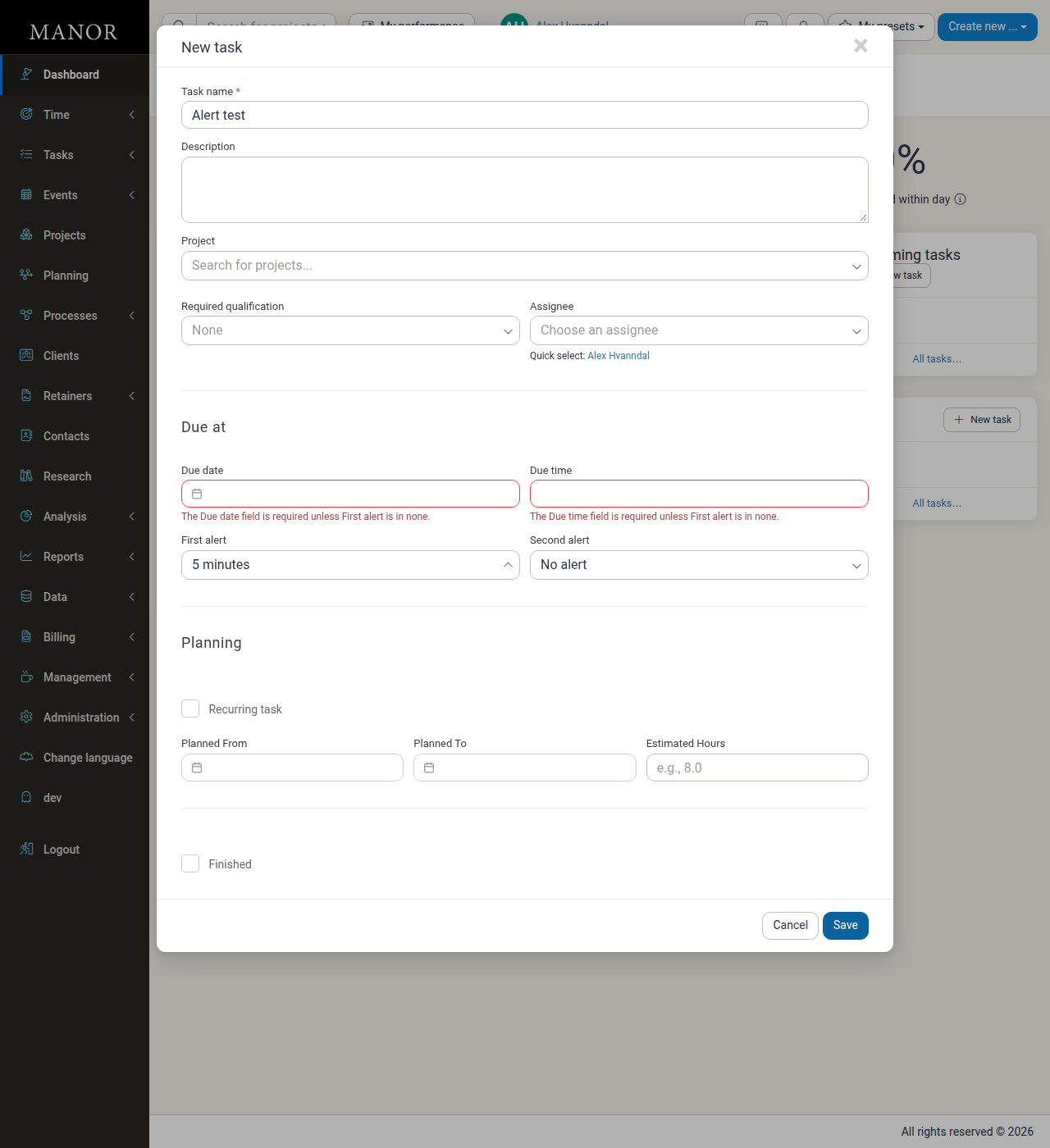
If First alert or Second alert is set to anything other than No alert, the Due date and Due time become required. If you try to save without them, Manor shows the message "The Due date field is required unless First alert is in none."
Assignee warning
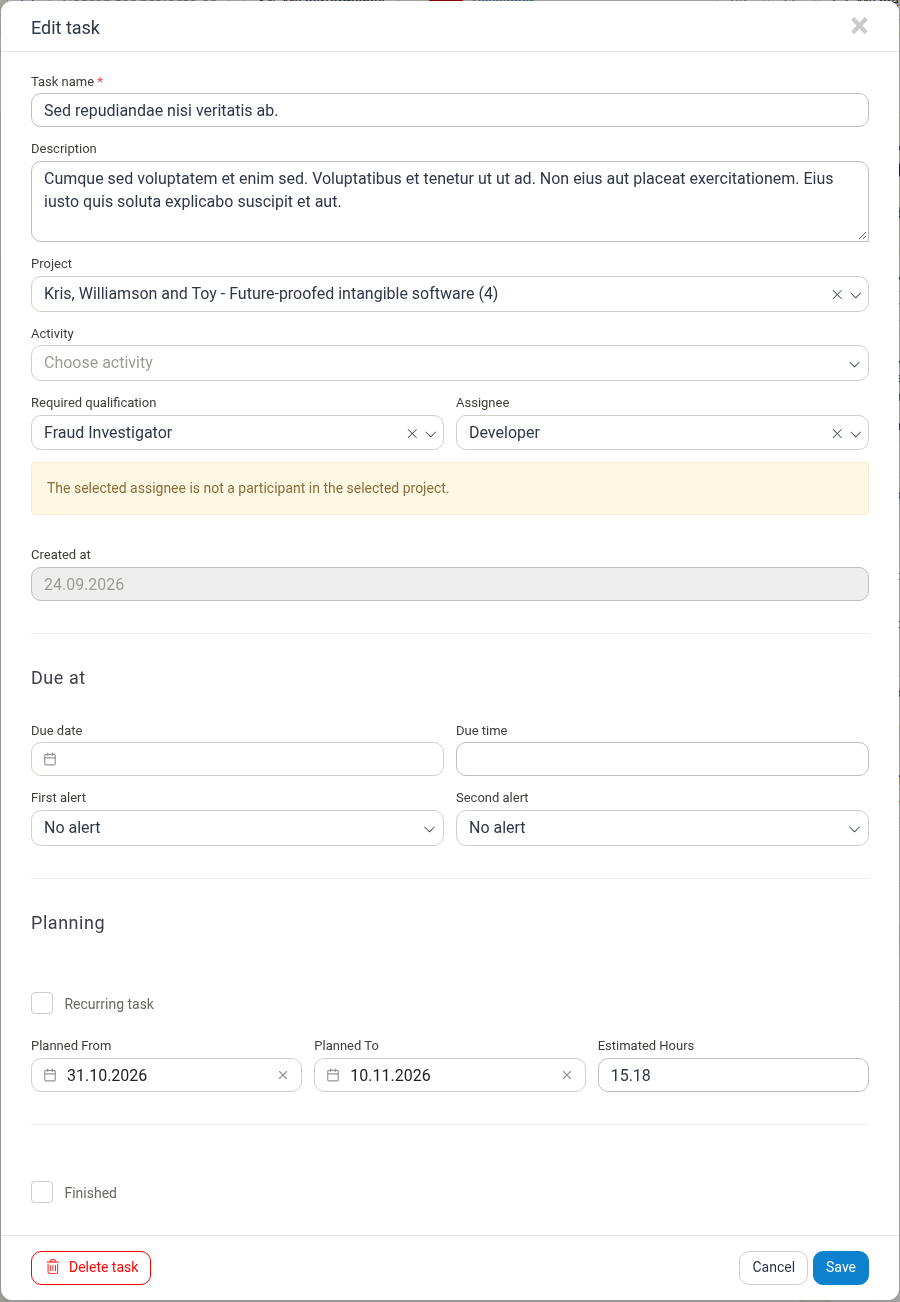
If you link a task to a project and assign it to someone who is not a participant in that project, Manor shows a warning: "The selected assignee is not a participant in the selected project."
Important Task Fields
Task name (required) A brief, clear description of the task. Use action verbs like "Review," "Send," "Call," or "Prepare."
Description Additional details about what the task involves.
Project The project this task relates to. Optional, but adding a project gives context and helps with organization.
Activity The activity this task relates to. Optional.
Required qualification A qualification that the assignee should have. Optional.
Assignee Who is responsible for completing the task. Optional.
Due at When the task must be completed. Includes Due date and Due time. Tasks with upcoming due dates appear on dashboards. Required when an alert is set.
First alert / Second alert Reminders before the task is due. Options range from When the task is due to 2 months before the due date, plus No alert.
Planned From / Planned To When you plan to start and finish work on the task, used for resource planning.
Estimated Hours How long you expect the task to take.
Recurring task / Recurrence frequency When Recurring task is selected, the task repeats according to the chosen Recurrence frequency instead of having a single due date.
Finished Indicates whether the task has been completed. When selected, the task is marked as done.
Created at The date the task was created. Shown when editing a task; filled automatically and cannot be changed.
Finding and Managing Tasks
Viewing Tasks
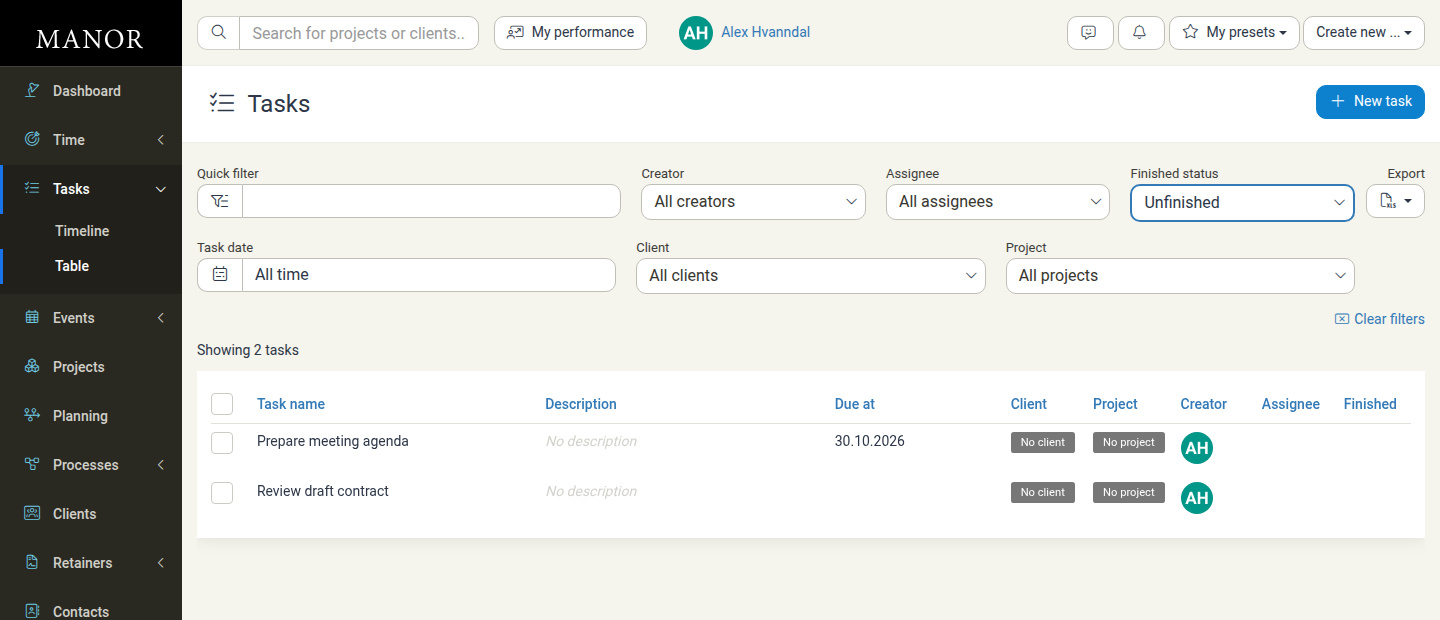
All tasks appear in the Table view of the Tasks area. Each row shows the task name, description, due date, client and project (through the project), creator, assignee, and finished status.
Switch to the Timeline view to see planned tasks on a time axis. Use Time granularity (Day, Week, Month, Year), Navigate (Previous, Today, Next), and View mode (Percentages, Hours) to change what the timeline shows.
Filtering Tasks
Use the filters above the table to narrow the list:
- Quick filter — Free-text search
- Creator — Filter by who created the task
- Assignee — Filter by who the task is assigned to
- Finished status — Show unfinished or finished tasks
- Task date — Filter by due date (all time, past, future, specific months, and more)
- Client — Filter by client
- Project — Filter by project
Click Export to download the table as an Excel spreadsheet, or Clear filters to reset the filters.
Editing a Task
- Click the task name in the table to open it.
- Make your changes. If you have permission to view history, the Task history section at the bottom shows when the task was created and who changed it, and which fields were changed.
- Click Save.
Completing a Task
To mark a task as finished, do one of the following:
- Open the task, select Finished, and click Save. Or:
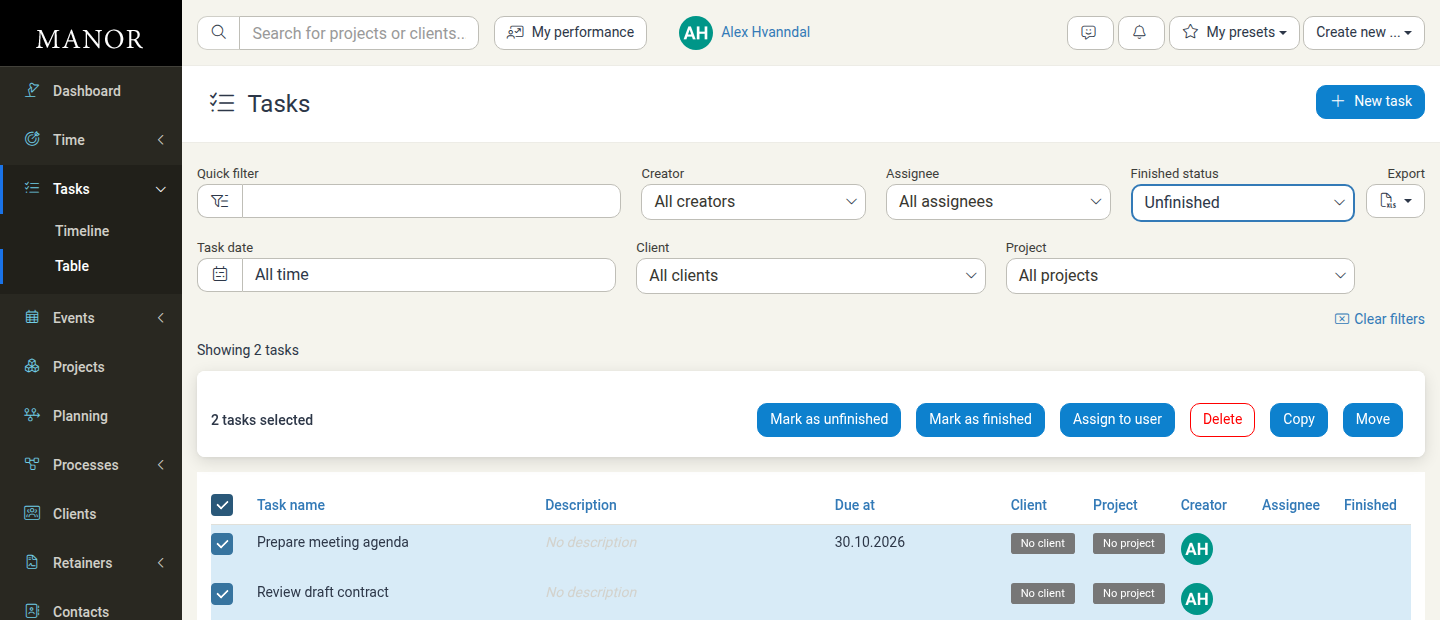
- In the table, select one or more tasks and click Mark as finished.
The checkbox at the start of each row is used to select tasks for bulk actions, not to complete them.
Bulk actions
Select one or more tasks in the table to run an action on all of them at once. The following actions are available:
- Mark as finished
- Mark as unfinished
- Assign to user
- Move
- Copy
- Delete
Deleting a Task
- Open the task.
- Click Delete task.
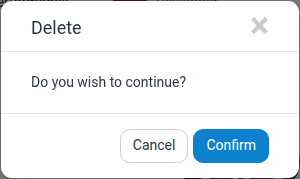
- Click Confirm in the confirmation dialog.
Using Task Data for Success
Workload Management
See who has what tasks and distribute work appropriately.
Deadline Tracking
Monitor upcoming due dates to prevent missed commitments.
Project Coordination
Track task completion as part of project milestones.
Team Communication
Use tasks to assign and communicate work items.
Best Practices
Use Clear Names Write task titles that clearly indicate what needs to be done.
Set Realistic Due Dates Give yourself enough time to complete tasks properly.
Assign Clearly Designate one person responsible for each task.
Review Daily Check your task list each morning to plan your day.
Link to Projects Associate tasks with projects for context and tracking.
Close Completed Tasks Mark tasks as complete to keep lists accurate.