
The Activity Assignment feature within Manor's Project management area allows you to assign project activities to team members, review required qualifications, and balance workloads against estimated hours.
Why Activity Assignment Matters
Activity Assignment helps you:
- Allocate resources effectively – Assign activities to qualified team members based on required roles or certifications.
- Track responsibility – Identify the primary assignee responsible for each activity.
- Manage workload and capacity – View estimated hours alongside current and existing team workloads before committing assignments.
- Assign in batches – Select multiple activities and allocate them to a user in one step with a workload overview.
Accessing Activity Assignment
To access the activity assignment view:
- Navigate to Projects from the main navigation and open the project you want to manage.
- In the project submenu, click Project management.
- In the toolbar controls above the Gantt schedule, click the Assign button (located next to the Edit and Sort buttons).
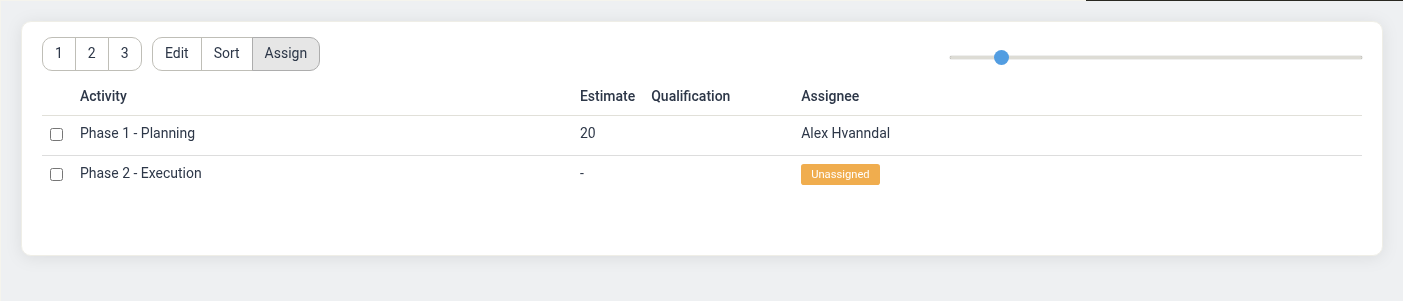
The assignment table displays:
- Selection checkboxes – Checkboxes on each row used for selecting one or more activities to assign.
- Activity – The activity name.
- Estimate – The budgeted or estimated hours planned for each activity.
- Qualification – The required qualification defined for the activity (for example, Senior Architect).
- Assignee – The currently assigned user name, or "Unassigned" if no user has been allocated.
How to Assign Activities
Assign Activities via the Edit Modal
You can set or change assignees directly on individual activities:
- In the Project management view, click the activity name (or click the activity's Edit link on the project overview).
- The Edit activity modal opens.
- In the Project management section of the form:
- Choose a Required qualification if applicable.
- Select a team member from the Assignee dropdown.
- Adjust the Begins at, Ends at, and Hours budget fields as needed.
- Click Save activity.
Assign Activities Using Mass Assign
When in the Assign view, you can assign one or more activities to a user:
- Ensure the Assign button in the toolbar is active.
- Select the checkbox next to each activity you wish to assign.
- An Assign to user... link appears in the toolbar above the table.
- Click Assign to user... to open the assignment modal.
- In the modal:
- Review the candidate's workload timeline. The view highlights New workload alongside Existing workload across the schedule.
- Click the Assign button next to the desired team member.
- The modal closes and updates the assignee for all selected activities.
Track Qualifications and Workload Estimates
- Required Qualifications: Activities with specific skill requirements show the qualification name in the Qualification column, ensuring work is distributed to qualified personnel.
- Estimate Hours: The Estimate column shows the planned budget in hours. Combining this with the visual workload breakdown in the assignment dialog helps avoid overloading team members across overlapping project schedules.
Switching Back to Gantt / Timeline View
The Edit, Sort, and Assign buttons are view modes for the same activity list. Only one is active at a time:
- Assign shows the assignment table described above.
- Edit shows the visual timeline where you can drag activities to change their dates.
- Sort shows the timeline with draggable handles for reordering activities.
To leave the assignment table and return to the visual timeline, click Edit.
Note: The numbered buttons (1, 2, and 3) are not view switches. They control how many levels of the activity hierarchy are shown at once — for example, 1 shows only top-level activities, while 3 expands the list three levels deep.
Best Practices
- Set activity dates and estimates first – Defining start dates, end dates, and hour budgets allows the assignment tool to accurately project workload.
- Check existing workloads – Use the assignment modal's workload chart to avoid scheduling conflicts across active projects.
- Review qualifications – Verify that tasks requiring special qualifications are routed to eligible team members.
- Keep assignments updated – Revisit Project management regularly to reassign tasks as timelines shift.
Related Documentation
- Activities – Creating, editing, and budgeting the activities you assign
- Project Management – The timeline, milestones, and view controls on the project
- Resource Planning – Viewing team capacity across projects and time periods