
What this article is about
Manor has a Presets feature, but it does not save your list views or dashboard layouts. This article explains what cannot be saved, so you do not go looking for a "save this view" button that does not exist.
There is no way to save a list view or a dashboard as a preset. Manor does not let you store a combination of filters, chosen columns, sorting order or display options under a name, and there is no "Saved views" menu.
There is no "save current view" option
On list and table pages — the Dashboard, Projects, Clients, Time, Data tables, Invoices, and so on — you can filter, sort and search the list. Those settings apply to the page while you are on it, but Manor offers no way to save them as a reusable view:
- There is no Save current view or Save as preset command on list pages.
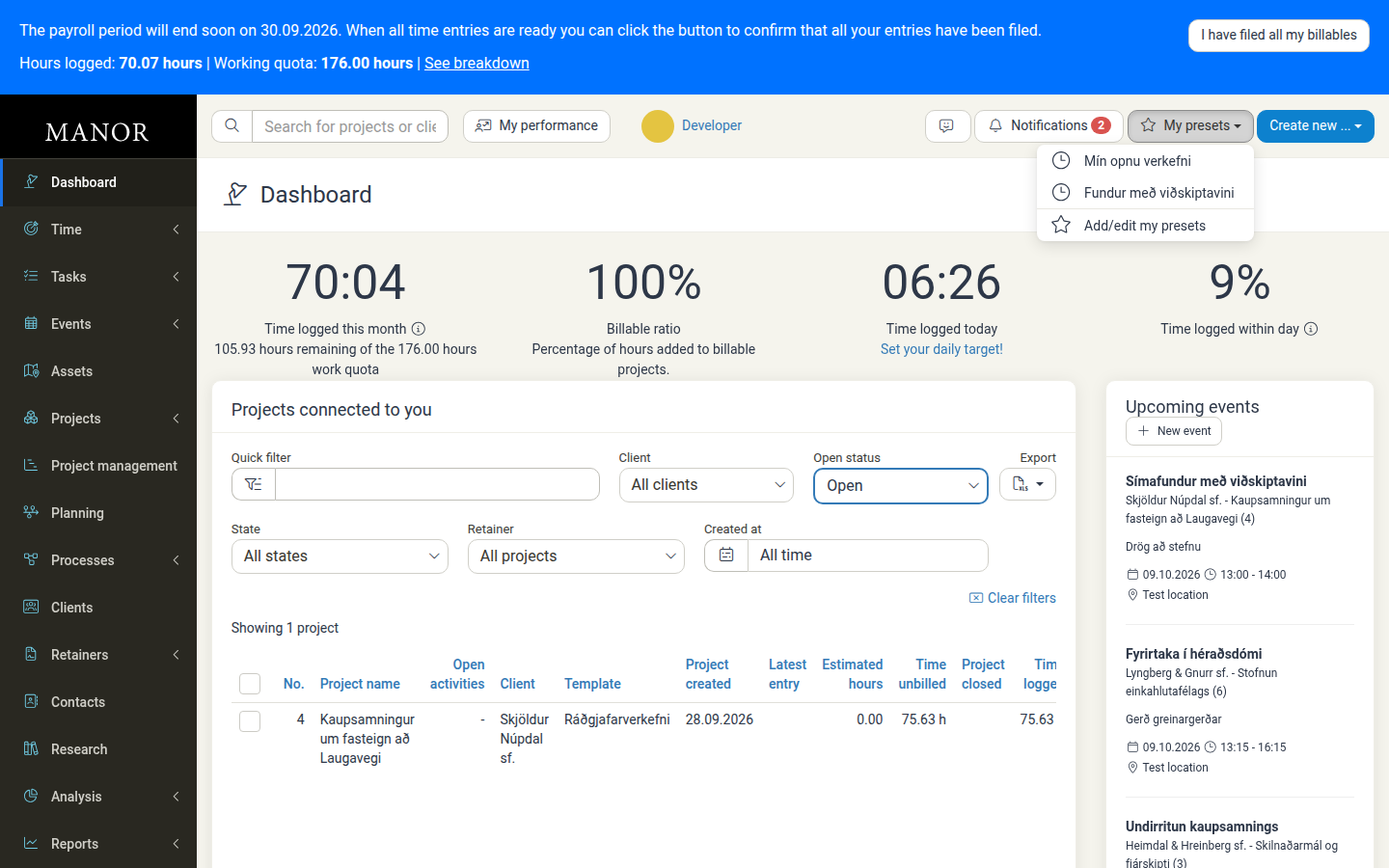
- The My presets menu in the top toolbar never contains saved list views — only time-entry presets plus the Add/edit my presets link.
- The Dashboard cannot be saved with a particular set of filters, columns or metrics.
A list of the actual filter controls on a Data table, for example, shows only filtering and export options — nothing for saving a view:

How list filters and sorting actually behave
- Filters and sorting are applied through the page address (for example,
order_byandorder_dir), so they are not stored against your user. - Each list page also has a Clear filters link that returns it to the default view.
- Because nothing is saved, reloading a list or opening it from the menu brings you back to the standard columns and default filters.
What presets actually are
The word preset in Manor has a single, specific meaning: a personal template that pre-fills the Log time form so you can add a time entry in one click.
- Presets are reached from the My presets menu in the top toolbar and managed on the Presets page under your profile.
- A preset stores time-entry details such as project, activity, duration, description and internal note — not filters, columns or views.
Frequently confused names
Three controls are easy to mix up because their labels contain the same words:
| Control | What it is | What it does |
|---|---|---|
| My presets (top toolbar) | A dropdown for time-entry presets | Opens or manages presets that pre-fill the Log time form |
| Presets (under your profile) | The management page at My presets → Add/edit my presets | Lists, creates, edits and deletes your time-entry presets |
| Dashboard (left navigation) | Your personal landing page | Shows metrics, your projects and tasks — it cannot be saved as a preset |
So the My presets button you see at the top of every page belongs to time entries, not to whatever list you happen to be viewing.
See Also
- My Presets — Using and managing time-entry presets.
- Presets — Detailed guide to creating and using time-entry presets.
- Dashboard — What the Dashboard shows.
- Time Tracking — How time entries work in Manor.