
Overview
Personal integrations allow you to connect your external accounts (like Outlook, Google, or Court Events) to your Manor profile. When you connect these services, Manor automatically creates beats based on your activity in those applications. Beats are suggestions that help you quickly log billable time for the work you've done.
Integrations help you:
- Create beats from email replies and Outlook activity
- Capture calendar events and meetings as beats
- Sync your court events to Manor events and calendar
- Turn activity across your favorite tools into billable time with minimal effort
Note: Your administrator must enable each integration type before you can connect it. If no integration type is enabled at all, the Integrations page is not shown to you. If a particular integration is missing, ask your administrator to enable it in the Administration > Integrations section.
Accessing Integrations
- Click your name in the top right corner of Manor
- Select Integrations from the profile menu
- You'll see a list of the integrations available to you. Each card shows a short description, a See how it works link and a Connect button.
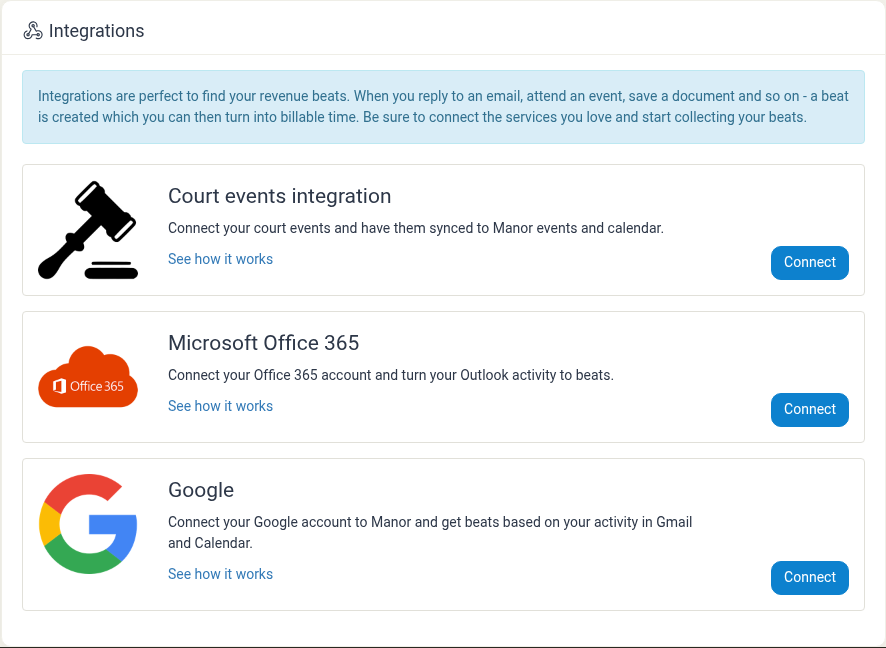
Available Integrations
Court Events Integration
Connect your court events and have them synced to Manor events and calendar.
The Court events integration syncs your court events to your Manor events and calendar. When you connect this service:
- Your court events appear in your Manor events and calendar
- You can view upcoming court dates and deadlines
- The events can be turned into beats for billing purposes
To connect Court events:
- On the Integrations page, locate Court events integration
- Click the Connect button
- In the dialog, enter your Name in the required Name field — Manor uses it to find your court appearances in the court schedules
- Click Save
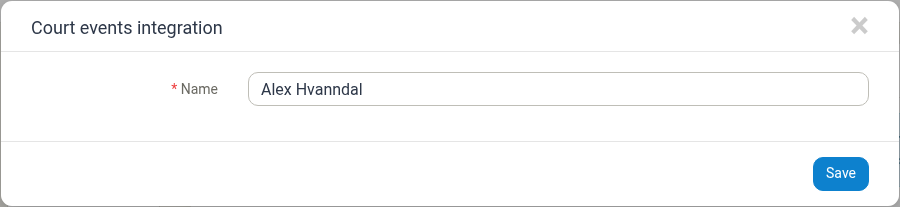
After you connect it, the card shows an Active status and an Edit button instead of the Connect button.
Microsoft Office 365 (Outlook)
Connect your Office 365 account and turn your Outlook activity to beats.
The Office 365 integration connects your Outlook email and calendar to Manor. When enabled, Manor creates beats based on:
- Email replies you send (especially to clients or projects)
- Calendar events and meetings you attend
- Time you spend in email and calendar applications
To connect Outlook:
- On the Integrations page, locate Microsoft Office 365
- Click the Connect button
- In the dialog, review the note and click Connect. The dialog says: Connect your Outlook calendar to synchronize with the Manor calendar.
- Sign in with your Office 365 credentials and grant Manor the requested access
- Outlook activity will start generating beats in Manor
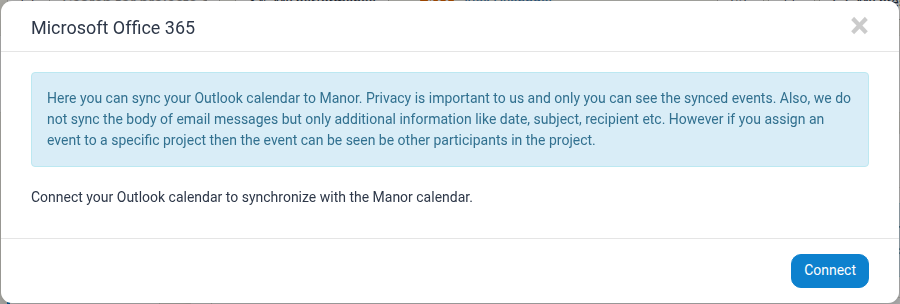
Important: The Outlook connection works in two directions. Manor reads your Outlook activity — such as calendar events and email details — to create beats, and it also writes the events you create in Manor to a calendar in your Outlook account, so they appear in Outlook alongside your other appointments. Manor does not send or modify your emails: it only reads message details such as date, subject, and recipient, and it never sends email on your behalf. Only you can see the events that are synced through your own connection.
Google Integration
Connect your Google account to Manor and get beats based on your activity in Gmail and Calendar.
The Google integration connects your Google account (Gmail and Google Calendar) to Manor. When enabled, Manor creates beats based on:
- Gmail emails you send and receive
- Google Calendar events you attend
- Meetings and appointments in your Google Calendar
To connect Google:
- On the Integrations page, locate Google
- Click the Connect button
- In the dialog, review the note and click Connect. The dialog says: Connect your Google account to Manor and get beats based on your activity in Gmail and Calendar.
- Sign in with your Google credentials and grant Manor the requested access
- Google activity will start generating beats in Manor
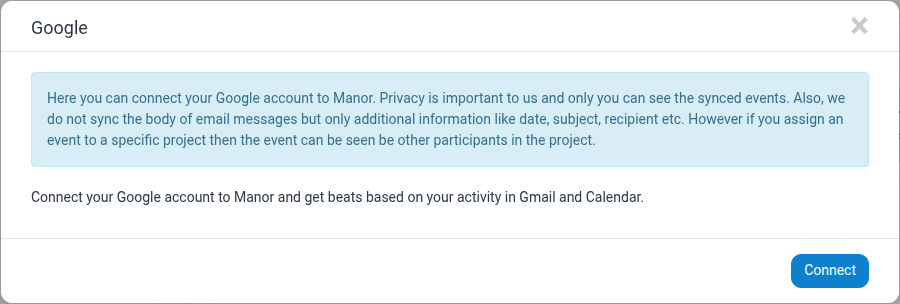
Important: The Google connection works in two directions. Manor reads your Google activity — such as Calendar events and Gmail message details — to create beats, and it also writes the events you create in Manor to a calendar in your Google account, so they appear in Google Calendar. Manor does not send or modify your emails: it only reads message details such as date, subject, and recipient. Only you can see the events that are synced through your own connection.
Understanding Beats
Beats are automatic suggestions created from your activity in connected services. After connecting an integration, Manor monitors that service and creates beats for relevant actions:
- From Outlook: Email replies, meeting attendance, calendar event time
- From Google: Email activity, calendar events, meeting time
- From Court events: Court appearance dates and times
You review beats in the Day view of the Time section. When you see a beat that represents billable work:
- Click the beat to open it
- Assign it to a client or project
- Verify the time and details
- Convert it to billable time (by creating a time entry, task, or other billable item)
See Beats for the full guide.
Managing Connected Integrations
View Connected Integrations
Once connected, an integration shows:
- Service name and icon
- An Active status label
- An Edit button that opens the integration's dialog
Disconnect an Integration
To stop syncing data from a service:
- Navigate to Integrations in your profile
- Find the connected service
- Click Edit to open the integration's dialog
- Click Disconnect
After disconnecting:
- No new beats will be created from that service
- Existing beats remain in Manor but won't be updated
- Your data in the external service is not affected
Reconnect to an Integration
If you've disconnected and want to reconnect:
- Go to Integrations in your profile
- Click Connect on the service again
- Complete the authorization process
- New beats will resume being created
Best Practices
Set Reasonable Expectations
- Integrations take time to sync (usually within minutes to an hour)
- Not all activity generates beats — Manor filters for billable-relevant activity
- You'll still need to review and assign beats to projects before billing
Manage Beat Overload
If you're receiving too many beats:
- Only connect services where you actually perform billable work
- Review beats regularly and delete ones you won't use
- Consider disconnecting integrations that aren't providing value
Keep Integrations Current
- Keep credentials updated — If you change your password, you may need to reconnect
- Check permissions — Ensure Manor still has access if your account permissions change
- Monitor sync status — If beats stop appearing, reconnect the service
Protect Your Privacy
- Integrations are personal — only you can connect/disconnect your accounts
- Your external data is accessed securely and never shared
- You can disconnect anytime to stop sharing data with Manor
Review Beats Before Billing
- Verify accuracy — Always review beat details before converting to billable time
- Assign correctly — Make sure beats are assigned to the right client/project
- Remove duplicates — Check for duplicate beats from multiple integrations
- Delete irrelevant beats — Remove beats that don't represent billable work
Troubleshooting
I Don't See an Integration Option
If an integration isn't appearing:
- Your administrator may not have enabled it yet
- Ask your administrator to check Administration > Integrations
- Some integrations may be restricted based on your user role
Beats Aren't Being Created
If you're not seeing beats after connecting:
- Wait for sync — It can take 5-60 minutes for initial sync
- Check eligibility — Manor only creates beats for billable-relevant activity
- Verify connection — Disconnect and reconnect the service
- Check permissions — Ensure Manor still has access to your external account
I Can't Connect to a Service
If you're having trouble connecting:
- Make sure you're using the correct login credentials
- Try disconnecting and reconnecting the service
- Check that two-factor authentication isn't blocking the connection
- Clear your browser cache and try again
- Contact your Manor administrator if the problem persists
Beat Appears Twice (Duplicate)
If you've connected multiple services and the same activity appears twice:
- This is normal if the same activity appears in multiple services (e.g., email and calendar event)
- Review both beats and delete the one that's less relevant
- Consider which integrations provide the most useful beats for your workflow
Integration Disconnected Unexpectedly
Integrations may automatically disconnect if:
- Your external account password was changed
- Permissions to Manor were revoked
- The external service experienced issues
Simply reconnect the integration through the Integrations page.
I'm Connected But Can't See Recent Activity
If recent activity isn't appearing in beats:
- Wait 30-60 minutes for sync to complete
- Check that the activity occurred in the connected service
- Ensure the activity matches the types that generate beats
- Try disconnecting and reconnecting the service
Related documentation
- My Presets — Create quick templates for common billable items
- Beats — Understand how beats fit into your workflow
- Calendar Sync — How calendar integrations create beats
- Syncing Manor events to Outlook or Gmail — Get the events you create in Manor into your external calendar
- Administration > Integrations — System-wide integration settings (for administrators)