
Overview
Your user profile holds the personal settings that control how Manor works for you — your contact details, display preferences, notification options and the services you connect. You open it by clicking your name or avatar in the top-right corner of the screen.
The profile is split into pages, listed in the profile menu on the left of the page. This article covers the Profile details page and gives an overview of the other profile pages, each of which has its own article.
The profile menu
The profile menu lists the following pages:
- My performance — your personal time analytics page
- Presets — time entry presets for faster data entry
- Profile details — your basic information, contact details and preferences (this page)
- Profile picture — your avatar
- Integrations — connected external services (Court events, Microsoft Office 365, Google)
- Date and time — timezone, date format and time format
- Password — change your login password
- Devices — signed-in devices and sessions
- Authentication — two-factor authentication
My performance and Presets are also available from the top navigation bar.
Profile details
The Profile details page is where you manage your core profile information and display preferences. Open it by clicking your name or avatar in the top-right corner and selecting Profile details, or by going directly to /profile.
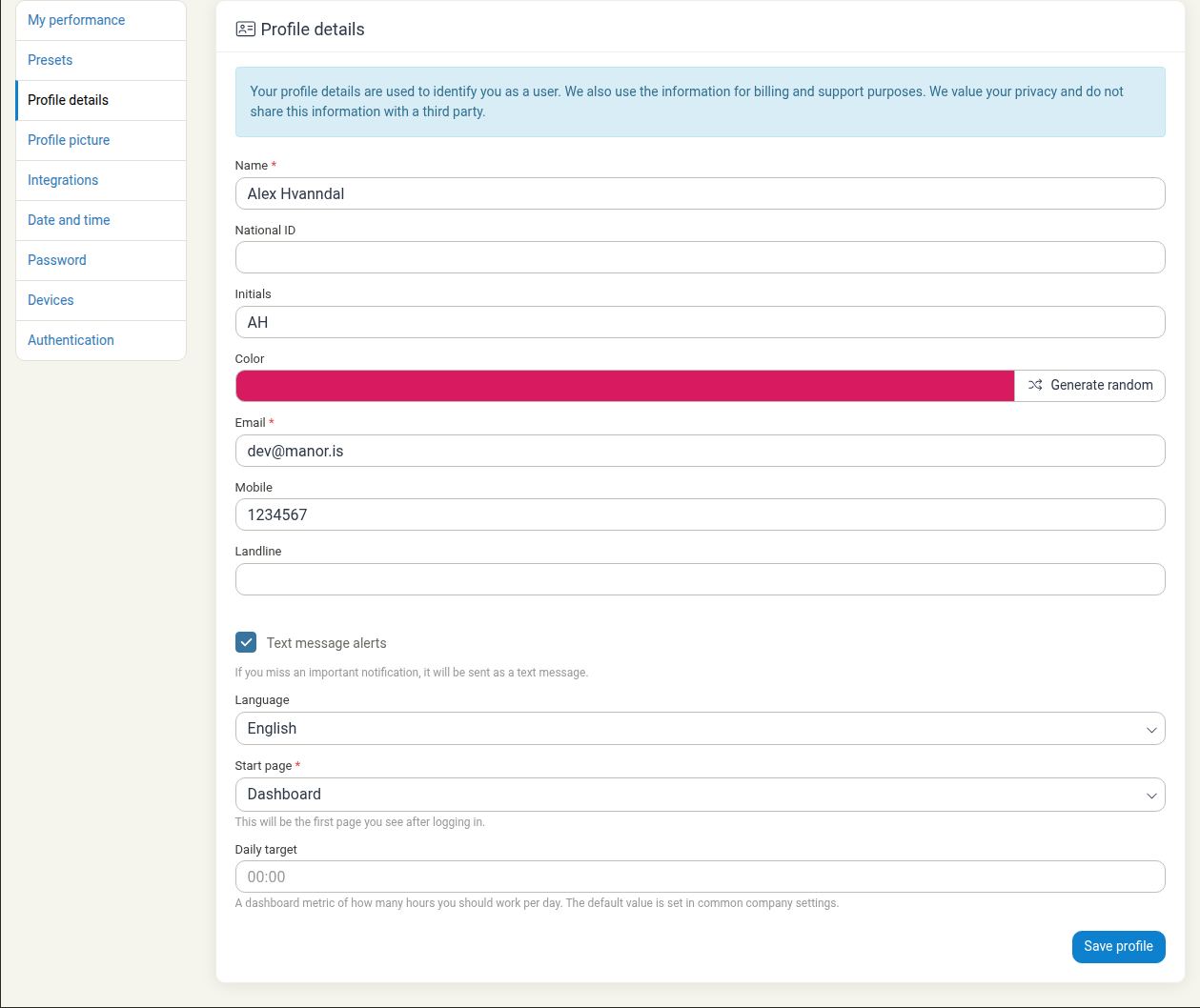
At the top of the page a notice explains what the information is used for:
Your profile details are used to identify you as a user. We also use the information for billing and support purposes. We value your privacy and do not share this information with a third party.
Basic information
- Name (required) — your full name as it appears throughout Manor.
- National ID — your national identification number, used for compliance purposes. It is optional unless your firm requires it (see the note below).
- Initials — the initials shown in abbreviated views. If you leave this empty, Manor generates initials from your name.
- Color — the color used to identify you in calendars, task assignments and other collaborative views. Click Generate random to generate a new color, or pick one manually.
Contact information
- Email (required) — your work email address, used for login and notifications.
- Mobile — your mobile phone number.
- Landline — your office or alternative phone number.
- Text message alerts (checkbox) — when enabled, an important notification you miss is also sent to you as a text message. The helper text reads: If you miss an important notification, it will be sent as a text message.
Preferences
- Language — your interface language. Manor offers English, Icelandic, Czech, French, Norwegian, Polish, Swedish and Danish. You can also switch the interface language with the Change language button at the bottom of the main navigation.
- Start page (required) — the first page you see after logging in. The choices available to you depend on the areas of Manor you have access to, so they can differ from another user's list. A typical list includes Dashboard, Time, Tasks, Events, Projects, Clients, Contacts, Research, Analysis, Reports, Invoices and Administration. The helper text reads: This will be the first page you see after logging in.
- Daily target — the number of hours you expect to work per day, entered as
HH:MM. It appears as a metric on your Dashboard. The helper text reads: A dashboard metric of how many hours you should work per day. The default value is set in common company settings. If you leave it empty, the company default applies. See Workday Length for how your personal target relates to the company, firm and payroll working hours.
Saving changes
Click Save profile at the bottom of the page to apply your changes.
Note on National ID: your firm can make the national ID mandatory on the profile form. When it is mandatory and left empty, you cannot save the profile until you fill it in. If you are unsure whether this applies to your firm, ask an administrator.
Presets
Presets are saved time entry templates with pre-filled data (such as project, activity, rate and description) that let you log time quickly without re-entering the same details.
- Open Presets from the profile menu (
/profile/preset). - Click New preset to create a preset.
- My presets in the top navigation bar also takes you to your presets.
See Presets for the full guide.
Profile picture
The Profile picture page manages the avatar shown throughout Manor to identify you.
- Open Profile picture from the profile menu (
/profile/avatar). - Click Upload profile picture to choose an image, then crop it.
- If you have already uploaded a picture, you can also crop or delete it.
See Profile Picture for the full guide.
Integrations
The Integrations page connects Manor to external services. Once a service is connected, Manor creates beats — suggested time entries based on your activity, such as replying to an email or attending a calendar event — which you can turn into billable time. The available services are Court events integration, Microsoft Office 365 and Google.
- Open Integrations from the profile menu (
/profile/integrations). - Each service card shows a short description and a Connect button. Which services appear depends on what your administrator has enabled.
See Profile Integrations for how to connect each service and work with beats, and Beats for how beats fit into your time tracking.
Date and time
The Date and time page sets your personal timezone, date format and time format (/profile/date-and-time). These settings decide how Manor shows dates and times to you, and your choices override the defaults configured for the instance.
See Date and Time Settings for the full guide.
Password
The Password page (/profile/password) is where you change your login password.
- Enter your Old password, then your New password and New password confirmation.
- Only strong or very strong passwords are accepted. Adding at least one uppercase letter, a lowercase letter and a number increases your password strength considerably.
- Click Change password to apply the change.
The page also explains what to do if you suspect your password was compromised — reset your password and sign out all devices. See Password Management for the full guide.
Devices
The Devices page (/profile/device) lists the devices and sessions signed in to your Manor account, with the time each device last logged in. You can sign a device out from the list if you suspect unauthorized access or forgot to log out of a shared computer.
See Devices for the full guide.
Authentication
The Authentication page (/profile/authentication) manages two-factor authentication. It lists your authentication methods — an authenticator app (TOTP), SMS and email — and shows whether each is enabled. You can enable or remove the authenticator app here; when it is enabled, logging in requires both your password and a code from your authenticator app.
See Authentication for the full guide.
My performance
My performance (/my-performance) is your personal analytics page, showing how your logged hours are distributed. It includes time breakdowns by project and period, by client and by project, total hours over time (switchable between days, weeks, months and years), the age of your time entries, and breakdowns by user role, project billing setting, project owner and label.
Open it from the profile menu or the My performance button in the top navigation bar. See My Performance for the full guide.
Best practices
- Keep your email and mobile current — a correct phone number is needed to receive missing-notification text messages.
- Set a realistic daily target — a daily hours target makes your Dashboard progress meaningful.
- Choose an identifiable profile color — it helps colleagues recognize your tasks and calendar entries.
- Connect integrations you use — an Office 365 or Google connection streamlines time logging by suggesting beats from your activity.
- Enable two-factor authentication — it protects your account and the client and billing information in it.
- Pick a useful start page — make the page you work in most the first thing you see after logging in.
Related documentation
- Profile Integrations — connecting external calendar and email services
- Profile Picture — uploading, cropping and deleting your avatar
- Date and Time Settings — personal timezone and date and time formats
- Password Management — changing your password and handling a suspected compromise
- Devices — reviewing and signing out sessions
- Authentication — setting up two-factor authentication
- Presets — time entry templates
- Workday Length — daily working hours and how they affect calendars and time entry