
What is Calendar Sync?
Calendar sync connects Manor with your external calendar services. These integrations capture your activity and automatically create "beats" in Manor—a record of your work that you can convert into billable time. This helps you keep track of work that happens across different platforms.
The Google and Microsoft Office 365 integrations are two-way: they pull your external calendar activity into Manor as beats, and they also push the events you create in Manor out to a calendar in Outlook or Google Calendar. This article focuses on connecting the accounts and pulling activity in as beats; for the Manor → external direction, see Syncing Manor events to Outlook or Gmail.
Why Calendar Sync Matters
Integrating with external calendar services helps you:
- Capture work automatically - Create beats from your email, calendar, and other activity
- Save time - No need to manually log work you've already tracked elsewhere
- Track billable time - Convert beats into billable time records
- Stay organized - All your work activity is captured in one place
Accessing Calendar Sync
To set up integrations:
-
Navigate to your Profile from the user menu.
-
Click on Integrations.
-
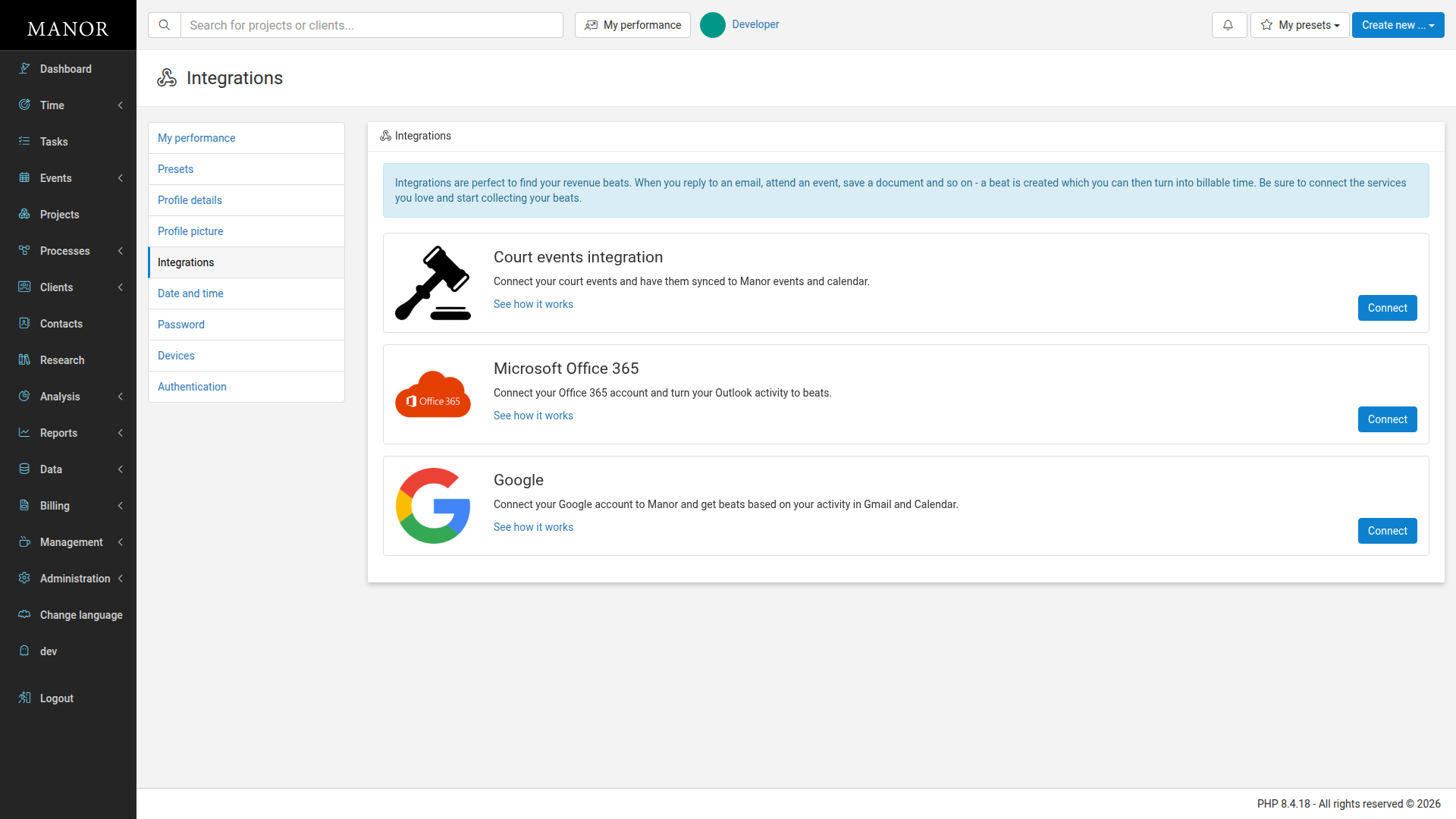
You will see a list of available integrations. Click Connect next to the service you want to use.
Supported Integrations
Three integrations are available to help capture your work and create beats:
Each integration appears as a card with a short description, a See how it works link and a Connect button.
Court events integration
Connect your court events and have them synced to Manor events and calendar.
To connect:
-
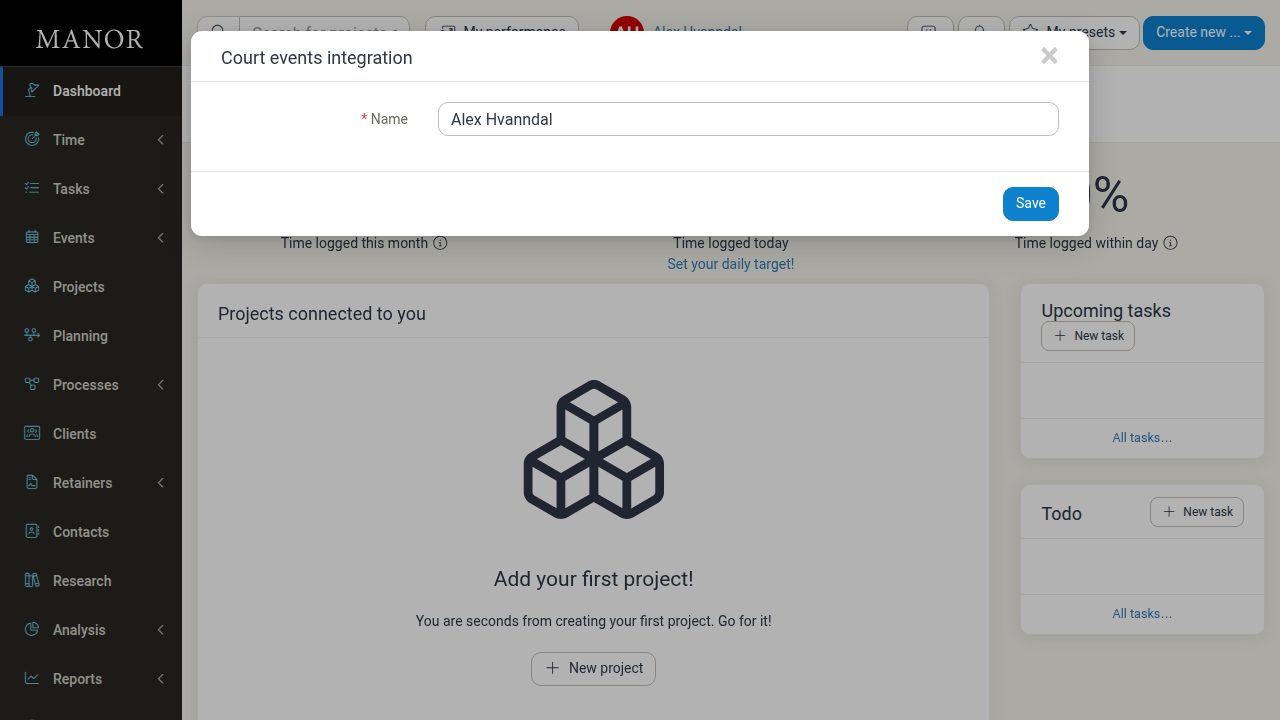
On the Integrations page, click Connect next to Court events integration.
-
In the dialog, enter your Name — Manor uses it to find your court appearances in the court schedules.
-
Click Save.
Connect your Google account to Manor and get beats based on your activity in Gmail and Calendar.
To connect:
- On the Integrations page, click Connect next to Google.
- Sign in with your Google account and grant Manor the requested access.
Microsoft Office 365
Connect your Office 365 account and turn your Outlook activity to beats.
To connect:
- On the Integrations page, click Connect next to Microsoft Office 365.
- Sign in with your Microsoft account and grant Manor the requested access.
Choosing which calendars to sync
After a Google or Office 365 account is connected, reopen the integration (Profile → Integrations → the integration's card) to choose which calendars are involved:
- Synced calendars — the external calendar(s) whose events are pulled into Manor as beats ("Events in this calendar will be synced to Manor.").
- Manor calendar — the external calendar that the events you create in Manor are written to ("This calendar will be used to store events created in Manor.").
Because these connections are two-way, the same settings also control the opposite direction: Manor events are written to the Manor calendar you select, so they appear in Outlook or Google Calendar automatically. There is no interval or schedule to configure — the connection is live, and Manor reads and writes changes as needed.
See Syncing Manor events to Outlook or Gmail for the full steps, sync behaviour and limitations of the Manor → external direction.
Limitations
- No
.icsfile or subscribable feed. There is no downloadable calendar file and no calendar URL you can subscribe to in Outlook or Google Calendar — connecting the account is the supported way to sync. - Per-user connection. Each person connects their own external account, so the integration is not a way to publish Manor events to people who do not have a Manor account.
- Email bodies are not synced. Manor reads only event and message metadata such as date, subject and recipient, not the content of email bodies.
Related Articles
- Syncing Manor events to Outlook or Gmail — Getting Manor events into Outlook or Google Calendar.
- Calendars — Overview of Manor calendars, views, and integrations.
- Events — Creating, editing, and managing Manor events.
- Beats — Turning calendar activity into billable time.
- Profile Integrations — Managing your connected accounts.