
What are Expenses?
Expenses are business costs incurred during project work, such as materials, supplies, travel accommodation, client meals, or other out-of-pocket expenses. Each expense entry includes details such as the date, user, amount, VAT rate, payer (client), project assignment, seller (vendor), document reference number, and billing status.
The Expenses page in the Data section gives a firm-wide view of every expense logged in Manor, across all projects and users. Use it to review, filter, export, and bulk-edit expenses. To record a new expense on a project, see Expenses.
Accessing Expenses
To open the firm-wide expense list:
- Click Data in the main navigation menu.
- Select Expenses in the Data submenu (or click the Expenses card on the Data overview page).
- Alternatively, navigate directly to
/data/expense.
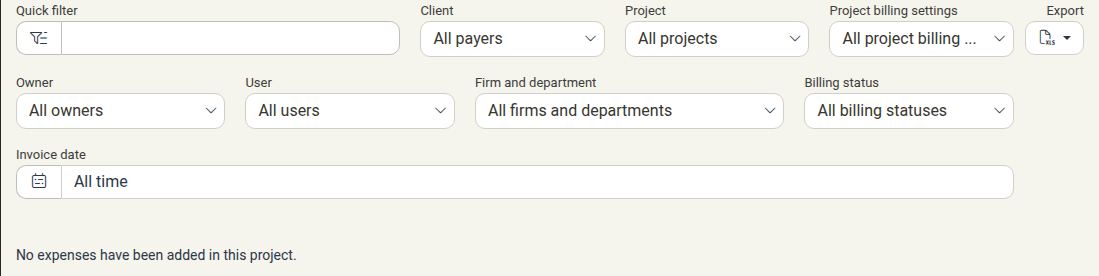
Filtering Expenses
The filter bar at the top of the table lets you narrow the list by payer, project, person, and billing state:
- Quick filter — Free-text search that narrows the list as you type.
- Client — Filter by payer (defaults to All payers).
- Project — Narrow the list to a single project (defaults to All projects).
- Project billing settings — Filter by how the project is set up for billing (defaults to All project billing settings).
- Owner — Filter by the owner of the project.
- User — Filter by the employee who recorded or incurred the expense.
- Firm and department — Filter by firm or organizational unit (defaults to All firms and departments).
- Billing status — Filter by billing stage. Options are All billing statuses, Billed, Unbilled, Billed and unbilled, Written off, Main billables, Settlement billables, and On a proposal.
- Invoice date — Filter by date. Choose a preset such as All time, Today, Yesterday, Tomorrow, a past or future range, an individual month, Last 3 months / Next 3 months, Last 12 months / Next 12 months, or a specific year, then click Apply. Use Cancel to discard the date selection.
Click Clear filters to reset every filter back to its default.
Columns in the Expense Table
The table lists the following columns:
| Column | Description |
|---|---|
| Invoice date | The date of the supplier's invoice or receipt for the expense |
| User | The employee who recorded or incurred the expense |
| Unit | The organizational department of the user |
| Location | The office location associated with the expense or user |
| Payer | The client responsible for the expense |
| Project | The project the expense is charged to |
| Description | Description of the purchase or cost item |
| VAT rate | The VAT rate applied to the expense |
| Amount | The expense amount, without VAT |
| Billable amount | The amount that can be invoiced to the client |
| Effective price | The final billed amount after any write-off or adjustment |
| Seller | The vendor, supplier, or merchant who issued the invoice |
| Document number | Receipt, invoice, or voucher reference number |
| Invoice | Billing status, or the linked invoice when the expense has been invoiced |
Exporting Expenses
Click Export at the end of the filter bar and choose Download as Excel spreadsheet to download the currently filtered expense list as an Excel file. Apply your filters first, so the file contains only the expenses you need.
Editing and Bulk Actions
- Editing — Click an expense row to open its edit dialog, change the editable values, and click Save. See Editing Records for how editing and defaults work.
- Bulk actions — Tick the checkboxes next to the rows you want, then use the selection bar that appears above the table. On the Expenses list the available actions are Delete, Move, Copy, Change payer, Write-off, Undo write-off, Edit selected items, and Change user. See Copying and Moving Entries Between Projects for what each action does and the permissions they require. While rows are selected, a Calculated totals row also appears directly beneath the action buttons, summing the Amount, Billable amount and Effective price of the selection inline; columns without a value show an em dash (
—).
Note Move and Copy only work on unbilled entries. Expenses that have already been invoiced are skipped, and Manor reports how many entries were processed and how many were left out.
Best Practices
- Record expenses promptly — Log out-of-pocket costs and vendor receipts as soon as possible so nothing is missed at billing time.
- Check VAT rates — Make sure the correct VAT rate is applied to each expense, according to local tax rules and the nature of the cost.
- Add document numbers — Record the invoice or receipt number in the Document number column for audit and reconciliation.
- Review before billing — Filter by Billing status: Unbilled regularly to confirm that all billable expenses are included in client billing.
See Also
- Data Management — Hub for all data tables in Manor
- Expenses — How to create and manage individual expense entries on projects
- Billables — Unified view of all billable items across time, travel, expenses, products, and per diems
- Copying and Moving Entries Between Projects — All bulk actions available on the expense list
- Editing Records — How to open, change, and save records
- VAT Rates — Configuring company VAT rates in Management