
The Retainers view in the Data section provides a centralized place to see all retainers across your firm. This is where you view, filter, and manage retainer records that represent pre-paid service agreements with clients.
What You'll See
The retainers list shows all retainers with key information at a glance:
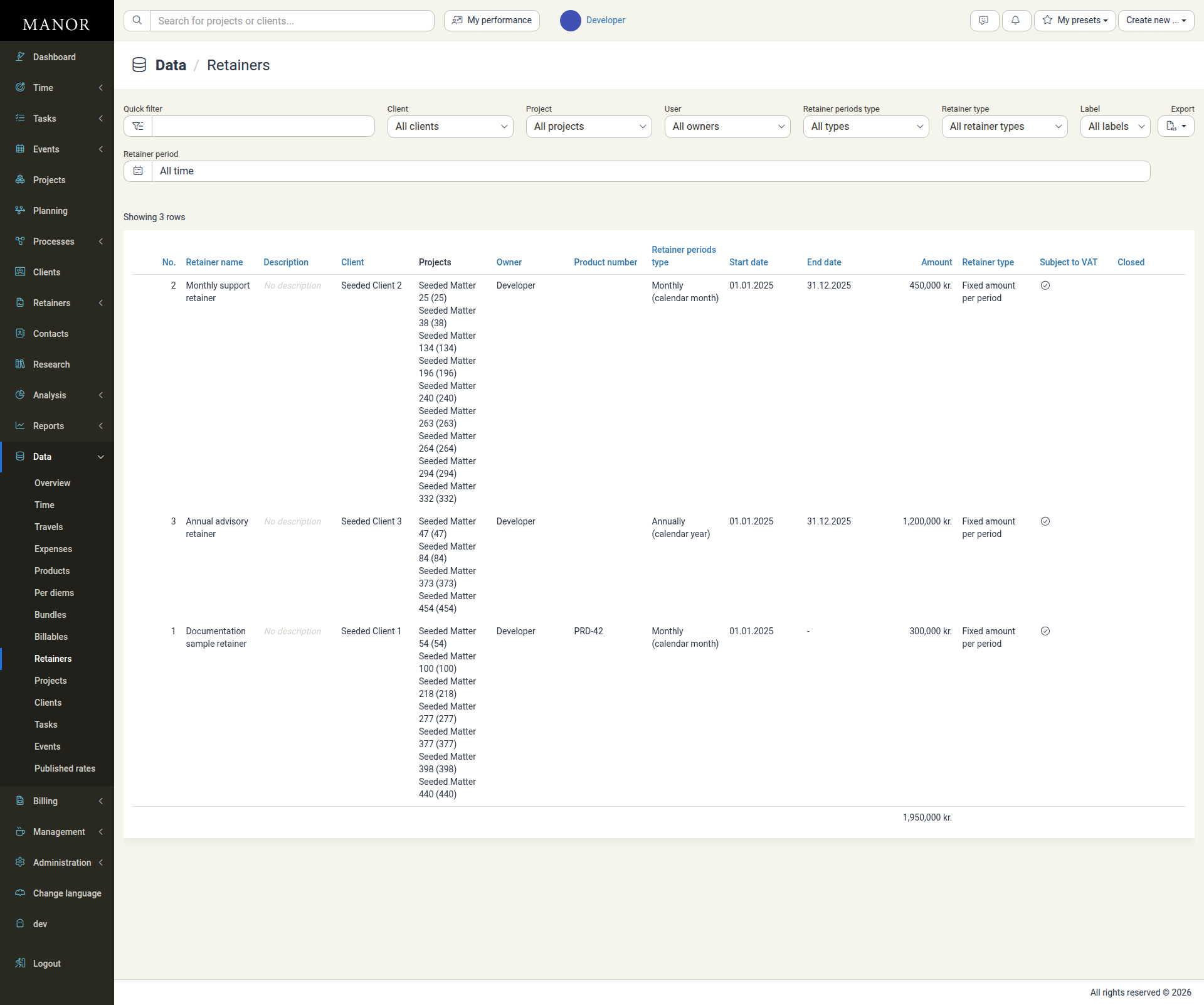
Understanding the Columns
The retainers list displays these key columns:
- No. — The unique retainer number
- Retainer name — The name or title of the retainer
- Description — Additional details about the retainer (shows "No description" when empty)
- Client — The client associated with this retainer
- Projects — The projects the retainer covers
- Owner — The user responsible for the retainer
- Retainer periods type — How periods are defined: Single period, Custom periods, Weekly, Monthly (calendar month), Monthly (rolling), Annually (calendar year), or Annually (rolling)
- Start date — When the retainer begins
- End date — When the retainer ends (shown as "-" when there is no end date)
- Amount — The amount or number of hours included per period
- Retainer type — Fixed amount per period or fixed hours per period
- Subject to VAT — Whether VAT applies to the retainer (shown as a check icon)
- Closed — The date the retainer was closed (empty while the retainer is active)
Amounts are totalled at the bottom of the Amount column.
Optional Columns
Some columns appear only when at least one retainer uses that information, so your list may show more columns than the list above:
- Labels — Appears when at least one retainer has labels attached
- Product number — Appears when any retainer has a product number set
- Buyer reference number — Appears when any retainer has a buyer reference number set. This column is shown on the main Retainers list but not in this Data view.
These optional columns appear between Owner and Retainer periods type, in the order Labels, Buyer reference number, Product number.
Filtering Retainers
Use the filters at the top to narrow down your view:
- Quick filter — Search by retainer name, description, or client
- Client — Show retainers for specific clients
- Project — Filter by project
- User — Show retainers owned by specific users (placeholder "All owners")
- Retainer periods type — Filter by period frequency (Monthly, Weekly, etc.)
- Retainer type — Show fixed amount or fixed hours retainers
- Label — Filter by retainer label (appears when retainer labels have been defined)
- Retainer period — Filter by time period (All time, Last 12 months, and other ranges)
Working with Retainers
Viewing Details
Click on a retainer number to open its full record in a dialog. The detail view is grouped into these sections:
- General — Period type, amount, start and end dates, status (Active, Inactive or Closed), projects covered, language and owner
- Description — Shown only when the retainer has a description
- Pricing — Retainer type, and how billables that exceed the retainer and unused retainer amounts are handled
- Billing — Client, VAT, invoice date, invoice comment, automated invoicing, buyer reference number and buyer contact details
- Retainer flow — A chart of the retainer amount, used amount and accumulated unused amount over time
- Accumulated unbilled — A period-by-period table with retainer amount, used billables, exceeding retainer, unused retainer, accumulated unused, total due, total billed and balance
- Billables breakdown — The billables for each period in terms of quantity
- Effective hourly rate — The calculated effective hourly rate per period (for retainers that are not fixed hours)
From the detail view you can also open the Work report, Edit invoice automation, and Edit retainer links.
Sorting
Click a column header to sort the list by that column (ascending or descending). The Projects column is not sortable. By default, the list is sorted by End date, with the most recent first.
Exporting
Click the Export button and choose Download as Excel spreadsheet to download the retainer data for reporting or analysis. The file contains all retainers that match the current filters and sorting.
Common Tasks
Find a Specific Retainer
Use the Quick filter to search by name, or use the Client dropdown to filter by client.
See Retainers for a Project
Use the Project filter to show only retainers that apply to that project.
Review Upcoming Expirations
Sort by End date to see which retainers are expiring soon.
Check VAT Status
The Subject to VAT column shows whether VAT applies to each retainer for accounting purposes.
Best Practices
Regularly Review Balances — Check the retainers list periodically to see which retainers are nearing exhaustion.
Track by Owner — Use the User filter to see which team members manage each retainer.
Monitor Periods — Keep track of when periods renew to ensure continuous coverage for clients.
Export for Reporting — Use the Export feature to create management reports on retainer utilization.