
What are Notifications?
Notifications keep you informed about activity that is relevant to you across Manor. You receive them when events occur that concern your work — for example a task is assigned to you, a task is completed, an event is due, a project budget is running out, you are added to or removed from a project, or an invoice proposal is assigned to you. Notifications appear inside Manor, and Manor can also forward important ones to you in other ways.
Accessing Notifications
Notifications are always reachable from the top navigation bar, wherever you are in Manor.
The Bell Menu
- Click the bell icon in the top navigation bar (between the notifications area's neighbouring icons and the My presets button).
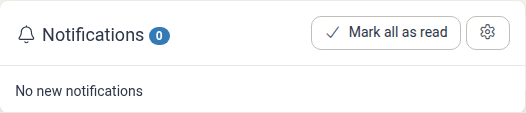
- The Notifications menu opens and shows:
- A badge next to the heading with the number of unread notifications.
- A Notification settings button (the gear icon on the right of the heading) that opens the settings dialog.
- A Mark all as read button.
- The most recent notifications, or the message No new notifications when there is nothing to show.
Each notification in the list shows the sender's avatar, a title, a message, and a timestamp. For example, you may see "Task assigned", "Task completed", "Event alert", or "Project balance warning exceeded". A type-specific icon next to the title indicates the kind of notification.
The Notifications Page
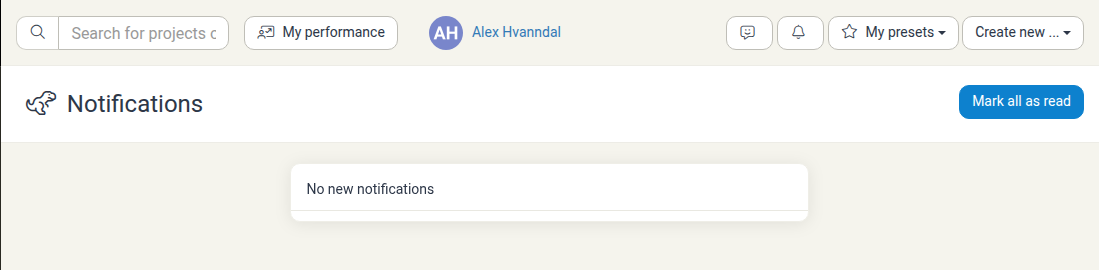
The full notifications page lists everything, including older items, and is paginated. When there are notifications, an All notifications link appears below the list in the bell menu and opens this page. You can also go there directly at /notification.
Managing Notifications
Opening a Notification
Notifications that relate to a record in Manor (such as a task, event, or project) are links. Clicking one opens the related item and marks that notification as read.
If a notification has no link — for example, when the item it referred to no longer exists — the item is not clickable.
Marking Notifications as Read
- One at a time: Click the small unread dot on a notification to mark just that one as read. The dot is only shown on unread notifications. Clicking the notification itself also marks it as read.
- All at once: Use Mark all as read — either in the bell menu or in the header of the Notifications page. This clears the unread counter.
Text Message (SMS) Alerts
For urgent items, Manor can follow up a missed notification with a text message:
- Open your profile by clicking your name or avatar in the top bar, or go to
/profile. - Make sure your Mobile number is filled in.
- Select Text message alerts ("If you miss an important notification, it will be sent as a text message.").
- Click Save profile.
Notification Settings
Notification settings are opened as a dialog. You can reach them by clicking the Notification settings (gear) button in the bell menu, or by going to /notification/settings.
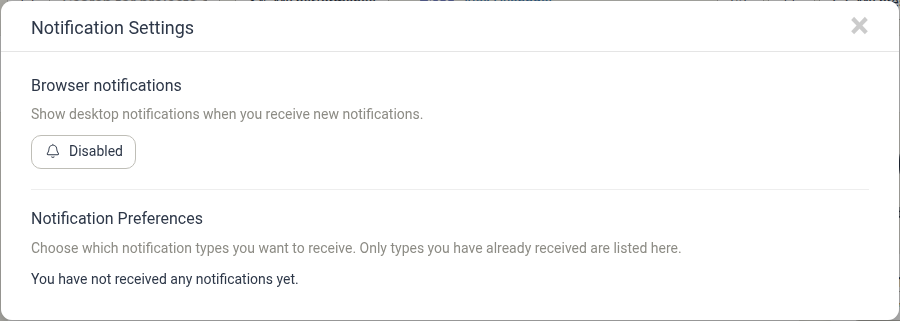
The dialog has two sections: Browser notifications and Notification Preferences.
Browser Notifications
This section controls desktop alerts from your web browser while Manor is open.
- Disabled — Desktop alerts are off. Click the button to enable them.
- Enabled — Desktop alerts are on. Click the button to turn them off.
- Blocked by browser — Your browser is preventing Manor from showing desktop alerts. You must allow notifications for Manor in your browser's own settings, and then the setting becomes available again.
When you first enable this, your browser may ask you to Allow notifications; without that permission, no desktop alerts can appear.
Notification Preferences
This section lets you choose which types of notification you want to receive.
- Only notification types you have already received are listed here, so the list grows as you receive new kinds of notifications.
- Clear the checkbox for a type you no longer want to receive, and select it again to start receiving it.
- If you have not received any notifications yet, the section shows You have not received any notifications yet.
Notification types that can appear here include things such as Task assigned, Task completed, Task alert, Event alert, Added as project participant, Removed as project participant, Invoice proposal assigned, Project balance warning exceeded, Project hours budget exceeded, Mass invoice creation, Vacation request status changed, and connection problems for the Outlook and Google calendars.
Click Save to apply your preferences.
Best Practices
- Enable browser notifications if you work in other tabs or applications, so you do not miss time-sensitive alerts.
- Keep text message alerts on if you are often away from your computer, and make sure your mobile number is up to date.
- Clear items you have dealt with using Mark all as read, so the unread badge reflects only new items.
- Review your notification types occasionally and switch off categories that are not useful to you.
See Also
- Tasks — Working with tasks and task assignments
- Dashboard — Viewing upcoming tasks and work on the dashboard
- User Profile Settings — Managing your profile details, mobile number, and text message alerts