
What are Time Entries?
Time entries are records of the hours you and your team spend working on projects. Think of them as your digital timesheet—each entry shows who worked, what they did, when they did it, and how long it took. By tracking time accurately, you create a clear picture of where effort goes and ensure you bill clients fairly for every hour worked.
Why Time Tracking Matters
Accurate time tracking helps you:
- Bill clients correctly — Ensure every billable hour is captured and invoiced, maximizing revenue.
- Monitor project budgets — Track logged hours against project budgets before work runs over.
- Understand profitability — Know which projects and clients are most profitable by comparing time spent to revenue earned.
- Improve estimates — Use historical time data to make better predictions for future work.
- Allocate resources wisely — See where team time goes to balance workloads and plan capacity.
- Track productivity — Identify patterns in work delivery and opportunities to improve efficiency.
Time Entry Views
Manor provides five distinct views for viewing and managing time entries, accessible under Time in the main navigation:
Day View (/time/day)
Focuses on a single day with a detailed hourly schedule broken into 30-minute intervals. Displays total logged hours for the day, along with any automated Beats suggestions or dismissed beats. Allows quick date navigation using the date picker or previous/next day buttons.
Week View (/time)
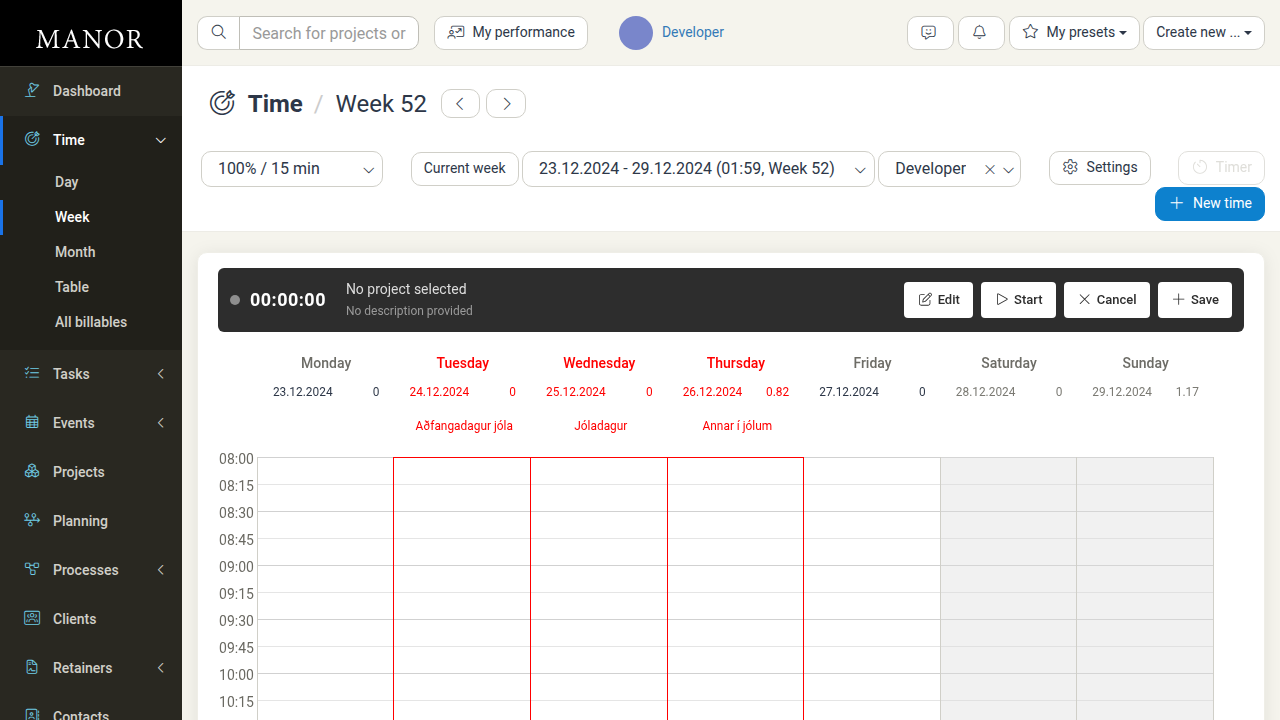
Displays your week in a calendar grid with 15-minute intervals across all seven days (Monday through Sunday). Shows daily logged totals, highlights holidays, and includes the built-in Timer bar at the top for real-time tracking.
Month View (/time/month)
Provides a monthly calendar matrix displaying total logged hours for each day. Clicking on any day jumps directly into that day's Day View. Previous and next month buttons let you navigate smoothly across time periods.
Table View (/time/table)
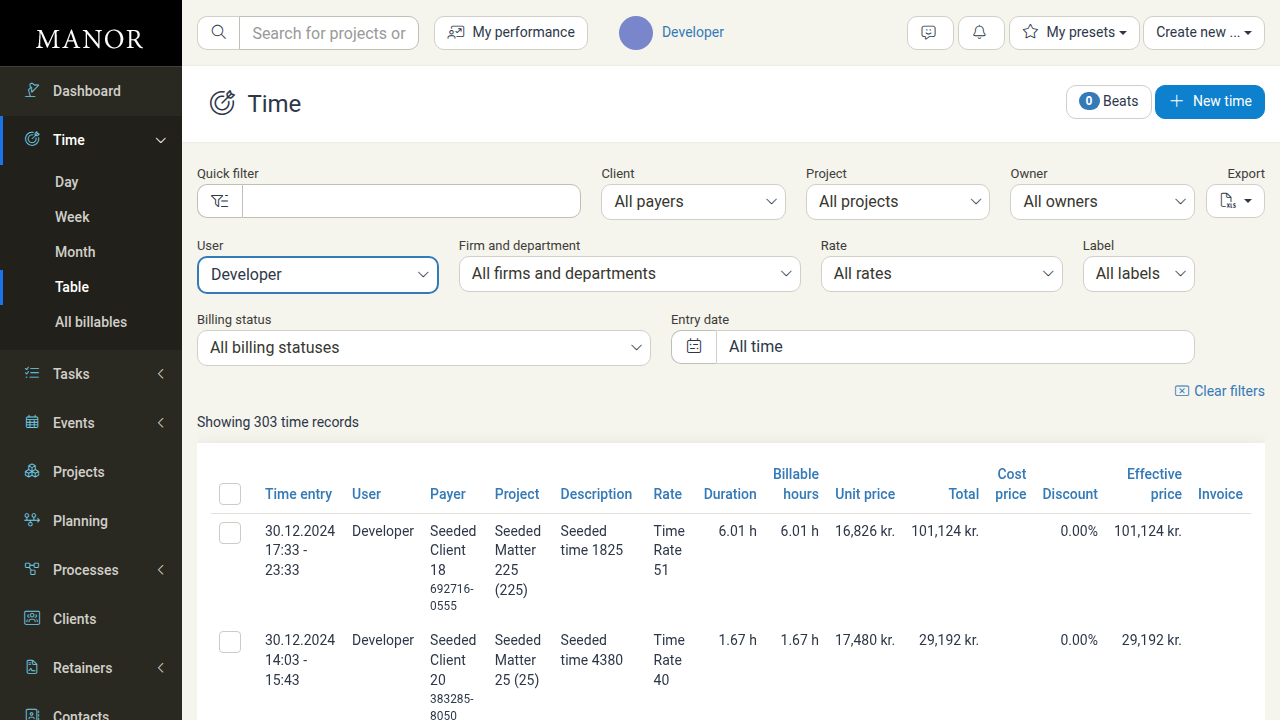
A comprehensive spreadsheet-style list of time entries with full sorting, multi-criteria filtering, pagination, and bulk export. Columns include:
- Checkbox — Select entries for bulk actions.
- Time entry — Date and time span (
DD.MM.YYYY HH:MM - HH:MM). - User — Employee who logged the work.
- Payer — Client or billing entity, including national ID.
- Project — Project/matter name and number.
- Description — Summary of work performed.
- Rate — Billing rate applied.
- Duration — Actual hours logged.
- Billable hours — Number of hours to invoice.
- Unit price — Hourly rate in project currency.
- Total — Total before discounts (
Billable hours × Unit price). - Cost price — Internal cost of providing the service.
- Discount — Percentage discount applied.
- Effective price — Final price after discount.
- Invoice — Invoice reference or status.
All Billables View (/time/billables)
A unified view showing all billable item types (Time, Travel, Expenses, Products, Per diems) together in one place, allowing unified billing audits across your organization.
Creating a Time Entry
To create a new time entry:
- Click New time from any Time view or select Create new... > Time entry from the global navigation header.
- Complete the required and optional fields:
Core Fields
- Project (required) — Search and select the project. If the project does not exist yet, click New project to create one.
- Activity — If the project has defined activities, selecting an activity is required. Billable items cannot be saved without an activity when activities exist.
- Date (required) — The date the work was performed (defaults to today).
- Begins and Ends (required) — Start and end times selected from 15-minute dropdown intervals or typed directly. Duration is calculated automatically.
- Duration — Displays total elapsed time based on start and end times.
- Billable hours — The number of hours to bill to the client. Defaults to match Duration, but can be adjusted (e.g., billing 2 hours for 3 hours worked).
- Description (required) — Details of the work performed. This text appears on client invoices and work reports. Previous entry descriptions appear under Suggestions for rapid auto-filling.
- Internal note — Private notes visible only to internal team members; never shown on client invoices or work reports.
- Labels — Assign one or more categorization labels for tracking and analytical reporting.
- Payer — Defaults to the project's client ("Same as client"), but can be customized to another client or payer.
- Rate (required) — Hourly rate applied to calculate billing amounts.
- User — Team member who performed the work (defaults to the currently logged-in user).
Advanced Time Entry Properties
Click Advanced time entry properties at the bottom of the form to reveal bulk creation options:
- Ends at — Set an ending date to generate identical time entries for every working day within the date range (automatically skipping weekends and firm holidays).
- Duration options — Choose distribution behavior across the period (e.g., an entry like this one for each working day).
Saving Entries
- Save time — Saves the time record.
- Save and create a bundle — Saves the entry and allows grouping multiple items (time, expenses, travels) into a bundle.
- Show my time performance — Checkbox to view daily/monthly targets alongside the entry.
Using the Built-In Timer
The Week view includes a live timer located directly above the calendar grid:
- Click the Timer button in Week view.
- A timer bar opens displaying
00:00:00with Edit, Start, Cancel, and Save buttons. - Click Edit to pre-select a project and description before or during tracking.
- Click Start to begin the running clock. The button changes to Stop.
- When finished, click Stop, then Save. The time entry modal opens with the start time, end time, and duration pre-populated.
Editing and Deleting Time Entries
Editing an Entry
- In Table view, Week view, or Day view, click on the time entry row or calendar block.
- The Edit time modal opens.
- Make any changes to dates, hours, descriptions, rates, or internal notes.
- Click Save time.
Locked Entries: Time entries that have already been included on an invoice cannot be edited or deleted. Only unbilled time entries can be modified.
Writing Off Time
If work was performed but should not be billed:
- Open the time entry in the edit modal.
- Click the Write-off link at the bottom left.
- Manor sets billable hours to zero while preserving the entry for internal workload and cost analysis.
Deleting an Entry
- Open the time entry in the edit modal.
- Click Delete time record at the bottom left.
- Confirm deletion when prompted.
Filtering and Searching Time Entries
In Table View, use the filter bar to isolate specific entries:
- Quick filter — Full-text search across descriptions, client names, project names, and users.
- Client — Filter by specific client/payer.
- Project — Filter by project.
- Owner — Filter by project owner.
- User — Filter by employee (defaults to your own user; choose "All users" for firm-wide review).
- Firm and department — Filter by organizational department.
- Rate — Filter by billing rate category.
- Label — Filter by project or billable labels.
- Billing status — Filter by All billing statuses, Billed, Unbilled, Written off, etc.
- Entry date — Filter by predefined periods (All time, This month, Last month, Year, Custom range).
- Clear filters — Reset all active filters with one click.
Exporting Time Data
Click the Export button in Table view to download all filtered records as an Excel spreadsheet for external reporting, client summaries, or accounting reconciliations.
Best Practices
- Log time daily — Record hours at the end of each day while details are fresh.
- Write client-ready descriptions — Write clear, professional descriptions (e.g., "Drafted shareholder agreement revision" instead of "contract work").
- Separate actual from billable hours — Keep Duration accurate for internal capacity planning while adjusting Billable hours for fair billing.
- Use internal notes for team context — Note reasons for overtime, complexity, or billing adjustments in Internal notes.
- Leverage write-offs instead of deleting — Keep internal records of non-billable efforts rather than deleting them.