
Overview
The Projects page in Manor's Data section (/data/matter) provides a centralized inventory of all project (matter) records across your firm. While the main Projects menu item is used for day-to-day project management, timelines, and budgets, the Data > Projects view is designed for firm-wide auditing, cross-filtering, and bulk data export.
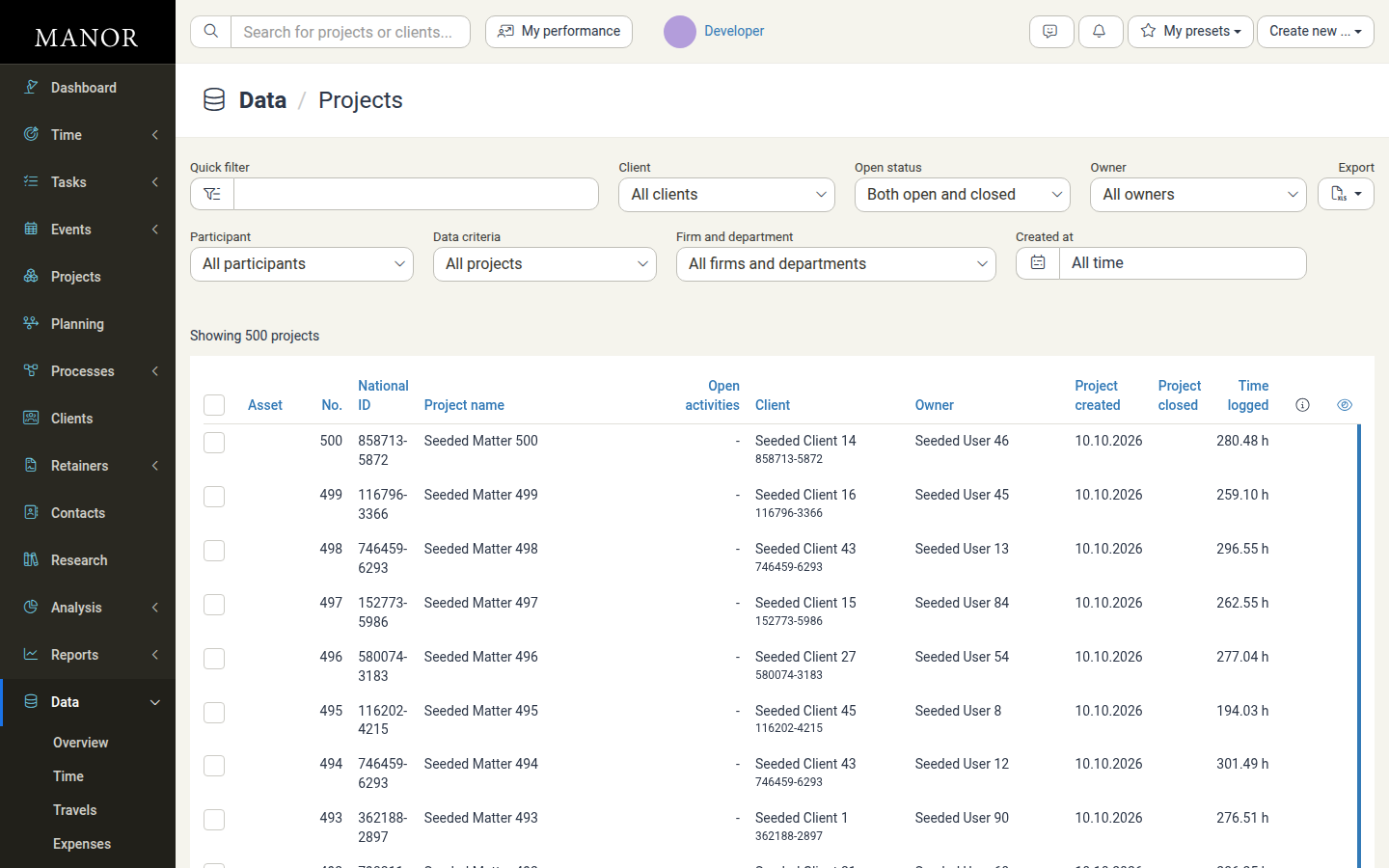
Each row in the table represents a project, providing immediate visibility into client associations, project ownership, open/closed status, and cumulative logged hours.
Columns and Information Displayed
The Projects data table displays the following columns:
- Checkbox — Select individual projects, or every project on the page, for bulk operations.
- Asset — The identifier of the asset linked to the project, if one is linked (sortable). Blank when no asset is linked.
- No. — The unique internal project (matter) number (sortable). Clicking a row or its number opens that project's workspace at
/matter/{id}. - National ID — The national or business registration number associated with the project's client (sortable).
- Project name — The full title of the project (sortable).
- Open activities — The number of activities in the project that are still open (sortable). Shows a dash when there are none.
- Client — The name and national ID of the client assigned to the project (sortable).
- Owner — The firm member responsible for managing the project (sortable).
- Project created — The date the project was created in Manor, formatted as
DD.MM.YYYY(sortable). - Project closed — The date the project was closed, or blank if it is still open (sortable).
- Time logged — Total hours logged to the project across all users and activities, for example
271.19 h(sortable). - Unread indicator — Projects that have changed since you last viewed them are marked with a blue border. Its tooltip reads: "A blue border indicates that the project has changed since the last time you viewed it."
Filtering Projects
The filter panel at the top allows you to quickly isolate specific subsets of projects:
- Quick filter — Real-time keyword search across project names, numbers, clients, and owners.
- Client — Filter by a specific client to view all matters associated with that client.
- Open status — Choose between Both open and closed (default), Open (only open projects), or Closed (only closed projects).
- Owner — Filter by the designated project manager/owner.
- Participant — Filter by any team member participating in or assigned to the project.
- Data criteria — Narrow the list to a category, for example All projects, Without a client, Without a label, With a client without an address, With a client without a national ID, Internal, Enabled, Sensitive, Not subject to VAT, Automated invoices, Main projects, Settlement projects, Locked, or Unlocked.
- Firm and department — Filter by organizational department or firm branch.
- Created at — Filter by creation date using presets such as All time, Past, Future, Today, Yesterday, Tomorrow, the last or next 3 or 12 months, specific months, or specific years.
- Clear filters — Reset all active filters back to their default values. The link appears next to Export as soon as any filter is applied.
The results counter above the table (for example, Showing 500 projects) reflects the current filters. Long lists are paginated; use the page controls and the per page selector at the bottom of the table to move through them.
Sorting and Exporting
Sorting
Click on any column header with sorting enabled (Asset, No., National ID, Project name, Open activities, Client, Owner, Project created, Project closed, Time logged) to sort ascending or descending.
Exporting Data
Click Export in the filter toolbar and choose Download as Excel spreadsheet to download all filtered project records. The export contains every project that matches the current filters and sorting, not just the rows visible on screen. This is useful for:
- Preparing executive workload and project portfolio reports.
- Performing historical volume and capacity reviews.
- Auditing client matter histories and closed projects.
Bulk Actions
Selecting one or more projects with the row Checkbox reveals a bulk-action toolbar above the table showing a selected count such as 2 projects selected, followed by the available actions. The chosen action is then applied to every selected project at once.
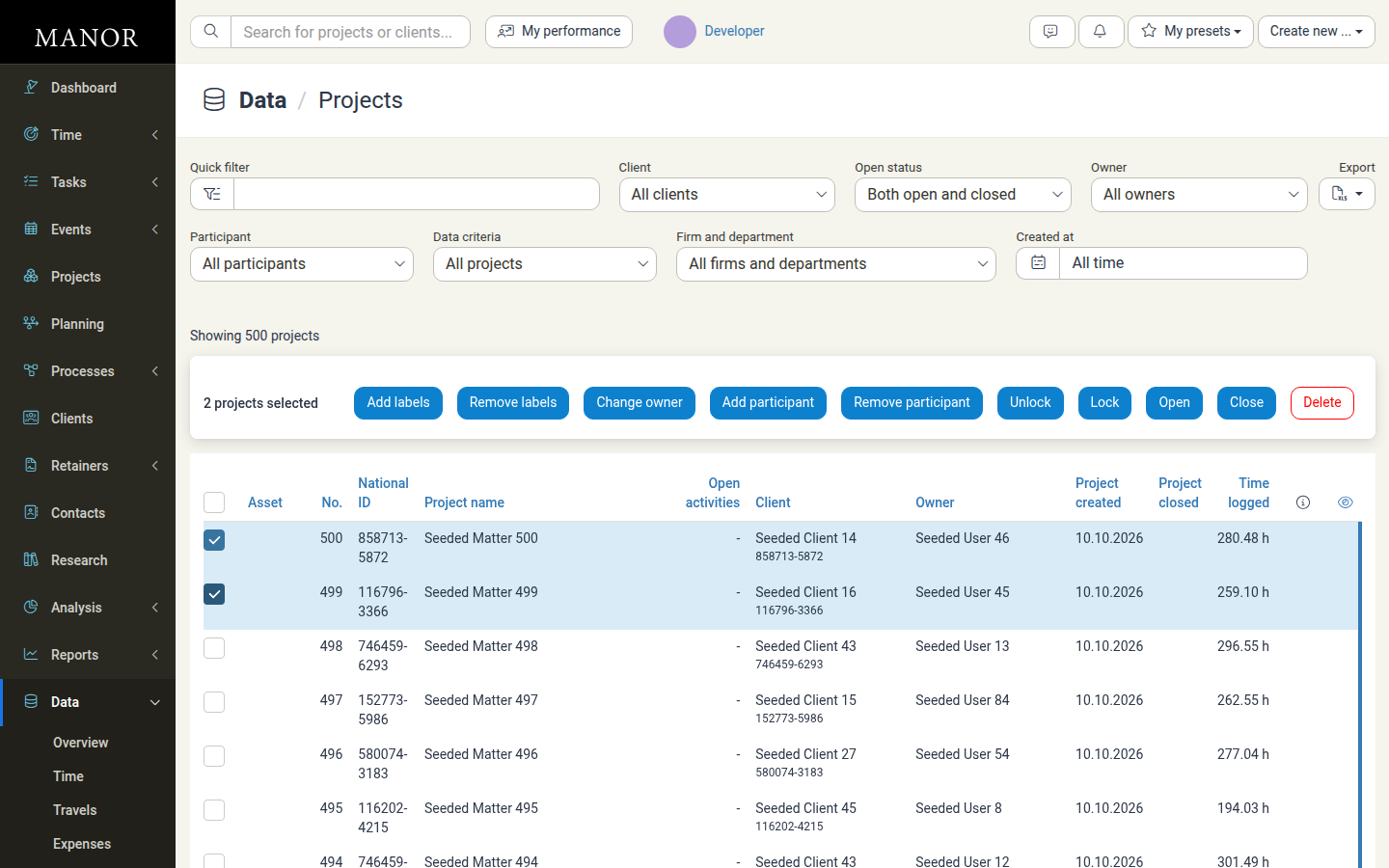
The following bulk actions are available:
- Delete — Deletes the selected projects. A confirmation dialog warns that all tasks, notes, and research copies of the projects are deleted too, that the projects and their tasks will no longer be accessible to any participant, and that their Box folders will no longer be accessible. This is a destructive action and is styled in red.
- Close — Closes the selected projects. Only projects that are currently open are affected. A confirmation dialog explains that participants can no longer interact with the projects, log time, or work with their files.
- Open — Re-opens the selected projects. Only projects that are currently closed are affected. A confirmation dialog explains that participants can interact with the projects, log time, and work with their files again.
- Lock — Locks the selected projects. A dialog explains that locked projects remain visible, but no billables can be added, edited, or deleted unless you are the project's owner, billing owner, or have permission to create invoices. It also offers an optional Lock until date field that locks a project from the start until, and including, that date; leave it empty to lock the projects regardless of time.
- Unlock — Unlocks the selected projects. Only projects that are currently locked are affected. A short confirmation dialog is shown.
- Remove participant — Removes a chosen user from all selected projects. A dialog notes that if the participant is a project owner they will not be removed; project owners can only be removed in the properties of each project. The participant search field is required.
- Add participant — Adds a chosen user as a participant to all selected projects. The user search field is required.
- Change owner — Changes the owner of the selected projects to a chosen user. The owner field is required.
- Remove labels — Removes the chosen label(s) from the selected projects. At least one label must be selected before the action can be submitted.
- Add labels — Adds the chosen label(s) to the selected projects. At least one label must be selected before the action can be submitted.
Note: Bulk actions apply only to projects you are allowed to edit, so projects you cannot fully edit are skipped even if they are selected. A single bulk action can be performed on up to 1,000 projects at a time; selecting more than that shows a "Mass action too big" message and no action is performed.
Common Use Cases
Auditing Open Projects by Owner
- Set Open status to Open.
- Select an employee under Owner.
- Review active project counts, open activity bottlenecks, and logged hours.
Client Matter Review
- Select a client from the Client dropdown filter.
- Review all past and present projects associated with that client, including total logged hours across engagements.
Managing Project Lifecycles
- Sort by Project created or Project closed to track recent firm business intake or identify stalled projects that should be closed.
Related Sections
- Data Overview — Directory of all record types in Manor.
- Clients (Data) — Firm-wide client records.
- Billables — Unified view of all billable work logged to projects.
- Time Entries — Detailed table of logged hours.
- Projects Overview — Comprehensive guide to project management in Manor.