
What is the Projects Overview?
The Projects page is the portfolio view of every project in Manor. It brings all projects together into a single list so you can see the status of work across your firm, find a specific project, and manage several projects at once.
Each row in the list represents one project. From here you can open a project, filter and sort the portfolio, and perform bulk actions such as closing or reopening projects.
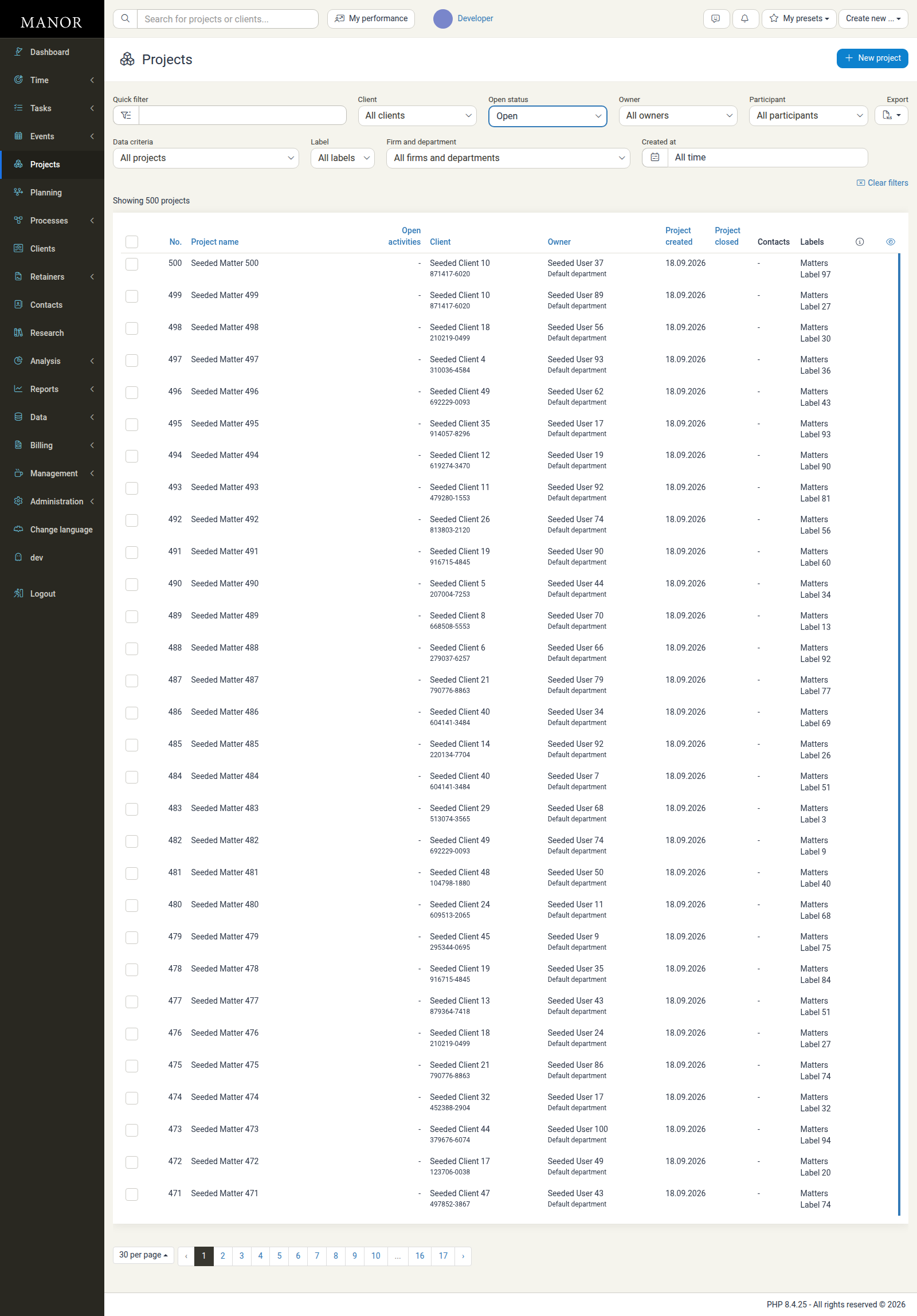
To open the list, click Projects in the main navigation.
Note: This article describes the day-to-day Projects list used for working with projects. If you need the firm-wide data view of every project record (for auditing and bulk export), see Projects (Data). The two views share many columns and filters, but the Data view is designed for reporting rather than daily work.
Why the Portfolio View Matters
The Projects list helps you:
- See everything in one place - Every project your firm works on appears in the list
- Find projects quickly - Use filters and search to locate a specific project or client
- Monitor status at a glance - See which projects are open or closed, and how much work is outstanding
- Act on many projects at once - Select several projects and close, reopen, lock, or relabel them in bulk
- Export your portfolio - Download the list for reporting and analysis
The Project List Columns
The list displays key information about each project as a table. Click any sortable column heading to reorder the list.
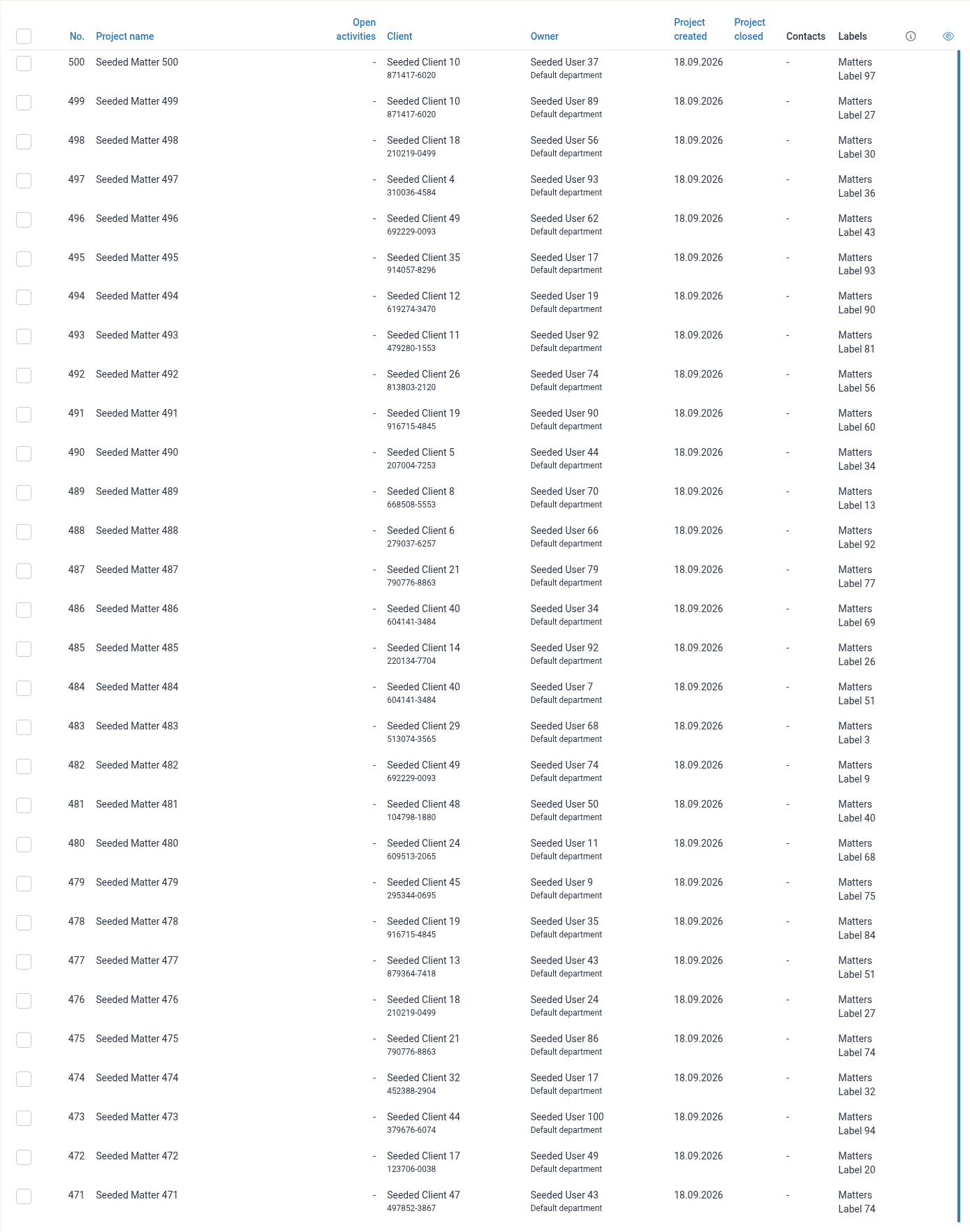
| Column | What it shows |
|---|---|
| No. | The project number, which uniquely identifies the project |
| Project name | The name of the project; click it to open the project |
| Open activities | The number of activities on the project that are still open (shown as - when there are none) |
| Client | The client the project belongs to. Projects without a client show a No client badge |
| Owner | The project owner and their department |
| Project created | The date the project was created |
| Project closed | The date the project was closed (- while the project is still open) |
| Contacts | Contacts associated with the project |
| Labels | Labels applied to the project, used for grouping and analysis |
| Current state | The project's workflow state, when your firm uses a process (see Project Status and State) |
| Info / View | Icons at the end of each row for project information and quick viewing |
Tip: A blue border on a project row means the project has changed since the last time you viewed it. Click the small heading above the icons at the end of the header row to sort the list by this "changed" indicator.
The "Covered by retainer" Column
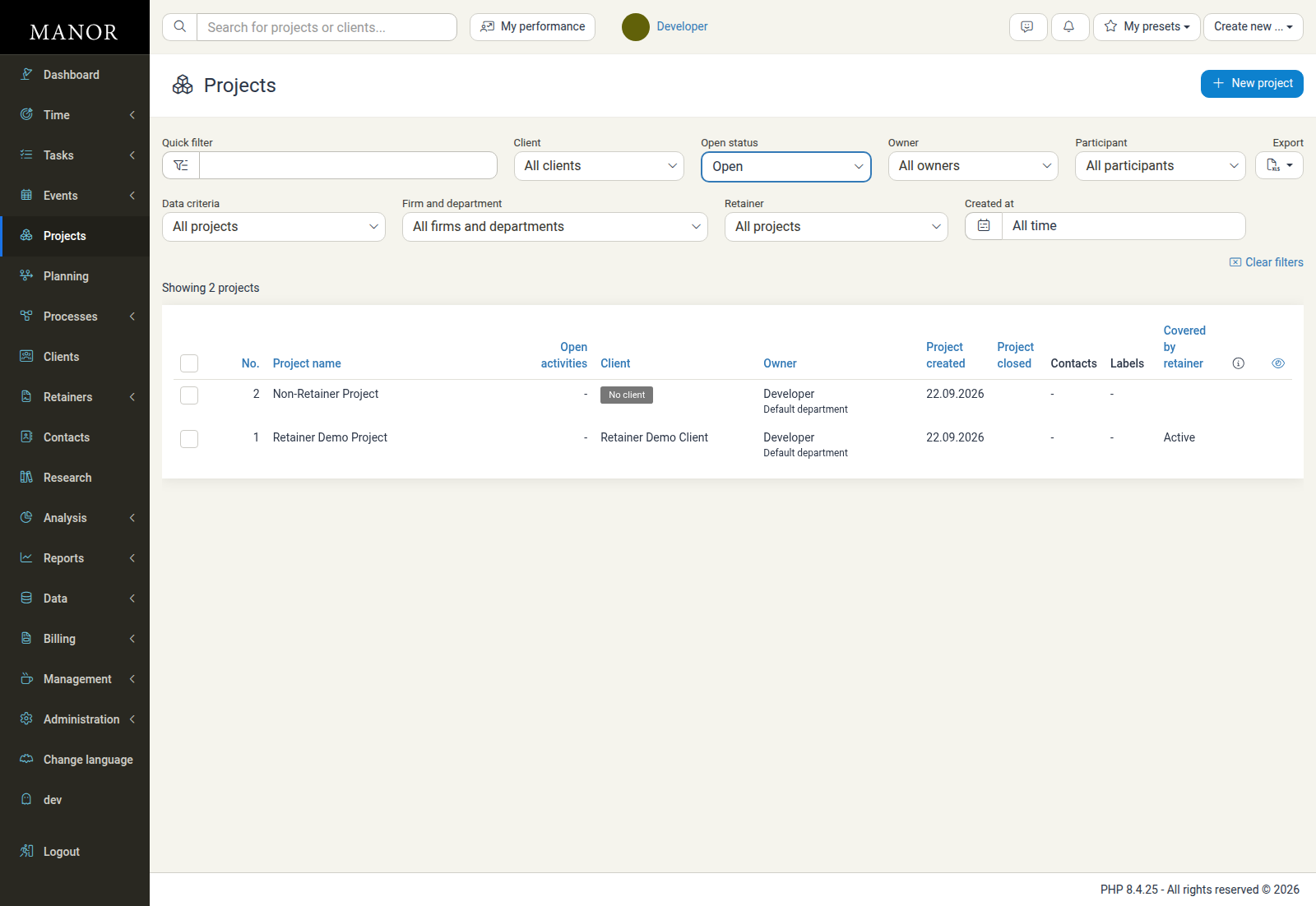
When retainers exist, the list includes a Covered by retainer column showing whether work on each project is drawn from a client's retainer (see Retainers and Project Retainer Coverage). The column displays one of three values:
| Value | Meaning |
|---|---|
| Active | The project is covered by an open retainer that is active today, so work logged to the project is drawn from the retainer balance |
| Inactive | The project is covered only by retainers that are not currently active |
| (blank) | The project is not covered by any retainer |
Click the Covered by retainer column heading to sort the list by retainer coverage.
Columns that appear only in some setups
Depending on how your firm is configured and on the data in your system, the list may show additional columns, including:
- Current state - Appears only when at least one process (workflow) has been set up. See Project Status and State.
- Covered by retainer - Appears only when retainers exist. See The "Covered by retainer" Column.
- Billing owner - Appears only when the billing-owner feature is enabled for your firm.
- Buyer reference number - Appears only when at least one project has a buyer reference number recorded.
- External identifier and National ID - Identification columns that may be enabled for your firm.
Because these columns depend on your configuration and data, your list may look slightly different from the example screenshot.
Filtering the List
The filter bar above the list lets you narrow the portfolio to exactly the projects you need. All filters combine, so you can apply several at once.

| Filter | What it does |
|---|---|
| Quick filter | Free-text search across projects and clients |
| Client | Show projects for one client, or those without a client |
| Open status | Show open projects, closed projects, or both |
| Owner | Show projects owned by a specific person |
| Participant | Show projects a specific person participates in |
| Data criteria | Show projects matching a data-quality or billing criterion (for example, projects without a client, without a label, or that are internal) |
| Label | Show projects carrying a specific label |
| Firm and department | Show projects belonging to a firm or department |
| Retainer | Show projects based on whether they are covered by a retainer (see Filtering by Retainer) |
| Created at | Show projects created within a date range |
Some filters are shown only when they are relevant to your firm's setup and data:
- Label appears only when at least one project label exists.
- Firm and department appears only when departments exist.
- A State filter appears only when your firm uses at least one process (workflow).
- A Retainer filter appears only when retainers exist.
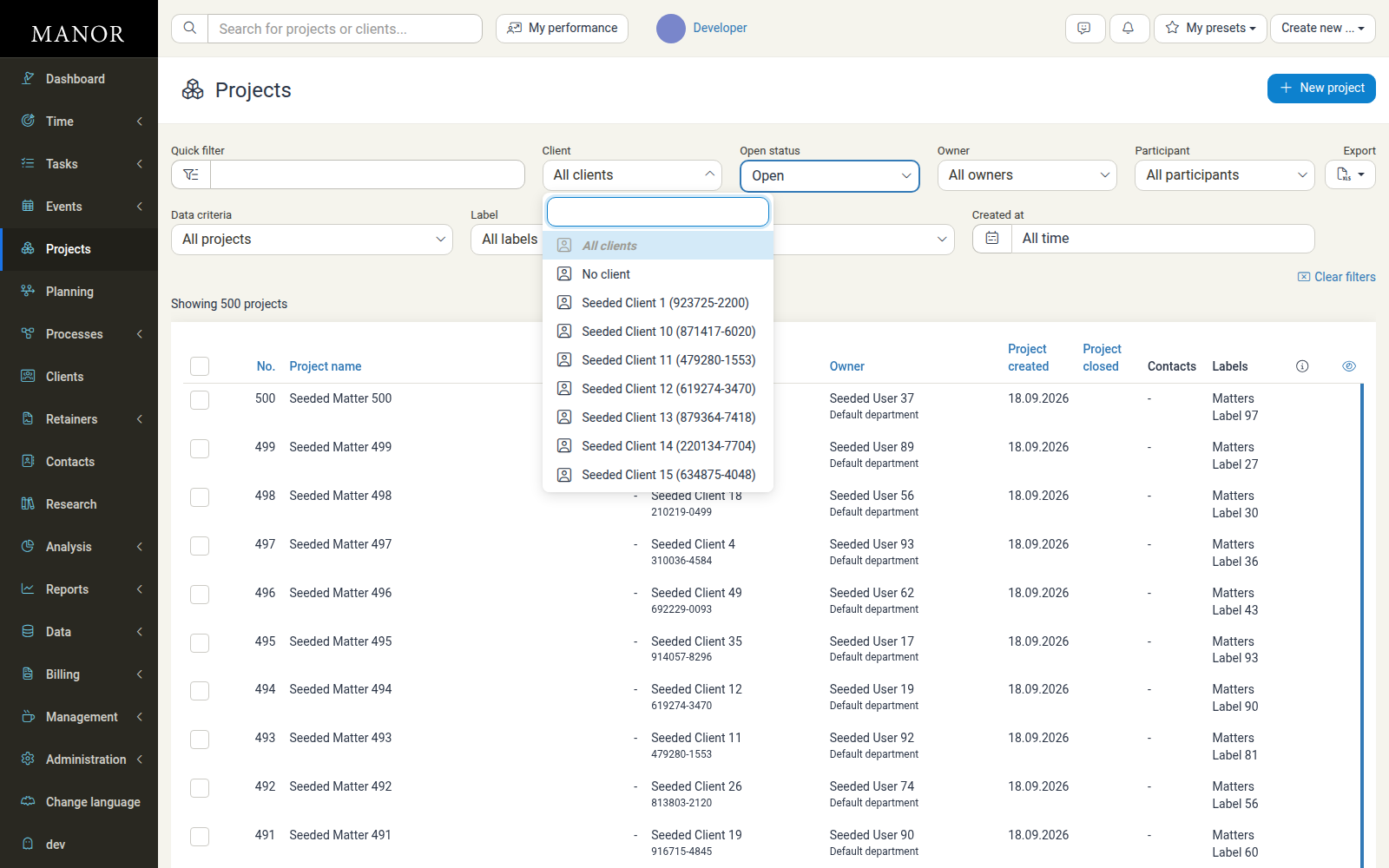
Filtering by Client
Use the Client filter to focus on a single client's work. Choose No client to find projects that have not yet been linked to a client.
Filtering by Open Status
The Open status filter controls whether the list shows open projects, closed projects, or both. By default the list shows open projects, so closed work stays out of the way unless you ask for it.
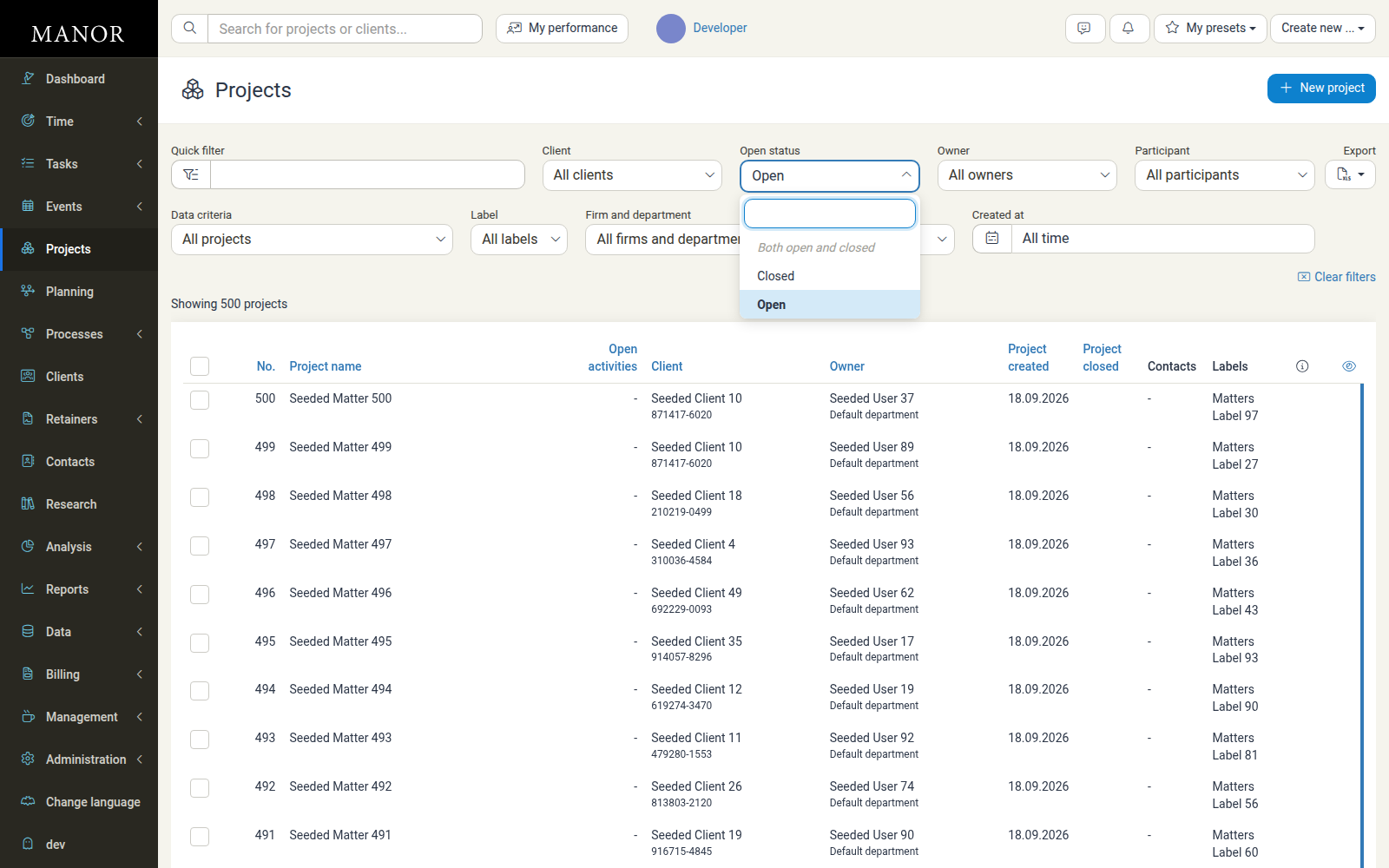
Choose from:
- Open - Projects that have not been closed (the default)
- Closed - Projects that have been closed
- Both open and closed - All projects, regardless of status
Filtering by Label
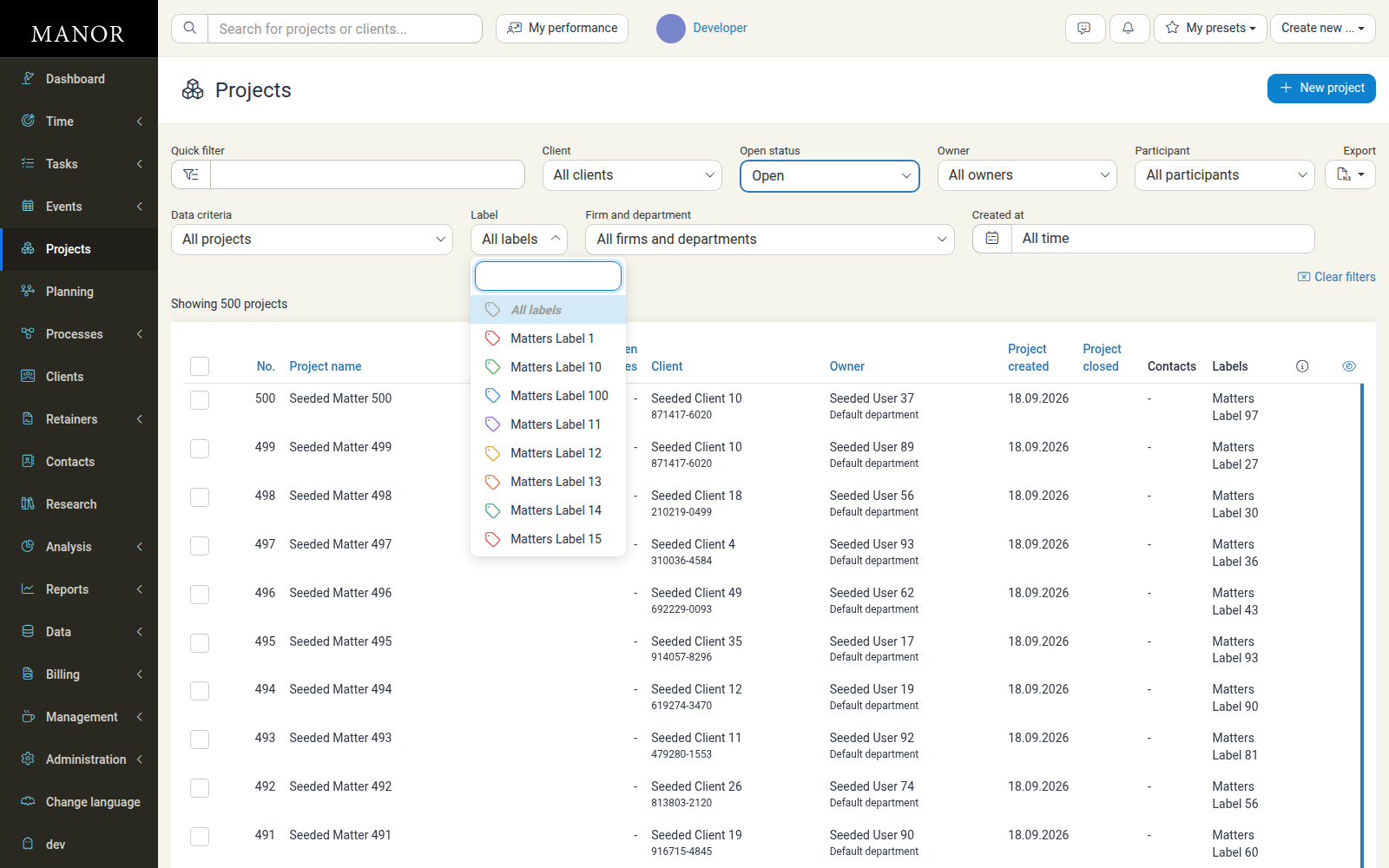
Use the Label filter to show only projects that carry a particular label. The dropdown includes a search box so you can quickly find the label you need, and it lists every label available for projects.
Filtering by Retainer
The Retainer filter narrows the list to projects based on their retainer coverage. It appears in the filter bar only when retainers exist, and sits next to the Firm and department filter. Its dropdown offers these options:
| Option | What it shows |
|---|---|
| All projects | Every project, regardless of retainer coverage (the default) |
| Covered by any retainer | Projects covered by at least one retainer, whether or not it is currently active |
| Covered by active retainer | Projects covered by an open retainer that is active today |
| Covered by inactive retainer | Projects covered by retainers that are not currently active |
| Not covered by any retainer | Projects that are not covered by any retainer |
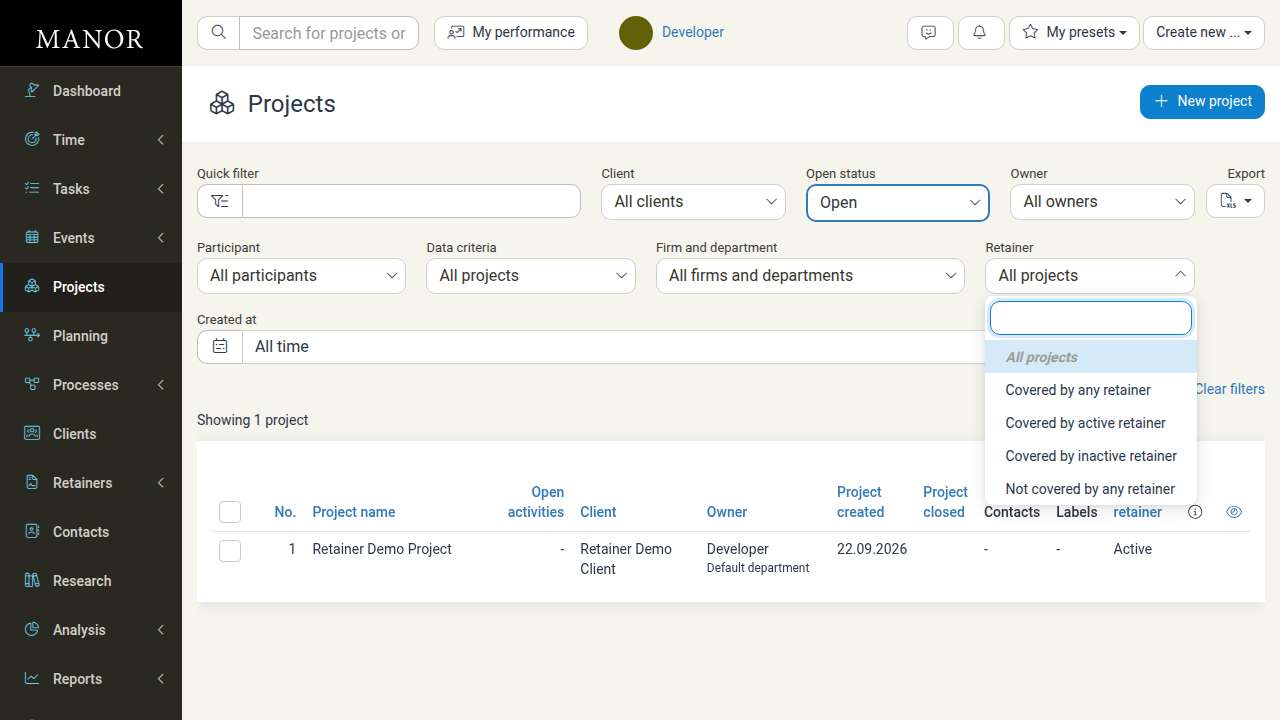
The filter works together with the Covered by retainer column: filter to Covered by active retainer, for example, and every remaining project shows Active in that column.
Filtering by Data Criteria
The Data criteria filter highlights projects that need attention, such as those that are missing information.
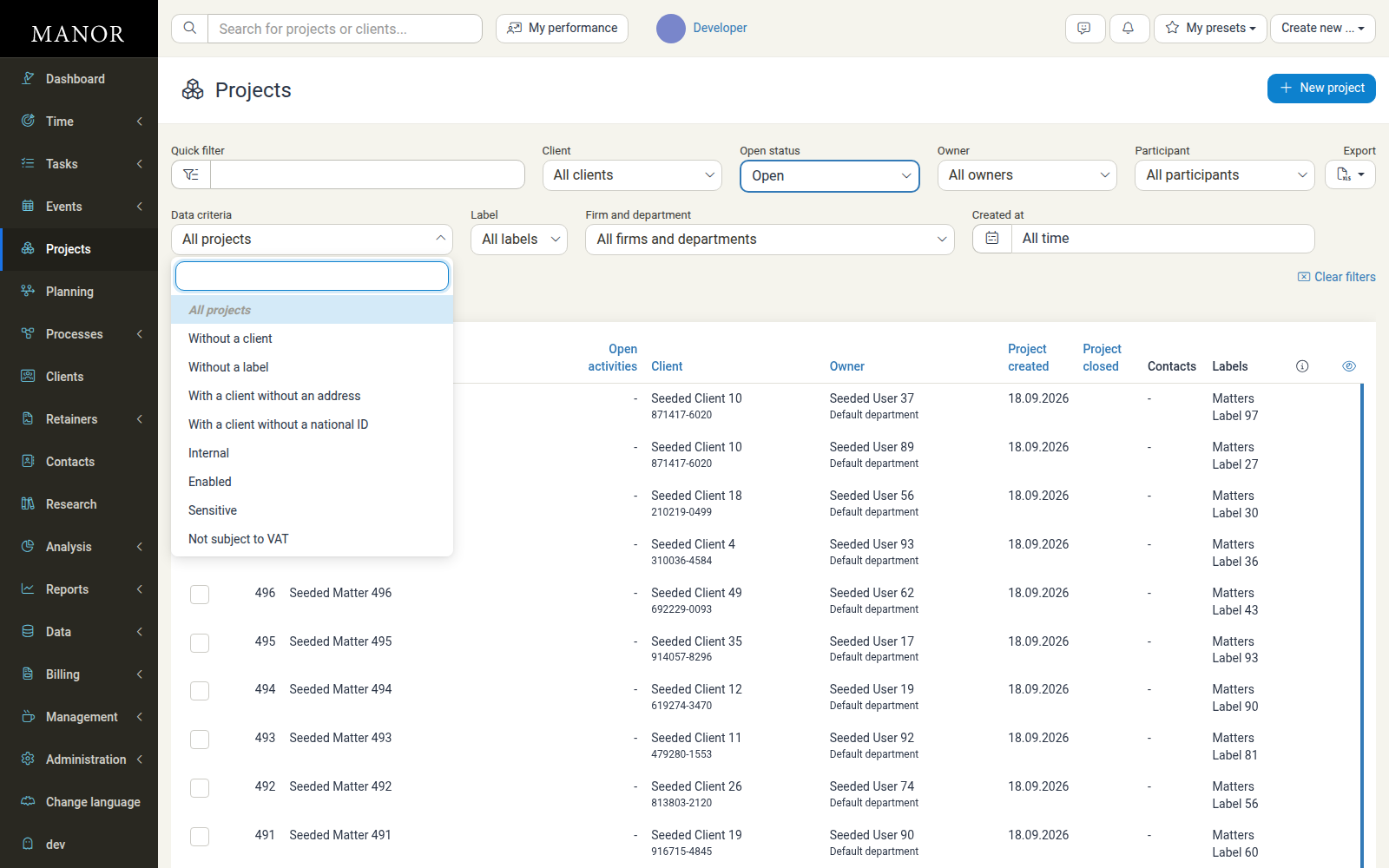
Typical criteria include:
- Without a client - Projects not linked to a client
- Without a label - Projects with no labels applied
- With a client without an address or without a national ID - Client records missing required details
- Internal, Enabled, Sensitive, and Not subject to VAT - Billing-related criteria
- Automatic invoicing - Projects set up for automated invoicing
- Main matters and Settlement matters - Projects linked to internal settlement handling
- Locked and Unlocked - Projects whose billing is locked or unlocked
Firms with permission to view confidential work may also see a Confidential matters criterion.
Resetting Filters
Click Clear filters to remove every filter, including the Open status filter. Because clearing the Open status filter falls back to "both open and closed", the list then shows open and closed projects together with all clients. The link also tells you when a filter is active.
Tip: The result count above the table (for example, "Showing 3 projects") updates as you filter, so you always know how many projects match.
Sorting and Paging Through the List
- Sorting - Click a sortable column heading (such as No., Project name, Open activities, Client, Owner, Project created, Project closed, or Covered by retainer) to sort the list. Click again to reverse the order.
- Paging - The portfolio is paged. Use the page numbers at the bottom of the list to move between pages, and use the per page selector to change how many projects are shown at once.
Project Status and State
Manor tracks two independent things about every project: its status and, when used, its workflow state.
Status (Open or Closed)
A project's status is either Open or Closed:
- Open - The project is active and appears in the default list. Open projects can be logged against, billed, and worked on.
- Closed - The work is finished. The project is hidden from the default list and from daily entry pickers, but it remains fully searchable in reports, history, and audits.
The Project closed column shows the date a project was closed, and the Open status filter lets you switch between open and closed projects. Closing a project does not delete any data, and a closed project can be reopened at any time if more work or billing is needed.
For step-by-step instructions on closing and reopening projects, see Project Workflow Guide and Deleting a Project.
Workflow State
Some firms run projects through a process with defined states (for example, phases such as "Draft", "In progress", or "Completed"). When at least one process is set up for your firm:
- A Current state column appears in the list, showing each project's current workflow state.
- A State filter appears in the filter bar, letting you show projects in a specific state (grouped by process).
If your firm does not use processes, neither the column nor the filter appears, and projects simply have a status.
Status and state are separate: a project can be open while sitting in any workflow state, and closing a project does not by itself change its state. State is managed from the individual project, not from the list. See Processes for details on defining states and moving projects through them.
Acting on Multiple Projects
Select the checkbox at the start of one or more rows to reveal the bulk action bar. From there you can act on every selected project at once.

Available actions include:
- Add labels / Remove labels - Apply or remove labels across the selection
- Change owner - Reassign ownership
- Add participant / Remove participant - Manage who is involved
- Lock / Unlock - Lock or unlock billing on the selected projects
- Open / Close - Reopen or close the selected projects
- Delete - Remove the selected projects (see Deleting a Project)
Note: Bulk actions only affect projects you have permission to change. Any project in your selection that you cannot modify is skipped.
Exporting the List
Click Export to download the current list as an Excel spreadsheet. The export respects your active filters, so you can filter first and then export exactly the projects you need for reporting.
Tip: For a firm-wide, audit-oriented export of every project record (including total logged hours), use the Projects (Data) view instead.
Related Documentation
- Clients - Overview of client records and management
- Project Creation - How to create a new project
- Project Management - Timeline and milestones
- Processes - Defining workflow states and moving projects through them
- Project Workflow Guide - The complete project lifecycle from planning to closure
- Deleting a Project - Permissions, restrictions, and bulk deletion
- Project Retainer Coverage - Linking a project to a retainer
- Retainers - Creating and managing retainer agreements
- Projects (Data) - The firm-wide Data view for auditing and export
- Activities - Breaking projects down into activities
- Client Work Reports - A single work report covering all work and billables across every project of a client