
When working on active or long-running engagements, projects often accumulate extensive histories containing hundreds of time entries, notes, expenses, invoices, tasks, and files. Manor provides multiple built-in search and filtering tools scoped directly to an individual project.
This guide explains how to find information quickly across a project's timeline feed, billable records, file browser, tasks, and events.
Overview of Project Search Options
Depending on what type of record you are looking for, Manor provides targeted search and filter mechanisms within each project view:
| Record Type | Location in Project | Search / Filter Method | What It Searches |
|---|---|---|---|
| All Recent Activity & Notes | Project Overview (/matter/{id}) |
Timeline Quick Filter | Time entries, notes, tasks, expenses, travels, products, per diems, events, and invoices |
| Time Entries | Time subpage (/matter/{id}/time) |
Quick Filter & Dropdown Filters | Descriptions, clients, users, firm and department, rates, billing status, entry date |
| All Billable Records | All billables (/matter/{id}/billable) |
Quick Filter & Faceted Filters | Time, travel, expense, per diem, product, and bundles; filterable by billable type, client, user, firm and department, billing status, and entry date |
| Files & Documents | File browser (/matter/{id}/folder) |
File Quick Filter & File Types | File and folder names, categorized by file format |
| Project Tasks | Tasks (/matter/{id}/task) |
Task Quick Filter & Status | Task descriptions, creators, assignees, finished status, task date, client |
| Project Events | Events (/matter/{id}/event) |
Event Quick Filter & Dates | Event titles/descriptions, assignees, creator, date range |
1. Searching the Project Timeline Feed
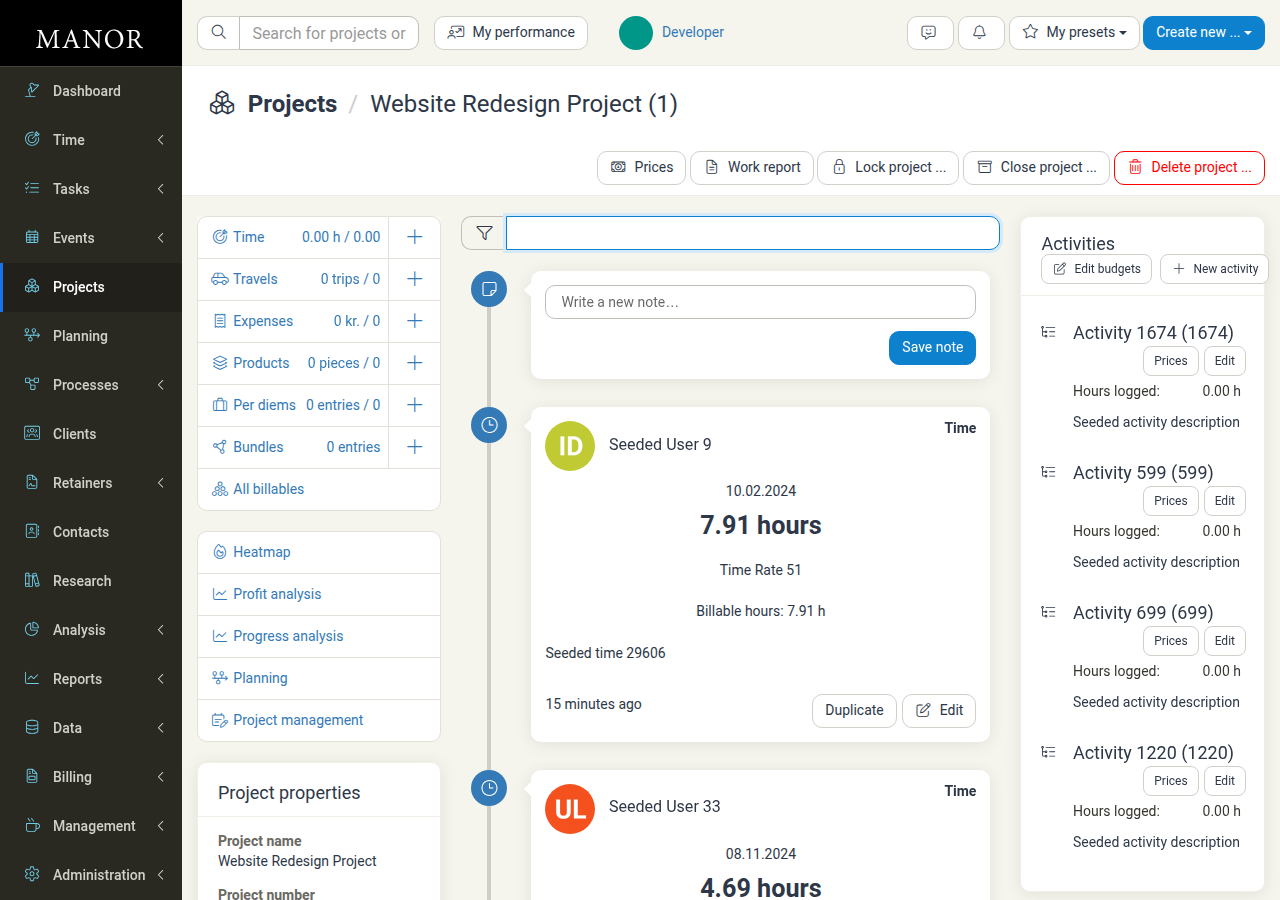
The main project detail page features a chronological activity stream (timeline) that combines all project events: logged time, written notes, expenses, travel entries, invoices, and completed tasks.
The page is arranged in three columns:
- Left – the summary cards (Time, Travels, Expenses, Products, Per diems, Bundles, and All billables), the analysis shortcuts, and the Project properties panel.
- Centre – the quick filter and the project timeline feed.
- Right – the Activities panel and the File browser panel.
Using the Timeline Quick Filter
Directly above the project timeline feed, you will find a search input box accompanied by a filter icon.
- Open the project from the Projects list or Dashboard.
- Look at the centre column of the page, which holds the timeline feed.
- Locate the filter input box positioned directly above the timeline entries.
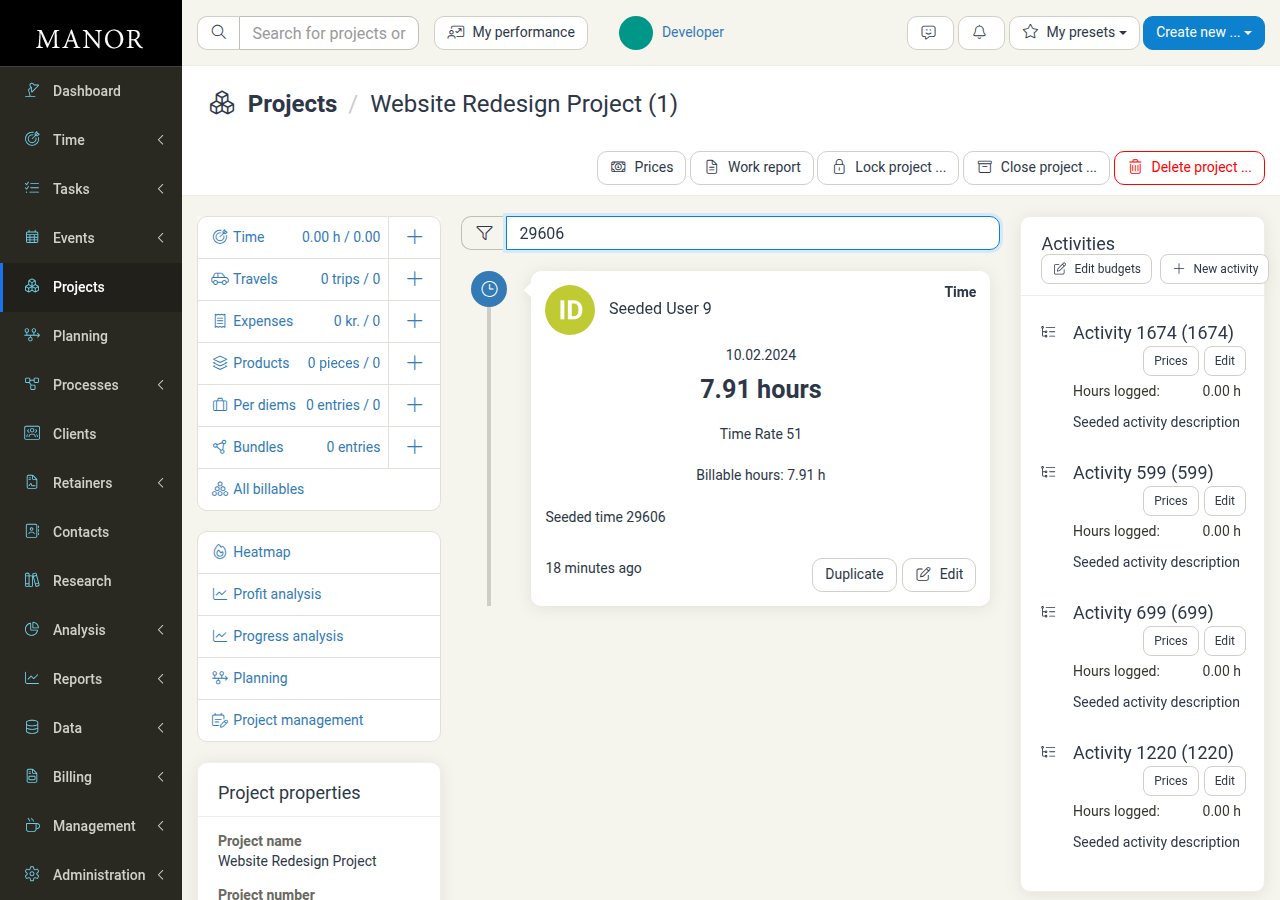
- Type your keyword, entry description, rate name, or user name.
- Press Enter (or submit the form) to filter the feed.
The timeline updates immediately to display only records matching your search term.
What the Timeline Search Covers
The timeline search looks across the record types that appear in the feed and that are visible to your user account:
- Notes — Client meeting notes, status updates, decisions, and comments.
- Time Entries — Work descriptions, users, and rates.
- Tasks — Finished task titles and details.
- Expenses & Travel — Receipts, mileage descriptions, and notes.
- Products & Per Diems — Product entries and daily allowance descriptions.
- Events & Invoices — Calendar events and invoice summaries.
Tip: If you need to clear the timeline filter, delete the text in the input box and press Enter to restore the full chronological feed.
2. Searching Billables and Time Entries
When you need granular financial details, hourly breakdowns, or billing statuses, navigate to the dedicated billable subpages instead of the general timeline.
Searching All Billables
From the project summary bar, click All billables or navigate to /matter/{id}/billable.

The Billables view provides these search and filtering controls:
- Quick filter: Free-text search across the listed billables.
- Billable type: Narrow down by Time, Travel, Expense, Product, Per Diem, or Bundle.
- Client: Filter entries assigned to a specific client or split-payer.
- User: View billables logged by a particular team member.
- Firm and department: Restrict the list to a firm or department.
- Billing status: Filter by All billing statuses (the default), Billed, Unbilled, Billed and unbilled, Written off, Main billables, Settlement billables, or On a proposal.
- Entry date: Filter by a date range, or set a custom start and end date.
- Export: Download the filtered list as an Excel spreadsheet.
Searching Dedicated Time Entries
If you only need to audit hourly logs, click Time in the project metrics bar (/matter/{id}/time).

In addition to the free-text Quick filter, the Time subpage offers:
- Client filter to show entries for a specific client or payer.
- User filter to review logs per colleague.
- Firm and department filter to restrict entries to a firm or department.
- Rate filter to isolate entries under a specific rate.
- Billing status filter to separate billed from unbilled work.
- Billable hours filter to show only entries whose billable hours were increased or reduced compared to the logged duration. Written-off entries are not included.
- Entry date range picker to inspect billable hours within a specific billing cycle.
- Export button, which offers Download as Excel spreadsheet, to export the filtered results.
Every value in the Time analysis box on the project overview links to this list with the matching filter already applied. For example, clicking the Reductions value shows the entries with reduced billable hours.
Choosing a Date Range
The Entry date, Task date, and Begins at filters all open the same date-range picker. Besides picking dates on the calendar, you can select a preset:
- Relative ranges such as All time, Past, and Future.
- Single days around today, such as Yesterday, Today, and Tomorrow.
- Rolling windows such as Last 3 months, Last 12 months, Next 3 months, and Next 12 months.
- Individual months and individual years.
Select Cancel to close the picker without applying anything, or Apply to apply your selection.
3. Searching Files and Documents
Projects often contain contracts, correspondence, and technical documents uploaded to the project folder.
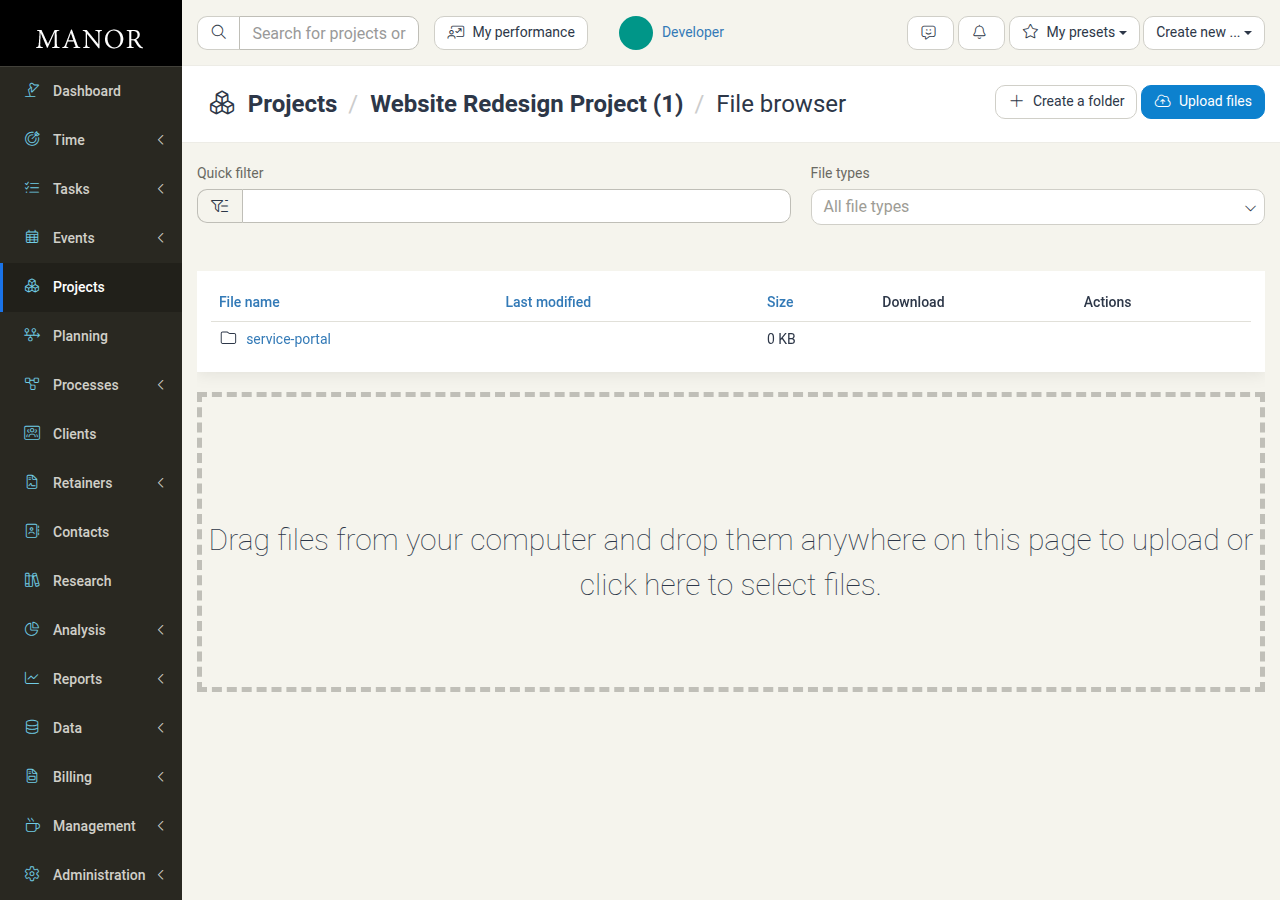
- On the project page, click the File browser heading or link (
/matter/{id}/folder). - Use the Quick filter text box to search for files or folders by name.
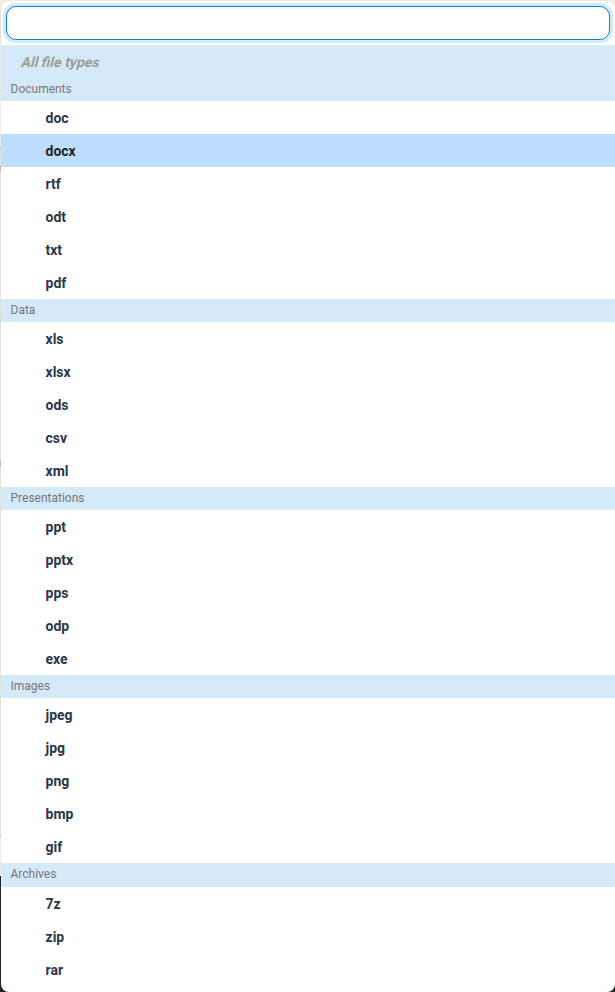
- Use the File types dropdown to filter files by category:
- Documents – doc, docx, rtf, odt, txt, pdf
- Data – xls, xlsx, ods, csv, xml
- Presentations – ppt, pptx, pps, odp, exe
- Images – jpeg, jpg, png, bmp, gif
- Archives – 7z, zip, rar
Note: The file quick filter searches files within the current folder view. When subfolders exist, you can navigate into a subfolder to search its contents.
4. Searching Tasks and Events
To inspect actionable items and schedule milestones associated with the project:
Tasks (/matter/{id}/task)
- Use the Quick filter to search task titles and descriptions.
- Filter by Creator to see who raised the task.
- Filter by Assignee to see who is responsible.
- Filter by Finished status: Both finished and unfinished (the default), Finished, or Unfinished.
- Filter by Task date to limit the list to a date range.
- Filter by Client to show tasks for a specific client.
- Use Export to download the filtered list as an Excel spreadsheet.
Events (/matter/{id}/event)
- Use the Quick filter to locate calendar entries and meetings.
- Filter by Creator and Assignee.
- Filter by Begins at to limit the list to a date range.
- Use Export to download the filtered list as an Excel spreadsheet.
Limitations and Things to Keep in Mind
When searching within a project, keep the following system behaviors in mind:
-
User Permission Scoping:
- Users with Limited access to a project will only see their own time entries, billables, and notes in search results.
- Users with Full access or project ownership can view and search all participants' records.
- Confidential project records respect strict confidentiality rules; unauthorized users cannot retrieve results even with matching keywords.
-
Global Header Search vs. Project Search:
- The global search bar at the very top of the screen ("Search for projects or clients...") searches across all project titles, client names, and global files, rather than within the specific project you are currently viewing.
- To search records inside a single project, always use the in-page Quick filter located on the project overview timeline or the respective subpages (Time, Billables, Folder, Tasks).
-
Subfolder File Searching:
- The File Browser quick filter operates on the currently open folder level. If your files are organized into nested directories, navigate into the respective folder before searching, or use the global files search (
/search/files) if integrated storage (such as Box) is enabled.
- The File Browser quick filter operates on the currently open folder level. If your files are organized into nested directories, navigate into the respective folder before searching, or use the global files search (
Summary Checklist
To quickly locate what you need within a project:
- Need a general note, meeting log, or recent action? Use the Timeline Quick filter on the project detail page.
- Need specific hours, rates, or financial totals? Go to Time or All billables and combine the Quick filter with User and Date Range filters.
- Need a document or contract? Go to File browser and filter by file name or file extension.
- Need to check project deliverables? Go to Tasks and filter by assignee or finished status.