
Introduction (Purpose & Benefit)
Discounts in Manor allow you to reduce standard rates for specific clients, projects, or activities. They can be configured across entire billable types (Time, Travel, Product, Per diem, Expense) or targeted at specific individual rates.
Using discounts effectively allows your firm to negotiate custom pricing structures, honor long-term client agreements, provide volume rebates, and manage competitive bids while retaining standard list prices in your master catalog. Manor also supports surcharges through negative discount percentages, raising the unit price displayed on invoices when premium or rush rates apply.
Pricing & Discount Hierarchy
Manor calculates the effective price of billable items through a structured hierarchy. For each rate, the most specific setting available wins:
- Activity Level: Prices or discounts configured on the Activity under Prices. This is the most specific level.
- Project Level: Prices or discounts configured on the Project details page under Prices.
- Client Level: Prices or discounts configured on the Client details page under Prices.
- Firm List Price / Rate Category: The base price defined under Management > Pricing. This is the least specific level and applies when no override exists.
Manor resolves the price and the discount separately. A discount set at a broader level can therefore apply together with a more specific price.
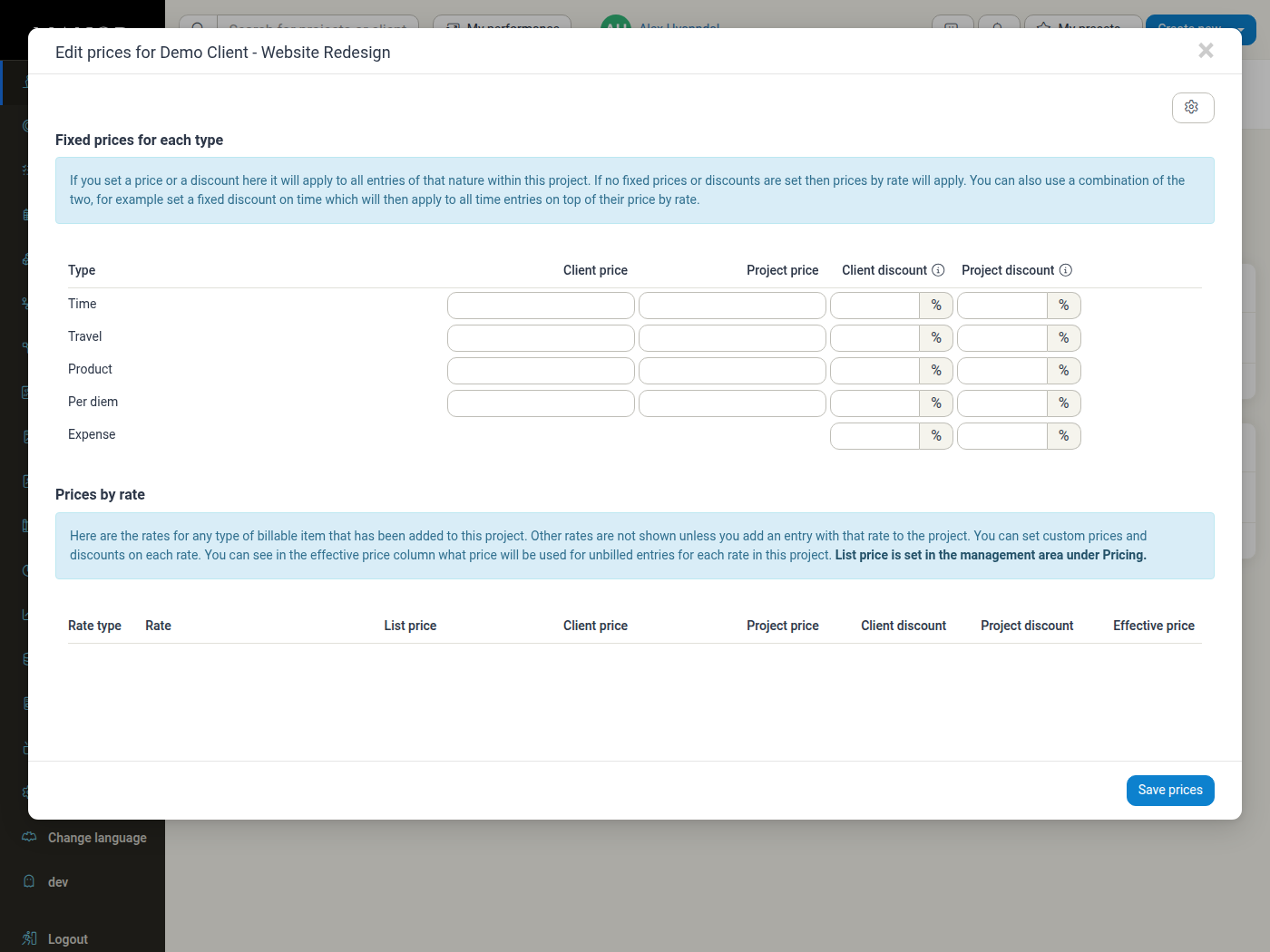
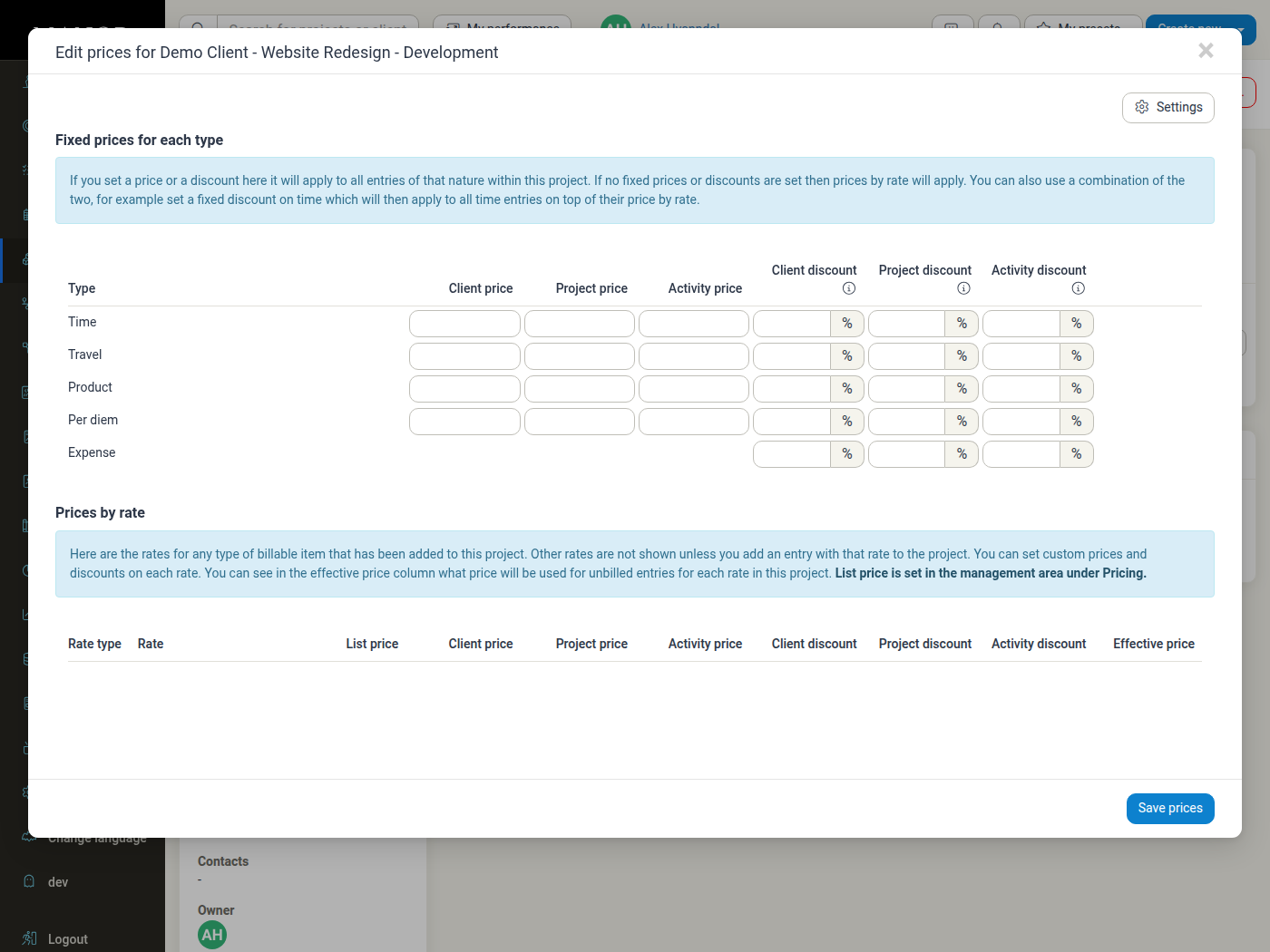
When viewing the pricing dialog at any level, Manor displays the price and discount columns for that level and for the levels above it (for example, Client discount alongside Project discount on a project, and Client discount, Project discount, and Activity discount on an activity), making it clear what reductions are already in effect.
Key Fields & Dialog Controls
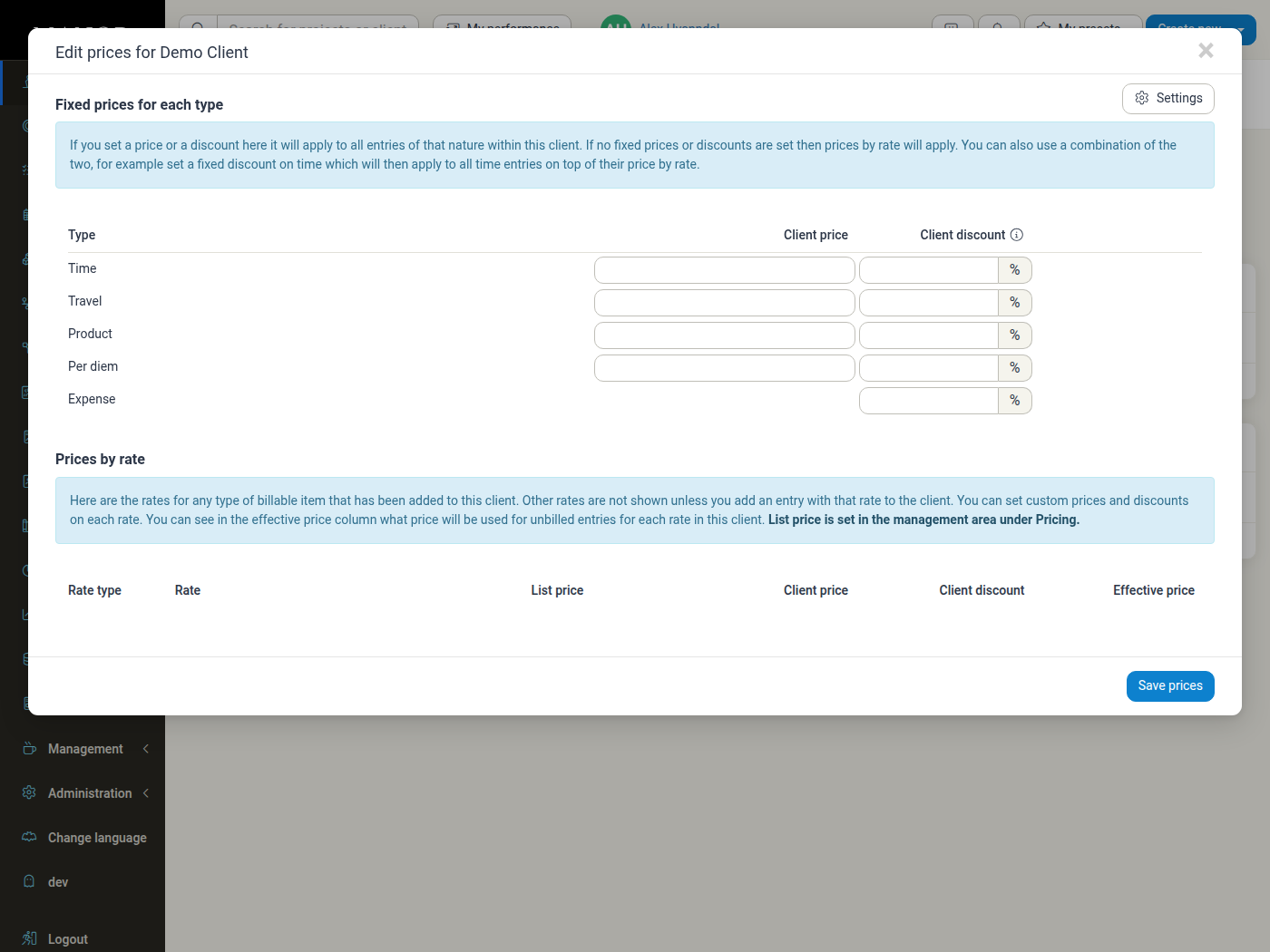
When opening the Prices dialog on a Client, Project, or Activity, the interface is divided into two primary sections:
1. Fixed Prices for Each Type
Applies to all entries of that nature within the client, project, or activity, regardless of specific rate. If no fixed price is set, the rate's list price applies and the discount percentage is applied to it.
- Type: The billable type category:
- Time: Logged hourly work.
- Travel: Travel distance or trip units.
- Product: Quantity-based billable goods or units.
- Per diem: Daily allowances.
- Expense: Direct expenses incurred. (Note: Expense supports discount percentage only, not fixed unit price).
- Client Price / Project Price / Activity Price: Overrides the rate unit price with a fixed monetary amount.
- Client Discount / Project Discount / Activity Discount (%): The percentage discount applied to the billable type.
- Discounts are listed separately on generated invoices.
- A negative number triggers a surcharge, raising the unit price shown on invoices.
2. Prices by Rate
Lists individual rates that have been added to or used within the client, project, or activity. Other rates appear once an entry using that rate is added.
- Rate type: The billable type category for the rate (e.g., Time, Product).
- Rate: The specific rate name or title.
- List price: The base catalog price configured in Management > Pricing.
- Client Price / Project Price / Activity Price: Level-specific monetary unit price override for that specific rate.
- Client Discount / Project Discount / Activity Discount (%): Level-specific percentage discount for that specific rate.
- Effective price: The calculated unit price that will be used for unbilled entries for each rate in this scope, factoring in overrides and discounts.
Creating and Configuring Discounts
Setting Discounts on a Client
- Navigate to Clients in the main navigation and click on the client name.
- Click the Prices button in the action bar.
- In the pricing dialog:
- To set a blanket discount across all entries of a billable type, enter the discount percentage in the Client discount column for the desired row (e.g., Time or Travel).
- To set a discount on a specific rate, locate the rate under Prices by rate and enter the percentage in the Client discount column.
- Click Save prices.
Setting Discounts on a Project
- Navigate to Projects in the main navigation and open the target project.
- Click the Prices button in the action bar.
- The dialog displays both the client's inherited discounts and the Project discount fields:
- Review any existing Client discount already applicable.
- Enter the project-specific percentage in the Project discount field for the desired billable type or specific rate.
- Click Save prices.
Setting Discounts on an Activity
- Open the project containing the activity.
- In the Activities table on the project page, locate the activity.
- Click the Prices link next to the activity name.
- The dialog displays Client discount, Project discount, and Activity discount columns:
- Enter the activity-specific discount percentage in the Activity discount column.
- Click Save prices.
Surcharges (Negative Discounts)
If you need to apply an automatic premium or surcharge (for example, after-hours emergency support or expedited turnaround):
- Open the Prices dialog for the relevant Client, Project, or Activity.
- In the discount percentage textbox, enter a negative number (e.g.,
-15for a 15% surcharge). - Click Save prices.
- Manor calculates a surcharge, raising the effective unit price shown on invoices.
Modifying or Removing Discounts
To change or remove existing discounts:
- Open the Prices dialog on the relevant Client, Project, or Activity page.
- To modify: Replace the current percentage with the new value.
- To remove: Clear the number from the discount field completely.
- Click Save prices.
Manor recalculates the effective price of unbilled entries to reflect the updated discount.
Related Documentation
- Prices — Understanding and managing prices in Manor
- Rates — Creating and configuring catalog rates
- Framework Agreements — Managing client framework pricing agreements
- Price Monitoring — Tracking special prices and discounts across projects and clients
- Project Billing Settings — Project-level billing options and invoice controls