
Introduction
Payroll at the firm level is configured in two places:
- Payroll settings — how payroll periods are structured, expected working hours, flextime behaviour, balance limits and billable ratio handling. These apply firm-wide to every employee.
- Payroll rules — which projects and activities represent leave or other special categories of time, and the account numbers used for payroll exports.
Both are only relevant when the payroll feature is enabled for the organization. Payroll is switched on in Management > Settings > Features > Enable payroll (options: Not enabled, Enabled, and Enabled with advanced payroll batches). Once enabled, a Payroll section appears in the main navigation with its Settings and Payroll rules links.
Note: These firm payroll settings do not control manager-based hour confirmation (where a manager confirms their employees' logged hours). That behaviour is enabled at deploy time by your Manor hosting partner or administrator and has no toggle in the user interface.
Accessing Payroll settings
- Navigate to Management > Firms
- Click the firm's row to open the firm details page
- Scroll down to the Payroll settings card
- Click Edit to open the settings dialog
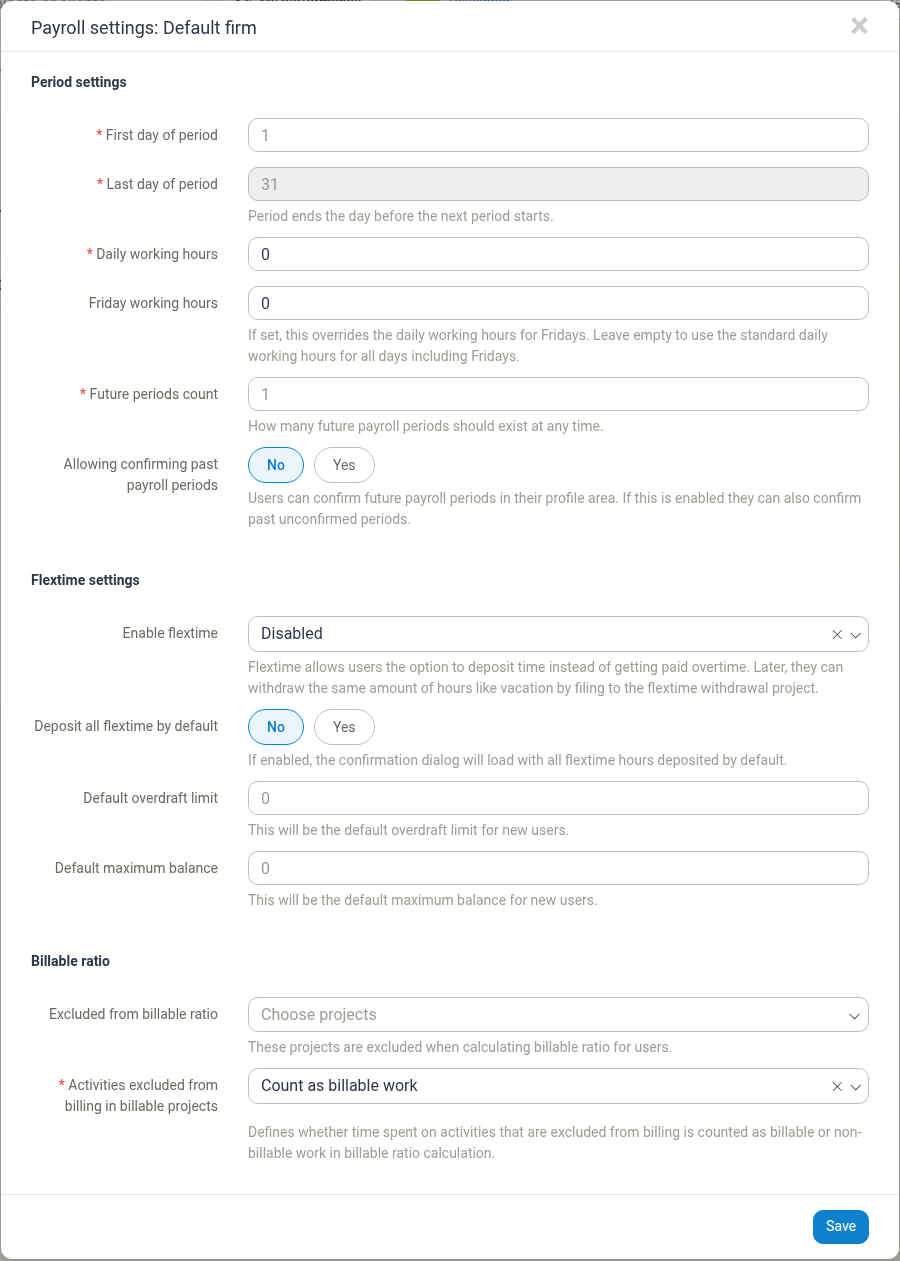
Period Configuration
First day of period
Default: 1
The day of the month on which each payroll period begins. For example:
- Set to 1 for periods that run from the 1st to the end of each month.
- Set to 15 for periods that run from the 15th of one month to the 14th of the next.
Last day of period
Default: 31
The day of the month on which the payroll period ends. Helper text: "Period ends the day before the next period starts."
For periods that don't span a full calendar month (for example the 15th to the 14th), enter the last day accordingly. The field is calculated from the First day of period and is read-only.
Daily working hours
The standard number of hours employees are expected to work each day. This value:
- Calculates the expected hours for payroll periods.
- Determines when employees have worked overtime.
- Affects balance calculations for flextime and time banks.
For example, set 8 for an eight-hour workday or 7.5 for a 7.5-hour workday. Leaving it empty or at 0 means no expected daily hours are defined.
Saving a new value here recalculates the work quota of every existing pay period — see Recalculating existing pay periods below.
Note: This is the payroll view of the workday length. It is distinct from the company- and user-level Daily target (a dashboard metric) and from the firm's Calendar working time and Office hours (which control the calendar window). See Workday Length for how all the working-hours settings fit together and how they affect calendars and time entry.
Friday working hours
Default: Not set (Fridays use the Daily working hours)
An optional override for Friday working hours. If set, Fridays use this value instead of the standard Daily working hours. Helper text: "If set, this overrides the daily working hours for Fridays. Leave empty to use the standard daily working hours for all days including Fridays."
This is useful for firms with shorter Friday schedules — for example a 6-hour Friday.
Important: Even when no Friday override is set, the field shows 0 in the edit dialog (the firm card in the meantime shows - for an unset value). Saving the dialog while the field shows 0 stores 0 as an explicit override, which gives Fridays no expected hours at all and can sharply reduce every period's work quota. To keep the standard daily hours on Fridays, clear the field completely so it is empty before saving — do not leave the displayed 0 in place.
Recalculating Existing Pay Periods
Saving the payroll settings does not only affect periods created afterwards. It recalculates the work quota (expected hours) of every pay period that already exists for the firm — past, current and future periods alike, and closed periods as well as open ones. Manor re-derives each period from the current Daily working hours and Friday working hours, leaving weekends and firm holidays at 0 hours.
As a result, changing either working-hours field rewrites the quotas already shown in the Payroll overview and the per-day values in a period's Work quotas card. For example, with Daily working hours of 8 and no Friday override, a month with 22 weekdays including 4 Fridays has a quota of 176 hours:
- Setting Friday working hours to 6 lowers it to 168 hours (4 Fridays × 2 fewer hours).
- Setting Friday working hours to 0 lowers it to 144 hours (4 Fridays × 8 fewer hours).
Period Management
Future periods count
Default: 1
How many future payroll periods should exist at any time. Helper text: "How many future payroll periods should exist at any time."
- 0: No future periods are pre-created; periods must be added manually.
- 1: One future period is always available.
- 2+: Several future periods are available at all times.
Increasing the count tops up the buffer with new periods. Lowering it silently removes the trailing (newest) future periods so that only the configured number remain — there is no extra confirmation.
Manor only removes periods while nobody in the period it is about to remove has confirmed their hours. As soon as any user in the last (newest) future period has confirmed — either themselves or via a manager — Manor stops and keeps all remaining periods, even though the number of future periods is now higher than the configured count. To shrink the buffer further, first clear those confirmations (or adjust the count again once that period is no longer a future period).
See Pay Periods for how this affects the period list.
Allowing confirming past payroll periods
Default: No (options No / Yes)
Helper text: "Users can confirm future payroll periods in their profile area. If this is enabled they can also confirm past unconfirmed periods."
This setting controls whether employees can confirm payroll periods that have already ended. It sits in the Period settings group, directly below Future periods count.
- No (default): Employees can only confirm current and future payroll periods. Once a period's end date has passed, an unconfirmed period can no longer be confirmed by the employee from their profile area.
- Yes: Employees can also open and confirm past, previously unconfirmed periods from their profile.

See Confirming your hours (self-service) for the employee-side flow.
Flextime Configuration
Flextime allows employees to deposit extra hours as time credit instead of receiving overtime pay, then withdraw those hours as paid time off later.
Enable flextime
Default: Disabled (options Disabled / Active flextime / Passive flextime)
Helper text: "Flextime allows users the option to deposit time instead of getting paid overtime. Later, they can withdraw the same amount of hours like vacation by filing to the flextime withdrawal project."
- Disabled: Flextime is not available; all overtime must be paid.
- Active flextime: Employees explicitly bank overtime hours and withdraw them later against the flextime withdrawal project. Deposits are tied to pay-period confirmation, and each user has a flextime balance bounded by an overdraft limit (how far the balance may go negative) and a maximum balance (how much may be accrued).
- Passive flextime: The flextime balance is calculated automatically from hours worked versus expected hours. There is no manual deposit or withdrawal and no per-user overdraft or maximum limits to manage.
Deposit all flextime by default
Default: No (options No / Yes)
Helper text: "If enabled, the confirmation dialog will load with all flextime hours deposited by default."
When enabled, the payroll confirmation dialog pre-fills the flextime deposit field with the maximum deposit allowed for the period. Employees can still adjust the amount before confirming. When disabled, the deposit field starts at 0 and the employee enters an amount manually.
Default overdraft limit
Default: 0
Helper text: "This will be the default overdraft limit for new users."
The number of hours a user's flextime balance may go negative (i.e. how much they can withdraw beyond their accrued balance). Applied as the default for new users and can be overridden per employee.
- 0: No overdraft — users can withdraw only up to their actual balance.
- Positive value: Users can withdraw up to this many hours beyond their balance.
Default maximum balance
Default: 0
Helper text: "This will be the default maximum balance for new users."
The maximum flextime balance a user may hold. Applied as the default for new users and can be overridden per employee.
- 0: The maximum balance is zero, so no flextime hours can be accrued or deposited.
- Positive value: Users can accrue flextime up to this number of hours.
Note: These two values are defaults for new users. Individual user limits can be overridden in the user's profile.
Billable Ratio Settings
These settings control how different types of time are counted when calculating billable ratios (the percentage of work hours that are billable).
Excluded from billable ratio
Helper text: "These projects are excluded when calculating billable ratio for users."
Select the projects (a multi-select list) whose time entries are excluded entirely from billable ratio calculations. Time on these projects neither increases nor decreases the billable ratio. Use this for administrative work, training, or other non-billable time that should not affect billable ratio metrics.
Activities excluded from billing in billable projects
Options: Count as billable work (default) / Count as non-billable work
Helper text: "Defines whether time spent on activities that are excluded from billing is counted as billable or non-billable work in billable ratio calculation."
When an activity on a billable project is marked as excluded from billing, this setting determines how that time is treated in the billable ratio:
- Count as billable work: The time is treated as billable work.
- Count as non-billable work: The time is treated as non-billable work.
Payroll Rules
Leave, special-category projects, account numbers and payroll units are configured in a separate Payroll rules dialog, not in the Payroll settings dialog above. It is opened from the Payroll rules link at the top of the Payroll section (or from the Settings link there for the settings above).
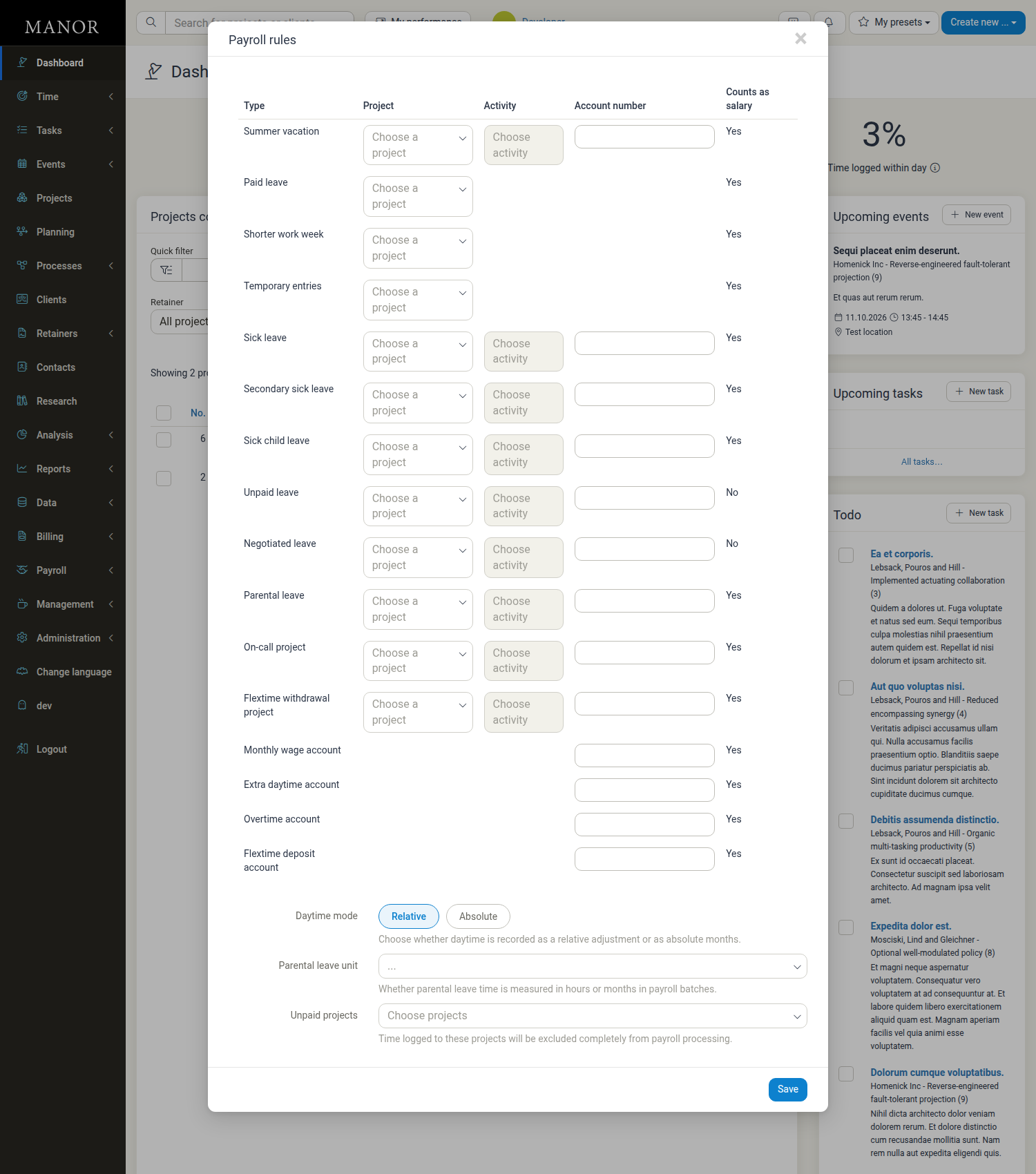
Leave and special project mappings
Each row maps a payroll category to a project (and, where applicable, an activity) so that time logged there is classified correctly during payroll processing. The Account number and Counts as salary columns are described below.
| Category | Project | Activity | Counts as salary |
|---|---|---|---|
| Summer vacation | Yes | Yes | Yes |
| Paid leave | Yes | — | Yes |
| Shorter work week | Yes | — | Yes |
| Temporary entries | Yes | — | Yes |
| Sick leave | Yes | Yes | Yes |
| Secondary sick leave | Yes | Yes | Yes |
| Sick child leave | Yes | Yes | Yes |
| Unpaid leave | Yes | Yes | No |
| Negotiated leave | Yes | Yes | No |
| Parental leave | Yes | Yes | Yes |
| On-call project | Yes | Yes | Yes |
| Flextime withdrawal project | Yes | Yes | Yes |
- Summer vacation — time logged to the selected project (or activity) is classified as summer vacation.
- Paid leave — time is marked as paid leave (for example bereavement leave or jury duty). Employees are paid without it counting toward work hours or billable requirements.
- Shorter work week — time spent on a shorter-work-week programme, for example optional reduced-hour schemes in some jurisdictions.
- Temporary entries — a project for provisional or work-in-progress entries. Entries here must typically be resolved before hours can be confirmed.
- Sick leave / Secondary sick leave / Sick child leave — separate sick-leave categories for jurisdictions that distinguish between them.
- Unpaid leave — time is classified as unpaid leave. It is not counted as salary.
- Negotiated leave — a separate leave category, not counted as salary.
- Parental leave — time is classified as parental leave (maternity, paternity or adoption) and handled per your firm's parental leave policies. See Parental leave unit below.
- On-call project — time spent on call for the firm.
- Flextime withdrawal project — the project where employees file flextime withdrawals. Time logged here counts as using deposited flextime hours and reduces the employee's flextime balance.
The Activity column is enabled for a row only after a project has been selected, so that a specific activity can be singled out if needed.
Account number rows
The following rows have no project or activity — they only carry an account number used when exporting payroll data to accounting systems. All are marked Counts as salary: Yes.
- Monthly wage account — for monthly base salary or wage adjustments.
- Extra daytime account — for hours worked above an employee's expected hours but below full-time.
- Overtime account — for hours worked above full-time employment.
- Flextime deposit account — for hours deposited into flextime (active flextime).
Other categories have their account number entered directly on the leave/special row above (for example the vacation account on the Summer vacation row and the flextime withdrawal account on the Flextime withdrawal project row). Leave these empty if your firm does not export to accounting systems that require them.
Daytime mode
Options: Relative (default) / Absolute
Helper text: "Choose whether daytime is recorded as a relative adjustment or as absolute months."
Parental leave unit
Options: hours / months
Helper text: "Whether parental leave time is measured in hours or months in payroll batches."
Some jurisdictions require parental leave to be tracked in months rather than hours.
Note: For firms in Norway, an additional Birth leave unit setting (hours / months) appears with the same options.
Unpaid projects
Helper text: "Time logged to these projects will be excluded completely from payroll processing and will not count toward the work quota."
Select the projects whose time entries are excluded entirely from payroll. These entries do not contribute to expected working hours, billable hours or payroll calculations, and do not need to be confirmed. Use this for time tracking of administrative tasks or entries that should not affect payroll.
Best Practices
Define periods carefully — Choose first and last days that align with your pay cycle and local regulations.
Set working hours accurately — Correct daily working hours ensure accurate overtime and balance calculations.
Map leave projects correctly — Assign projects for each leave type to track compliance with labour laws and company policies.
Choose the right flextime mode — Use Active flextime when employees should explicitly bank and withdraw overtime, and Passive flextime when the balance should be calculated automatically.
Test flextime settings — If using flextime, test deposit and withdrawal logic before rolling out to employees.
Review account mappings — Verify account numbers match your accounting system's chart of accounts.
Communicate changes — Inform employees of any changes to payroll period dates or working hours to avoid confusion.
Related Documentation
- Workday Length — Configuring daily working hours and how they affect calendars and time entry
- Payroll — Overview of the Payroll section
- Pay Periods — Managing payroll period calendars
- Payroll Batches — Processing payroll runs
- Employments — Employee employment records and terms
- Firms — Firm configuration overview