
A project is the container for all work you do for a client: time, travel, expenses, products, per diems, notes and files, and the invoices you raise from them. A project is created in a single dialog, and everything you skip at that point can be filled in later.
Before you start
- Decide whether the client exists yet. You can attach a client while creating the project, or click New client in the dialog and create the client first. Projects without a client are allowed and show a No client badge in the project list.
- Know the currency. The Monetary budget and Balance warning fields use the currency of the client set on the project, or your firm's default currency when no client is selected.
- Most fields come pre-filled. Only Project name, VAT, Type, Participants and Access level are marked as required, and all except the name arrive with a sensible default. Everything can still be changed later with Edit project.
Creating a project
-
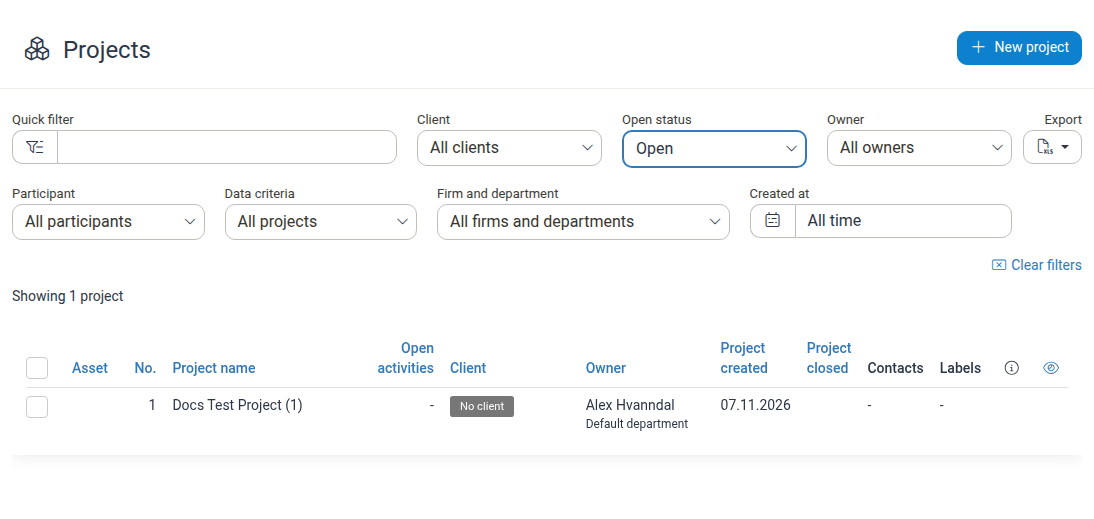
Click Projects in the main menu.
-
Click New project in the top right corner. The New project dialog opens.
-
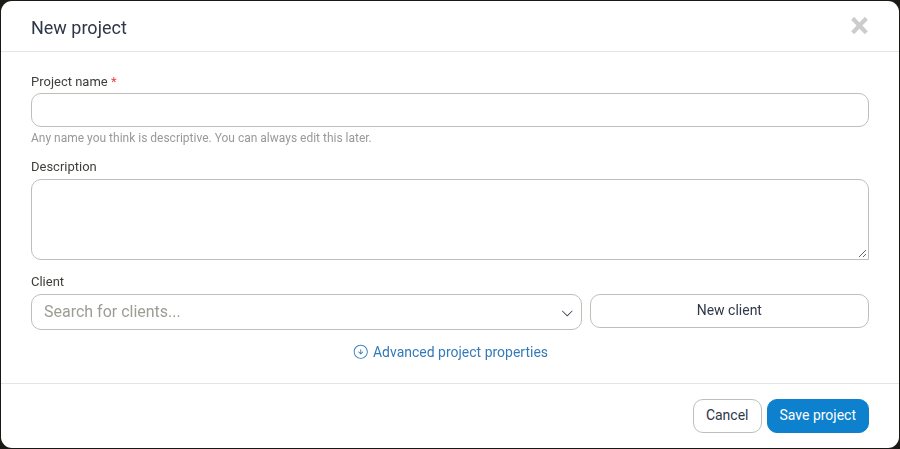
Enter the basic details:
- Project name (required) — a clear, descriptive title, for example Smith Corp Website Redesign. The helper text notes that the name can be changed later.
- Description — free text describing the engagement.
- Client — search for and select an existing client, or click New client to create one.
-
Click Advanced project properties to reveal the rest of the form. The sections below are all optional, apart from the participants list, which needs at least one person.
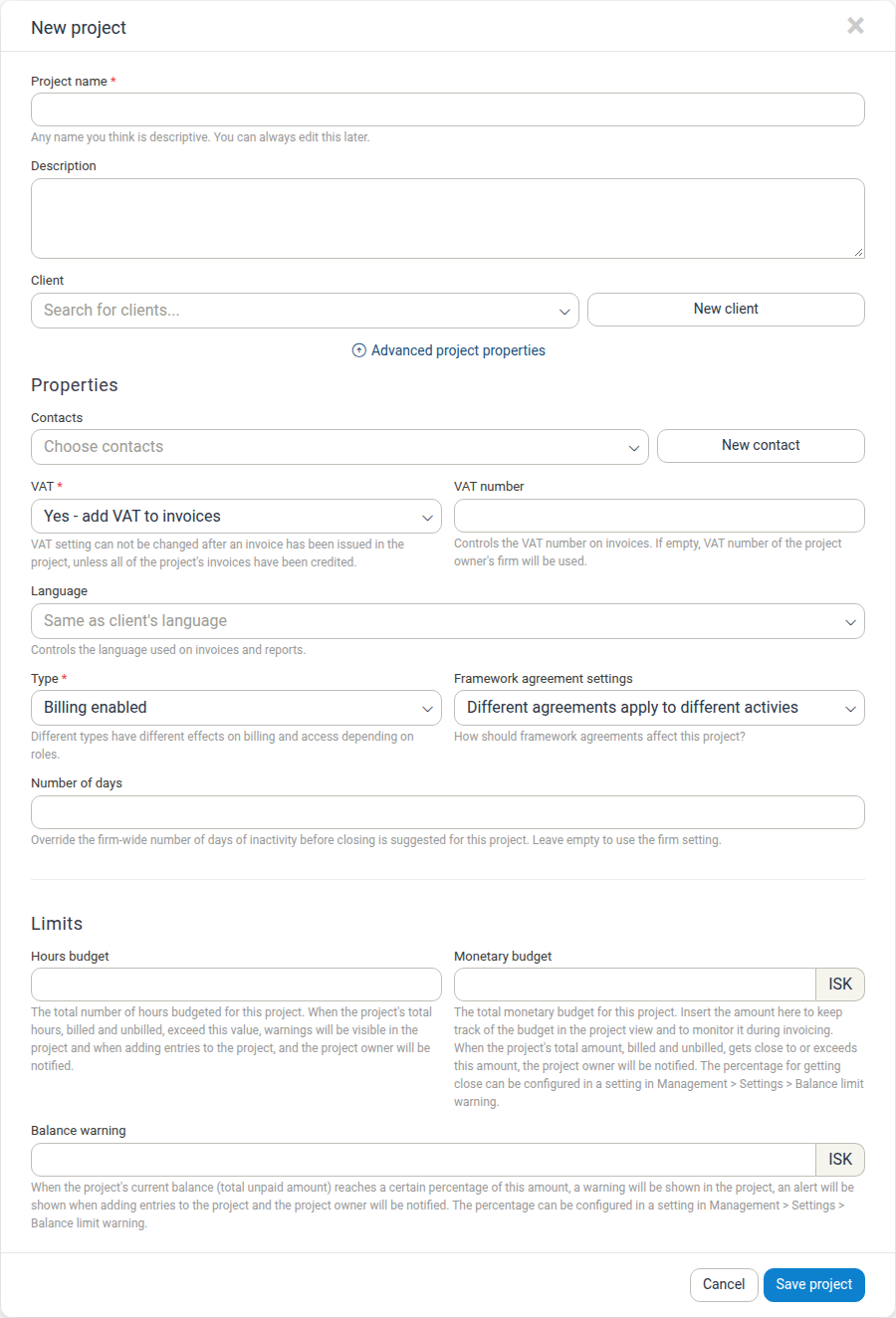
Properties
- Contacts — people connected to the project. Choose an existing contact, or click New contact to create one.
- VAT — whether VAT is added to invoices on this project: Yes - add VAT to invoices or No - do not add VAT to invoices. The default follows the firm setting under Management > Settings > Default VAT setting for new projects. Once an invoice has been issued in the project the setting can no longer be changed, unless all of the project's invoices have been credited.
- VAT number — the VAT number printed on invoices. If you leave it empty, the VAT number of the project owner's firm is used.
- Language — the language used on invoices and reports. A new project starts with Same as client's language.
- Type — how the project is billed and how visible it is. The default is Billing enabled; other types mark the project as internal and non-billable. Different types have different effects on billing and access depending on roles.
- Framework agreement settings — how framework agreements apply to this project. The default lets a different framework agreement apply to each activity, so you can attach an agreement per activity rather than one for the whole project.
- Number of days — overrides the firm-wide number of days of inactivity before closing the project is suggested (see Number of days).
Limits
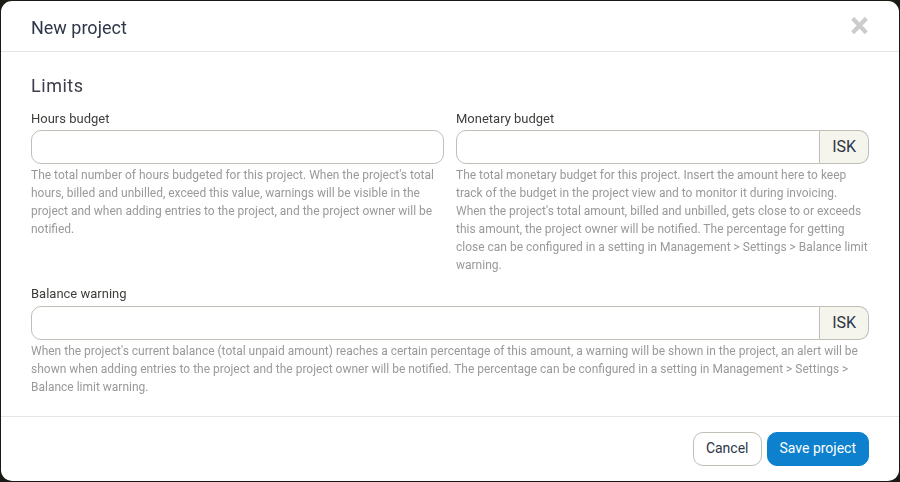
The Limits section holds the project's budgets and warning thresholds. All three fields are optional; the two monetary fields are shown with the project currency as a suffix.
- Hours budget — the total number of hours budgeted for the project. When the project's total hours, billed and unbilled, exceed this value, warnings appear in the project and when adding entries to it, and the project owner is notified.
- Monetary budget — the total monetary budget for the project. Manor keeps track of it in the project view and monitors it during invoicing. When the total amount, billed and unbilled, gets close to or exceeds this value, the project owner is notified.
- Balance warning — a monetary amount. When the project's current balance (total unpaid amount) reaches a certain percentage of this amount, a warning is shown in the project, an alert is shown when adding entries to it, and the project owner is notified.
The percentage that counts as "close to" is set once for the whole firm under Management > Settings > Balance limit warning level.
Invoice details
- Billing instructions — guidance shown to the user making an invoice in this project. It is not printed on the invoice.
- Invoice comment — a default comment printed on every invoice of this project; it can be changed on each individual invoice.
- Grace period — the number of days the client has to pay. Leave it empty to use the client's or firm's default grace period.
- Invoice layout — how invoice lines are grouped, for example Expanded: one line for each rate.
- Buyer reference number — the client's reference, used for accounting on their side.
- Accounting cost — the client's accounting cost code.
- Contract document reference — identifies the contract or agreement under which invoices are issued, so the buyer can match them to the right contract.
- Buyer contact, Buyer contact email, Buyer contact phone — details of the client's contact person. They are shown on electronic invoices; the email is not used as a delivery address.
For the fields that are easy to mix up, see Project Billing Settings.
Template, confidentiality and participants
- Template — apply a project template, which can predefine custom fields on the project.
- Confidential — limits who can see the project. A confidential project is practically invisible: it appears in project lists, project selectors, analysis, reporting and invoicing only for its participants and for users who have been granted permission to view all confidential projects. It remains visible in data mining through the Manor API or an ODATA connection.
- Participants (required) — the people who can work on the project. The owner is added automatically, and their Access level is Full access by default. For each participant, choose an Access level of Full access or Limited access and mark one of them as Owner with the radio button. Click Add new participant to add more people.
- Full access lets the participant edit all project properties and see all billable items of the project.
- Limited access prevents editing the project properties and lets the participant see only their own billable items, plus all notes.
- Click Save project. The project is created and its page opens.
Changing a project's settings later
The same fields are available on an existing project:
-
Open the project and click Edit project in the Project properties panel.
-
The Edit project dialog opens with the fields already filled in.
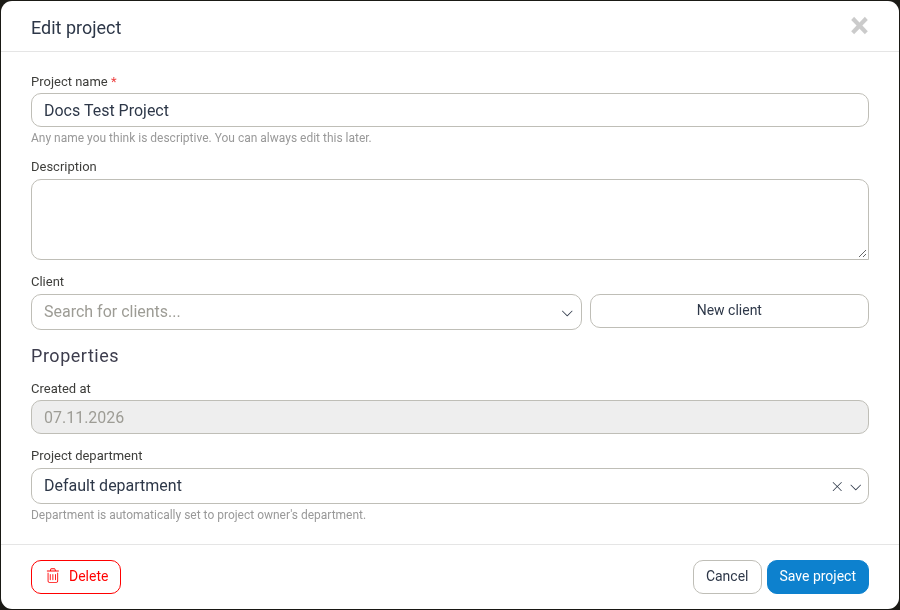
The Edit project dialog has no Advanced project properties link: the Properties, Limits, Invoice details and Participants sections are always shown. It also contains two fields that are not in the new-project dialog:
- Created at — the project's creation date, read-only.
- Project department — the department the project is reported under. It is set automatically to the project owner's department, and you can change it.
-
Adjust the fields you need and click Save project.
The dialog also has a red Delete button on the left. Deleting a project is permanent; if the work is finished rather than unwanted, close the project instead (see After creating a project).
Budgets and warnings
The three Limits fields serve two different purposes, and it helps to keep them apart.
Hours budget
Hours budget is a threshold in hours. It is compared with all hours logged on the project, both billed and unbilled. When the total exceeds the budget, warnings appear in the project and while entries are added, and the project owner is notified. Use it when the engagement is sold on time, and set per-activity hours budgets as well when you want to follow individual phases (see Progress Analysis).
Monetary budget
Monetary budget is the total amount budgeted for the project, entered in the project currency. It is a budget to follow rather than a hard stop: Manor keeps track of it in the project view and monitors it during invoicing, and the project owner is notified when billed plus unbilled amounts get close to or exceed it.
When a project has a monetary budget, its page shows a Monetary budget card:
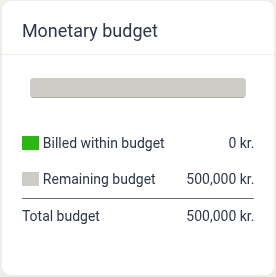
The card contains:
- A progress bar that fills with the amount billed against the budget.
- Billed within budget — the amount already invoiced on the project.
- Remaining budget — the part of the budget still available.
- Total budget — the budget you recorded.
If no monetary budget is set, the card does not appear.
Balance warning
Balance warning is the alerting threshold for money the client has not yet paid. When the project's current balance (total unpaid amount) reaches the percentage of the threshold configured under Management > Settings > Balance limit warning level, a warning is shown in the project, an alert is shown when adding entries, and the project owner is notified.
For a full description of these and the other billing fields, see Project Billing Settings.
Number of days
Number of days in the Properties section controls when Manor suggests closing a project that has gone quiet. The helper text in the field reads: "Override the firm-wide number of days of inactivity before closing is suggested for this project. Leave empty to use the firm setting."
- Leave the field empty to inherit the firm-wide value.
- Enter a number of days to override it for this project only, for example when an engagement is expected to run at a different pace than the rest of the firm.
The field only changes when the closing suggestion is made; it does not change what happens when a project is closed.

After creating a project
The project page is where the work happens. From it you can:
- Log billables — use the Time, Travels, Expenses, Products, Per diems and Bundles tiles, or All billables for one combined view.
- Add activities — click New activity to break the project into phases you can budget and follow separately (see Activities).
- Set an overall budget — click Edit budgets to distribute a budget across activities.
- Set prices — click Prices to give the project its own rates or discount.
- Write notes and upload files — use the notes field at the bottom of the page and the File browser panel.
- Follow up on the work — open Progress analysis, Profit analysis, Work report, Heatmap or Planning.
- Invoice the work — go to Billing > New invoice and select the project (see Invoices).
- Close the project — click Close project … in the project action bar and confirm. Closing hides the project's content from daily views without deleting anything, and any outstanding balance is still shown in the balance table during billing. A closed project can be reopened later.
Best practices
- Name projects so they can be found. Include the client and the type of work, for example Smith Corp Website Redesign.
- Set the client and the language up front. The client drives the currency, and the client's language is the default document language.
- Set the warnings before the work starts. Fill in Hours budget, Monetary budget and Balance warning at creation so the project owner is alerted before an overrun rather than after it.
- Agree the invoice details early. Enter Buyer reference number, Accounting cost and Contract document reference before the first invoice is issued, so the client can match and approve it.
- Add the team as participants. Give Full access to whoever runs the project and Limited access to people who should only see and log their own work.
- Leave optional overrides empty unless you need them. An empty Grace period, VAT number and Number of days fall back to firm or client defaults.