
A foreign client is a client whose country differs from the country of the firm that serves them. Creating one correctly matters because the client's country drives which address is printed on invoices, and the client's currency and tax details decide how (and in what currency) they are billed.
This article walks through creating a new foreign client record, entering their address, choosing their billing currency, and handling VAT for cross-border work.
In scope: the client record, currency, address and VAT/tax details. Out of scope: the service portal and Box.
For the general client workflow (finding, editing and deleting clients), see Clients and Client Management.
Before you start
Two things are worth checking before you create the record:
- Is the client's currency enabled? Only currencies that have been enabled for your company appear in the Currency dropdown. To enable a foreign currency, go to Management > Pricing > Active currencies and click Enable new currency. See Active Currencies.
- Which address will the invoices go to? If the client wants invoices sent to a different address than their visiting/postal address (for example a finance department or a PO box), you will enter that as a Custom billing address (see Entering a foreign address).
Creating the client record
-
Go to Clients in the main menu and click New client.
The New client form opens.
-
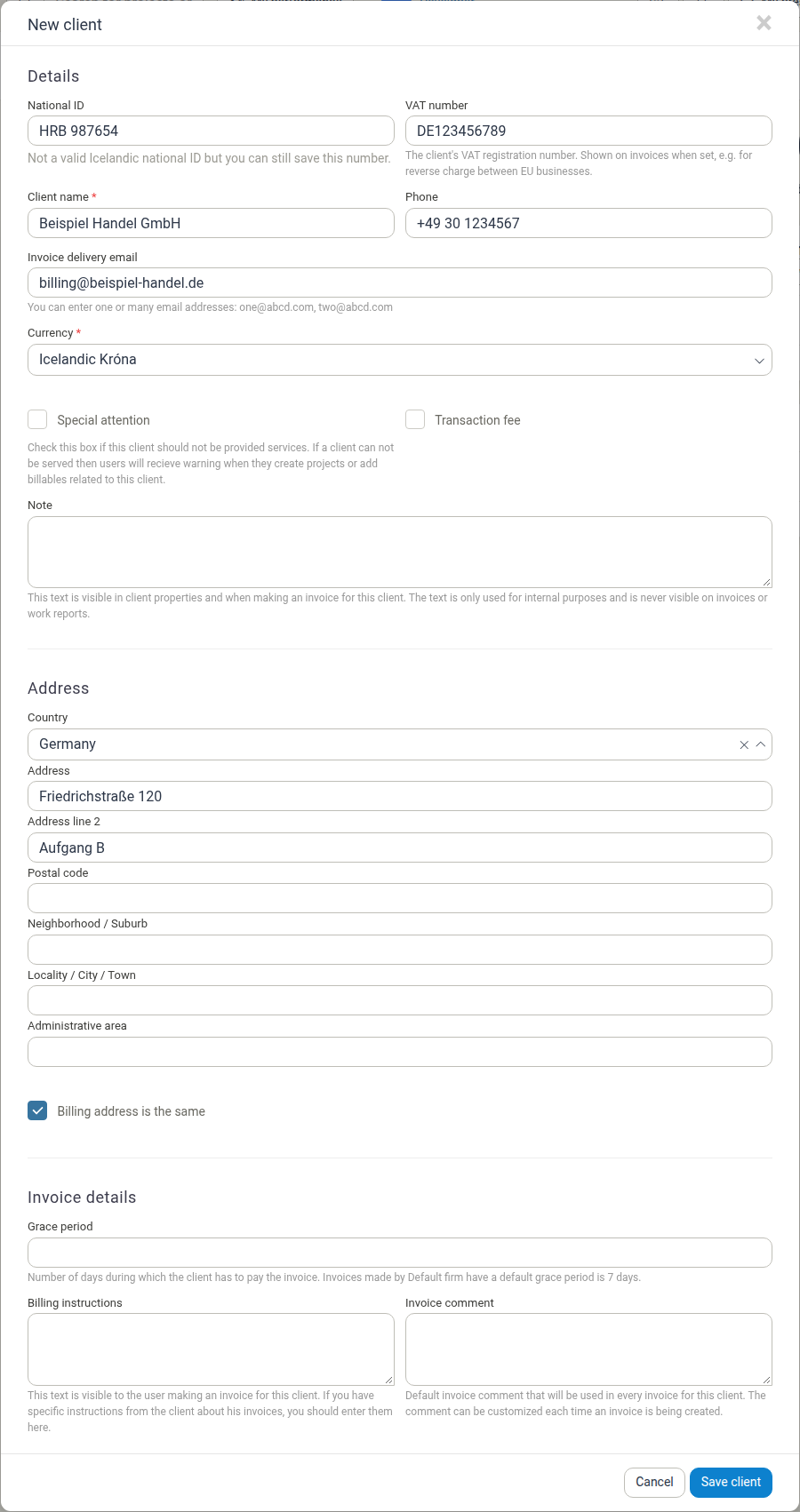
Fill in the Details section. Of these fields, only Client name and Currency are required, but for a foreign client the tax fields are important (explained in Handling VAT and tax for foreign clients):
- National ID — the client's national identification, company registration or equivalent number. Manor shows a hint if the number is not in the format used for Icelandic national IDs, but you can still save it.
- VAT number — the client's VAT registration number, for example
DE123456789for a German business. This value is shown on invoices when set. - Client name — the official name of the client, exactly as it should appear on invoices.
- Phone — the client's primary contact number.
- Invoice delivery email — where invoices are sent. You can enter several addresses separated by commas (
one@abcd.com, two@abcd.com). - Currency — the currency the client will be billed in (see Choosing the client's currency).
- Special attention — flags a client who should not be provided services; users get a warning if they create projects or add billables for this client.
- Transaction fee — adds an automatic transaction fee line to this client's invoices, using the amount defined in your firm's transaction fee settings.
- Note — internal text that is visible on the client record and when making an invoice, but never on the invoice or work report itself.
-
Enter the address (see Entering a foreign address).
-
Optionally configure Invoice details:
- Grace period — the number of days the client has to pay. Leave it empty to use your firm's default grace period.
- Billing instructions — text shown to the person who makes invoices for this client (not printed on the invoice).
- Invoice comment — default text printed on every invoice for this client.
-
Click Save client.
Tip: Save the client record before setting up projects. Every project you create for the client is billed in the client's currency, and the client's address and country are used on the invoices you later issue.
Entering a foreign address
Manor's client form has an Address section for the client's main address and, optionally, a separate Custom billing address. When you change the Country, the address fields adjust to the conventions of that country.
-
In the Address section, open the Country field and select the client's country. For a foreign client this must not be your firm's own country. The form immediately shows the fields that country uses, for example:
- Address and Address line 2 — street and building/suite details.
- Postal code — the client's postal or ZIP code.
- Neighborhood / Suburb, Locality / City / Town, Administrative area — local area details.
Fill each field in as completely as possible, using the spelling and formatting that the client uses locally. The screenshot in Creating the client record above shows a German address entered in this section.
-
Choose how the client should be billed:
- If invoices should be sent to the same address, leave Billing address is the same ticked.
- If invoices should go somewhere else (for example to the client's accounting department or a separate invoicing address), clear Billing address is the same. A Custom billing address section appears where you can enter that address, including its own Country.
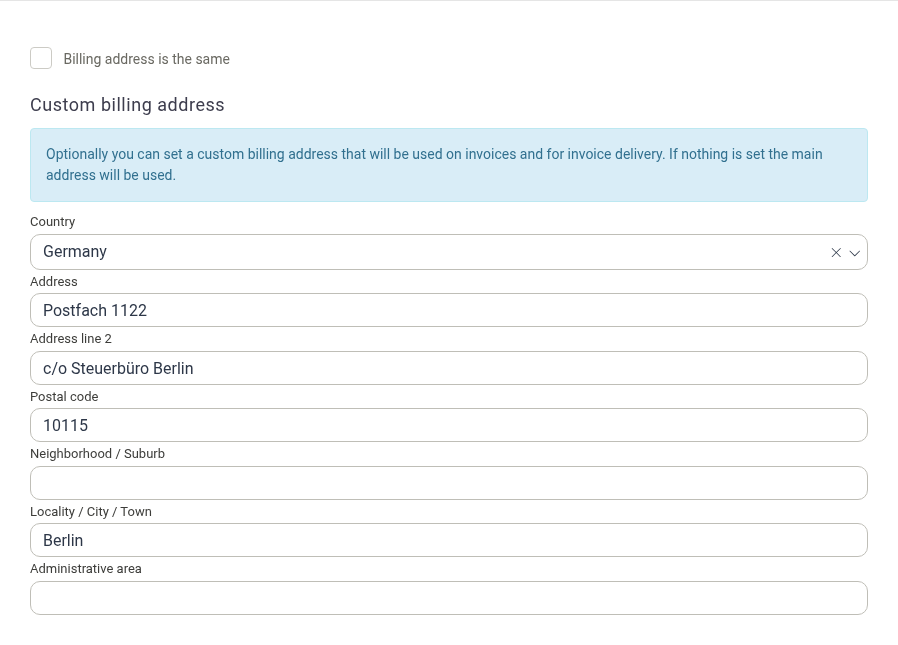
The custom billing address is used on invoices and for invoice delivery. If you leave it empty, the main address is used instead.
-
Click Save client.
Where the country goes: For a foreign client, Manor includes the country in the address that is printed on the invoice (the country line is omitted only when the client is in the same country as the issuing firm).
Choosing the client's currency
The Currency field on the client record sets the currency in which the client is billed. It defaults to your firm's own currency, so for a foreign client you must change it.
- In the New client (or Edit client) form, open the Currency field.
- Select the currency the client should be invoiced in, for example Euro or United States Dollar. Only currencies that have been enabled for your company are listed.
- Save the client.
Notes and behaviour to keep in mind:
- If the currency you need is not listed, an administrator must enable it first under Management > Pricing > Active currencies. Enabling a currency also fetches its exchange rate, so amounts can be converted for reporting. See Active Currencies and Currencies.
- Foreign-currency clients are marked in pickers. Where you choose a client — for example on a project or an expense — a client whose currency differs from your firm's currency is shown with their currency code next to the name, so it is obvious that the client is billed in a foreign currency.
- Changing the currency later converts prices. If you change an existing client's currency, Manor converts that client's own prices (and their projects' and activities' prices) from the old currency to the new one, and recalculates related balances. You can change the currency again if needed, but review affected projects and prices afterwards.
- Currency and expenses. The client's currency is separate from the currency of the expenses you record. Expenses are always entered in the currency the cost was actually paid in, and Manor converts them using the relevant exchange rate. See Expenses.
You can review clients by currency in the Data > Clients view, which lists each client's default currency and lets you filter and export by currency. See Clients (Data).
Handling VAT and tax for foreign clients
Selling services across a border usually changes how tax is treated: in many cases no VAT is added to the invoice, because tax is accounted for in the client's own country rather than yours. Manor does not decide this automatically — you record the client's tax details on the client, and you make the tax decision on the project or retainer.
Enter the client's VAT number
On the client record, the VAT number field holds the client's VAT registration number.
- The helper text explains its purpose: "The client's VAT registration number. Shown on invoices when set, e.g. for reverse charge between EU businesses."
- Enter it in the format used by the client's country. German VAT numbers, for example, consist of the country prefix
DEfollowed by nine digits (DE123456789). - When set, Manor prints the VAT number on the client's invoices, as "VAT number: …". This is what allows the reverse charge (see below) to be documented on the invoice.
- The value is captured onto each invoice when it is created, so invoices you have already issued keep the VAT number they were issued with.
Decide the project's VAT setting
Whether VAT is added to invoices is a project (or retainer) setting, not a client setting. When you create or edit a project you will find a VAT field with the options:
- Yes - add VAT to invoices — VAT is added at your firm's VAT rate.
- No - do not add VAT to invoices — no VAT is added to invoices for this project.

For many cross-border engagements with business clients, No - do not add VAT to invoices is the correct choice, and the invoice is issued without VAT (see the note below). The setting can only be changed while no invoice has been issued in the project — after that it is locked unless all the project's invoices have been credited.
There is also a VAT number field on the project. It controls the VAT number shown as the seller's VAT number on invoices; if you leave it empty, the VAT number of the project owner's firm is used.
Watch for the cross-border VAT warning
When you issue the first invoice in a project for a client, and the project is set to add VAT while the client's billing address country differs from the issuing firm's country, Manor shows a warning before the invoice is issued:
Warning: Important decision about project VAT setting — You are about to issue the first invoice in this project and currently the project settings say that there should be VAT added to the invoice. That could be a correct setting but we noticed that the [client] on this project is located in [country] while the issuer of this invoice [firm] is located in [country]. It is common when selling services across borders that VAT is not applied. Please make sure that the project's VAT setting is correct before issuing this invoice.
This is a prompt to check your decision — not an automatic change. If the invoice should not carry VAT, correct the project's VAT setting (while no invoice has been issued) and then issue the invoice.
Reverse charge, zero-rated and out-of-scope invoices
The table below summarises how cross-border service invoices are commonly treated. Manor supports the mechanism (recording a VAT number and issuing the invoice without VAT); which treatment is correct for a given client is a question for your tax adviser, and depends on the client's country and status.
| Situation | How invoices are commonly treated |
|---|---|
| Business client in another EU country (B2B services) | Reverse charge. You do not charge VAT; the client accounts for VAT in their own country. The invoice should identify the client's VAT number, and it normally must state "Reverse charge" or the local equivalent. In Manor, set the project to not add VAT and enter the client's VAT number. |
| Business client in a non-EU (third) country, including EEA countries outside the EU | Generally no VAT is charged (the supply is outside your domestic VAT). The invoice is issued without tax and often annotated as outside the scope of your VAT / subject to tax in the client's country. |
| Domestic client (same country as the firm) | Normal treatment — VAT is added at your firm's rate. Keep the project set to add VAT. |
No VAT is charged to the customer in either cross-border case, while you normally keep the right to recover related input VAT. Because of this, cross-border services are sometimes loosely called zero-rated or VAT exempt, although strictly the supply is taxed in the client's country (reverse charge) or outside the scope of your domestic VAT. A few practical points:
- The client's status matters. Reverse charge generally applies to business (B2B) clients with a valid VAT number. Selling to a private individual (B2C) usually follows different rules. Confirm with your tax adviser.
- Verify the VAT number. For EU clients, the number can be checked in the European Commission's VIES system. This is outside Manor.
- Add a tax statement if required. If your invoices must carry a reverse-charge or out-of-scope note, add it to the Invoice comment on the client or project so it is printed on the invoice.
- Keep the VAT treatment and the invoice in step. Since the VAT number is captured onto the invoice when it is created, enter or correct the client's VAT number before issuing the first invoice.
Manor does not calculate cross-border tax for you and does not add a reverse-charge statement automatically. Use the client's VAT number, the project's VAT setting and the Invoice comment together, based on advice from your tax adviser.
Checking the saved client
After saving, the client's record shows the address (with the country), contact details and VAT number, plus a summary line such as "in ISK, due in 7 days (Default firm)" that tells you the client's currency and payment terms.
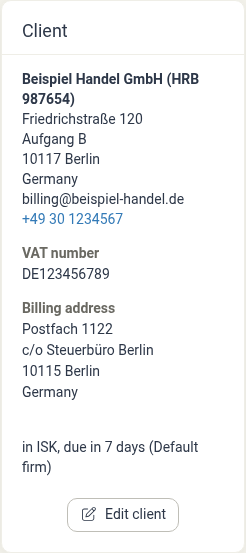
If something is wrong — a missing VAT number, the wrong country, or the wrong currency — click Edit client and correct it before you issue any invoices.
Related articles
- Clients — Creating and managing client records.
- Client Management — Billing settings, grace periods and special attention flags.
- Contacts — Adding the contact persons who belong to a client.
- Currencies — How currencies, codes and exchange rates work.
- Active Currencies — Enabling a foreign currency so it can be selected for a client.
- VAT Rates — Configuring the VAT rates used in Manor.
- Project Billing Settings — Project VAT settings, VAT number, invoice comment and other billing details.
- Invoices — Issuing invoices and how VAT and the client VAT number appear on them.
- Clients (Data) — Auditing and exporting clients, including by currency.