
What are Expenses?
Expenses are costs you incur while working on projects. They include things like travel costs, office supplies, court filing fees, or any other out-of-pocket expense that should be charged to a client or project. Tracking expenses helps you see the full cost of each project and bill clients accurately.
Why Expenses Matter
Tracking expenses helps you:
- See true project costs - Know exactly how much each project costs to complete
- Bill accurately - Recover all out-of-pocket costs from clients
- Stay compliant - Maintain proper records for tax and audit purposes
- Identify overspending - Spot cost overruns before they become problems
- Improve profitability - Understand which projects are truly profitable
Creating a New Expense
To create a new expense entry:
-
Navigate to the project you want to add an expense to.
-
Click the Add expense button (or the + Expenses link if in the expenses section).
-
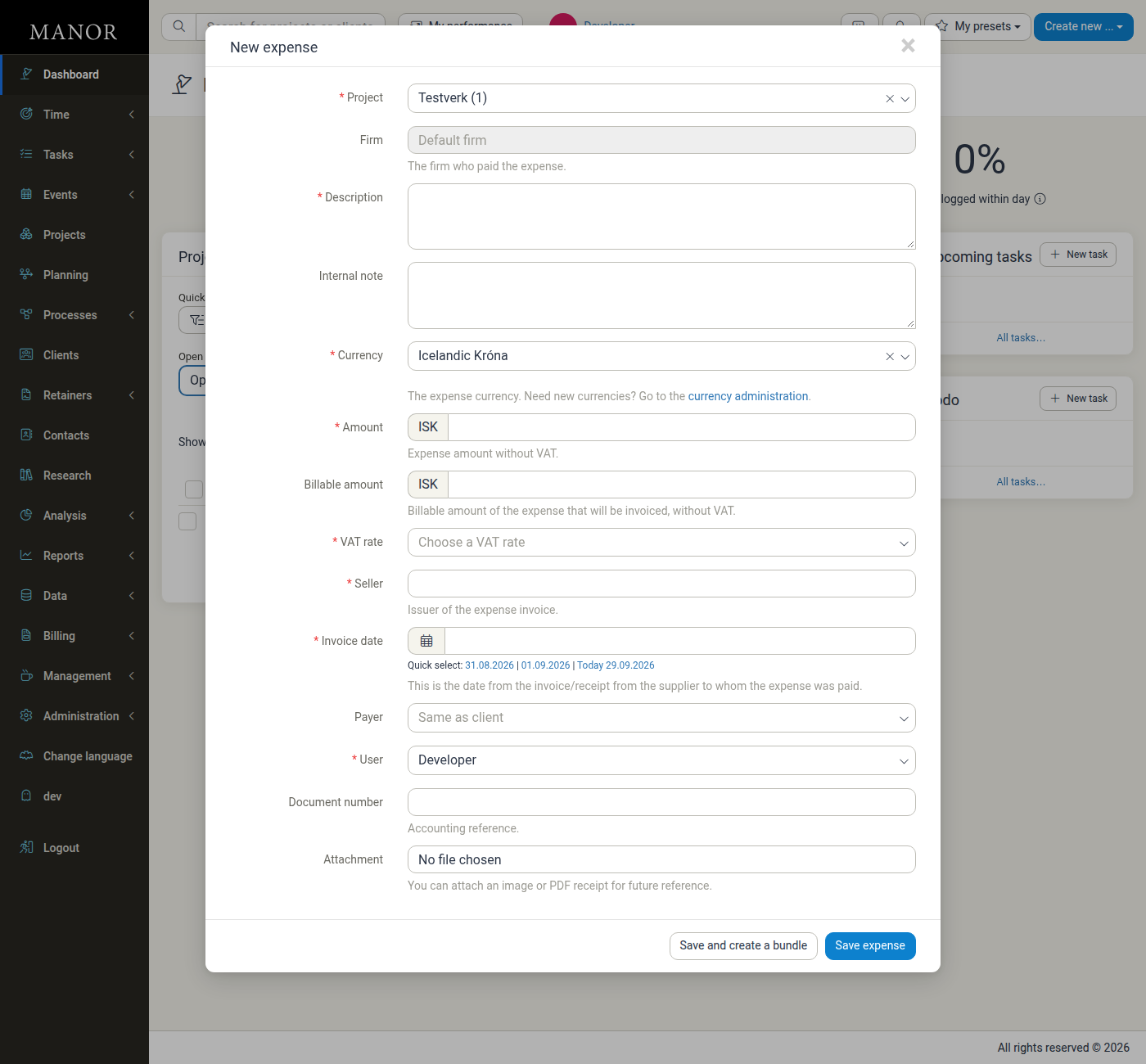
Fill in the expense details:
Required Fields:
- Project: The project this expense applies to
- Activity: Which activity this relates to (auto-selected from your current project)
- Description: What the expense was for
- Currency: The currency the expense was paid in
- Amount: Total cost of the expense (without VAT)
- VAT Rate: Applicable tax rate
- Seller: Who received the payment (issuer of the invoice)
- Invoice date: When the expense was incurred
- User: Which employee made the expense (defaults to the current user)
Optional but Recommended Fields:
- Firm: The company that paid the expense (defaults to your default firm)
- Internal note: A free-text note for internal use only, not shown to the client
- Billable amount: The amount to charge to the client (defaults to the full amount)
- Payer: Who paid for the expense (defaults to "Same as client")
- Document number: Accounting reference
- Attachment: Receipt file (an image or a PDF)
-
Click Save expense.
Recording an Expense in a Foreign Currency
You can record an expense in any currency your company has enabled, and Manor converts it to your company's own currency for you. You never type an exchange rate yourself.
1. Select the currency
In the Currency field, choose the currency the expense was actually paid in (for example, the currency on the supplier's invoice). The dropdown lists the currencies that have been enabled for your company.
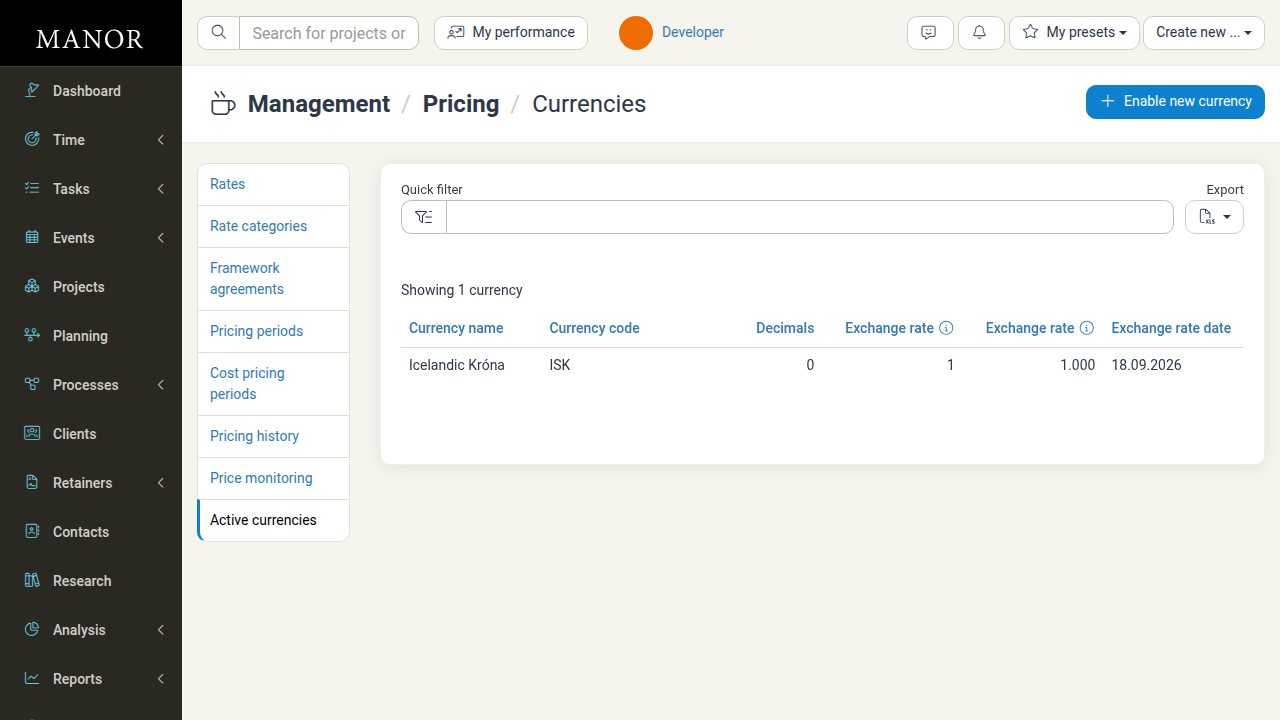
If the currency you need is missing from the dropdown, an administrator must enable it first under Management > Pricing > Active currencies by clicking Enable new currency. Once enabled, the currency becomes available on all expense forms.
The Currency field defaults to your company's preferred currency, so leave it as is for domestic expenses.
2. Enter the amount in that currency
Enter the Amount exactly as it appears on the invoice or receipt — that is, in the currency you selected. Manor prefixes the amount field with the currency code (for example, ISK) so you can see which currency you are working with. Do the same for the Billable amount if you want to bill a different amount than the cost.
Set the Invoice date to the date of the supplier's invoice or receipt. This date matters, because it determines which day's exchange rate Manor uses.
3. The exchange rate is determined automatically
Manor does not ask you for an exchange rate. When you save the expense, it looks up the exchange rate for the selected currency on the expense's Invoice date and applies it for you. Specifically:
- The rate is the published rate for that date, fetched from the currency-rate service Manor uses.
- If the Invoice date falls on a weekend or holiday, Manor uses the most recent preceding business day's rate.
- If the Invoice date is today and today's rate has not been published yet, Manor uses the previous business day's rate.
- Changing the Invoice date and re-saving recalculates the rate and the converted amounts.
Administrators can see the rates Manor is using under Management > Pricing > Active currencies, where each enabled currency lists its current exchange rate and the date that rate applies to.
4. How the amount is converted
When you save, Manor keeps both figures on the expense:
- The amount you entered, in the foreign currency.
- The same amount converted to your company's default currency, using the exchange rate for the Invoice date.
Project totals, cost analysis and reports use the default-currency amount, so domestic and foreign expenses can be summed together. The billable amount is converted the same way. When the expense is later invoiced, amounts are shown in the currency that applies to the invoice (typically the payer's or client's currency), and any further conversion is handled from the default-currency amount.
Tip: If a converted amount looks wrong, check the Invoice date first. A date on a weekend or holiday uses an earlier business day's rate, which can differ noticeably from the rate on the day you are entering the expense.
What You Can Do with Expenses
Set Billable Amounts
Specify different billable and internal amounts. The billable amount defaults to the full amount but can be adjusted if you're absorbing part of the cost.
Attach Receipts
Upload an image or a PDF as proof of purchase. This helps with client billing and audit compliance.
Link to Activities
Associate expenses with specific activities for detailed cost tracking and budget analysis within projects.
Handle Different VAT Rates
Apply the correct VAT rate for each expense, including cross-border scenarios. Rates are applied per-expense, not globally.
Track by Payer
Record whether the client paid directly or if you (the employee) paid and need reimbursement.
Important Expense Fields
Project The project this expense applies to. Required to organize expenses by project.
Firm The company that paid the expense. Optional; defaults to your default firm. Use it when the expense was paid by a different company than the default.
Activity Which activity within the project this expense relates to. Helps with detailed cost tracking.
Description What the expense was for. Clear descriptions help you understand costs later and justify them to clients (e.g., "Court filing fee for Case #456").
Internal Note A free-text note for internal use only. It is not shown to the client and is useful for context that should not appear on an invoice.
Invoice Date When the expense was incurred. This is the date from the invoice or receipt from the supplier. Accurate dates are essential for proper financial reporting. The Invoice date also determines the exchange rate used to convert foreign-currency expenses.
Currency The currency the expense was paid in. Required field shown as a dropdown (e.g., Icelandic Króna). Any enabled currency can be selected, and foreign amounts are converted to your company's default currency automatically. See Recording an Expense in a Foreign Currency.
Amount Total cost of the expense without VAT, entered in the selected currency. This is the base amount before any tax.
Billable Amount The amount to charge to the client, in the selected currency. Defaults to the full amount but can be adjusted separately if needed.
Seller Who received the payment (the issuer of the expense invoice). This could be a vendor, supplier, or service provider.
VAT Rate Applicable tax rate. Correct VAT rates ensure compliance and accurate billing (e.g., "Án VSK" for no VAT).
Payer Who paid for the expense:
- Same as client: The client paid directly
- User: You (the employee) paid and will be reimbursed
User Which employee made the expense. Defaults to the current user.
Document Number Optional accounting reference number for internal tracking.
Attachment Optional receipt file (an image or a PDF) for audit compliance and client billing reference.
Finding and Managing Expenses
Finding Expenses on a Project
All expenses for a project appear in the Expenses section, sorted by date.
Each expense shows:
- Date and description
- Amount
- Billable status
- Edit and delete buttons
Editing an Expense
- Click Edit on the expense entry
- Update any fields as needed
- Replace receipt files if necessary
- Click Save
Deleting an Expense
- Click Edit on the expense entry
- Click Delete expense
- Confirm the deletion
Important: All expense deletions are audited for security and compliance purposes.
Common Tasks
- Attach receipts: Upload an image or a PDF
- Change billability: Set the Billable amount to the amount you want to charge the client. An expense with no billable amount is not charged, and the billing status shows whether the expense has already been invoiced.
- Filter expenses: Use filters to find specific entries
Using Expense Data for Success
Profitability Analysis
Compare expenses to revenue to see which projects are truly profitable.
Client Billing
Include expenses on invoices to recover all costs from clients.
Budget Tracking
Monitor spending against project budgets to catch overruns early.
Tax Compliance
Maintain proper records with dated receipts for tax deductions.
Best Practices
Attach Receipts Always Upload receipts for every expense to support billing and compliance.
Use Clear Descriptions Write descriptions that explain both what and why (e.g., "Court filing fee for Case #123" instead of "Fee").
Enter Expenses Promptly Record expenses soon after incurring them for accurate project tracking.
Match the Invoice Currency For foreign expenses, select the currency printed on the supplier's invoice and enter the amount as printed. Let Manor handle the conversion.
Check the Invoice Date for Foreign Expenses A weekend or holiday Invoice date uses an earlier business day's exchange rate, so verify the date to avoid unexpected converted amounts.
Set the Billable Amount Correctly Only enter a billable amount for expenses you intend to charge to the client.
Review Monthly Check expense reports monthly to identify unusual spending patterns.