
What are Balances?
Balances show the total amount owed for billable work across your projects and clients. They represent unbilled or partially billed work that serves as the foundation for creating invoices. The Balances view gives you a clear picture of how much outstanding revenue needs to be invoiced to each client and from which projects.
Why Balances Matter
Understanding balances helps you:
- Track billable work — See exactly how much unbilled work exists across your firm
- Create accurate invoices — Start from balances to ensure no billable items are forgotten
- Monitor client accounts — Know how much each client owes and which projects generated the revenue
- Manage cash flow — Identify where revenue is outstanding and needs to be collected
- Plan invoicing — Determine which clients and projects are ready to be invoiced
Accessing the Balances View
To view balances and start creating invoices:
- Click Billing in the main navigation to open the Invoices list.
- Click New invoice. The Balances list dialog opens, displaying all outstanding billable amounts that can be invoiced, with a summary of the total outstanding balance displayed prominently at the top (without VAT).
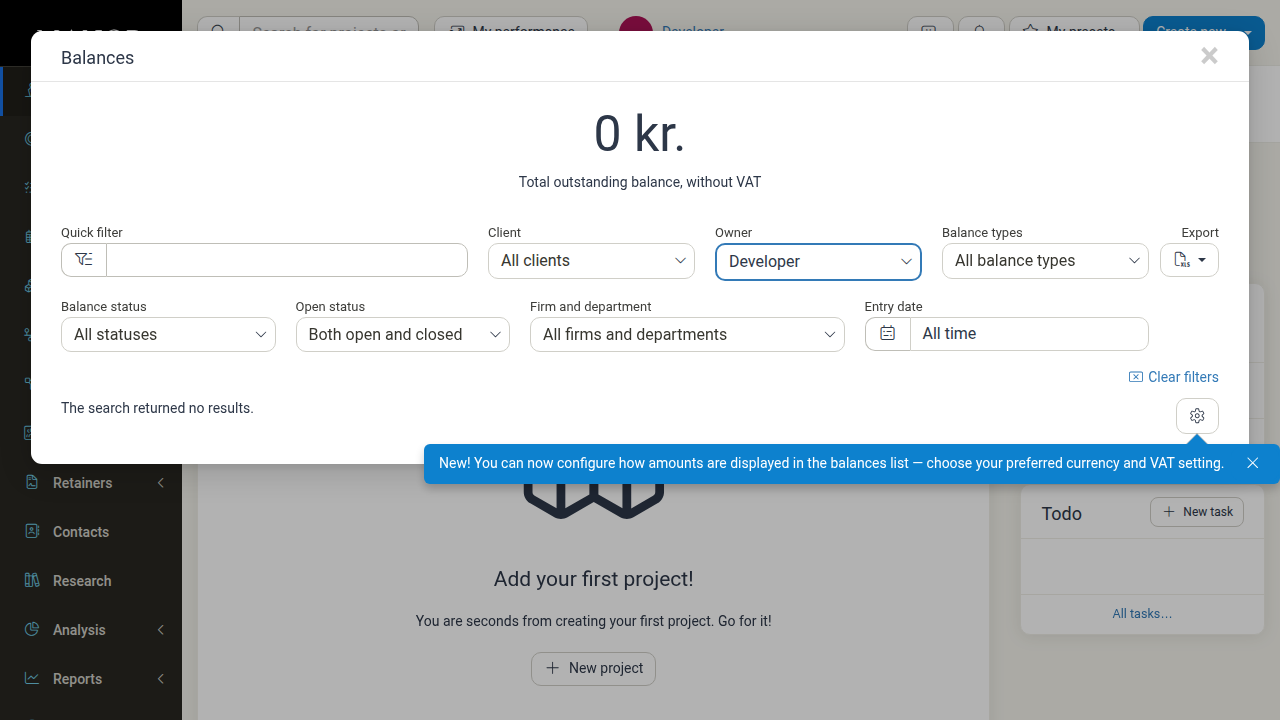
Key Information Displayed
- Total outstanding balance — Displayed prominently at the top without VAT
- Client — The payer/client for each balance
- Project — The project associated with the balance
- Balance type — The type of billable work (Time, Travel, Expense, Product, Per Diem, Bundle)
- Amount — Outstanding balance amount in the project's currency
- Amount in default currency — Balance converted to your firm's default currency
- Entry date — When the billable work was recorded
Key Concepts
Balance Types
Balances can be categorized by the type of billable work:
- Time — Hours logged that haven't been invoiced
- Travels — Travel expenses and distances that haven't been invoiced
- Expenses — Out-of-pocket expenses not yet invoiced
- Products — Products or deliverables not yet invoiced
- Per Diems — Daily allowances that haven't been invoiced
- Bundles — Grouped billable items awaiting invoicing
Balance Statuses
Each balance can carry a status indicating its invoicing state:
- Active invoice proposals — Work included in an invoice proposal awaiting review
- Active snoozes — Work temporarily snoozed from invoicing
- No status — Work with no status set
- All statuses — Show balances regardless of status
Viewing and Filtering Balances
Quick Filter
Use the quick filter search box to search by keywords such as:
- Client name
- Project name
- Invoice number (if partially billed)
- Description or reference
Available Filters
You can narrow down balance results using the following filters:
Client Filter
Filter by specific client or payer:
- Click the Client dropdown
- Select one or more clients
- Results update to show only those clients' balances
Owner Filter
Filter by project owner (the user who owns the project):
- Click the Owner dropdown
- Select one or more project owners
- See balances for projects owned by selected users
Balance Categories Filter
Filter by balance category:
- Click the Balance categories dropdown
- Select which category to display:
- Project balances
- Retainer balances
Status Filter
Filter by the current invoicing status:
- Click the Status dropdown
- Select statuses to view:
- Active invoice proposals
- Active snoozes
- No status
- All statuses
Open Status Filter
Filter by project open or closed status:
- Click the Open status dropdown
- View balances from:
- Both open and closed projects
- Closed
- Open
Firm and Department Filter
Filter by organizational unit:
- Click the Firm and department dropdown
- Select specific firms or departments
- View balances from selected units only
Entry Date Filter
Filter by when the work was recorded:
- Click the Entry date dropdown
- Select a period:
- All periods
- Past
- Future
- Yesterday
- Today
- Tomorrow
- Relative months and years
- View balances from the selected period
Quick Actions
- Clear filters — Resets all active dropdowns and search keywords to default.
- Download — Download the current balance data. Use the dropdown item Download as Excel file.
Customizing the Balances Display
You can adjust how financial figures are displayed across the balances list:
- Click Balance table settings at the bottom of the Balances list (or visit
/user/settings/balance). - Configure whether amounts are shown Excl. VAT or Incl. VAT.
- Select whether amounts appear in the Client's currency or converted to your firm's Local currency.
For full details, see the Balance Table Settings guide.
Creating Invoices from Balances
The Balances view is the starting point for invoice creation:
- Review balances — Examine the outstanding amounts
- Apply filters if needed to focus on specific clients, projects, or balance types
- Select which items to invoice by clicking checkboxes (or select all)
- Click Create invoice or proceed to invoice creation workflow
- Review the invoice details before finalizing
The invoice form will be pre-populated with the selected balance items, saving you time and ensuring accuracy.
Key Fields Explained
Amount (in project currency)
The outstanding balance amount displayed in the currency configured for that project. This is the actual amount owed.
Amount in default currency
The balance converted to your firm's default currency using current exchange rates. Useful for consolidated reporting if you work with multiple currencies.
Entry date
When the billable work was originally recorded in Manor (e.g., when a time entry was logged or expense was added). This helps you identify how "old" the unbilled work is.
Balance type
The category of work represented by this balance:
- Time — Billable hours
- Travel — Travel distances and costs
- Expense — Out-of-pocket costs
- Product — Sold goods or deliverables
- Per Diem — Daily living allowances
- Bundle — Multiple items grouped together
Payer
The client or organization responsible for paying this invoice. Important for ensuring the invoice goes to the correct party.
Managing Balances
Viewing Balance Details
To see more information about a specific balance:
- Click on the balance row in the table
- A details panel opens showing:
- Full description of the billable work
- Who created the entry
- Associated project and activities
- Current billing status
- Related invoice (if partially billed)
Excluding Items from Invoicing
Some work items may need to be excluded from client invoicing. To mark a balance as non-billable:
- Open the project
- Locate the activity or billable item
- Mark it as "Excluded from billing" or "Non-billable"
- It will no longer appear in balances or invoice creation
Handling Disputed or Rejected Amounts
If a client disputes an amount or refuses to pay for certain work:
- Contact your manager or billing administrator
- May involve adjusting the item (writing off, credit note, etc.)
- Document the reason for any adjustments
- The balance will automatically update
Best Practices for Managing Balances
Review Regularly
- Check balances weekly — Stay aware of outstanding invoicing work
- Monitor aging — Identify which clients have long-standing unbilled balances
- Flag issues — Note any projects with unusually high or low balances
Invoice Promptly
- Don't let balances pile up — Invoice regularly to maintain cash flow
- Create invoices in batches — Group similar work by client when possible
- Follow your billing schedule — Maintain consistent invoicing frequency (e.g., monthly)
Keep Data Accurate
- Assign work to activities — Use activities when logging time/expenses for better tracking
- Use correct clients/payers — Ensure billable items are linked to the right paying customer
- Mark non-billable items — Clearly mark internal work that shouldn't be invoiced
- Review before invoicing — Double-check that all items in an invoice are correct
Manage Multiple Currencies
- Monitor exchange rates — When working with multiple currencies, rates affect balance amounts
- Convert consistently — Use the system's default currency conversion for reporting
- Clarify with clients — Confirm which currency should be used for invoices
Use Filters Effectively
- Create filter sets for common scenarios — Save time by filtering the same way repeatedly
- Filter by billing readiness — Group items by client to batch invoice creation
- Track by project stage — Use project owner or status filters to monitor progress
Troubleshooting Common Issues
A billable item isn't showing in balances
- Check billing status — Item may already be invoiced or in a proposal
- Verify project — Confirm the item is linked to the correct project
- Check payer — Ensure the item is assigned to a paying client (not internal)
- Review filters — Active filters may be hiding the item
Balance amount seems incorrect
- Check billable items — Review the original time entries or expenses for errors
- Look for write-offs — Some items may have been written off (non-billable)
- Verify currency — If multi-currency, ensure you're viewing in the correct currency
- Check VAT — Some balances may be calculated with or without VAT
Unable to select items for invoicing
- Check permissions — You may need invoice creation permissions
- Review status — Items in certain statuses may not be selectable
- Try different filters — Adjust filters to find selectable items
Related Features
- Balances — Concise summary of the Balances view
- Balance Table Settings — Configure VAT and currency display preferences for balances
- Invoices — Create and manage final invoices from balances
- Invoice Proposals — Create draft invoices for review before finalizing
- Invoice Delivery — Track how invoices reach clients
- Automated Invoices — Set up automatic invoicing schedules
- Projects — Manage projects that generate balances
Frequently Asked Questions
Why aren't all my billable items showing as balances?
Items that have already been invoiced, are in a draft proposal, or are marked as non-billable won't appear as outstanding balances.
Can I invoice the same work twice?
No. Once work is included in an invoice (even a proposal), it's no longer available as an outstanding balance to prevent duplicate billing.
How does VAT affect balances?
Balances typically show amounts before VAT by default, but you can toggle Incl. VAT under Balance table settings. When you create an invoice, VAT is calculated and added based on the project's VAT settings.
What if a client disputes an invoiced amount?
If a client disputes work after invoicing, you may need to issue a credit note or written-off amount. Work with your billing administrator to adjust the client's account appropriately.
Can I filter balances by labor category or skill?
Balances are grouped primarily by client and project. For more detailed filtering by labor type, use the billable type filters (Time, Expenses, etc.) or review activity-level details.