
Profit analysis shows the financial performance of a single project: the revenue earned compared with the cost of the work, and the resulting profit or loss. Figures are broken down by activity and by period so you can see which parts of the project are profitable.
Opening Profit Analysis
- Open a project from Projects.
- On the project page, click Profit analysis in the analysis links (next to Heatmap, Progress analysis, Planning and Project management).
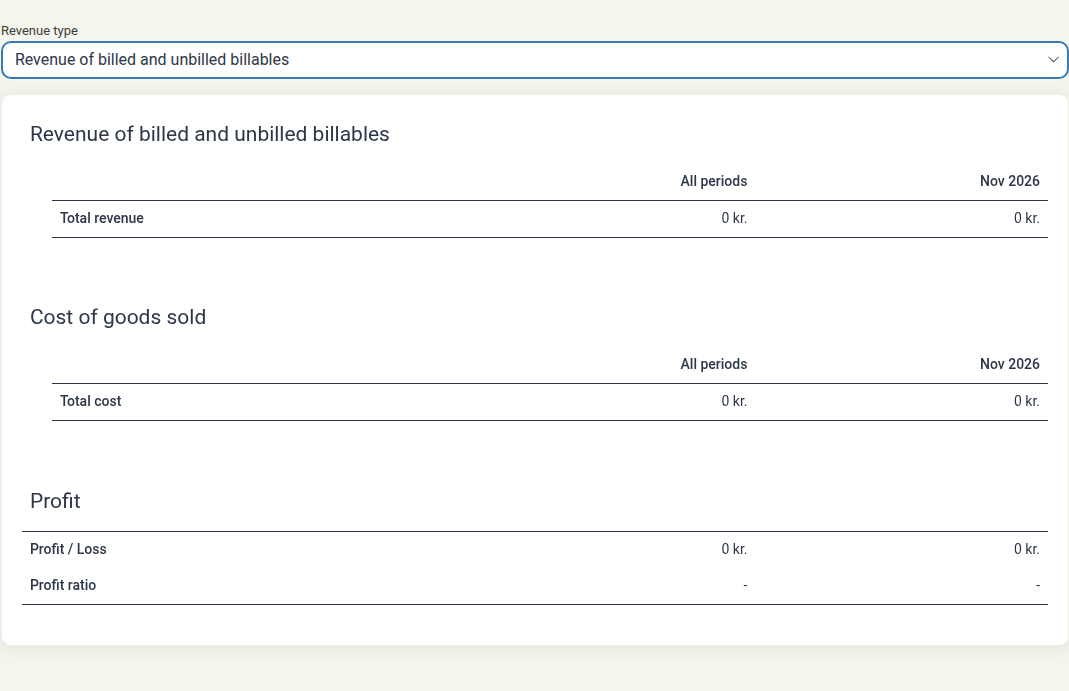
The view has three stacked sections — the revenue section, Cost of goods sold, and Profit. Each section is a table whose first column lists the rows and whose remaining columns are time periods, led by All periods and followed by one column per month that has data.
Choosing the Revenue Type
The Revenue type selector sits above the report. It controls which billables count towards revenue:
| Revenue type | What it includes |
|---|---|
| Revenue of billed and unbilled billables | All earned revenue, whether or not it has been invoiced. Use this for the project's true result. |
| Revenue of billed billables only | Only revenue that has been invoiced to the client. Use this to see billed-to-date figures. |
The selected value is also used as the heading of the revenue section. Changing the selector recalculates the revenue, cost and profit figures.
Revenue
The revenue section totals the value of the project's billables.
- Rows — One row per activity, plus a No activity row for billables that are not linked to an activity. Within an activity, amounts are shown per billable type (for example Time).
- Columns — All periods totals everything, then one column per month.
- Total revenue — Sums the revenue for each period across all activities.
Cost of Goods Sold
The Cost of goods sold section shows the costs recorded against the project (for example the cost price of logged time), using the same activity rows and period columns as the revenue section.
- Total cost — Sums the cost for each period across all activities.
Compare this section with the revenue section to see whether a given activity's revenue covers its cost. If an activity's cost is higher than its revenue, that activity is unprofitable.
Profit
The Profit section shows the bottom line for the project and for each period:
- Profit / Loss — Revenue minus cost of goods sold. A positive figure is a profit; a negative figure is a loss.
- Profit ratio — Profit as a percentage of revenue. A higher ratio means more of each unit of revenue is kept as profit.
If an activity shows a loss or a low profit ratio, review the rate applied to it and the cost recorded against it, and check that time was logged to the correct activity.
Related Documentation
- Progress Analysis — See the hours logged on a project against its budgets, by activity and period.
- Project Management — The project timeline of activities and milestones.
- Project Billing Settings — Configure a project's billing type, VAT, budget warnings and total estimate.
- Activities — Break a project down into activities with their own budgets.
- Work Reports — Produce a printable summary of the work and billables on a project.
- Projects — The portfolio list of all projects.