
What is Invoice Setup?
Invoice setup configures how your firm generates and sends invoices to clients. This includes setting up your company information, bank account details, invoice numbering sequences, and default settings that appear on every invoice you create.
Why Invoice Setup Matters
Proper invoice setup helps you:
- Present professionally - Branded invoices build client confidence
- Get paid faster - Clear payment instructions reduce delays
- Maintain consistency - Standardized invoices are easier to process
- Support accounting - Proper numbering and formatting for bookkeeping
Accessing Invoice Setup
To configure invoice settings:
-
Click Management in the main navigation.
-
Click Firms from the Management page.
-
In the Firms list, click on your firm to open its settings page.
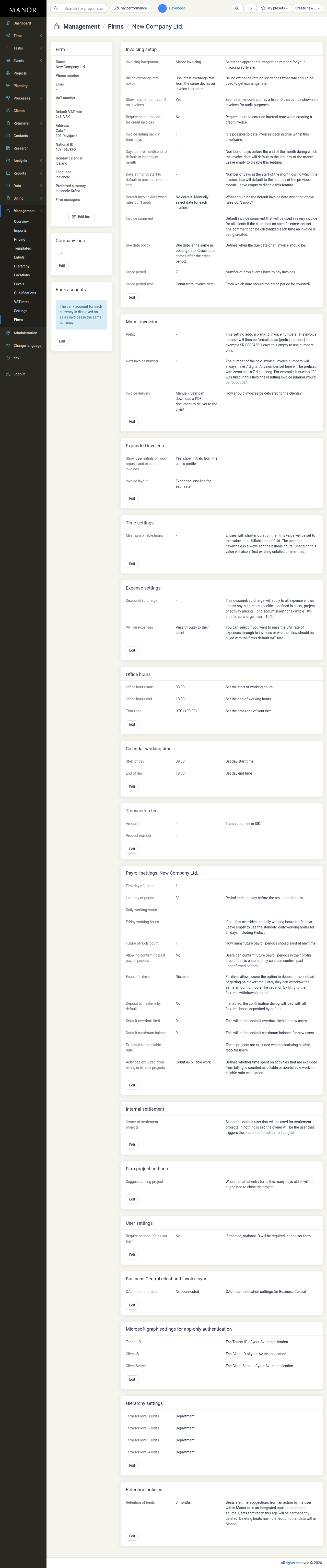
The firm settings page displays your invoice configuration organized into several sections, including Invoicing setup, Manor invoicing, and other firm-specific settings.
Configuring Invoice Settings
The firm settings page shows your invoice configuration in several sections. The most important are described below; each has an Edit button that opens its settings in a dialog.
Note: Invoice setup does not determine the language of the invoice itself. Every invoice PDF (and invoice e-mail) is rendered in the project's language, regardless of the language the individual user has selected for their own Manor interface. The project language is set in the project's Language field (open the project and click Edit project); when a project is created it defaults to your firm's language.
Invoicing setup - Controls general invoicing options including:
- Invoicing integration (Manor invoicing, DK (XML file export), DK, Regla, Payday, or Business Central invoicing)
- Billing exchange rate policy
- Show retainer contract ID on invoices
- Require an internal note for credit invoices
- Invoice dating rules (how far back an invoice can be dated, and month-end/month-start defaults)
- Due date policy
- Grace period
- Default invoice comment
Manor invoicing - Controls invoice numbering and delivery:
- Prefix for invoice numbers
- Next invoice number
- Invoice delivery method
Company logo - Logo displayed on invoices
Updating Invoicing Setup
To configure your invoicing settings:
-
Click the Edit button in the Invoicing setup section.
-
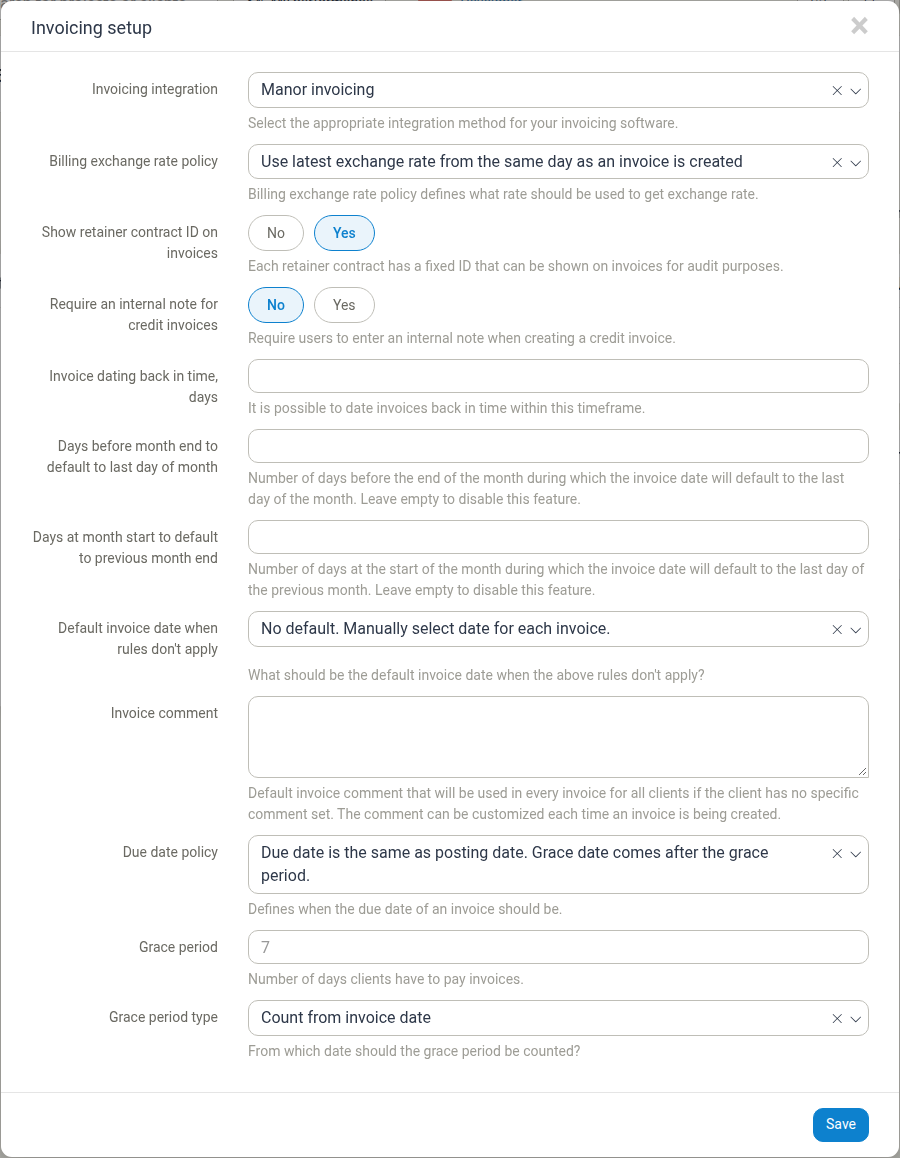
The Invoicing setup dialog will appear with the following fields:
- Invoicing integration - Select your invoicing software (Manor invoicing, DK (XML file export), DK, Regla, Payday, or Business Central invoicing)
- Billing exchange rate policy - Choose how exchange rates are determined for multi-currency invoices
- Show retainer contract ID on invoices - Select Yes or No to display retainer contract IDs on invoices
- Require an internal note for credit invoices - Select Yes or No to require users to enter an internal note when creating a credit invoice
- Invoice dating back in time, days - Set how many days back you can date invoices
- Days before month end to default to last day of month - Configure month-end invoice dating behavior
- Days at month start to default to previous month end - Configure month-start invoice dating behavior
- Default invoice date when rules don't apply - Choose what the default invoice date should be when special rules don't apply
- Invoice comment - Enter a default comment that appears on all invoices
- Due date policy - Define when invoices are due relative to posting date
- Grace period - Number of days clients have to pay invoices (default: 7 days)
- Grace period type - Choose whether to count the grace period from the invoice date or the creation date
-
Click Save to apply your changes.
Updating Manor Invoicing Settings
To configure your invoice numbering and delivery:
-
Click the Edit button in the Manor invoicing section.
-
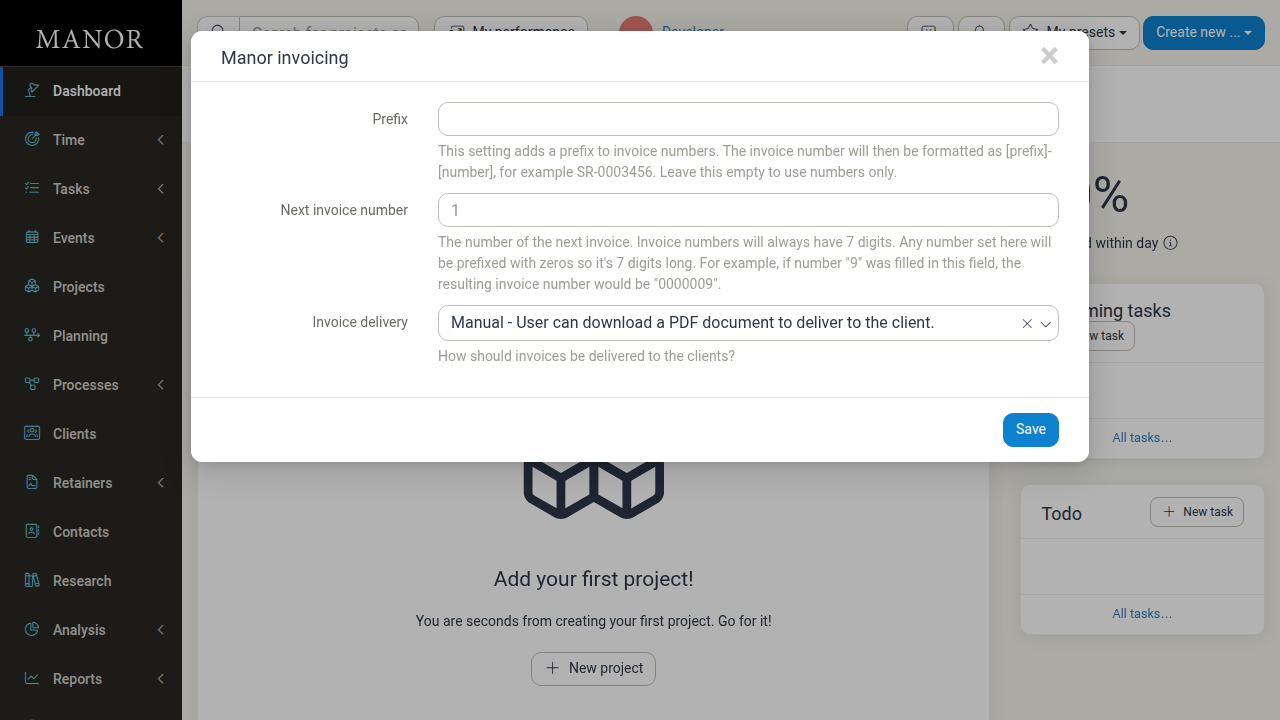
The Manor invoicing dialog will appear with the following fields:
- Prefix - Optional prefix for invoice numbers (e.g., "SR" produces "SR-0003456")
- Next invoice number - The number for the next invoice (always displayed with 7 digits)
- Invoice delivery - Choose delivery method:
- Manual - User can download a PDF document to deliver to the client
- Unimaze - Electronic invoice is sent through Unimaze
- Email - Invoice PDF is sent as an email attachment to the client's billing email address
-
Click Save to apply your changes.
Invoicing Integration Methods
The Invoicing integration setting in the Invoicing setup section allows you to choose from multiple integration methods:
- Manor invoicing - Invoices are generated and delivered from Manor
- DK (XML file export) - Invoices are exported as an XML file for Danish systems
- DK - Danish invoicing integration
- Regla - Automatic posting to Regla accounting software
- Payday - Payday accounting system integration
- Business Central invoicing - Microsoft Dynamics 365 Business Central integration
Each integration method has its own configuration requirements. Select the method that matches your accounting software.
Best Practices
Configure Grace Period Appropriately
Set a grace period that matches your standard payment terms. The default is 7 days.
Use Consistent Prefixes
If using a prefix, make it meaningful and consistent (e.g., "SR" for service invoices).
Choose the Right Integration
Select the invoicing integration that matches your accounting software for seamless data flow.
Test Invoice Numbering
Verify that your prefix and next invoice number format correctly before sending real invoices.
Keep Default Comments Professional
Use the invoice comment field to include payment terms, contact information, or specific instructions.
Regular Review
Update bank account information and addresses when they change, as these affect invoice delivery.