
The Dashboard is your personal landing page in Manor. It gives you a quick overview of your work progress, upcoming tasks, and projects assigned to you. Think of it as your command center for the day.
Accessing the Dashboard
Click Dashboard in the main navigation to return to this view anytime. It's also the default page when you log into Manor.
Dashboard Sections
The Dashboard is divided into three main areas:
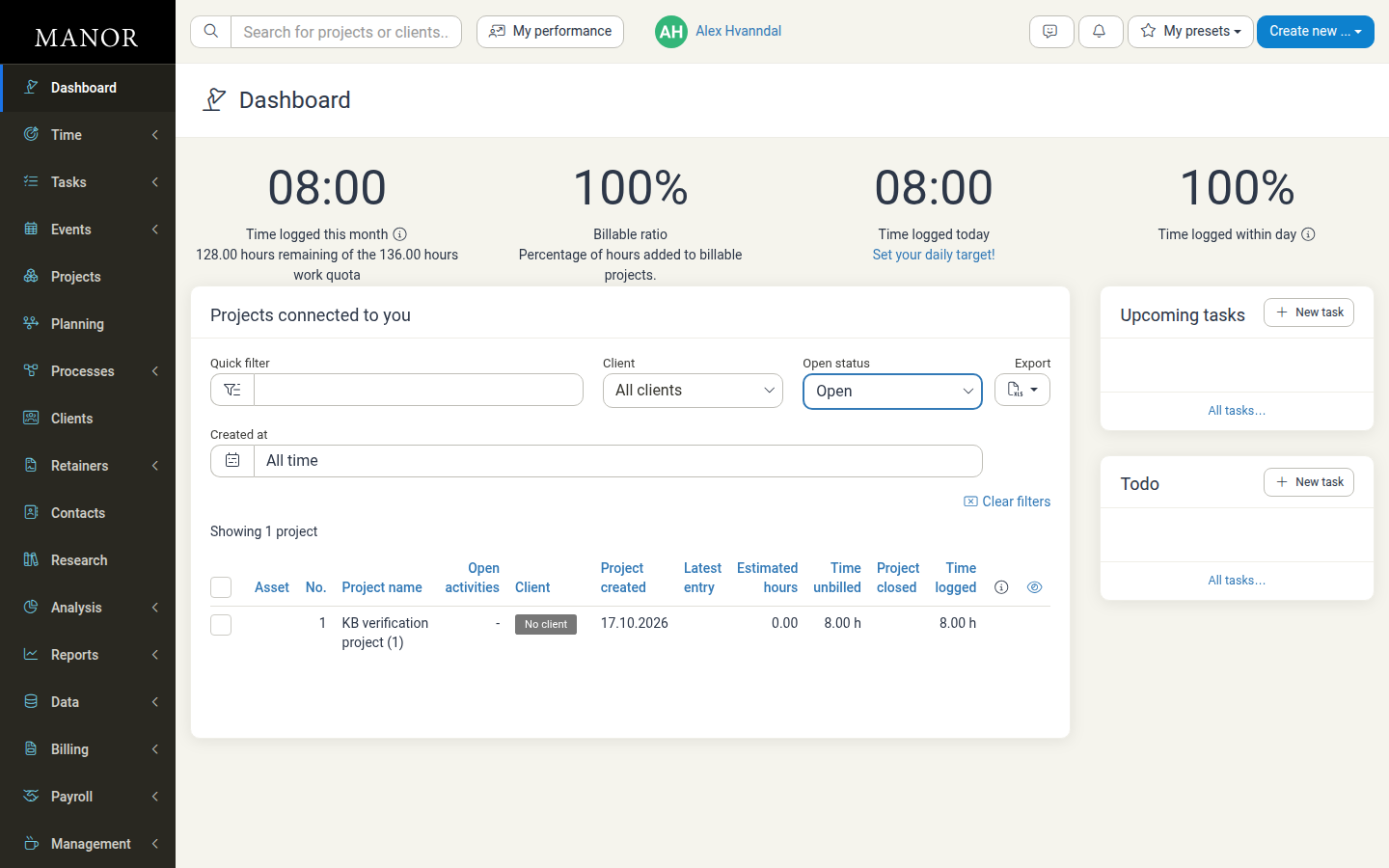
Time Progress (Top Section)
At the top, you'll see key metrics about your time:
- "Time logged this month" — Total hours you've logged in the current period (the calendar month, or your current pay period when payroll is enabled). This helps you track whether you're hitting your monthly targets.
- "Billable ratio" — The percentage of your logged hours that were added to billable projects. It compares billable time against your total logged time, so it can only show a value once you have logged billable time in the period.
- "Time logged today" — Total hours you've logged today. Click Set your daily target! to adjust your daily target in your profile settings.
- "Time logged within day" — The percentage of your time entries that were logged on the same day the work was done (a same-day entry rate). Use it to see how promptly you record your time.
When payroll is enabled for your firm, Time logged this month gains a description line reading "[X] hours remaining of the [Y] hours work quota" — for example "58.00 hours remaining of the 140.80 hours work quota". The metric and its info tooltip then follow your current pay period (shown as Period:
- Y (the work quota) is the hours you are expected to work in the current pay period, based on your employment ratio and the firm's daily working hours and holidays.
- X (the hours remaining) is that quota minus the hours you have logged in the period so far. Once you have logged at least the full quota, X is 0 (or negative if you have logged more).
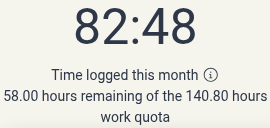
This description is plain text — it is not a link. It appears only when payroll is enabled and your firm has a current pay period with a work quota greater than zero; these metrics are visible to users with time-management permissions.
The exact tiles and their labels can depend on your firm's configuration. For example, "Billable ratio" appears only when your billable time reaches at least 10% of the hours logged in the period (so it is absent when you have logged no billable time), and the work-quota description on "Time logged this month" appears only when payroll is enabled.
Projects Connected to You (Middle Section)
Shows projects that have been assigned to you. The section includes:
- Quick filter — Search projects by name or details
- Filters — Filter by client, open status, creation date, and retainer coverage
- Project table — Displays project information including name, client, creation date, estimated hours, and time logged
Each project appears in the table with key metrics. If you have no projects assigned, you'll see a message with a New project button to create one.
Tasks (Right Column)
The right column displays your tasks:
- Upcoming tasks — Tasks with due dates coming up, sorted by due date so you see what's due soonest.
- Todo — Tasks marked as to-do items without specific dates. These are your general action items.
Each list shows a summary of items. Click New task in either section to add a task, or click All tasks... to see your complete task list.
Quick Actions
From the Dashboard, you can:
- Click New project to create your first project
- Click New task in either task section to add a task
- Click All tasks... to view all your tasks and filter them
- Click a project name to open it and see details
Tips
- Start your day here — Check your time target and upcoming tasks first thing in the morning.
- Set a daily target — The daily target helps you pace your work. Set it in your profile settings.
- Log time regularly — The more you log time as you work, the more accurate your time tracking. You can log time from the Time section.
- Use tasks for deadlines — Create tasks for important work items with due dates so they appear on your Dashboard.
See Also
- Time Tracking — Log time in projects
- Tasks — Create and manage tasks
- Projects — Create and manage projects