
Introduction
VAT rates define the tax percentages applied to expenses in your projects. By setting up VAT rates, you ensure accurate tax calculation and reporting when recording employee expenses. Different regions may have different VAT rates, so Manor allows you to configure multiple rates and apply them to expenses based on jurisdiction.
Key Fields
When managing VAT rates, you work with these fields:
- VAT rate name - A descriptive name for the rate (e.g., "24% VSK", "11% VSK", "0% VSK")
- Rate - The percentage value (e.g., 24.00 for 24%, 11.00 for 11%, 0.00 for 0%)
- Firm - Optional field to restrict this rate to a specific firm. Select "All firms" to make it available to all firms
Managing VAT Rates
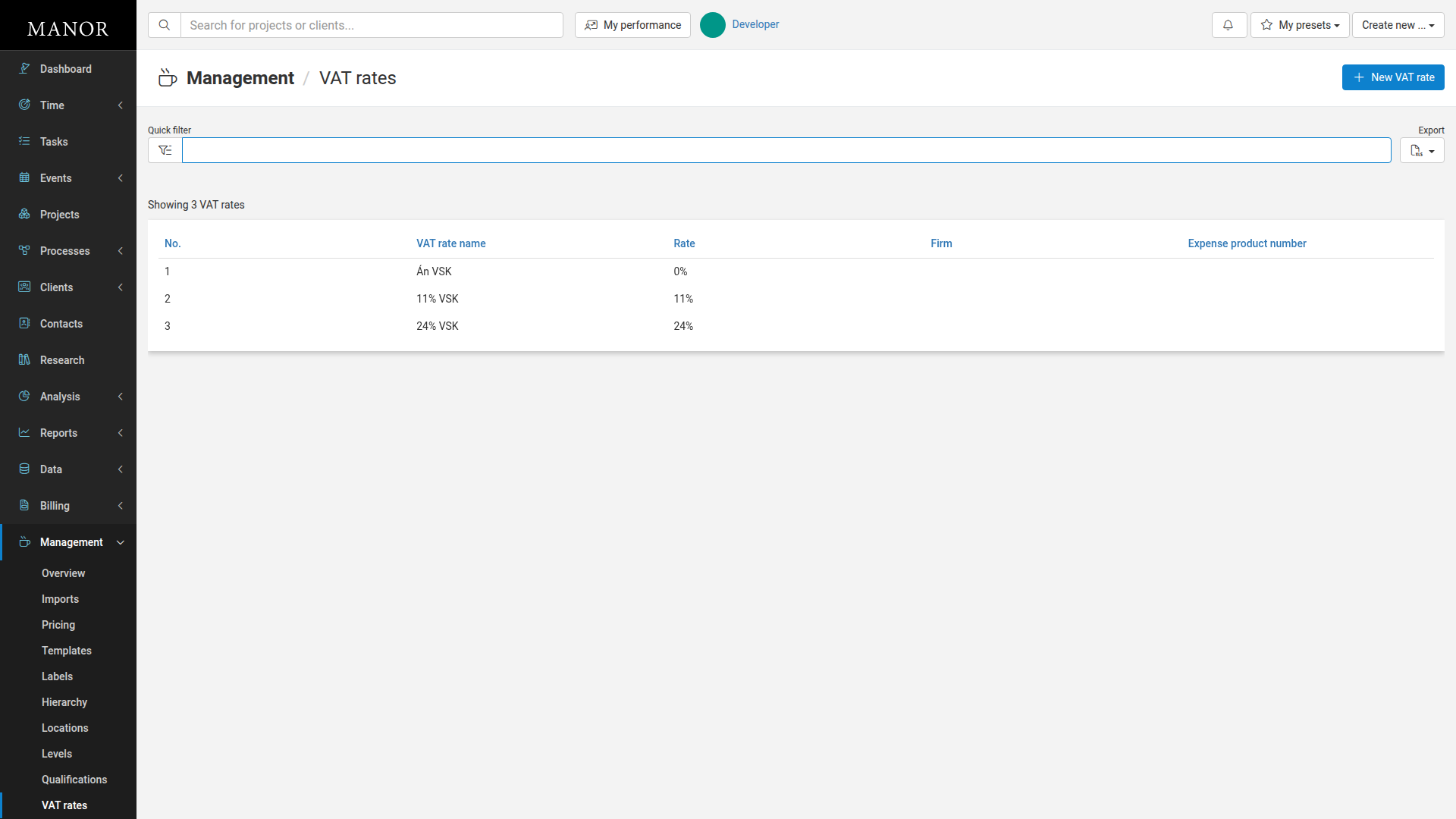
View VAT rates
To view all VAT rates in your system:
- Click Management in the left sidebar
- Click VAT rates
You'll see a list of all configured VAT rates with their names, percentage values, and assigned firms.
Creating a VAT rate
To add a new VAT rate:
- Click Management in the left sidebar
- Click VAT rates
- Click New VAT rate button in the top right
- Enter the VAT rate name (e.g., "24% VSK")
- Enter the Rate (e.g., 24.00 for 24%, 11.00 for 11%, 0.00 for 0%)
- Optionally select a Firm if this rate applies only to that firm (default is "All firms")
- Click Save
The VAT rate is now available when recording expenses in projects.
Editing a VAT rate
To modify an existing VAT rate:
- Click Management in the left sidebar
- Click VAT rates
- Click on any row in the VAT rates table to open the edit dialog
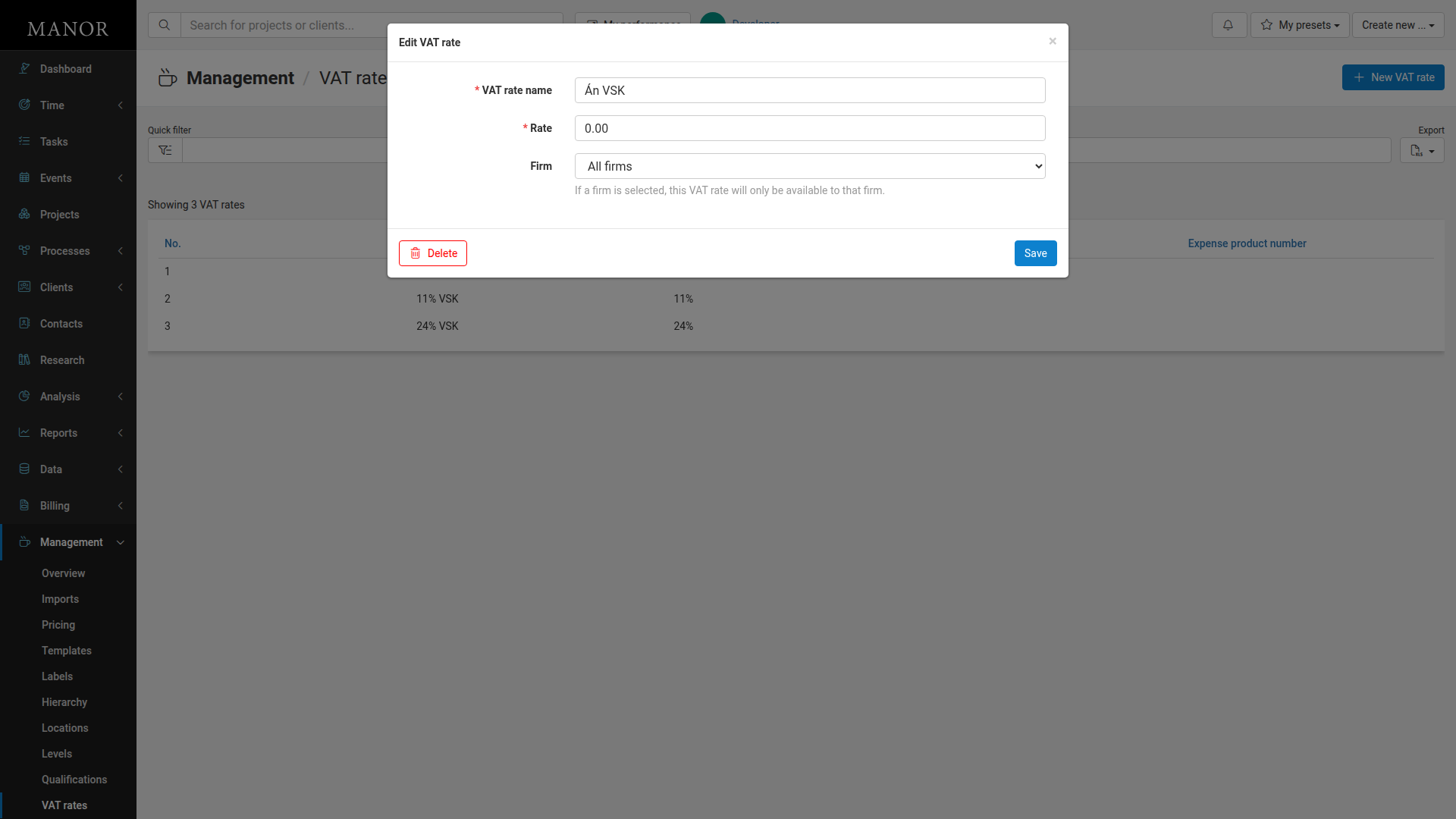
- Update the VAT rate name or Rate fields as needed
- Optionally change the Firm to restrict the rate to a specific firm
- Click Save
Deleting a VAT rate
To remove a VAT rate:
- Click Management in the left sidebar
- Click VAT rates
- Click on the VAT rate you want to delete
- Click Delete
- Confirm the deletion
Note: Only delete VAT rates that are no longer in use to avoid disrupting existing expense records.
Best Practices
- Name clearly - Use descriptive names that clearly indicate the percentage (e.g., "24% VSK", "11% VSK", "0% VSK")
- Maintain accuracy - Double-check percentages when adding or updating rates to ensure compliance with local tax regulations
- Use appropriate formatting - Enter rates as numbers (e.g., 24.00 for 24% VAT)
- Organize by firm - If you have multiple firms with different tax requirements, assign VAT rates to specific firms using the Firm field
- Archive old rates - When tax rates change, create new rates rather than modifying existing ones so historical expense data remains accurate