
Overview
Accurate time recording and billing depend on clear rules for time units and increments. Whether your organization bills by the quarter hour (15 minutes), half hour, or full hour, Manor provides configurable settings at both the firm and user levels to govern:
- Firm-level Minimum Billable Hours — An automatic minimum billable duration floor for client-facing work.
- Timer Snap Interval — How a running timer's duration is rounded when it is saved.
- Calendar View Granularity — The time grid increments (5, 15, 30, or 60 minutes) shown in the weekly calendar.
- Time Entry Fields — How start and end times are suggested and entered on manual entries.
How Manor Measures Time
- Input and display: You enter time as start and end times (
HH:MM), and Manor shows elapsed durations in theHH:MMformat (for example01:45). - Billing: Rates are applied to billable hours, so a 15-minute entry billed at an hourly rate contributes a quarter of that rate.
Firm-Level Minimum Billable Hours
Organizations often set a minimum billing increment per entry—for example, requiring that any short phone call, email, or consultation is billed as at least 15 minutes.
In Manor this is configured per firm under Firm settings, in the Time settings card.
How Minimum Billable Hours Works
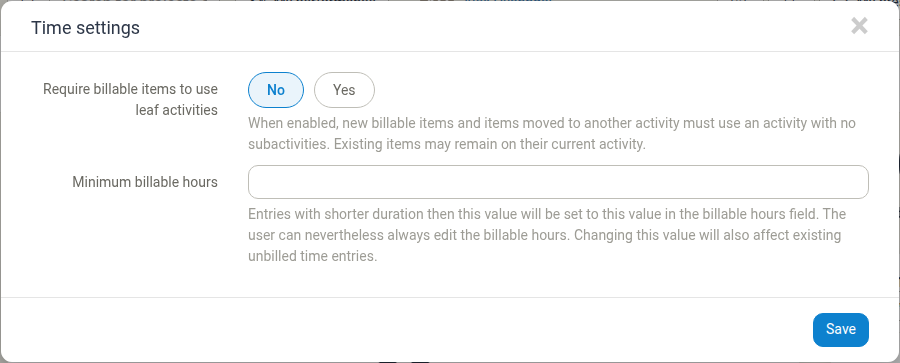
- Rule: When a time entry is saved (or a timer is clocked out), if its duration is shorter than the configured minimum, the entry's billable hours are set to the minimum value.
- Duration is preserved: The recorded duration itself (used for internal workload and capacity) stays unchanged; only the billable hours reflect the minimum.
- User override: Users who have the Can edit billable quantity or write-off billables. permission can edit the billable hours to any value afterwards.
- Retroactive application: Changing the value also affects existing unbilled time entries.
Configuring Minimum Billable Hours
- Navigate to Management from the main menu.
- Click Firms.
- Select the firm from the table to open its settings.
- In the firm settings, find the Time settings card.
- Click Edit on the Time settings card.
- Enter a value in the Minimum billable hours field using the
HH:MMformat. The field offers a list of quarter-hour suggestions such as00:00,00:15,00:30,00:45,01:00, and so on, but you can also type a customHH:MMvalue:00:15— 15 minutes minimum00:30— 30 minutes minimum00:00— Disables the minimum (entries bill for their exact duration)
- Click Save to commit the changes.
The Time settings card also contains the Require billable items to use leaf activities option, which controls whether new billable entries must use an activity that has no sub-activities.
Timer Snap Interval (Timer Rounding)
When team members track live work using Manor's built-in Timer, the elapsed duration is rounded when the timer is saved. The Snap timer to interval setting determines that rounding.
Available Snap Intervals
Manor supports six timer snap intervals:
| Option | Behaviour | Common use case |
|---|---|---|
| 1 minute (no rounding) | Saves the elapsed time without upward rounding | Internal task tracking, exact time tracking |
| 5 minutes | Rounds up to the nearest 5 minutes | High-precision consulting |
| 10 minutes | Rounds up to the nearest 10 minutes | Decimal tenth-hour billing alignments |
| 15 minutes | Rounds up to the nearest quarter hour | Standard professional services and legal billing |
| 30 minutes | Rounds up to the nearest half hour | Block-fee or half-hour retainers |
| 60 minutes | Rounds up to the nearest full hour | Hourly minimum engagements |
Configuring Timer Snap Interval
The snap interval is configured from the timer interface:
Method 1: From the timer dialog
- Go to Time.
- Click the Timer button to reveal the live timer bar.
- Click Edit on the timer bar.
- Locate the Snap timer to interval dropdown field. Its help text reads: "When saving the timer, the duration will be rounded up to the nearest selected interval."
- Select your preferred rounding interval (for example
15 minutes). - Click Save to apply the configuration.
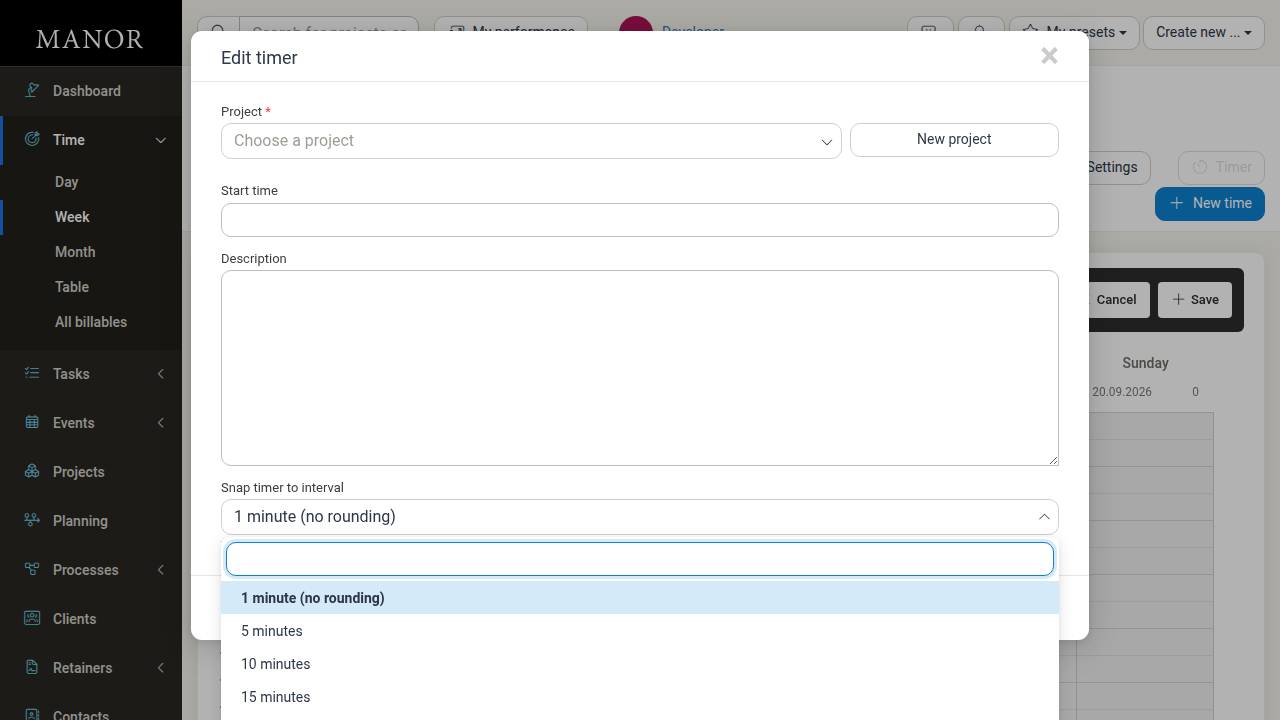
The snap interval is a personal setting: the value you choose applies to your subsequent timer sessions.
Method 2: When saving a completed timer
When a running timer is stopped and saved, the elapsed duration is rounded up to the nearest interval defined by your snap interval, and the resulting time entry form is populated accordingly. You can still review and adjust the duration or billable hours before finalising the entry.
Manual Time Entry Intervals
When logging time manually without the live timer (via New time or by clicking a time slot in the calendar):
- Start and end time fields: The Begins and Ends fields offer a list of times in 15-minute increments (for example
08:00,08:15,08:30,08:45). - Free-form typing: You can type any exact
HH:MMtime rather than picking one of the suggested values. - Duration: The Duration is filled in automatically from the start and end times.
Calendar Grid Zoom and Display Increments
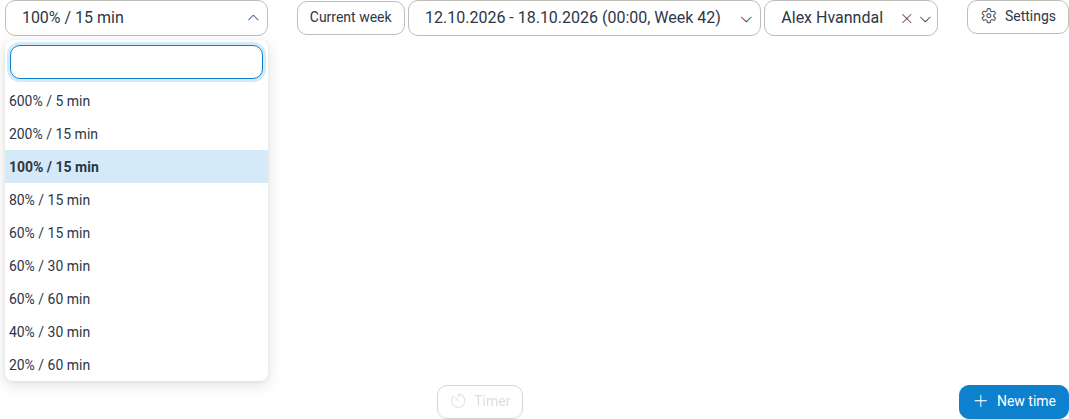
In the Week view, the calendar is divided into time slots. You can adjust how much of the day is shown and how fine the grid is with the zoom selector in the toolbar.
Available Calendar Increments
- 600% / 5 min — High-resolution view with 5-minute grid slots.
- 200% / 15 min, 100% / 15 min, 80% / 15 min, 60% / 15 min — Standard views with 15-minute intervals at different zoom levels.
- 60% / 30 min, 40% / 30 min — Compact half-hour views showing more of the working day.
- 60% / 60 min, 20% / 60 min — Compressed full-hour views giving an overview of the whole week.
Selecting an option changes the row heights on the calendar grid and the precision of drag-to-create time blocks. Your selection is remembered for your next visit.
Comparison of Granularity Settings
The table below summarises where each time-related granularity setting is managed and how it affects time records:
| Setting | Level | Location | Options / Format | Effect |
|---|---|---|---|---|
| Minimum billable hours | Firm | Management → Firms → select firm → Time settings → Edit | HH:MM (for example 00:15) |
Sets a minimum floor for the billable hours on short entries |
| Timer snap interval | User | Time → Timer → Edit | 1, 5, 10, 15, 30, 60 minutes |
Rounds the elapsed timer duration up to the chosen interval when saved |
| Calendar increment | User | Time (Week view) → zoom selector | 5, 15, 30, 60 minutes |
Adjusts the grid granularity and scale on the calendar |
| Time picker suggestions | System | Time entry create/edit dialog | 15-minute steps (00, 15, 30, 45) | Suggests quarter-hour start and end times while allowing other HH:MM values |
Best Practices
- Match minimum billable hours to client agreements: If your standard engagement contract specifies 15-minute minimum increments, set the firm's minimum billable hours to
00:15. - Align timer snap with billing increments: Set your personal timer snap interval to match your firm's billing granularity (for example 15 minutes) to avoid adjusting billable hours on every timer entry.
- Keep the recorded duration accurate: Let the timer or start/end times reflect actual effort, and use billable hours or the minimum threshold for billing adjustments so internal capacity reporting stays accurate.
- Review retroactive adjustments: Changing a firm's minimum billable hours also affects existing unbilled entries, so review unbilled work before making large changes.
Related Documentation
- Firms — Firm settings, invoicing setup, and company details
- Time Entries — Creating, editing, and managing billable time entries
- Timer — Using the real-time stopwatch timer
- Date and Time Settings — Personal timezone, date formats, and time display formats
- Global Settings — Organization-wide system configurations