
Introduction
The Analysis page in the Payroll section shows how much time employees have logged over time, broken down day by day. Rather than a single total per period, it lays out the logged hours for every employee against the days of the surrounding months, so you can spot patterns, unusually high or low days, and gaps at a glance. Selecting an employee opens a detailed breakdown of their time per project.
Requirement: The Analysis page only appears in the Payroll menu when Enable payroll is set to Enabled with advanced payroll batches in Management > Settings > Features. With plain Enabled, the entry is not shown. See Payroll.
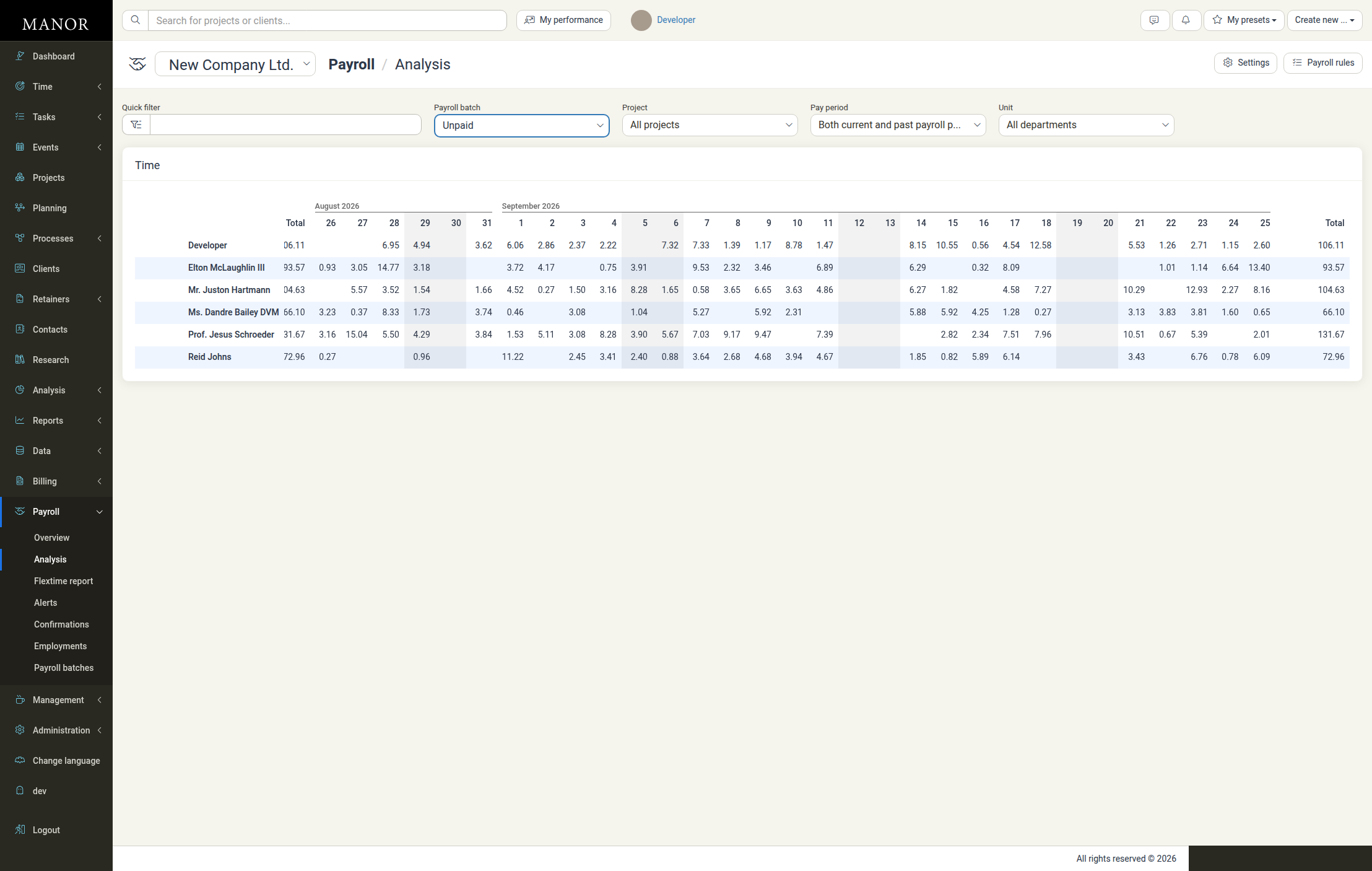
Accessing the Analysis page
- Open Payroll in the main navigation.
- Select Analysis.
The page always shows a single firm at a time. Use the firm selector at the top to switch firm. This page has Settings and Payroll rules links to the firm's payroll configuration. These links appear on most Payroll pages, but not on the Flextime report.
Filters
A filter row at the top narrows the data that is shown:
| Filter | Description |
|---|---|
| Quick filter | Free-text search across the table. |
| Payroll batch | Restrict the data to a specific payroll batch. Defaults to Unpaid, which shows time that has not yet been included in a payroll batch. |
| Project | Restrict the data to a single project. Defaults to All projects. |
| Pay period | Choose the period scope: Both current and past payroll periods (default), Only past payroll periods, or an individual period such as September 2026. |
| Unit | Restrict the data to a department (unit). Defaults to All departments. |
The filters combine, so you can, for example, view only unpaid time for one project within one pay period.
The Time table
The main card is titled Time and contains a table:
- Rows are the employees of the firm, one row per person.
- Columns are a Total column on the left, one column per day, and a second Total column at the far right; both Total columns show that employee's hours for the whole visible range. The day columns are grouped under month headings (for example August 2026 and September 2026) and numbered with the day of the month.
- Weekend days are shaded so that non-working days stand out.
- Each cell shows the hours that employee logged on that day; empty cells mean no time was logged.
- Selecting an employee row opens that person's detail view.
The table scrolls horizontally where a month has more days than fit on screen.
When the current filters match no logged time, the table keeps its month and day columns but shows no employee rows.
Employee details
Click an employee's Total value (or open the row) to open that person's detail. The detail shows the same day-by-day layout, but adds:
- An Employment ratio (%) row, showing the employee's employment ratio for each day.
- One row per project the employee logged time against, each expandable to its activities; time that is not tied to a specific activity appears in a No activity sub-row under its project.
- A Collapse all control to collapse or expand every project at once.
- A Total row summarising the period for that employee.
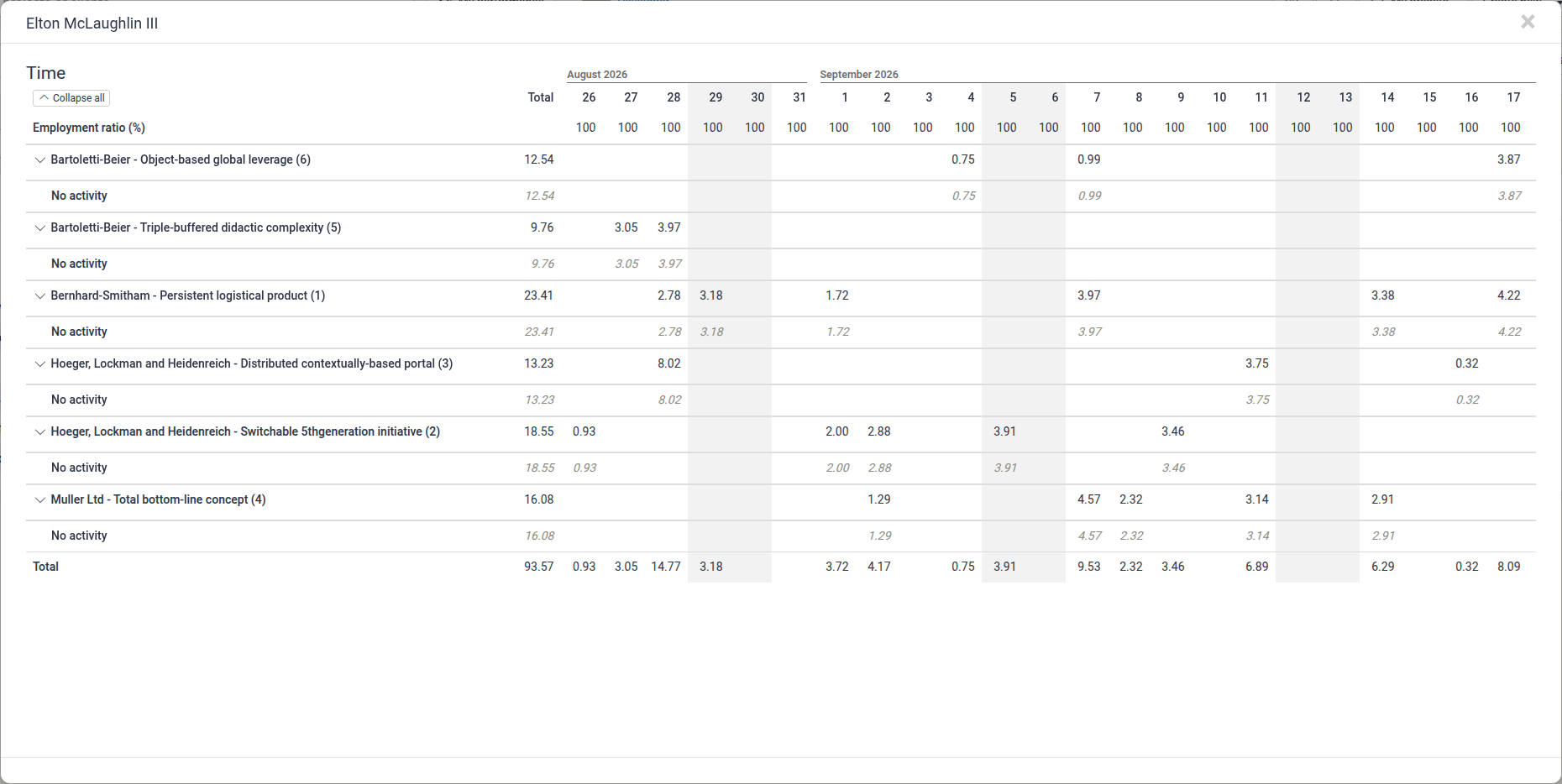
What the numbers mean and how they relate to payroll
- The hours shown come from the time employees have logged in Manor, the same entries that feed Confirmations and Payroll Batches.
- The Pay period filter reflects the firm's payroll periods, which are generated from the firm's payroll settings. See Pay Periods.
- The Payroll batch filter lets you see which logged time has already been picked up by a payroll batch and which is still Unpaid.
- Use Analysis to review and sanity-check logged time before confirming hours and processing a payroll batch.
Best Practices
- Check unpaid time before processing — filter Payroll batch to Unpaid and Pay period to the period you are about to process, so nothing is missed.
- Drill into outliers — open an employee with an unusual day or total and check their per-project breakdown.
- Combine with confirmations — use Analysis to spot missing or extra hours, then resolve them in Confirmations.
Related Documentation
- Payroll — Overview of the Payroll section
- Pay Periods — Period generation and work quotas
- Confirmations — Reviewing and confirming employee hours
- Payroll Batches — Processing and exporting payroll runs
- Firm Payroll Settings — Firm payroll configuration