
Overview
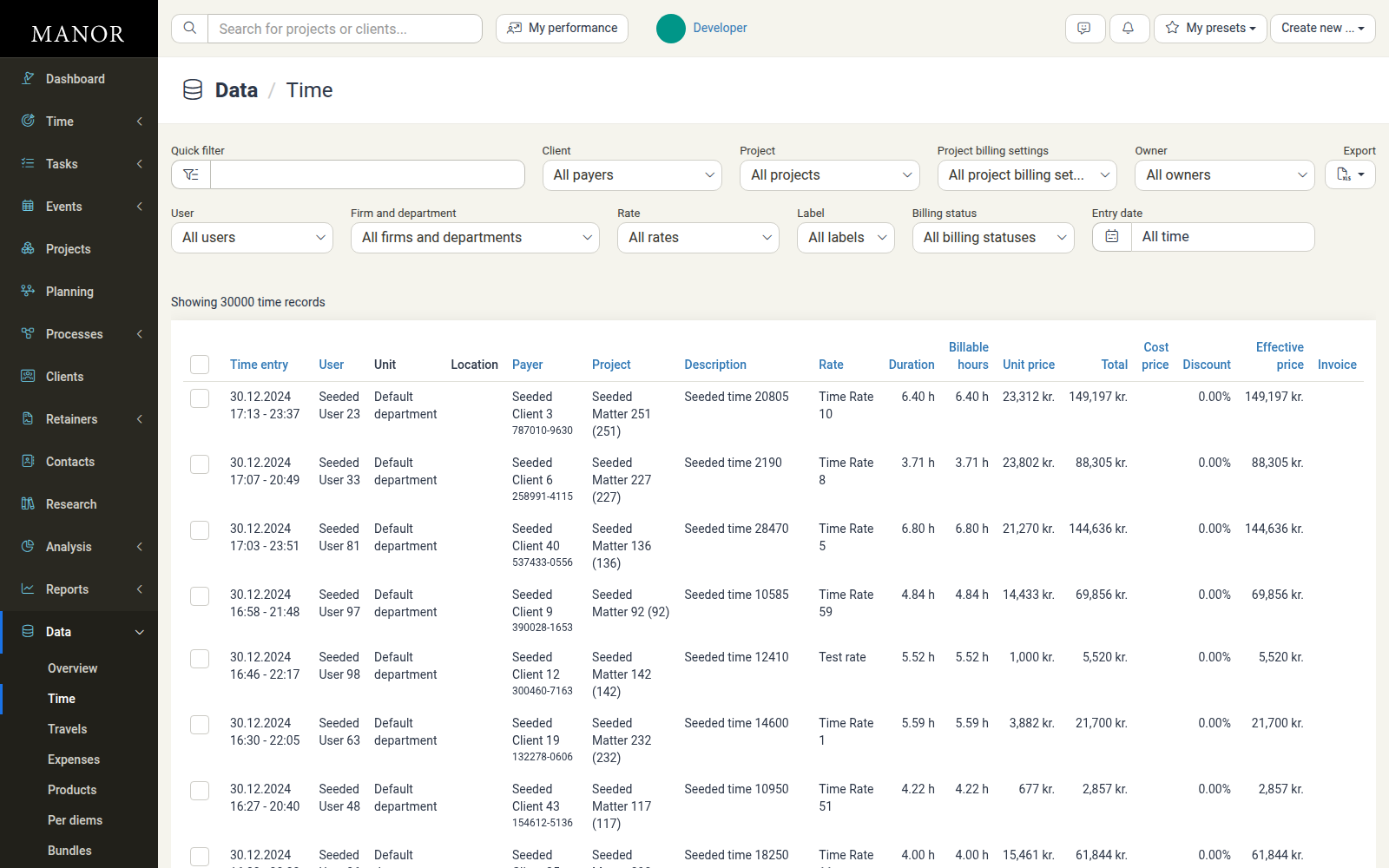
The time entries page in the Data section displays all time logged across your organization, regardless of project or user. This comprehensive list allows you to search, filter, sort, and export time data for analysis, auditing, and reporting purposes.
You can access this page by navigating to Data > Time from the main menu.
Data > Time vs. Times > Table
Manor has two different time lists, and they serve different purposes:
- Data > Time (this page) is an organization-wide data list. It includes every time entry and adds auditing-oriented filters such as Project billing settings (see below).
- Times > Table (in the Time section) is a personal working view for logging and reviewing time.
When you need to review, audit, or export all time entries across the organization, use Data > Time.
Key Columns Explained
The time entries table contains the following columns:
- Time entry — The date and time range when the work was logged
- User — The employee who logged the hours
- Unit — The organizational unit (department or location) the user belongs to
- Location — The physical location associated with the entry (e.g., office, field, home)
- Payer — The client being billed for this work
- Project — The project this time is assigned to
- Description — Details about the work performed
- Rate — The hourly or other applicable rate for this entry
- Duration — Total hours or units logged (may differ from billable hours)
- Billable hours — Hours that can be billed to the client (after any exclusions)
- Unit price — The effective rate in the project's currency
- Total — Total cost without VAT (billable hours × unit price)
- Cost price — The internal cost of providing the service
- Discount — Any applied discount as a percentage or amount
- Effective price — Final amount after discount
- Invoice — Whether this entry has been invoiced
Filtering Time Entries
Use the filter panel at the top of the table to narrow down results. The filters appear in this order:
- Quick filter — Search by keyword to find specific entries or descriptions
- Client — Filter by payer or client name
- Project — Narrow results to specific projects
- Project billing settings — Filter by the project's billing configuration. Choose Enabled (projects billed to a client), Internal (projects for internal, non-billable work), or Sensitive (confidential projects whose entries are only visible to their owner unless you have special permission)
- Owner — Filter by project owner
- User — Filter by employee who logged the time
- Firm and department — Filter by organizational unit
- Rate — Filter by the rate used on the entry
- Billing status — Narrow by billing state, such as billed, unbilled, written off, or on a proposal
- Entry date — Filter by a date range or a quick option such as today, this month, or this year
A few filters are hidden behind Show more options, which you can expand to reveal additional filters such as Label.
Apply filters by clicking on each option and selecting values. Multiple filters work together to refine results. Click Clear filters to reset all filters and show all time entries again.
Sorting and Viewing
Click on any column header to sort by that column. Click again to reverse the sort order (ascending/descending).
Each row has a checkbox at the start. Tick one or more checkboxes to reveal a selection bar above the table that names the selection and offers bulk actions such as Edit selected items, Change user, Change billable hours, Change payer, Change rate, Write-off, Undo write-off, Copy, Move, and Delete. While rows are selected, a Calculated totals row appears directly beneath the action buttons, summarising the selection inline aligned to the columns (Duration, Billable hours, Unit price, Total, Cost price, Discount, Effective price and Invoice); columns without a value show an em dash (—).
Use the pagination controls at the bottom to navigate through multiple pages of entries.
Exporting Time Data
Click the Export button in the top right of the filter panel and choose Download as Excel spreadsheet to download the currently visible time entry data as an Excel file.
This is useful for:
- Importing into other systems
- Creating custom reports
- Data analysis and auditing
- Backup and archival
Best Practices
- Regular audits — Periodically review time entries to ensure accuracy and billing correctness
- Filter by date — Check recent entries to catch missing or incorrect time before invoicing
- Use descriptions — Ensure descriptions are clear when exporting for client communication
- Verify billing status — Confirm that entries you plan to invoice have billable hours greater than zero
- Check discounts — Review any applied discounts before final billing
- Export for reconciliation — Export monthly or project data to verify totals match invoices
Troubleshooting
- No results showing — Check that your filter criteria are correct. Try clearing filters and starting over with a specific date range.
- Unexpected billing status — Verify the project's billing settings and whether this user is excluded from billing for this project.
- Missing entries — Ensure the time period filter includes the dates you're looking for.