
Introduction
Before payroll is processed, each employee is expected to review the hours they have logged for a pay period and confirm them. This declares that all your time entries for the period have been filed and that the total is correct. Confirming is done from your own profile, so you do not need to ask an administrator.
This article describes the employee side of the flow: where to find your pay periods, what the columns mean, how to confirm, what happens afterwards and how payroll alerts remind you.
Note: The Payroll tab appears in your profile once payroll is enabled for your firm. If your firm has not generated any pay periods yet, the page simply shows "There are no pay periods yet." If you do not see the tab at all, contact your payroll administrator.
Opening your pay periods
- Open your profile by clicking your name or avatar in the top bar, or go to Profile.
- In the profile sub-menu, select Payroll.
- The page lists every pay period you belong to, with one row per period.
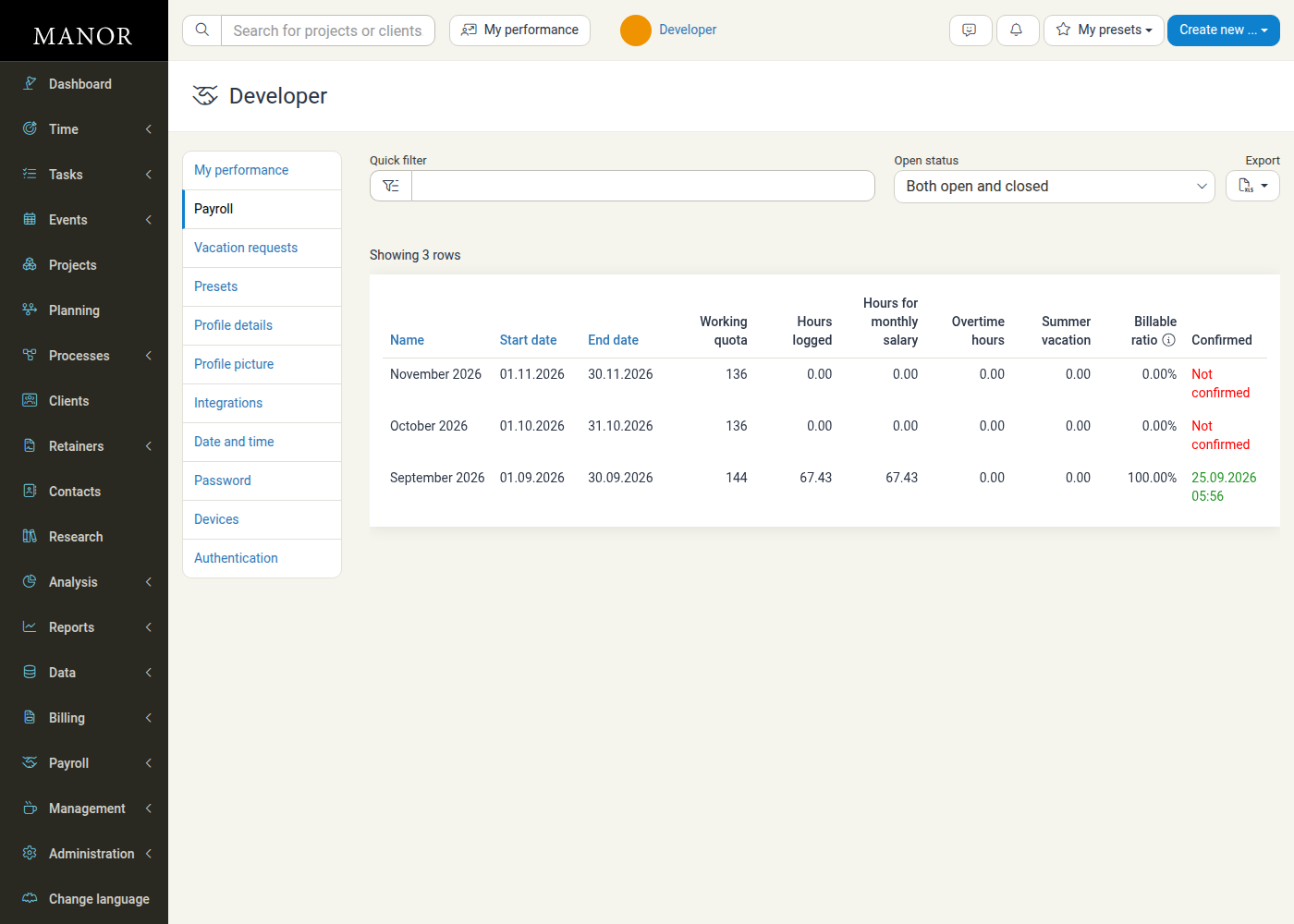
Use Quick filter to narrow the list and the Open status dropdown to show Both open and closed, Open or Closed periods. Export downloads the list.
Note: The Quick filter matches the period's start date, end date, period number and creation date — it does not match the period's name, so typing a month name such as "October" returns no results. Search by a date or partial date (for example "2026-10") or by the period number instead.
What each column shows
| Column | Description |
|---|---|
| Name | The pay period, usually the month and year (for example "September 2026"). Click the row to open the period breakdown. |
| Start date / End date | The first and last day of the period. |
| Working quota | The expected working hours for the period, based on your employment ratio, the firm's daily working hours and the firm's holidays. |
| Hours logged | The total hours you have logged in the period. |
| Hours for monthly salary | The portion of your logged hours that is paid through your monthly salary. |
| Overtime hours | Hours counted as paid overtime for the period, if any. |
| Summer vacation | Summer-vacation hours registered for the period. |
| Billable ratio | The percentage of your logged hours that were added to billable projects. |
| Confirmed | Whether you have confirmed the period. Before confirming it shows Not confirmed; after confirming it shows the date and time you confirmed. |
Note: Your Working quota is the pay period's Daytime working hours scaled by your employment ratio, not the itemised total of the per-day work quotas. Because the ratio scales that headline figure, your Working quota can differ from the sum of the per-day figures for the same period. See Employments for details.
Reviewing a pay period
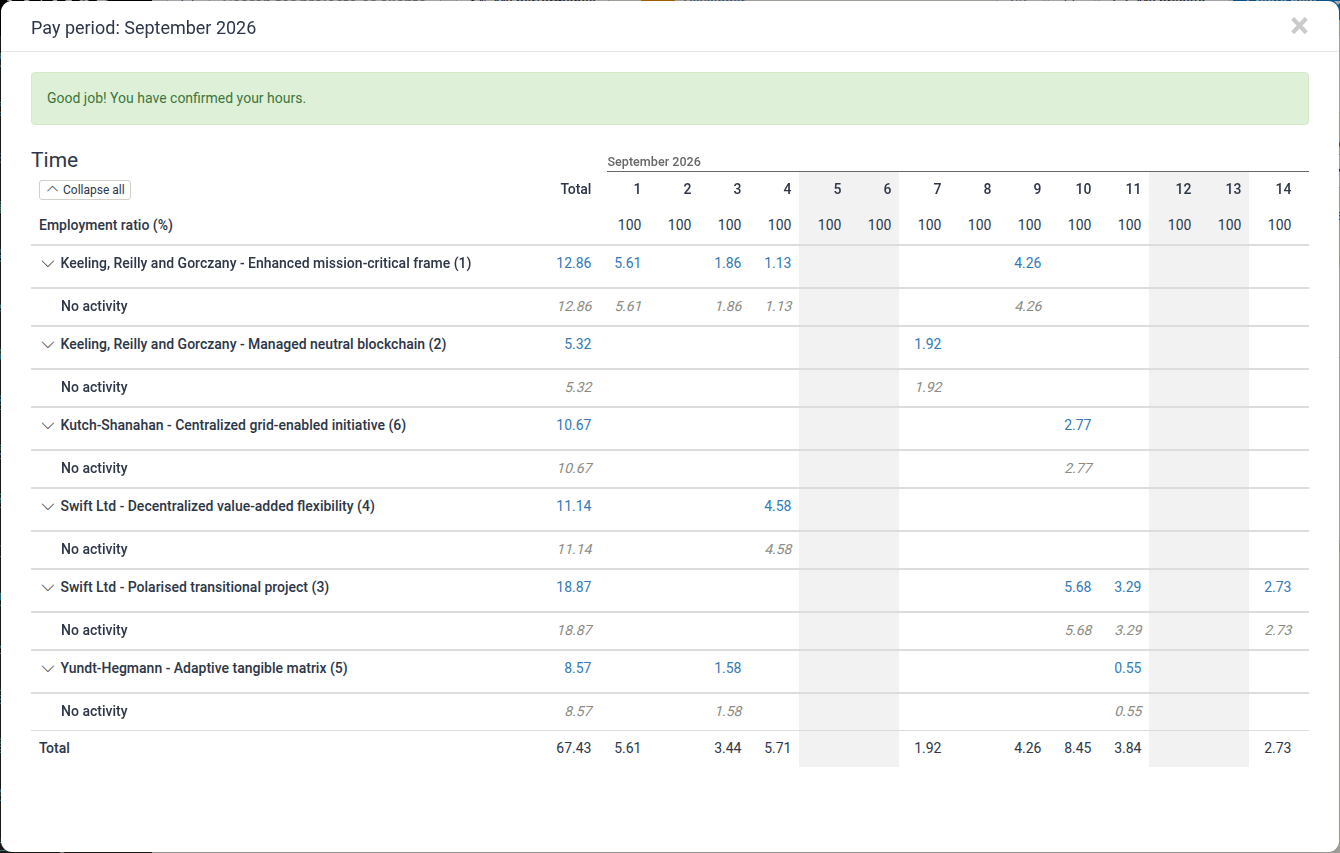
Click a period's row to open its breakdown. The modal shows a daily overview of your hours in the period:
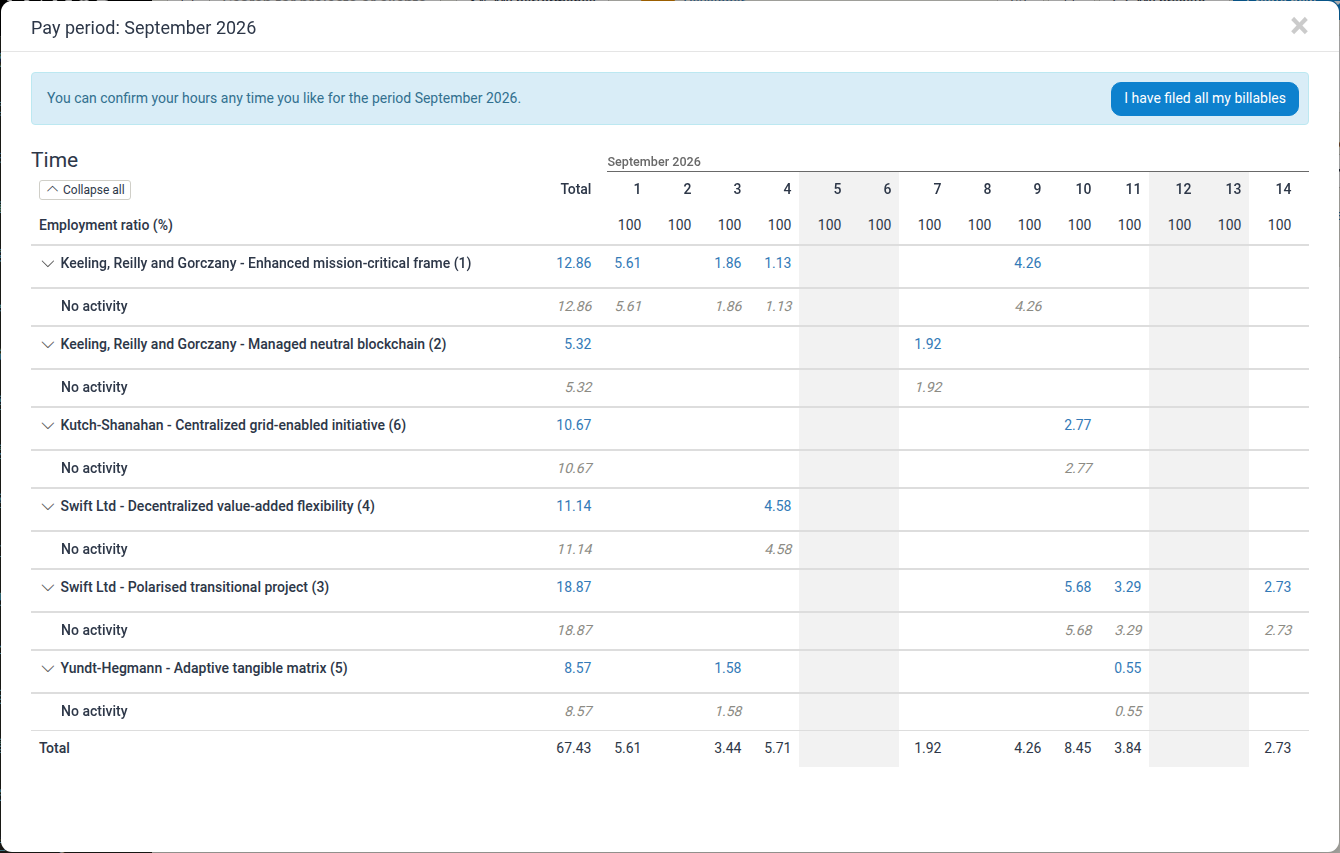
- The title is Pay period:
. - A blue banner explains that "You can confirm your hours any time you like for the period
." and carries the confirmation button. - The Time table lists the days of the month as columns, with a Total column. Each project you logged time on is a row; the italic No activity sub-row shows hours that were not linked to a specific activity. The Employment ratio (%) row shows your employment ratio for each day, and shaded columns are weekends.
- Click Collapse all to collapse the project rows, and click any figure to open the underlying time entries for that project or day.
Payroll batches table
When the period has already been turned into payroll lines (for example once it has been processed into a payroll batch), the modal also shows a Payroll batches section below the Time table. The table has one row per payroll line and the following columns:
| Column | Description |
|---|---|
| Payroll batch | The batch the line belongs to — for example Payroll batch 1. Lines that are not yet part of a batch are shown as Unpaid. |
| Type | The line type, for example Daytime, Overtime, or Unpaid. |
| Note | Any explanatory note on the line (for example 8.07 of 128 hours). |
| Account | The payroll account number the line is exported to (for example 1000 or 1010). |
| Quantity | The number of hours (or months) on the line. |
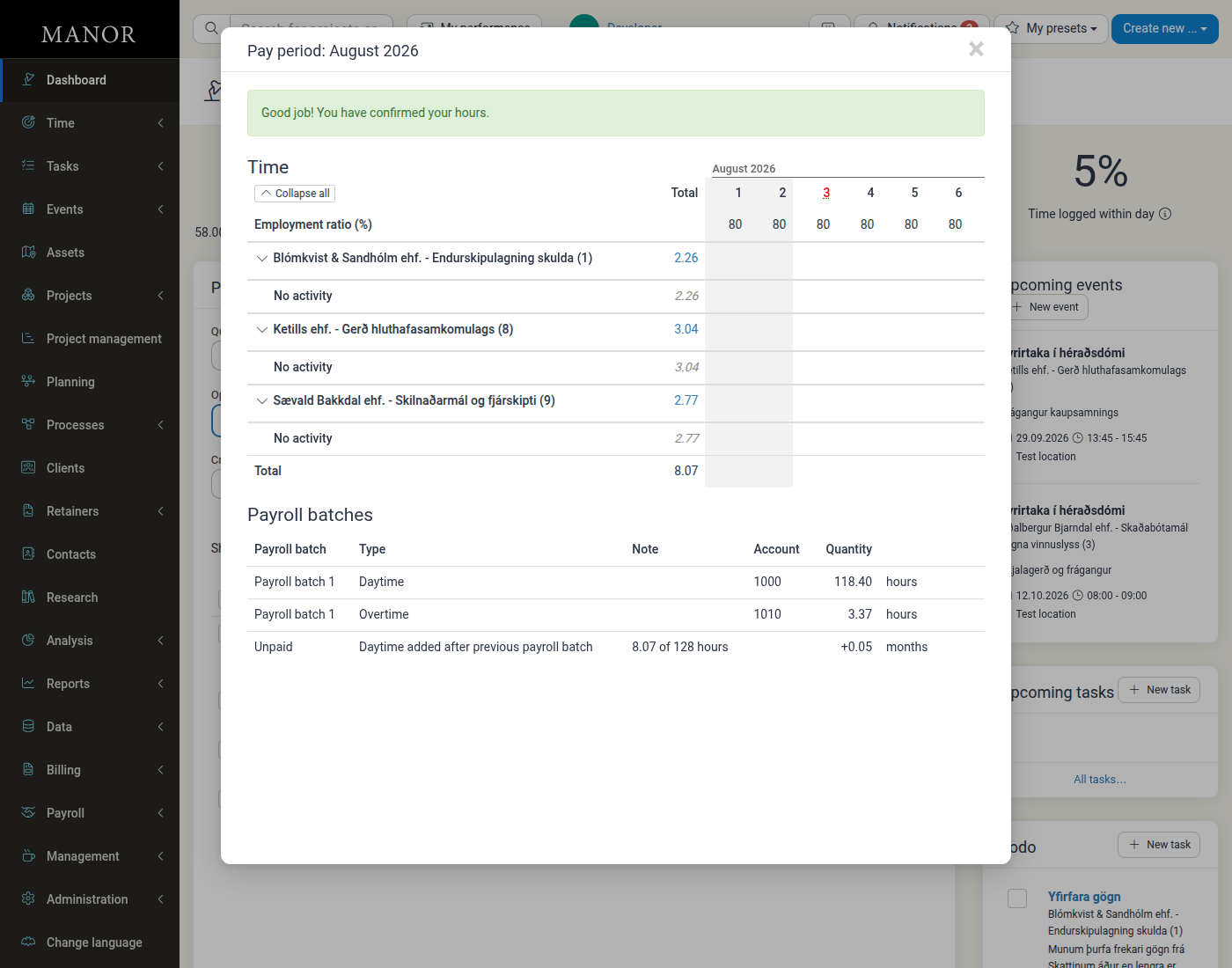
Note: The Payroll batches section only appears when there is at least one payroll line for that period. In practice it is hidden for the current and future periods (which have no payroll lines yet) and shown for a period once it has ended, either because its hours have been turned into stored payroll lines (a batch) or because Manor generates the lines on the fly for a period that has already passed. It is not limited to firms using advanced payroll batches.
Confirming your hours
-
Open the pay period you want to confirm (see above).
-
Click I have filed all my billables in the blue banner. You can also click the same button in the payroll alert at the top of any page (see Payroll alerts).
-
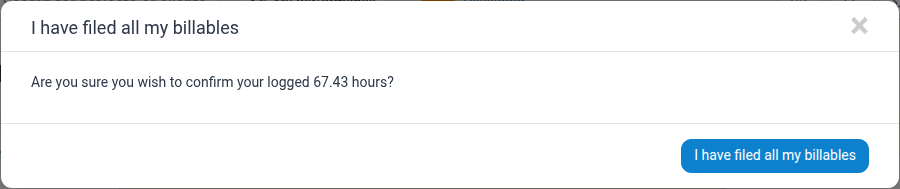
A confirmation dialog opens: "Are you sure you wish to confirm your logged X hours?", where X is your total logged hours for the period.
-
Click I have filed all my billables to confirm, or the × to close the dialog without confirming.
After you confirm, the blue banner is replaced by a green message, "Good job! You have confirmed your hours.", and the confirmation button disappears. The period now shows your confirmation in the Confirmed column of the pay period list.
Note: Which periods you can confirm depends on a firm setting. By default you can confirm current and future periods, but not periods that have already ended. If your firm enables Allowing confirming past payroll periods, you can also open and confirm past periods that are still unconfirmed. See Firm Payroll Settings.
Tip: If your firm uses a temporary "no project yet" block and you have hours logged on it, Manor does not let you confirm the period. The confirmation button is disabled until you move those entries to the correct projects first.
Can a confirmation be undone?
You cannot undo a confirmation yourself — once a period is confirmed, the confirmation button is replaced by the green confirmation message and is no longer available to you.
If a period was confirmed by mistake or your hours change after confirming, ask your payroll administrator or manager to reset the confirmation for you. They can do this from Payroll > Confirmations by opening your row for the period and setting the confirmation back to No, or by using the confirmation mass actions.
Note: A firm or department manager can also confirm your hours on your behalf, for users within the department they manage. This manager hour confirmation is a separate, optional step that is switched on at deploy time by your Manor hosting partner or administrator — there is no switch for it in Management > Settings, in the firm's payroll settings, or anywhere else in the user interface. While it is available the Confirmations pages show a Confirmed by manager column (Icelandic Staðfest af stjórnanda) next to Confirmed by user; while it is off, that column and its related actions do not appear. See Confirmations for the manager side.
Payroll alerts
To remind employees who have not yet confirmed, Manor shows a colored alert banner at the top of every page as the end of the pay period approaches. Each firm has three alerts — blue, orange and red — that appear in sequence (only one at a time) and are configured by an administrator under Payroll > Alerts.
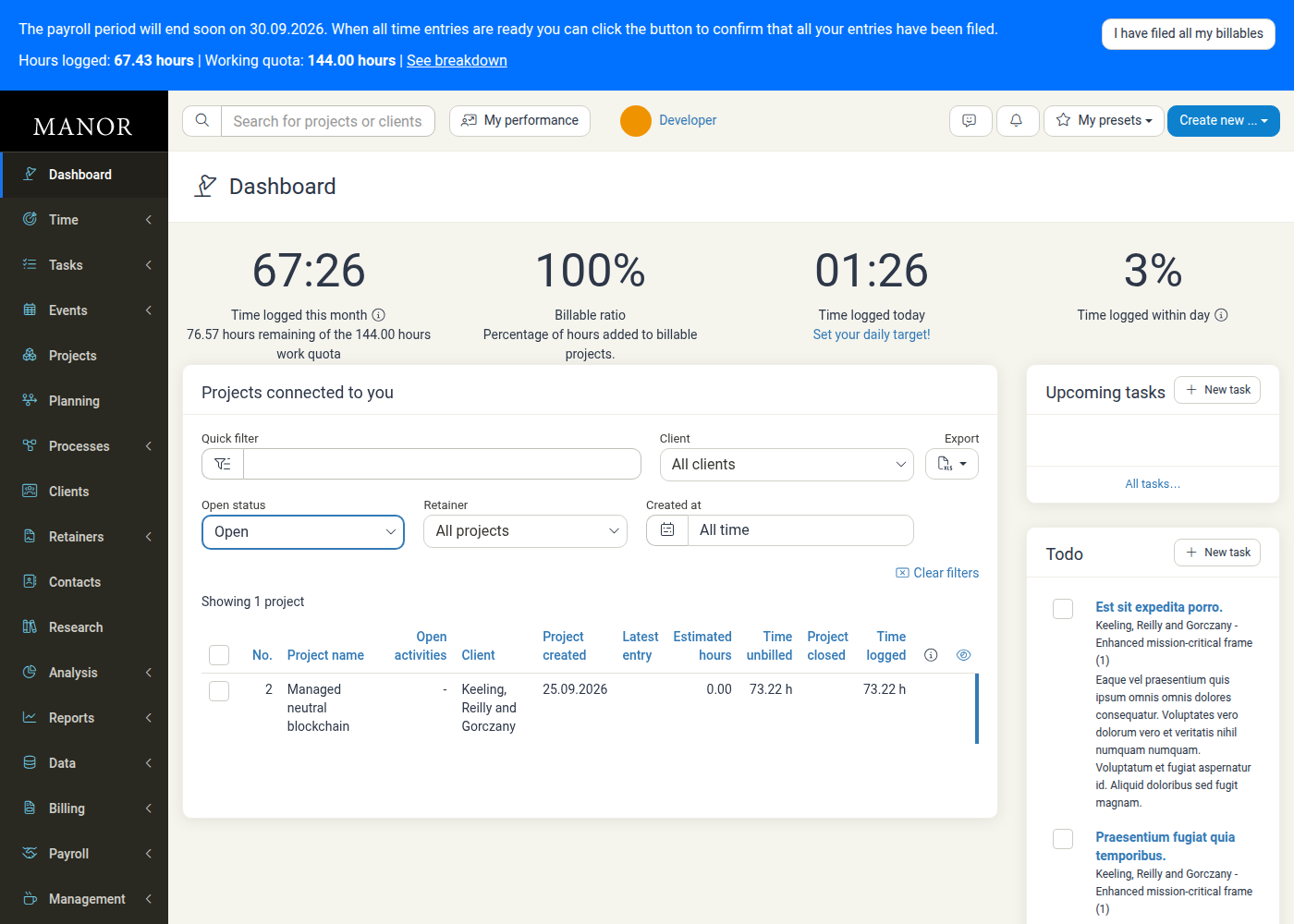
The banner contains:
- The alert message, for example the blue alert: "The payroll period will end soon on
. When all time entries are ready you can click the button to confirm that all your entries have been filed." - A summary of Hours logged and Working quota for the period, with a See breakdown link to your profile payroll list.
- The I have filed all my billables button.
Typical timing:
| Alert | Purpose | When it appears |
|---|---|---|
| Blue | Early reminder that the period is coming to an end. | A few workdays before the end of the period (default: 2). |
| Orange | Reminder on the deadline. | On the last day of the period. |
| Red | Follow-up once the deadline has passed. | The first workday after the period ends. |
Once you confirm, the colored alert is replaced by the green "Good job! You have confirmed your hours." message. Depending on the firm's configuration, alerts may also be delivered by email and text message.
Good practice
- Confirm close to the end of the period so that all your time entries are included, but do not wait until the red alert appears.
- Check the days in the breakdown before confirming, and click through to fix any entry that is on the wrong project or activity.
- Watch the Billable ratio column if your firm tracks it; a low ratio may indicate hours filed on non-billable work by mistake.
- Contact your payroll administrator if your hours change after you confirm, so the confirmation can be reset.
Related Documentation
- Payroll — Overview of the Payroll section
- Pay Periods — Period generation, work quotas, closing and deleting periods
- Confirmations — How managers review and manage confirmations
- Payroll Alerts — Configuring the blue, orange and red reminders
- Firm Payroll Settings — Period dates, working hours and whether past periods can be confirmed